



随着国产化进程的推进,C/S架构应用的适配工作迫在眉睫,然而比较顺手的开发工具Visual Studio无法在Linux下运行实在让人头大,因此选用VSCode将其替代,以提高开发调试效率。
本文围绕 VSCode C/C++调试环境搭建、Debug配置文件、示例调试、dwncs工程调试、总结 五部分进行讲解。(个人经验积累)
VSCode Plugin:C/C++、Code Runner
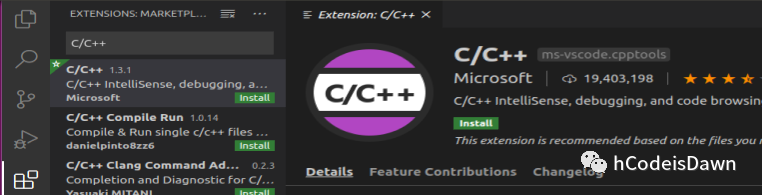
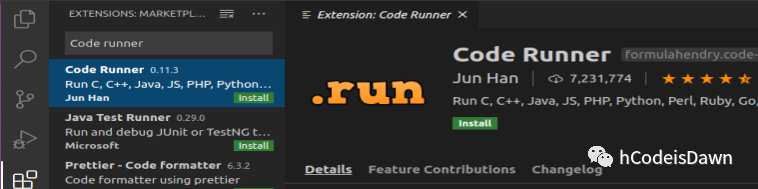
注:安装完毕后重启VSCode
配置文件:launch.json、tasks.json、c_cpp_properties.json
文件生成:
1、launch.json
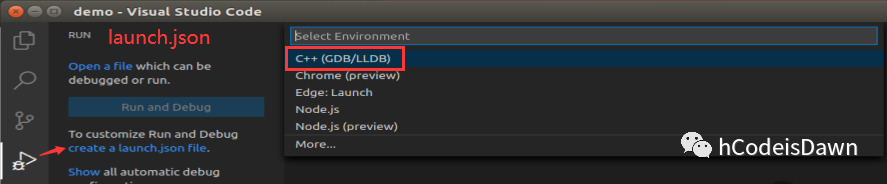
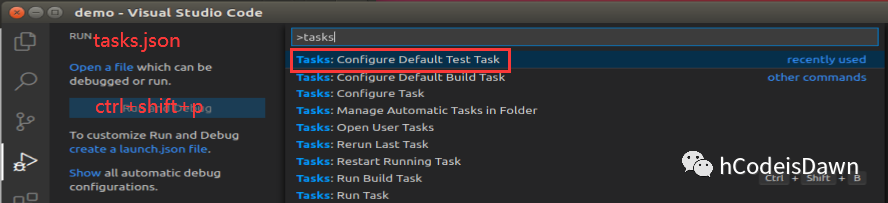
2、tasks.json(多层选项,生成模板即可)
3、c_cpp_properties.json
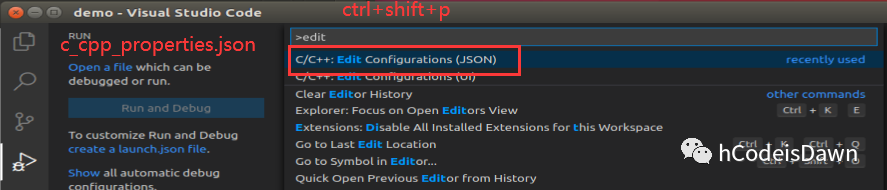
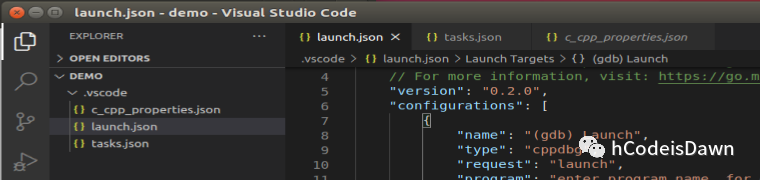
注:接下来结合示例程序讲解配置文件
1、demo.c:经典示例 "hello world"
#include <stdio.h>int main (int argc, char **argv){printf("hello world!\n");return 0;}
2、launch.json调整如下
{// Use IntelliSense to learn about possible attributes.// Hover to view descriptions of existing attributes.// For more information, visit: https://go.microsoft.com/fwlink/?linkid=830387"version": "0.2.0", // 文件版本号"configurations": [{"name": "(gdb) Launch", // 进程名,侧边栏运行显示"type": "cppdbg", // 类型勿动"request": "launch", // 启动(launch) 附加(attach)"program": "${workspaceRoot}/demo", // 可执行文件路径"args": [], // 可执行文件参数列表"stopAtEntry": false, // 是否在程序入口处暂停"cwd": "${workspaceRoot}", // 调试程序目录"environment": [], // 环境参数"externalConsole": true, // 调试时是否打开控制台"MIMode": "gdb", // 调试器,gdb或lldb"miDebuggerPath": "/usr/bin/gdb", // 调试器路径"setupCommands": [{"description": "Enable pretty-printing for gdb","text": "-enable-pretty-printing","ignoreFailures": true}],"preLaunchTask": "demo" // 调试开始前执行任务(指向tasks.json配置)}]}
3、tasks.json调整如下
{"version": "2.0.0","tasks": [{"type": "shell", // 任务类型"label": "demo", // 任务名,与launch.json中preLaunchTask属性一致"command": "/usr/bin/gcc", // 命令;.c文件用gcc .cpp文件用g++"args": [ // 命令参数,程序编译链接属性"-g","${workspaceRoot}/demo.c","-o","${workspaceRoot}/demo"],"problemMatcher": ["$gcc" // 使用gcc捕获错误],"group": { // 任务分组"kind": "test","isDefault": true}}]}
4、断点调试
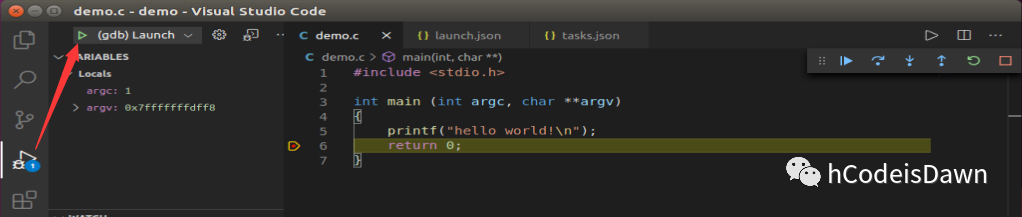

1、c_cpp_properties.json
// 官网解释:https://code.visualstudio.com/docs/cpp/c-cpp-properties-schema-reference{"configurations": [{"name": "Linux", // 平台名"includePath": [ // 头文件路径"${workspaceFolder}/**"],"defines": [],"compilerPath": "/usr/bin/gcc", // 编译器路径"cStandard": "gnu11", // C标准"cppStandard": "c++17", // C++标准"intelliSenseMode": "gcc-x64"}],"version": 4}
2、c_cpp_properties.json配置异常
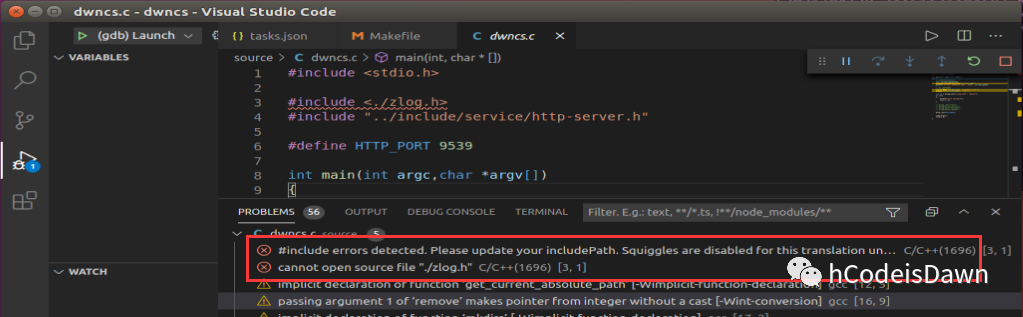
3、c_cpp_properties.json添加头文件路径
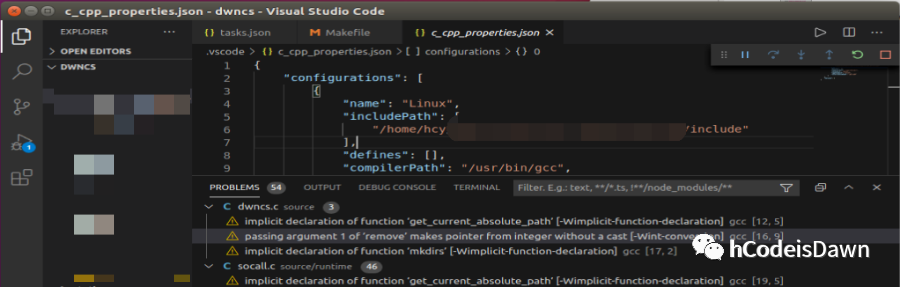
4、调试效果
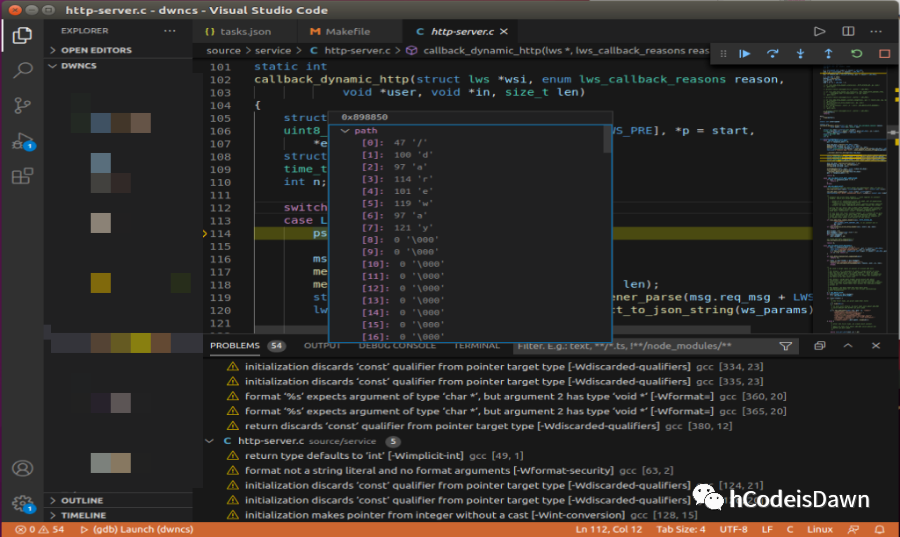
1、VSCode调试风格与Visual Studio相差很大
2、相比于Visual Studio,VSCode调试功能较简单,但使用较复杂
3、复杂工程Makefile转tasks.json args较为繁琐
4、手动编译的可执行文件,断点无法命中,对于复杂类库源码调试不友好
5、整体而言很不错,解决了没有Visual Studio不会调试的难题
文章转载自hCodeisDawn,如果涉嫌侵权,请发送邮件至:contact@modb.pro进行举报,并提供相关证据,一经查实,墨天轮将立刻删除相关内容。
