



上个月无意中在知乎上看到一篇还不错的文章,可是竟然要收费0.3元/天,鉴于敬佩知乎人的编故事能力,遂决定还是下单买上一个月的会员吧,首月充值9.9还是很划算的,再想想,发现9.9看一篇文章太心疼我的银行卡了。这个时候就用上了我的大学毕设功力——网络爬虫。然后开始上网搜索爬虫框架。
当前较为流行的爬虫框架有scrapy和bs4,想着总是要学,不如学个强大的,以下是对比(此处粘贴前人经验,我实在太懒了)。
| reuqest 和 bs4(BeautifulSoup4) | scrapy |
| request和bs类似于一个空的大房子,你需要什么搬什么进去 | scrapy类似于大房子已经建立好了多个功能房,你需要什么,直接进去各自的房间,找出那个功能就好了 |
| 如果爬虫很大(要有日志模块,或者其他的小功能之类的),request和bs的大房子可能会乱七八糟,这时候就需要建功能房,造函数,如果爬虫的需求很随便(对,就是随便,不要求后续维护之类,可能是导师心血来潮叫你爬一爬),request和bs就很方便 | scrapy进去前还需要提前熟悉它的各个功能调用方式,scrapy多个模块,可能也会让初学者比较懵,但是熟悉后,发现scrapy有好多小功能封装比较完善,比如ItemLoader,批处理每个Item的字段,超方便 |
看完以上之后我的第一想法就是学习scrapy,然后开始搭scrapy框架,费了一点时间搭好了,实例如下:
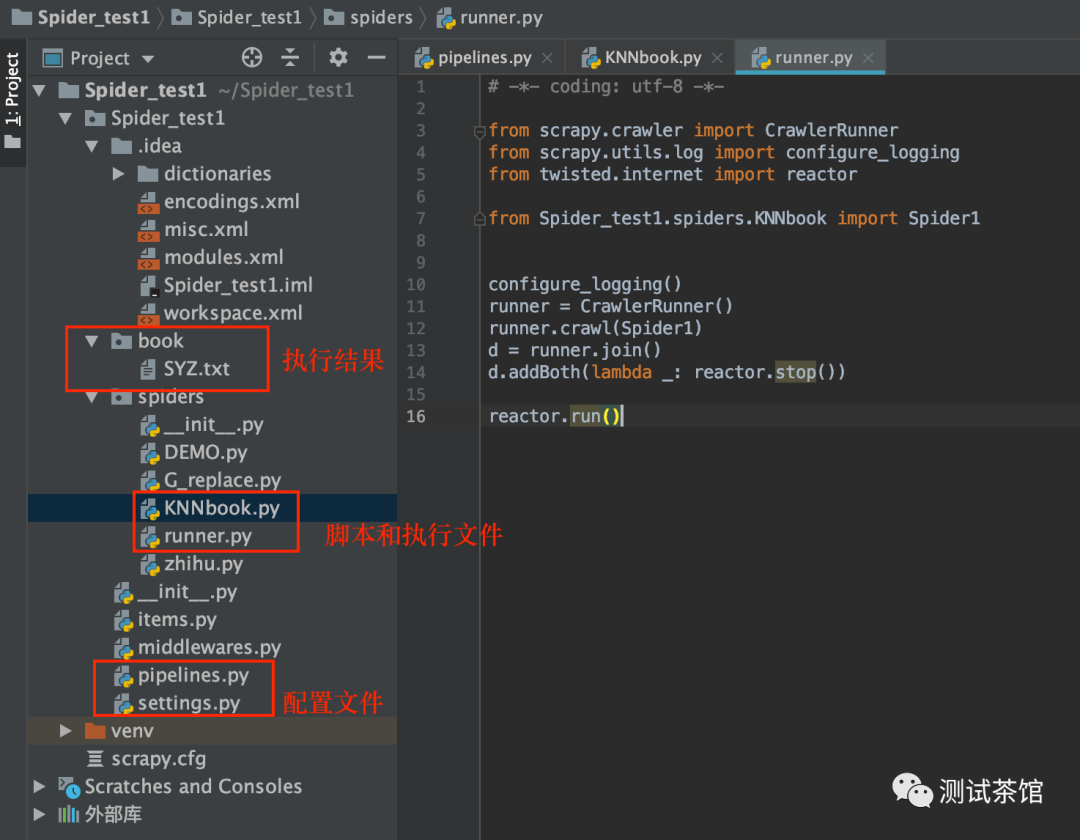
以上案例是我爬取的《尸语者》小说,小说网址如下:
https://www.kanunu8.com/book4/10541/这个网站几乎没有任何反爬策略,练手还是蛮简单的。
scrapy这个框架功能很强大,但是也稍微有些复杂,特别对于我这个已经熟悉用“selenium+正则”解决问题的人来说,重新去了解一个框架的使用方法还是挺痛苦的,可能还是造车轮更适合我。(其实主要原因在于2个问题,一个是知乎的登录让人很崩溃,我并不会用scrapy的session,第二个是知乎针对scrapy的反爬策略,已形成的对策真的难以破解,百度也没有合适的解决方法)
然后我又折返回去,决定使用原始办法“selenium+bs4”解决问题,效率也许低一些,不过还是能忍受的,然后就是安装bs4,pip在线安装就好。
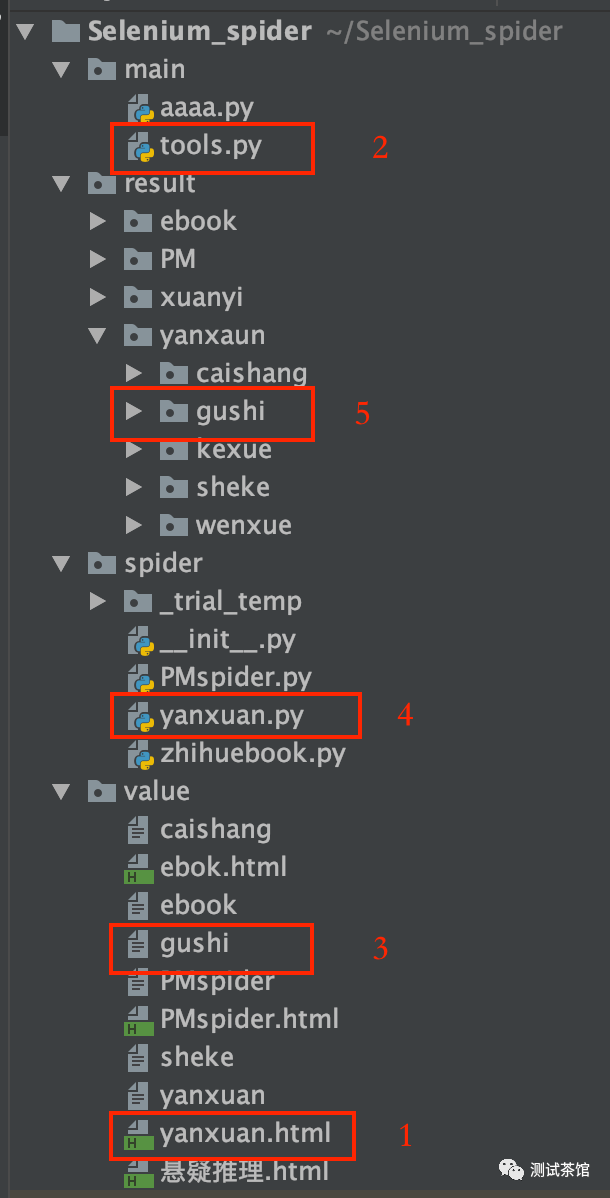
然后就是建工程,建目录,如下工程就是了:
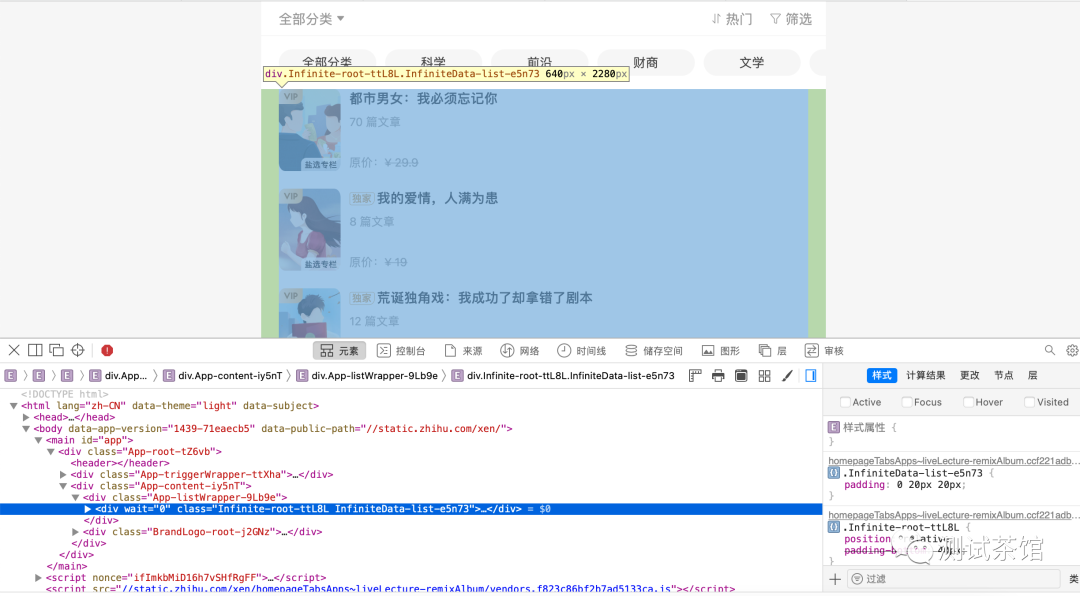
第0步,启动代理浏览器,手动打开知乎并登陆(目的是为了解决session问题),进入要爬取的知乎严选页面,然后打开页面源码,复制页面源码div内所有内容(为了解决js动态加载问题)
第1步,将复制的div全部内容粘贴到本地html文件中
第2步,执行tools脚本,解析html文件,将每本书对应的url进行输出到文本文件
第3步,检查url保存的文本文件
第4步,执行yanxuan.py文件,循环获取每本书的内容并保存到对应文件夹下对应文件中。
第5步,收菜
其中最重要的就是启动代理浏览器,解析html中url,以及循环获取url并读取内容保存。
启动谷歌代理浏览器命令:
/Applications/Google\ Chrome.app/Contents/MacOS/Google\ Chrome --remote-debugging-port=9222 --user-data-dir='/Users/XXXXXX/Public'
tools.py源码:
#用来分析获取a标签的href地址,前一步是把知乎某类书籍列表源码粘贴到html文件,然后将输出内容经过清洗,只选取pub域内的地址填入临时文件from bs4 import BeautifulSoupf = open('/Users/XXXXX/Selenium_spider/value/ebok.html','r')html = f.read()soup = BeautifulSoup(html,'lxml')for item in soup.find_all("a"):tt = item["href"]print(tt)
yanxuan.py源码:
# -*- coding: utf-8 -*-#先启动自定义浏览器#/Applications/Google\ Chrome.app/Contents/MacOS/Google\ Chrome --remote-debugging-port=9222 --user-data-dir='/Users/XXXXX/Public'import osimport reimport timefrom selenium import webdriverfrom selenium.webdriver.chrome.options import Optionsfrom bs4 import BeautifulSoup#接管自启动的谷歌浏览器dir_path = "/Users/XXXXX/Selenium_spider/result/yanxaun/caishang/"chrome_option = Options()chrome_option.add_argument('--ignore-certificate-errors') #主要是该条chrome_option.add_argument('--ignore-ssl-errors')chrome_option.add_experimental_option('debuggerAddress', '127.0.0.1:9222')driver = webdriver.Chrome(executable_path='/usr/local/bin/chromedriver', options=chrome_option)for URL in open('/Users/XXXXXXX/Selenium_spider/value/yanxuan'):driver.get(URL)driver.implicitly_wait(5)title = driver.find_element_by_xpath('//*[@id="app"]/div/div[1]/div/div[1]/div[1]/div[2]/div[1]').textfull_path = dir_path + title + '.txt'try:os.remove(full_path)file = open(full_path, 'a+')file.write(title)file.close()print('新书-' + title)try:driver.find_element_by_xpath('//*[@id="app"]/div/div[3]/div/div[2]').click()driver.implicitly_wait(10)driver.find_element_by_xpath('//*[@id="bottomToolBar"]/div/div/div[2]/div[1]').click()time.sleep(3)# 获取当前页面域,后边访问子页面需要拼接使用currentPageUrl = driver.current_urlcurrenturl = re.findall('(.*?)section', currentPageUrl)# 分析div中的子页面地址tt1 = driver.find_element_by_xpath('//*[@id="app"]/div').get_attribute('outerHTML')soup_0 = BeautifulSoup(tt1, 'lxml')# 取到目录的链接地址for n in soup_0.find_all('div', attrs={"class": re.compile('CatalogItem-catalogItem-uuMxb')}):url1 = re.findall('id\":\"(.*?)\"', str(n))# 打开文档保存子页面内容file_1 = dir_path + title + '.txt'f_cont = open(file_1, 'a+')# 访问每个子页面并保存内容for m in url1:driver.get(currenturl[0] + 'section/' + m)driver.implicitly_wait(5)cont1 = driver.find_element_by_xpath('//*[@id="app"]/div/div[2]').get_attribute('outerHTML')cont1_1 = BeautifulSoup(cont1, 'lxml')cont1_1_1 = cont1_1.textf_cont.write(str(cont1_1_1))f_cont.close()except Exception:os.remove(full_path)print('***********爬取失败************')continueexcept Exception:file = open(full_path, 'a+')file.write(title)file.close()print('新书-' + title)try:driver.find_element_by_xpath('//*[@id="app"]/div/div[3]/div/div[2]').click()driver.implicitly_wait(10)driver.find_element_by_xpath('//*[@id="bottomToolBar"]/div/div/div[2]/div[1]').click()time.sleep(3)# 获取当前页面域,后边访问子页面需要拼接使用currentPageUrl = driver.current_urlcurrenturl = re.findall('(.*?)section', currentPageUrl)# 分析div中的子页面地址tt1 = driver.find_element_by_xpath('//*[@id="app"]/div').get_attribute('outerHTML')soup_0 = BeautifulSoup(tt1, 'lxml')# 取到目录的链接地址for n in soup_0.find_all('div', attrs={"class": re.compile('CatalogItem-catalogItem-uuMxb')}):url1 = re.findall('id\":\"(.*?)\"', str(n))# 打开文档保存子页面内容file_1 = dir_path + title + '.txt'f_cont = open(file_1, 'a+')# 访问每个子页面并保存内容for m in url1:driver.get(currenturl[0] + 'section/' + m)driver.implicitly_wait(5)cont1 = driver.find_element_by_xpath('//*[@id="app"]/div/div[2]').get_attribute('outerHTML')cont1_1 = BeautifulSoup(cont1, 'lxml')cont1_1_1 = cont1_1.textf_cont.write(str(cont1_1_1))f_cont.close()except Exception:os.remove(full_path)print('***********爬取失败************')continuedriver.close()
需要知乎严选书籍和故事的小伙伴请留言,滴滴。
