



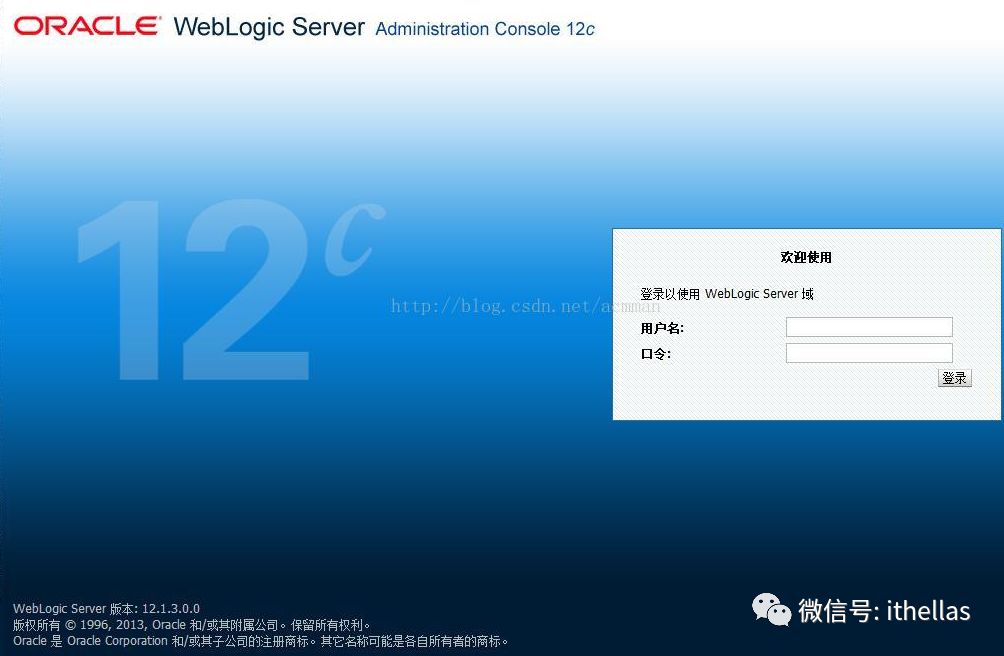
Assuming that you have already gotten both WebLogic server and OpenLDAP server installed & configured successfully.
How to configure WebLogic is a big topic, which will not be covered in this article.
Firstly, you need to configure the login credential for the LDAP server. Each LDAP object is referenced by its distinguished name (DN), which is the on
rootdn "cn=admin,dc=mycompany,dc=com"
# Cleartext passwords, especially for the rootdn, should
# be avoid. See slappasswd(8) and slapd.conf(5) for details.
# Use of strong authentication encouraged.
rootpw {SSHA}LGGFQS1VpBytRRGPKi/HW8CTxmHGNK21
The second step is to define directory structure for the LDAP server. You can just input the following example into a text file, and then imp
ort it into LDAP server by LDAP client tool, e.g., Softerra LDAP Administrator,
dn: dc=mycompany,dc=com
objectClass: domain
objectClass: top
dc: mycompany
dn: ou=myproj,dc=mycompany,dc=com
objectClass: top
objectClass: organizationalUnit
ou: myproj
dn: ou=users,ou=myproj,dc=mycompany,dc=com
objectClass: organizationalUnit
ou: users
dn: ou=groups,ou=myproj,dc=mycompany,dc=com
objectClass: organizationalUnit
ou: groups
dn: cn=MyProjGroup1,ou=groups,ou=myproj,dc=mycompany,dc=com
cn: MyProjGroup1
member: uid=test@myproj.com,ou=users,ou=myproj,dc=mycompany,dc=com
objectClass: groupOfNames
dn: cn=MyProjGroup2,ou=groups,ou=myproj,dc=mycompany,dc=com
cn: MyProjGroup2
member: uid=test@myproj.com,ou=users,ou=myproj,dc=mycompany,dc=com
objectClass: groupOfNames
dn: cn=MyProjGroup3,ou=groups,ou=myproj,dc=mycompany,dc=com
cn: MyProjGroup3
member: uid=test@myproj.com,ou=users,ou=myproj,dc=mycompany,dc=com
objectClass: groupOfNames
dn: uid=test@myproj.com,ou=users,ou=myproj,dc=mycompany,dc=com
description: MyProj test user
telephoneNumber: 12345678
userPassword: {sha}gLBvSOlfasZxT7JpsenNTEOgLdM=
cn: test
objectClass: person
objectClass: uidObject
sn: test
uid: test@myproj.com
You can also just import the following root DN into LDAP server, and then create all other node/entry in Softerra LDAP Administrator,
dn: dc=mycompany,dc=com objectClass: domain objectClass: top dc: mycompany
Thirdly, follow the steps as below to configure weblogic server to apply LDAP server,
1. Create a new authentication provider
1.1 Log into WebLogic server;
1.2. Go to Domain -> Security Realms -> myrealm;
1.3. Switch to the tab "Providers";
1.4. Click the button "New";
1.5. Input a new for the authentication provider, e.g, "MyLDAP", and set the provider type as "LDAPAuthenticator";
1.6. Click "OK" to save the configuration;
2. Configure the provider
Select the provider created in above step, select "SUFFICIENT" in the Common sub tab(Set the default provider as SUFFICIENT as well), and then switch to the sub tab "Provider Specific", then input the following configurations,
Connection
Host: <The IP address of the LDAP server>
Port: The port of the LDAP server, the default value is 389
Principal: cn=admin,dc=mycompany,dc=com
Credential: <password>
Users
User Base DN: ou=users,ou=myproj,dc=mycompany,dc=com
All Users Filter: (objectclass=person)
User From Name Filter: (&(uid=%u)(objectclass=person))
User Name Attribute: uid
User Object Class: person
Check "Use Retrieved User Name as Principal"
Groups
Group Base DN: ou=groups,ou=myproj,dc=mycompany,dc=com
All Groups Filter: (objectclass=groupOfNames)
Group From Name Filter: (&(cn=%g)(objectclass=groupOfNames))
Static Group
Static Group Name Attribute: cn
Static Group Object Class: groupOfNames
Static Member DN Attribute: member
Static Group DNs from Member DN Filter: (&(member=%M)(objectclass=groupOfNames))
3. Restart Weblogic admin and all managed servers;
4. Check the Users and Groups. You should can see the user test@myproj.com in the Users list, and all the groups (MyProjGroups1/2/3) in the Groups list. The "Parent Groups" of the user should be MyProjGroups1/2/3 as well.
Note: The above configurations work well for WebLogic 12.2.1, but you need to set the "GUID Attribute" as "entryUID" (without double quotes) for WebLogic 12.1.3, otherwise, you may get the NPE when you check the roles and groups.
Lastly, Update your source code to make use of the LDAP Authentication. The rough pseudo code is as below,
public Response login(@FormmParam("username") String username,
@FormParam("password") String password,
...
@Context HttpServletRequest request)
{
if (LDAP is enabled) {
request.login(username, password);
...
}
else {
Use whatever other user authentication mechanism;
}
...
return Response.status(...);
}
Done.
