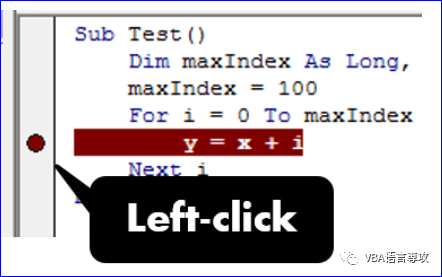
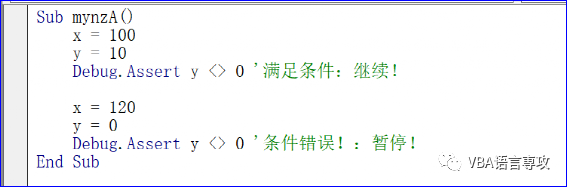
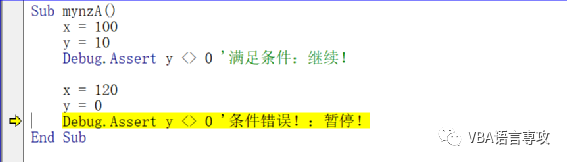
断点指定调试 VBA 时宏执行应暂停的代码行。当您想要确保代码确实通过 If 语句的某个循环运行时,它们非常方便。Breakpoints specify lines of code at which the execution of your macro should pause when you debug VBA. They are convenient when you want to be sure your code does run through a certain loop of If statement. 要添加、删除断点,只需在 VBA 项目视图中代码旁边的左侧灰色栏上单击鼠标左键即可。应出现一个红点,指示您已指定新的断点。再次单击该点可删除断点。To add/remove a breakpoint simply left-click on the left gray bar in your VBA Project View next to your code. A red dot should appear indicating that you have specified a new breakpoint. Click on the dot again to remove the breakpoint. Assertions – 解决断点错误的正确方法Assertions – the right way to breakpoint errors 通常在可能发生错误的位置指定断点。当您正在运行循环并且不确定错误何时会发生时,或者如果您意识到导致错误,但无法在正确的时刻捕获它的情况,这可能会很麻烦。这是您需要使用 Debug.Assert 的地方。Often breakpoints are specified in places where error might occur. This may be cumbersome when you have loop running and are not sure when the error will occur or if you are aware of a condition that causes the error but are unable to catch it at the right moment. This is where you will want to use Debug.Assert. Debug.Assert 如何工作?假设您正在除以数字,并希望确保分母为非零。否则,您希望代码暂停。请考虑下面的示例。在第一个示例中,代码将继续正常执行,但是在第二个示例中,宏将立即在断言处暂停,就像定义了断点一样!How does Debug.Assert work? Say you are dividing to numbers and want to make sure the denominator is non-zero. Otherwise you want the code to pause. Consider the example below. In the first example the code will continue to execute normally, in the second example however the macro will immediately pause at the assertion as if a breakpoint was defined! Sub mynzA()x = 100y = 10Debug.Assert y <> 0 'Condition met: Continue!x = 120y = 0Debug.Assert y <> 0 'Condition false!: Pause!End Sub运行结果: (待续) 【分享成果,随喜正能量】我20多年的VBA实践经验,全部浓缩在下面的各个教程中:【分享成果,随喜正能量】有些人受恩惠久了,容易从最初的感激,变成理所当然,而偶尔的相助,反而会让他记得一辈子。。