



1、安装概述
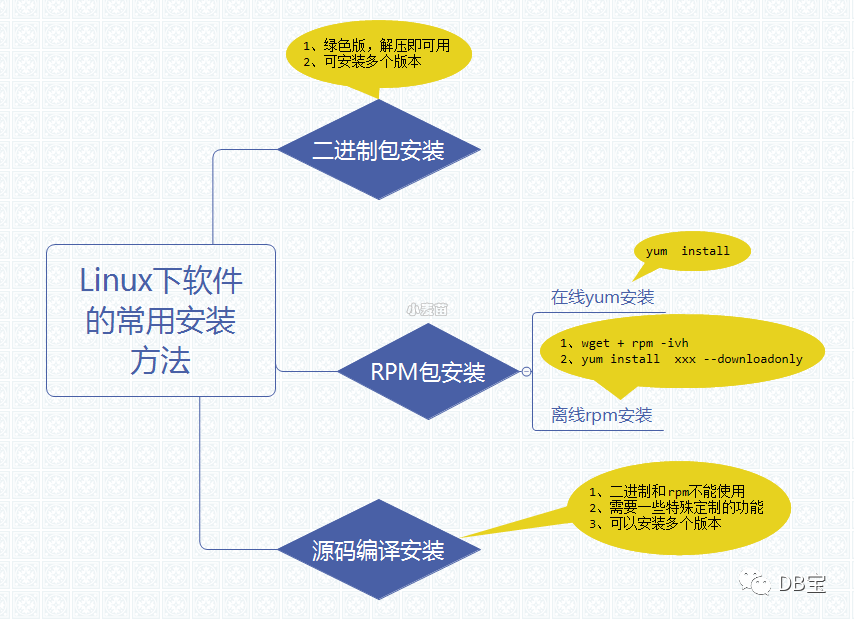
PG安装方法很多,和MySQL类似,给用户提供很大的选择空间。如:RPM包安装(在线、离线)、源码编译安装、系统自带、二进制、NDB安装等。
官网:https://www.postgresql.org/
rpm包:https://yum.postgresql.org/rpmchart.php
yum源:https://yum.postgresql.org/repopackages.php
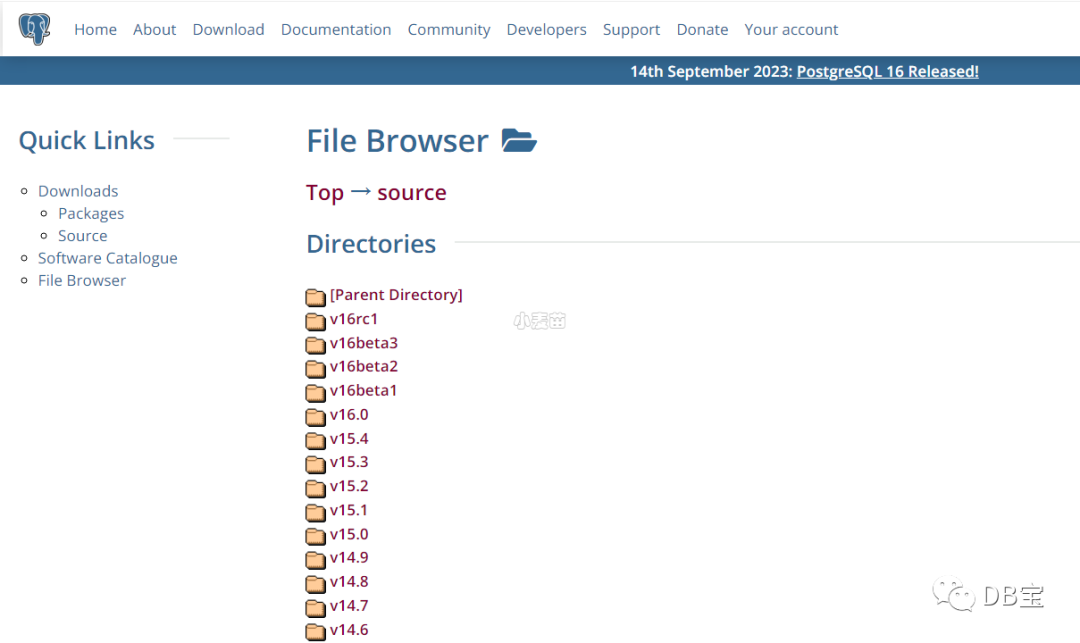
源码包:https://www.postgresql.org/ftp/source/
打开 PostgreSQL 官网 https://www.postgresql.org/,点击菜单栏上的 Download ,可以看到这里包含了很多平台的安装包,包括 Linux、Windows、Mac OS等 。
2、Docker中快速安装部署各个版本的PG环境
Docker Hub的官网地址:https://hub.docker.com/_/postgres
GitHub的地址:https://github.com/docker-library/postgres
 1-- 拉取所有镜像
 2
 3nohup docker pull postgres:9.4.26 &
 4nohup docker pull postgres:9.6.24 &
 5nohup docker pull postgres:10.21 &
 6nohup docker pull postgres:11.16 &
 7nohup docker pull postgres:12.16 &
 8nohup docker pull postgres:13.12 &
 9nohup docker pull postgres:14.9 &
10nohup docker pull postgres:15.4 &
11nohup docker pull postgres:16.0 &
12
13
14
15docker rm -f lhrpg94 lhrpg96 lhrpg10 lhrpg11 lhrpg12 lhrpg13 lhrpg14 lhrpg15  lhrpg16
16docker run --name lhrpg94 -h lhrpg94 -d -p 54321:5432 -e POSTGRES_PASSWORD=lhr -e TZ=Asia/Shanghai postgres:9.4.26
17docker run --name lhrpg96 -h lhrpg96 -d -p 54322:5432 -e POSTGRES_PASSWORD=lhr -e TZ=Asia/Shanghai postgres:9.6.24
18docker run --name lhrpg10 -h lhrpg10 -d -p 54323:5432 -e POSTGRES_PASSWORD=lhr -e TZ=Asia/Shanghai postgres:10.21
19docker run --name lhrpg11 -h lhrpg11 -d -p 54324:5432 -e POSTGRES_PASSWORD=lhr -e TZ=Asia/Shanghai postgres:11.16
20docker run --name lhrpg12 -h lhrpg12 -d -p 54325:5432 -e POSTGRES_PASSWORD=lhr -e TZ=Asia/Shanghai postgres:12.16
21docker run --name lhrpg13 -h lhrpg13 -d -p 54326:5432 -e POSTGRES_PASSWORD=lhr -e TZ=Asia/Shanghai postgres:13.12
22docker run --name lhrpg14 -h lhrpg14 -d -p 54327:5432 -e POSTGRES_PASSWORD=lhr -e TZ=Asia/Shanghai postgres:14.9
23docker run --name lhrpg15 -h lhrpg15 -d -p 54328:5432 -e POSTGRES_PASSWORD=lhr -e TZ=Asia/Shanghai postgres:15.4
24docker run --name lhrpg16 -h lhrpg16 -d -p 54329:5432 -e POSTGRES_PASSWORD=lhr -e TZ=Asia/Shanghai postgres:16.0
25
26
27docker exec -it lhrpg12 bash
28
29docker exec -it lhrpg12 psql -U postgres -d postgres
30
31select * from pg_tables;
32select version();
33
34psql -U postgres -h 172.17.0.12 -d postgres
35psql -U postgres -h 192.168.8.8 -p 54324 -d postgres -W
36
37
38
39cat  << EOF > /tmp/pg_hba.conf
40# TYPE  DATABASE    USER    ADDRESS       METHOD
41local     all       all                    trust
42host      all       all    ::1/128         trust
43host      all       all   127.0.0.1/32     trust
44host      all       all    0.0.0.0/0        md5
45host   replication  all    0.0.0.0/0        md5
46EOF
47
48
49-- Debian中的PG
50sh -c 'echo "deb http://apt.postgresql.org/pub/repos/apt $(lsb_release -cs)-pgdg main" > /etc/apt/sources.list.d/pgdg.list'
51wget --quiet -O - https://www.postgresql.org/media/keys/ACCC4CF8.asc | sudo apt-key add -
52apt-get update -y
53sudo apt-get -y install postgresql
3、登陆测试
 1-- docker直接登陆
 2docker exec -it lhrpg14 psql -U postgres -d postgres
 3
 4-- 本地登陆
 5docker exec -it lhrpg14 bash
 6su - postgres
 7psql
 8
 9
10-- 远程登陆
11psql -U postgres -h 192.168.66.35 -d postgres -p54327
12
13-- 从Postgresql 9.2开始,还可以使用URI格式进行远程连接:psql postgresql://myuser:mypasswd@myhost:5432/mydb
14psql postgresql://postgres:lhr@192.168.66.35:54327/postgres
其中-h参数指定服务器地址,默认为127.0.0.1,默认不指定即可,-d指定连接之后选中的数据库,默认也是postgres,-U指定用户,默认是当前用户,-p 指定端口号,默认是"5432",其它更多的参数选项可以执行:./bin/psql --help 查看。
 1C:\Users\lhrxxt>psql -U postgres -h 192.168.66.35 -d postgres -p54327
 2Password for user postgres:
 3psql (13.3)
 4Type "help" for help.
 5
 6postgres=# select version();
 7                                                     version
 8------------------------------------------------------------------------------------------------------------------
 9 PostgreSQL 13.3 (Debian 13.3-1.pgdg100+1) on x86_64-pc-linux-gnu, compiled by gcc (Debian 8.3.0-6) 8.3.0, 64-bit
10(1 row)
11
12postgres=# \l
13                                        List of databases
14   Name    |  Owner   | Encoding |      Collate      |       Ctype       |   Access privileges
15-----------+----------+----------+-------------------+-------------------+-----------------------
16 postgres  | postgres | UTF8     | Chinese_China.936 | Chinese_China.936 |
17 template0 | postgres | UTF8     | Chinese_China.936 | Chinese_China.936 | =c/postgres          +
18           |          |          |                   |                   | postgres=CTc/postgres
19 template1 | postgres | UTF8     | Chinese_China.936 | Chinese_China.936 | =c/postgres          +
20           |          |          |                   |                   | postgres=CTc/postgres
21(3 rows)
22
23
24postgres=# CREATE DATABASE lhrdb WITH OWNER=postgres ENCODING='UTF-8';
25CREATE DATABASE
26postgres=# \c lhrdb
27You are now connected to database "lhrdb" as user "postgres".
28lhrdb=#
29lhrdb=# create table student (
30lhrdb(#   id integer not null,
31lhrdb(#   name character(32),
32lhrdb(#   number char(5),
33lhrdb(#   constraint student_pkey primary key (id)
34lhrdb(# );
35CREATE TABLE
36lhrdb=#
37lhrdb=# \d student
38                 Table "public.student"
39 Column |     Type      | Collation | Nullable | Default
40--------+---------------+-----------+----------+---------
41 id     | integer       |           | not null |
42 name   | character(32) |           |          |
43 number | character(5)  |           |          |
44Indexes:
45    "student_pkey" PRIMARY KEY, btree (id)
46
47
48lhrdb=#
49lhrdb=# INSERT INTO student (id, name, number) VALUES (1, '张三', '1023');
50INSERT 0 1
51lhrdb=# SELECT * FROM student WHERE id=1;
52 id |                name                | number
53----+------------------------------------+--------
54  1 | 张三                               | 1023
55(1 row)
56
是不是很方便呢。
麦老师自制PG环境汇总
麦老师的镜像中包括了PG 9.4、9.6、10、11、12、13、14、15各个版本,都是采用源码安装,可以直接使用,满足各类测试要求:
 1docker rm -f lhrpgall
 2docker run -itd --name lhrpgall -h lhrpgall \
 3  -p 25432-25445:5432-5445  -p 122:22 -p 189:3389 \
 4  -v /sys/fs/cgroup:/sys/fs/cgroup \
 5  --restart=always \
 6  --privileged=true lhrbest/lhrpgall:3.0 \
 7  /usr/sbin/init
 8docker exec -it lhrpgall bash
 9
10systemctl status pg94 pg96 pg10 pg11 pg12 pg13 pg14 pg15
11systemctl status postgresql-13.service
12
13
14[root@lhrpgall /]# ps -ef|grep postgres | grep bin
15pg15         229       1  0 12:11 ?        00:00:00 /pg15/pg15/bin/postgres -D /pg15/pgdata -p 5440
16pg10         231       1  0 12:11 ?        00:00:00 /pg10/pg10/bin/postgres -D /pg10/pgdata -p 5436
17pg13         232       1  0 12:11 ?        00:00:00 /pg13/pg13/bin/postgres -D /pg13/pgdata -p 5433
18pg14         235       1  0 12:11 ?        00:00:00 /pg14/pg14/bin/postgres -D /pg14/pgdata -p 5439
19pg94         243       1  0 12:11 ?        00:00:00 /pg94/pg94/bin/postgres -D /pg94/pgdata -p 5438
20pg11         244       1  0 12:11 ?        00:00:00 /pg11/pg11/bin/postgres -D /pg11/pgdata -p 5435
21pg96         247       1  0 12:11 ?        00:00:00 /pg96/pg96/bin/postgres -D /pg96/pgdata -p 5437
22pg12         249       1  0 12:11 ?        00:00:00 /pg12/pg12/bin/postgres -D /pg12/pgdata -p 5434
安装配置完成,若有不懂,可以私聊麦老师。
文章转载自DB宝,如果涉嫌侵权,请发送邮件至:contact@modb.pro进行举报,并提供相关证据,一经查实,墨天轮将立刻删除相关内容。
