



Table of Contents
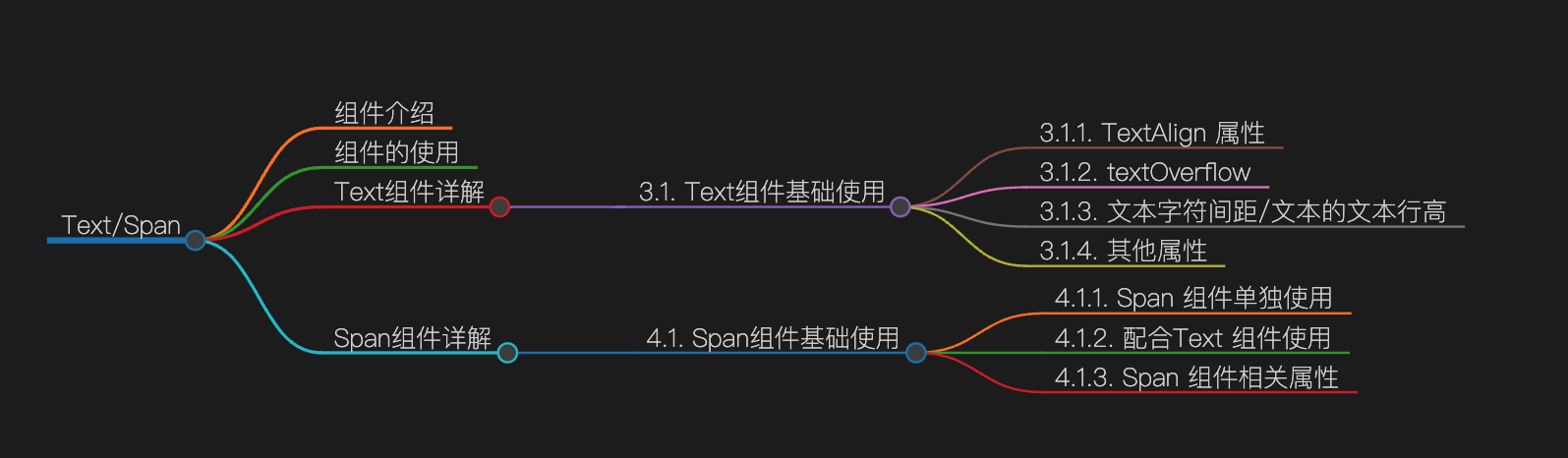
主要内容(思维导图)
组件介绍
显示一段文本的组件。
组件的使用
Text组件详解
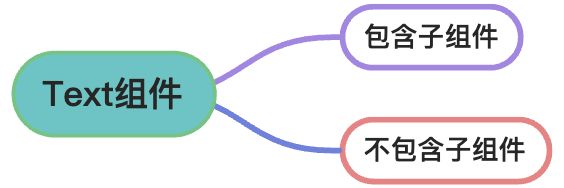
显示一段文本的组件, 可以包含Span子组件。
Text组件基础使用
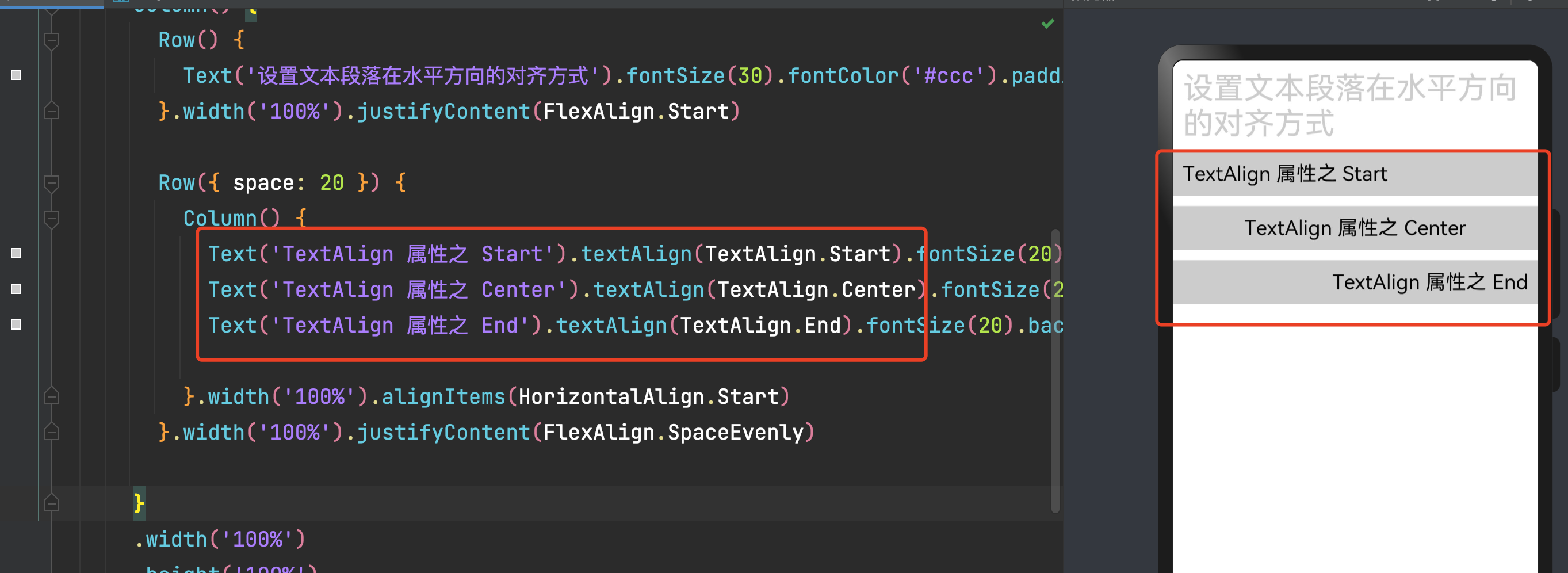
TextAlign 属性
/**
 * @Author: 若城
 * @Description:SpanNote
 */
@Entry
@Component
struct SpanNote {
  @State message: string = 'Hello World'

  build() {
    Row() {
      Column() {
        Row() {
          Text('设置文本段落在水平方向的对齐方式').fontSize(30).fontColor('#ccc').padding(10)
        }.width('100%').justifyContent(FlexAlign.Start)

        Row({ space: 20 }) {
          Column() {
            Text('TextAlign 属性之 Start').textAlign(TextAlign.Start).fontSize(20).backgroundColor('#ccc').padding(10).margin({bottom:10}).width('100%')
            Text('TextAlign 属性之 Center').textAlign(TextAlign.Center).fontSize(20).backgroundColor('#ccc').padding(10).margin({bottom:10}).width('100%')
            Text('TextAlign 属性之 End').textAlign(TextAlign.End).fontSize(20).backgroundColor('#ccc').padding(10).margin({bottom:10}).width('100%')

          }.width('100%').alignItems(HorizontalAlign.Start)
        }.width('100%').justifyContent(FlexAlign.SpaceEvenly)

      }
      .width('100%')
      .height('100%')
    }
    .height('100%')
  }
}
效果图展示
textOverflow
注意在使用textOverflow 属性时需要使用 maxLines 属性来设定文本显示行数
maxLines: 设置文本的最大行数。
Row({ space: 20 }) {
	Column() {
		Text('文本超长时进行裁剪显示。').textOverflow({overflow:TextOverflow.Clip}).maxLines(1).fontSize(20).backgroundColor('#ccc').padding(10).margin({bottom:10}).width(200)
		Text('文本超长时显示不下的文本用省略号代替。').textOverflow({overflow:TextOverflow.Ellipsis}).maxLines(1).fontSize(20).backgroundColor('#ccc').padding(10).margin({bottom:10}).width(200)
		Text('文本超长时不进行裁剪。').textOverflow({overflow:TextOverflow.None}).maxLines(1).fontSize(20).backgroundColor('#ccc').padding(10).margin({bottom:10}).width(200)

	}.width('100%').alignItems(HorizontalAlign.Start)
}.width('100%').justifyContent(FlexAlign.SpaceEvenly)
效果展示

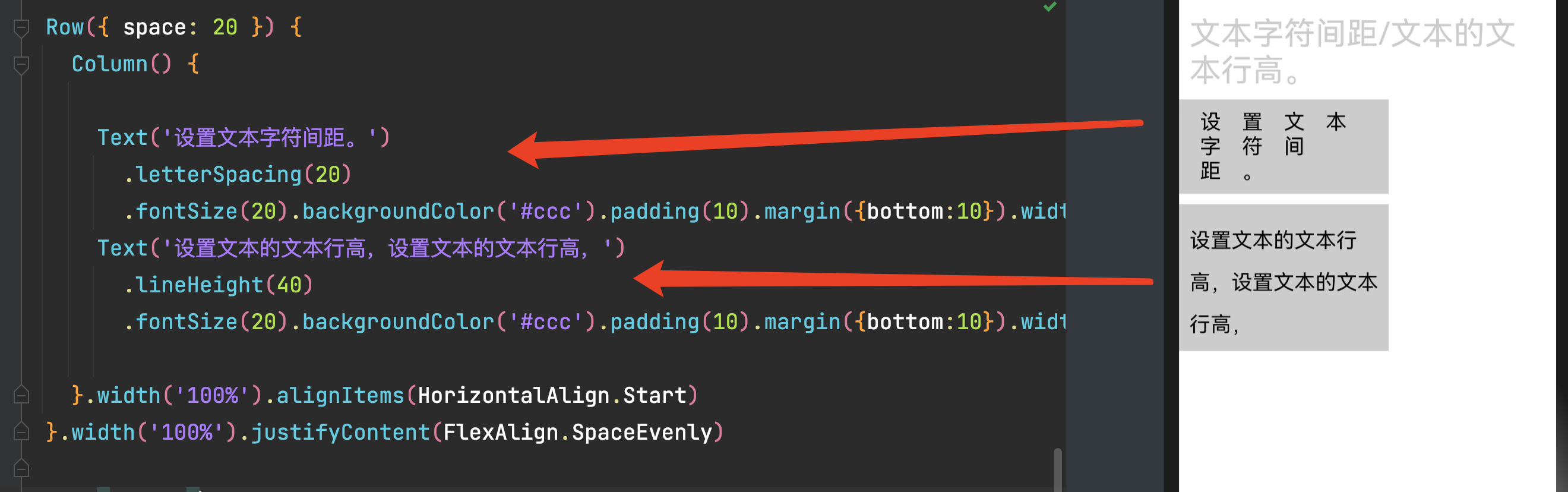
文本字符间距/文本的文本行高
Row({ space: 20 }) {
	Column() {

		Text('设置文本字符间距。')
			.letterSpacing(20)
			.fontSize(20).backgroundColor('#ccc').padding(10).margin({bottom:10}).width(200)
		Text('设置文本的文本行高,设置文本的文本行高,')
			.lineHeight(40)
			.fontSize(20).backgroundColor('#ccc').padding(10).margin({bottom:10}).width(200)

	}.width('100%').alignItems(HorizontalAlign.Start)
}.width('100%').justifyContent(FlexAlign.SpaceEvenly)
效果展示
其他属性
下面展示的仅为上面没有讲到的内容,可做参考

Span组件详解
Span组件,作为Text组件的子组件, 是用于显示行内文本的组件。
Span组件基础使用
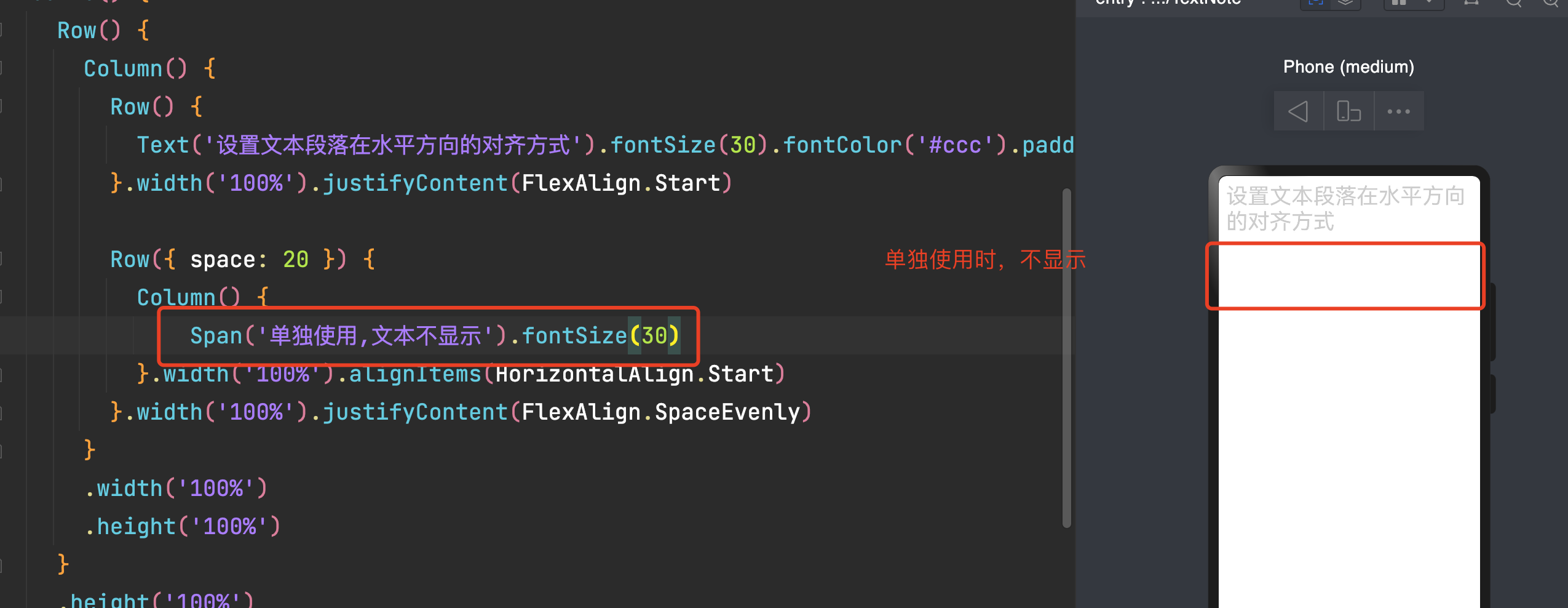
** 需要注意的是 Span 组件不可单独使用,需要配和Text 组件使用**
Span 组件单独使用
代码案例
/**
 * @Author: 若城
 * @Description:
 */
@Entry
	@Component
	struct TextNote {
		@State message: string = 'Hello World'

		build() {
			Row() {
				Column() {
					Row() {
						Text('设置文本段落在水平方向的对齐方式').fontSize(30).fontColor('#ccc').padding(10)
					}.width('100%').justifyContent(FlexAlign.Start)

					Row({ space: 20 }) {
						Column() {
							Span('单独使用,文本不显示').fontSize(30)
						}.width('100%').alignItems(HorizontalAlign.Start)
					}.width('100%').justifyContent(FlexAlign.SpaceEvenly)
				}
				.width('100%')
					.height('100%')
			}
			.height('100%')
		}
	}
配合Text 组件使用
代码案例
/**
 * @Author: 若城
 * @Description:
 */
@Entry
	@Component
	struct TextNote {
		@State message: string = 'Hello World'

		build() {
			Row() {
				Column() {
					Row() {
						Text('配合Text 组件使用').fontSize(30).fontColor('#ccc').padding(10)
					}.width('100%').justifyContent(FlexAlign.Start)

					Row({ space: 20 }) {
						Column() {
							Text(){
								Span('配合Text 组件使用//').fontSize(30)
								Span('多个行内组件').fontSize(30)

							}
						}.width('100%').alignItems(HorizontalAlign.Start)
					}.width('100%').justifyContent(FlexAlign.SpaceEvenly)
				}
				.width('100%')
					.height('100%')
			}
			.height('100%')
		}
	}
效果演示
注意: Span组件是行内元素

Span 组件相关属性
| 名称 | 类型 | 描述 | 默认值 | 支持版本 |
|---|---|---|---|---|
| decoration | {type: TextDecorationType, color?: ResourceColor} | 设置文本装饰线样式及其颜色 | {type: TextDecorationType.None, color: Color.Black} | API version 9 |
| letterSpacing | number | string | 设置文本字符间距 | - | API version 9 |
| textCase | TextCase | 设置文本大小写 | TextCase.Normal | API version 9 |
「喜欢这篇文章,您的关注和赞赏是给作者最好的鼓励」
关注作者
【版权声明】本文为墨天轮用户原创内容,转载时必须标注文章的来源(墨天轮),文章链接,文章作者等基本信息,否则作者和墨天轮有权追究责任。如果您发现墨天轮中有涉嫌抄袭或者侵权的内容,欢迎发送邮件至:contact@modb.pro进行举报,并提供相关证据,一经查实,墨天轮将立刻删除相关内容。
