




点击蓝字,关注我

https://docs.gitlab.com/ee/install/docker.html
操作系统:centos 7.9
本地IP:172.20.10.4
保证外网连接通畅,关闭防火墙和SELinux
mkdir -p opt/gitlab/{config,logs,data}
# yum安装docker[root@cloud ~]# yum install -y dockerLoaded plugins: fastestmirror, langpacksLoading mirror speeds from cached hostfile* base: mirrors.bfsu.edu.cn* epel: mirrors.neusoft.edu.cn* extras: mirrors.bfsu.edu.cn* updates: mirrors.bfsu.edu.cnResolving Dependencies--> Running transaction check......Installed:docker.x86_64 2:1.13.1-209.git7d71120.el7.centosDependency Installed:atomic-registries.x86_64 1:1.22.1-33.gitb507039.el7_8......subscription-manager-rhsm-certificates.x86_64 0:1.24.50-1.el7.centosComplete!# 启动docker并设置开机自启[root@cloud ~]# systemctl enable docker --now# 查看状态[root@cloud ~]# systemctl status docker
# 网络拉取gitlab镜像[root@cloud ~]# docker pull gitlab/gitlab-ee:latest# 这里其实可以不用执行docker pull,执行docker run的时候如果没有对应的image则会自动执行pull来获取image# 直接配置并启动[root@cloud ~]# docker run --detach \> --hostname gitlab \> --publish 8443:443 \> --publish 8080:80 \> --publish 2222:22 \> --name gitlab \> --restart always \> --volume opt/gitlab/config:/etc/gitlab \> --volume opt/gitlab/logs:/var/log/gitlab \> --volume opt/gitlab/data:/var/opt/gitlab \> --shm-size 256m \> gitlab/gitlab-ee:latest# 完成后查看运行状态[root@cloud ~]# docker psCONTAINER ID IMAGE COMMAND CREATED STATUS PORTS NAMES557d32dbf505 gitlab/gitlab-ee:latest "/assets/wrapper" 3 minutes ago Up 3 minutes (healthy) 0.0.0.0:2222->22/tcp, 0.0.0.0:8080->80/tcp, 0.0.0.0:8443->443/tcp gitlab# 查看gitlab初始化过程[root@cloud ~]# docker logs -f gitlab# 进入容器gitlab后台[root@cloud ~]# docker exec -it gitlab bin/bash
# 账号:root# 查看初始页面登录密码[root@cloud ~]# grep 'Password:' opt/gitlab/config/initial_root_passwordPassword: J7ndtscfQII0/LaG3tzfkmKgwui58pvRLlkOQj6ojm0=
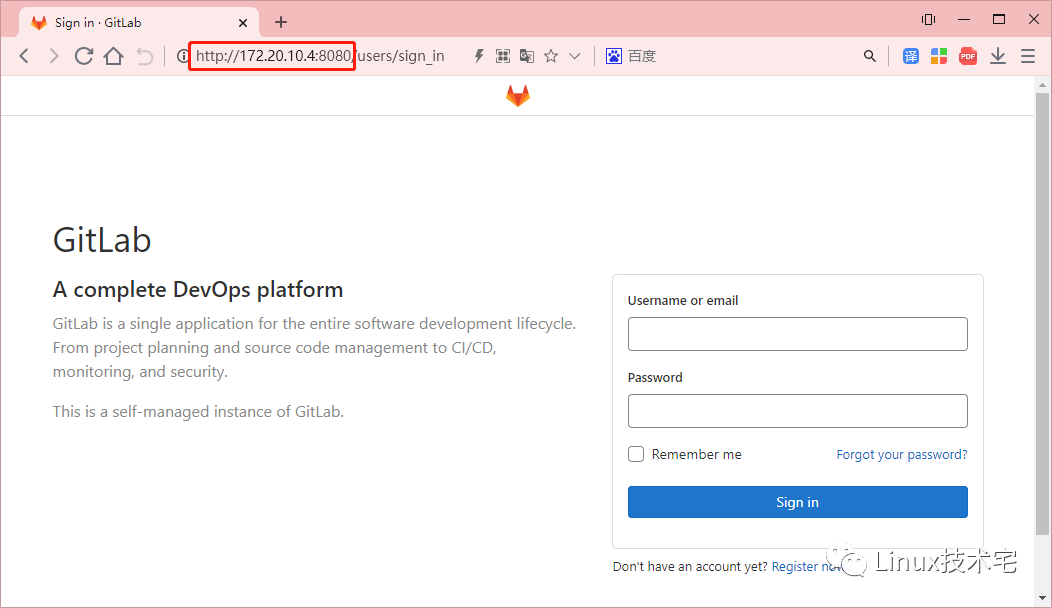
访问页面:http://172.20.10.4:8080
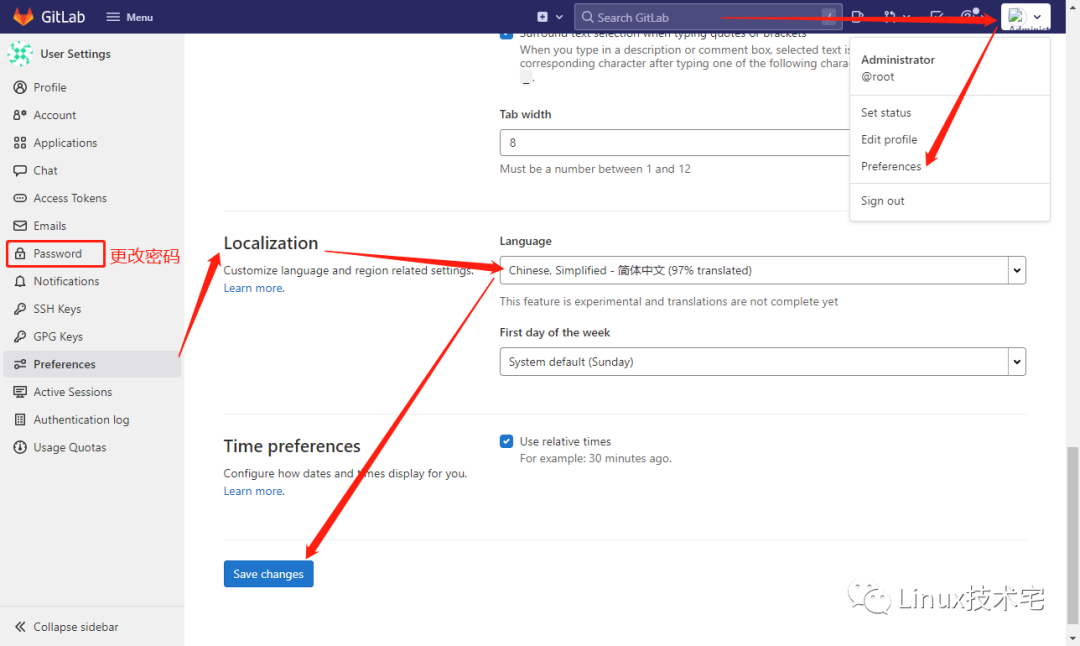
基本配置:设置本地中文及更改密码
http配置到此结束,下面为https访问相关配置!
# 创建ssl证书目录[root@cloud ~]# mkdir opt/gitlab/config/ssl/# 设置权限[root@cloud ~]# chmod 755 opt/gitlab/config/ssl/# 切换到ssl目录下[root@cloud ~]# cd opt/gitlab/config/ssl/# 创建证书[root@cloud ssl]# openssl req -x509 -newkey rsa:1024 -keyout gitlab.key -out gitlab.crt -nodes -days 36500Generating a 1024 bit RSA private key....++++++.......................................++++++writing new private key to 'gitlab.key'-----You are about to be asked to enter information that will be incorporatedinto your certificate request.What you are about to enter is what is called a Distinguished Name or a DN.There are quite a few fields but you can leave some blankFor some fields there will be a default value,If you enter '.', the field will be left blank.-----Country Name (2 letter code) [XX]:cnState or Province Name (full name) []:bjLocality Name (eg, city) [Default City]:bjOrganization Name (eg, company) [Default Company Ltd]:cnOrganizational Unit Name (eg, section) []:cnCommon Name (eg, your name or your server's hostname) []:ToinyEmail Address []:[root@cloud ssl]# lltotal 8-rw-r--r-- 1 root root 908 May 8 18:53 gitlab.crt-rw-r--r-- 1 root root 916 May 8 18:53 gitlab.key
# 切换目录,备份gitlab.rb[root@cloud ssl]# cd ..[root@cloud config]# cp gitlab.rb gitlab.rb.bak# 修改配置文件,添加下列内容[root@cloud config]# vim gitlab.rb33 external_url "https://172.20.10.4:8443"1400 nginx['redirect_http_to_https'] = true1414 nginx['ssl_certificate'] = "/etc/gitlab/ssl/gitlab.crt"1415 nginx['ssl_certificate_key'] = "/etc/gitlab/ssl/gitlab.key"# 配置页面git及https连接[root@cloud config]# vim /opt/gitlab/data/gitlab-rails/etc/gitlab.ymlhost: 172.20.10.4port: 8443https: true# 保存退出,进入docker容器内,重新加载配置文件[root@cloud ~]# docker exec -it gitlab /bin/bashroot@gitlab:~# gitlab-ctl reconfigure
刷新访问页面http://172.20.10.4:8080
返回 https://gitlab.example.cn/ 表示https配置成功
访问新页面即可:https://172.20.10.4:8443,使用默认密码或前面更过的登录即可
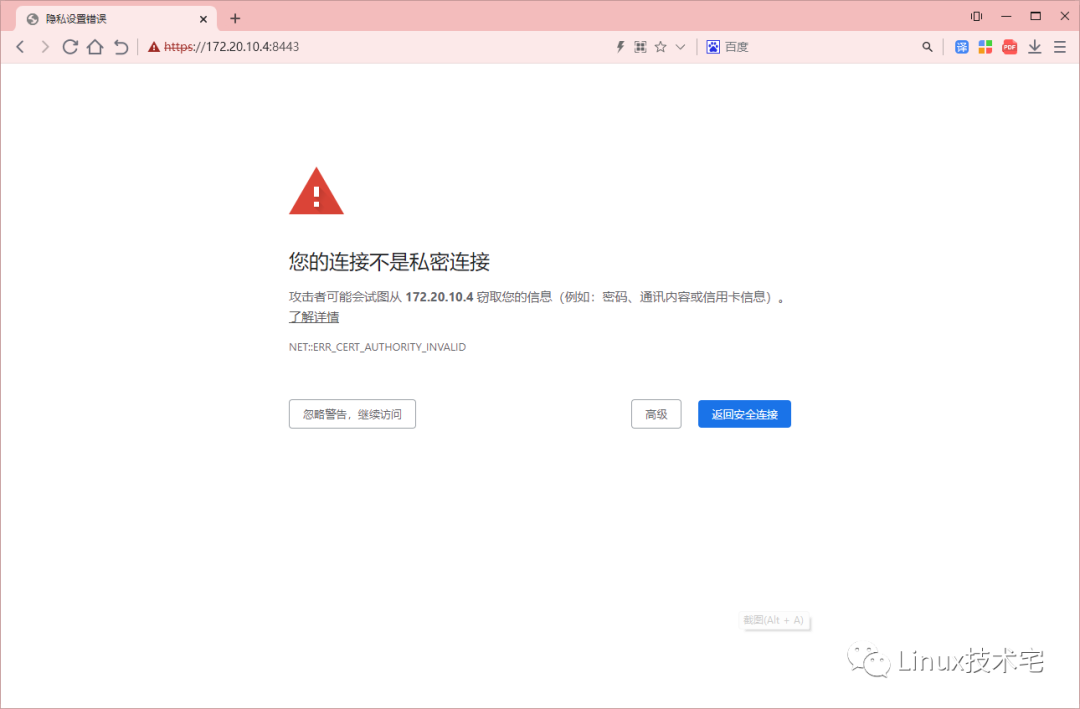
问题描述:使用git采用https进行的clone,结果出现错误 SSL certificate problem: self signed certificate
原因:SSL认证失败
解决办法:关闭SSL的认证
git客户端执行如下命令:
git config --global http.sslVerify false
/opt/gitlab/data/gitlab-rails/etc/gitlab.yml/opt/gitlab/config/gitlab.rbdocker exec -it gitlab /bin/bash/var/opt/gitlab/gitlab-rails/etc/gitlab.yml/etc/gitlab/gitlab.rb
登录到 Gitlab 服务器,执行如下命令:
gitlab-rails console production
如果此时有报错:
Traceback (most recent call last):8: from bin/rails:4:in `<main>'7: from bin/rails:4:in `require'6: from /opt/gitlab/embedded/lib/ruby/gems/2.6.0/gems/railties-6.0.2/lib/rails/commands.rb:18:in `<top (required)>'5: from /opt/gitlab/embedded/lib/ruby/gems/2.6.0/gems/railties-6.0.2/lib/rails/command.rb:46:in `invoke'4: from /opt/gitlab/embedded/lib/ruby/gems/2.6.0/gems/railties-6.0.2/lib/rails/command/base.rb:69:in `perform'3: from /opt/gitlab/embedded/lib/ruby/gems/2.6.0/gems/thor-0.20.3/lib/thor.rb:387:in `dispatch'2: from /opt/gitlab/embedded/lib/ruby/gems/2.6.0/gems/thor-0.20.3/lib/thor/invocation.rb:126:in `invoke_command'1: from /opt/gitlab/embedded/lib/ruby/gems/2.6.0/gems/thor-0.20.3/lib/thor/command.rb:27:in `run'/opt/gitlab/embedded/lib/ruby/gems/2.6.0/gems/railties-6.0.2/lib/rails/commands/console/console_command.rb:95:in `perform': wrong number of arguments (given 1, expected 0) (ArgumentError)9: from bin/rails:4:in `<main>'8: from bin/rails:4:in `require'7: from /opt/gitlab/embedded/lib/ruby/gems/2.6.0/gems/railties-6.0.2/lib/rails/commands.rb:18:in `<top (required)>'6: from /opt/gitlab/embedded/lib/ruby/gems/2.6.0/gems/railties-6.0.2/lib/rails/command.rb:46:in `invoke'5: from /opt/gitlab/embedded/lib/ruby/gems/2.6.0/gems/railties-6.0.2/lib/rails/command/base.rb:69:in `perform'4: from /opt/gitlab/embedded/lib/ruby/gems/2.6.0/gems/thor-0.20.3/lib/thor.rb:387:in `dispatch'3: from /opt/gitlab/embedded/lib/ruby/gems/2.6.0/gems/thor-0.20.3/lib/thor/invocation.rb:126:in `invoke_command'2: from /opt/gitlab/embedded/lib/ruby/gems/2.6.0/gems/thor-0.20.3/lib/thor/command.rb:20:in `run'1: from /opt/gitlab/embedded/lib/ruby/gems/2.6.0/gems/thor-0.20.3/lib/thor/command.rb:34:in `rescue in run'/opt/gitlab/embedded/lib/ruby/gems/2.6.0/gems/thor-0.20.3/lib/thor/base.rb:506:in `handle_argument_error': ERROR: "rails console" was called with arguments ["production"] (Thor::InvocationError)Usage: "rails console [options]"
则可能是 Gitlab 版本不一样,然后参数方式不一样,需要用如下方式:
gitlab-rails console -e production
接着查询一下用户:
> user = User.where(username:"root").first=> #<User id:1 @root>
然后修改密码:(至少8位)
> user.password = "Admin@123"=> "Admin@123"
然后保存:
> user.save!Enqueued ActionMailer::DeliveryJob (Job ID: 1f015e02-34bc-4b26-8e37-3101937b7ce1) to Sidekiq(mailers) with arguments: "DeviseMailer", "password_change", "deliver_now", #<GlobalID:0x00007fa6b83b1378 @uri=#<URI::GID gid://gitlab/User/1>>=> true
保存之后,可以使用如上密码Admin@123进行登陆,登陆之后,记得更改密码!

分享、在看与点赞
只要你点,我们就是胖友
文章转载自Linux技术宅,如果涉嫌侵权,请发送邮件至:contact@modb.pro进行举报,并提供相关证据,一经查实,墨天轮将立刻删除相关内容。
