



使用Docker搭建Nextcloud个人工作中心(上)
这真是,迄今为止最为折腾的一个部署工作了,工作的起因是自己的onedrive教育版又挂了。。。
前言
需求
首先要明确的是,到底有没有使用网盘的需求,如果你经常共享文件,或者需要备份自己的资料,或者你有多个终端,或者你需要移动办公。。。等等
如果你确实有这样的需求,或者你正在使用市面上的网盘,自己再喜欢动动手,或者需要保存一些小秘密,那么继续往下看。
选型
网盘又分为备份盘和同步盘。顾名思义,备份盘主要是用来存储文件,比如百度网盘(除工作空间功能)、阿里云盘、微云、天翼云盘、115网盘等等,都算是备份盘,或者大家主要使用的功能都是备份盘的功能。而同步盘则主要有坚果云、Onedrive等(国外的了解的不多),其中百度网盘、天翼云盘、微云,也都有同步盘的功能。
我之前一直用的是Onedrive,期间尝试过上述的各种盘,但是效果均不尽人意,算是各有各的缺点吧。我的场景主要是用来同步全盘的数据,这样做有个好处,就是如果我重做系统,或者换设备了,不用来回倒数据,而且同步盘一般也都支持文件版本的功能,写word文档或者画图的时候,如果忘记保存副本就是个很难办的事情,总不能所有的内容都用git管理,也不方便,这个时候同步盘的优势就出来了。这样的场景也导致了,我这里会有大量的小文件和部分大文件,小文件的数量可能有几十万(包含着一些开源项目的源码)。所以我这个场景对同步盘的选择就很苛刻。
下面列一下我用过这些盘之后的感受。
坚果云:同步功能很强大,速度也快,但是容量太小,花钱买也不多。
百度网盘、微云、天翼云盘,客户端的校验速度和稳定性均不如Onedrive,动不动就有冲突。
Onedrive本身功能没啥毛病,但是网络情况不稳定,就算这个不稳定我也忍了,但是教育版又经常和学校的管理有关,总是抽风,网页端都打不开,这已经第二次了,每次都要持续几天,这次失效截止目前也快一周了,还没有修复好,想着索性自己搭建一个服务。
个人云盘搭建也有多种选择Nextcloud、seafile等等,还有filerun、可道云等,在这里的选型主要选商业化不是特别严重的,也就是开源版本功能没被阉割太多的,而且性能还算过得去的。
实际大家过程中搭建了Nextcloud和seafile,最终是选择了Nextcloud,虽然nextcloud的性能有些问题,但是可以对性能优化一些,而Seafile的功能感觉被阉割不少,而且文件管理还得通过客户端,与文件管理器集成的不到位。后来发现Nextcloud的虚拟文件支持一用就崩溃,不过考虑Nextcloud的商店里插件很多,功能可扩展,就还是选这个了。
好了,废话说了一堆,下面开始说正式的搭建过程。
环境说明与准备工作
环境
本地一台台式机做Nextcloud服务端
公网服务器用来进行公网访问
路由器用来进行DNS劫持
软件准备
docker docker-compose
安装Docker和Docker-compose的教程很多,比如https://www.runoob.com/docker/ubuntu-docker-install.html。这里不展开说docker安装过程,之所以选择docker安装,是可以保证不在环境上出现过多的差异,而且后续如果要迁移数据也比较方便。
Nextcloud本地搭建(Nextcloud+Redis+Mysql)
Nextcloud的单独搭建其实很简单,直接docker run nextcloud
就行了(夸张一下,实际还得设置数据路径和端口映射),但是并不推荐这么执行,实际运行的性能比较差,我们这里直接使用redis和mysql搭建。
不过得益于Docker-compose,可以直接使用我的这个docker-compose.yml
。
version: '2.0'
services:
  db:
    image: mysql:8.0
    container_name: nextcloud-mysql
    command: --skip-log-bin --innodb_buffer_pool_size=2048M --innodb_flush_log_at_trx_commit=0 --innodb_flush_method=O_DIRECT --innodb_write_io_threads=16
    environment:
      - MYSQL_DATABASE=nextcloud
      - MYSQL_ROOT_PASSWORD=db_dev  # 设置mysql的root用户的密码
      - MYSQL_LOG_CONSOLE=true
    volumes:
      - /data/db-data:/var/lib/mysql  # 必须。设置数据库数据路径的映射
    networks:
      - nextcloud-net

  memcached:
    image: redis:6-alpine
    container_name: nextcloud-memcached
    command: redis-server --requirepass cached_dev
    volumes:
      - /data/cache-data:/data # 设置redis数据路径的映射,根据自己的配置看要不要映射出来吧,随意。
    networks:
      - nextcloud-net

  nextcloud:
    image: nextcloud:fpm
    container_name: nextcloud-fpm
    volumes:
      - /data/nextcloud-data:/var/www/html # nextcloud 数据目录
      - /data/nextcloud-conf:/usr/local/etc/php-fpm.d # nextcloud使用的php-fpm 配置目录
    environment:
      - PHP_UPLOAD_LIMIT=16G
      - PHP_MEMORY_LIMIT=4G
      - MYSQL_DATABASE=nextcloud
      - MYSQL_USER=root
      - MYSQL_PASSWORD=db_dev
      - MYSQL_HOST=db
      - REDIS_HOST=memcached
      - REDIS_HOST_PORT=6379
      - REDIS_HOST_PASSWORD=cached_dev
    depends_on:
      - db
      - memcached
    networks:
      - nextcloud-net

  server:
    image: nginx
    container_name: nextcloud-server
    ports:
      - 443:443
    volumes:
      - /data/nextcloud-data:/var/www/html
      - /data/server/conf:/etc/nginx/conf.d # nginx配置目录
      - /data/server/ssl_certs:/etc/nginx/ssl_certs # 证书目录
    depends_on:
      - nextcloud
    networks:
      - nextcloud-net

networks:
  nextcloud-net:
具体的执行过程如下,有一些需要注意的地方
# 执行
vim docker-compose.yml
# 将上面文件的内容复制进去,保存退出
# 使用docker compose启动
docker-compose up -d

# 这次启动是为了把相关数据目录的路径都建立出来
# 查看是否所有容器都正常启动
docker ps

#######################################################################
# 其中需要注意的是
# docker-compose.yml中nextcloud服务的这个映射,可能会没有配置文件
# - /data/nextcloud-conf:/usr/local/etc/php-fpm.d
# 如果有配置文件,则跳过不看
# 如果没有配置文件,则把这里的内容看一遍
# 接着上面的命令执行
docker-compose down
# 编辑docker-compose.yml,把上面那个映射注释掉,然后再执行
docker-compose up -d
# 把容器中/usr/local/etc/php-fpm.d/下所有的内容,复制到宿主机/data/nextcloud-conf/路径下
docker cp nextcloud-fpm:/usr/local/etc/php-fpm.d/ /data/nextcloud-conf/
docker-compose down
# 然后取消yaml文件的注释,先不启动,还需要配置nginx
########################################################################
需要对nginx进行配置
nginx配置文件路径在:/data/server/conf
,这个是在docker-compose文件中配置的,现在这个路径应该是空的,我们新建一个nextcloud.conf
文件。
文件名只要是以conf结尾即可,这里命名为nextcloud.conf
官方实际上是提供了nginx配置文件的(https://docs.nextcloud.com/server/latest/admin_manual/installation/nginx.html#nextcloud-in-the-webroot-of-nginx),但是里面需要修改一些配置。
upstream php-handler {
    server nextcloud:9000; # 这里因为咱们是docker部署,需要更改为服务名
    #server unix:/var/run/php/php7.4-fpm.sock;
}

server {
    listen 80;
    listen [::]:80;
    server_name cloud.example.com; # 这里根据自己实际情况修改主机名

    # Enforce HTTPS
    return 301 https://$server_name$request_uri;
}

server {
    listen 443      ssl http2;
    listen [::]:443 ssl http2;
    server_name cloud.example.com; # 这里根据自己实际情况修改主机名

    # Use Mozilla's guidelines for SSL/TLS settings
    # https://mozilla.github.io/server-side-tls/ssl-config-generator/
    ssl_certificate     /etc/ssl/nginx/cloud.example.com.crt; # 这里根据自己实际情况修改证书文件
    ssl_certificate_key /etc/ssl/nginx/cloud.example.com.key;

    # HSTS settings
    # WARNING: Only add the preload option once you read about
    # the consequences in https://hstspreload.org/. This option
    # will add the domain to a hardcoded list that is shipped
    # in all major browsers and getting removed from this list
    # could take several months.
    #add_header Strict-Transport-Security "max-age=15768000; includeSubDomains; preload;" always;

    # set max upload size
    client_max_body_size 512M; # 这里根据自己实际情况修改大小,这个关系到能够上传的最大文件大小
    fastcgi_buffers 64 4K;

    # Enable gzip but do not remove ETag headers
    gzip on;
    gzip_vary on;
    gzip_comp_level 4;
    gzip_min_length 256;
    gzip_proxied expired no-cache no-store private no_last_modified no_etag auth;
    gzip_types application/atom+xml application/javascript application/json application/ld+json application/manifest+json application/rss+xml application/vnd.geo+json application/vnd.ms-fontobject application/x-font-ttf application/x-web-app-manifest+json application/xhtml+xml application/xml font/opentype image/bmp image/svg+xml image/x-icon text/cache-manifest text/css text/plain text/vcard text/vnd.rim.location.xloc text/vtt text/x-component text/x-cross-domain-policy;

    # Pagespeed is not supported by Nextcloud, so if your server is built
    # with the `ngx_pagespeed` module, uncomment this line to disable it.
    #pagespeed off;

    # HTTP response headers borrowed from Nextcloud `.htaccess`
    add_header Referrer-Policy                      "no-referrer"   always;
    add_header X-Content-Type-Options               "nosniff"       always;
    add_header X-Download-Options                   "noopen"        always;
    add_header X-Frame-Options                      "SAMEORIGIN"    always;
    add_header X-Permitted-Cross-Domain-Policies    "none"          always;
    add_header X-Robots-Tag                         "none"          always;
    add_header X-XSS-Protection                     "1; mode=block" always;
    add_header Strict-Transport-Security  15552000; # 补充这条配置

    # Remove X-Powered-By, which is an information leak
    fastcgi_hide_header X-Powered-By;

    # Path to the root of your installation
    root /var/www/nextcloud;

    # Specify how to handle directories -- specifying `/index.php$request_uri`
    # here as the fallback means that Nginx always exhibits the desired behaviour
    # when a client requests a path that corresponds to a directory that exists
    # on the server. In particular, if that directory contains an index.php file,
    # that file is correctly served; if it doesn't, then the request is passed to
    # the front-end controller. This consistent behaviour means that we don't need
    # to specify custom rules for certain paths (e.g. images and other assets,
    # `/updater`, `/ocm-provider`, `/ocs-provider`), and thus
    # `try_files $uri $uri/ /index.php$request_uri`
    # always provides the desired behaviour.
    index index.php index.html /index.php$request_uri;

    # Rule borrowed from `.htaccess` to handle Microsoft DAV clients
    location = / {
        if ( $http_user_agent ~ ^DavClnt ) {
            return 302 /remote.php/webdav/$is_args$args;
        }
    }

    location = /robots.txt {
        allow all;
        log_not_found off;
        access_log off;
    }

    # Make a regex exception for `/.well-known` so that clients can still
    # access it despite the existence of the regex rule
    # `location ~ /(\.|autotest|...)` which would otherwise handle requests
    # for `/.well-known`.
    location ^~ /.well-known {
        # The rules in this block are an adaptation of the rules
        # in `.htaccess` that concern `/.well-known`.

        location = /.well-known/carddav { return 301 /remote.php/dav/; }
        location = /.well-known/caldav  { return 301 /remote.php/dav/; }

        location /.well-known/acme-challenge    { try_files $uri $uri/ =404; }
        location /.well-known/pki-validation    { try_files $uri $uri/ =404; }

        # Let Nextcloud's API for `/.well-known` URIs handle all other
        # requests by passing them to the front-end controller.
        return 301 /index.php$request_uri;
    }

    # Rules borrowed from `.htaccess` to hide certain paths from clients
    location ~ ^/(?:build|tests|config|lib|3rdparty|templates|data)(?:$|/)  { return 404; }
    location ~ ^/(?:\.|autotest|occ|issue|indie|db_|console)                { return 404; }

    # Ensure this block, which passes PHP files to the PHP process, is above the blocks
    # which handle static assets (as seen below). If this block is not declared first,
    # then Nginx will encounter an infinite rewriting loop when it prepends `/index.php`
    # to the URI, resulting in a HTTP 500 error response.
    location ~ \.php(?:$|/) {
        # Required for legacy support
        rewrite ^/(?!index|remote|public|cron|core\/ajax\/update|status|ocs\/v[12]|updater\/.+|oc[ms]-provider\/.+|.+\/richdocumentscode\/proxy) /index.php$request_uri;

        fastcgi_split_path_info ^(.+?\.php)(/.*)$;
        set $path_info $fastcgi_path_info;

        try_files $fastcgi_script_name =404;

        include fastcgi_params;
        fastcgi_param SCRIPT_FILENAME $document_root$fastcgi_script_name;
        fastcgi_param PATH_INFO $path_info;
        fastcgi_param HTTPS on;

        fastcgi_param modHeadersAvailable true;         # Avoid sending the security headers twice
        fastcgi_param front_controller_active true;     # Enable pretty urls
        fastcgi_pass php-handler;
        fastcgi_read_timeout 18000; # 补充这条配置

        fastcgi_intercept_errors on;
        fastcgi_request_buffering off;
    }

    location ~ \.(?:css|js|svg|gif|png|jpg|ico)$ {
        try_files $uri /index.php$request_uri;
        expires 6M;         # Cache-Control policy borrowed from `.htaccess`
        access_log off;     # Optional: Don't log access to assets
    }

    location ~ \.woff2?$ {
        try_files $uri /index.php$request_uri;
        expires 7d;         # Cache-Control policy borrowed from `.htaccess`
        access_log off;     # Optional: Don't log access to assets
    }

    # Rule borrowed from `.htaccess`
    location /remote {
        return 301 /remote.php$request_uri;
    }

    location / {
        try_files $uri $uri/ /index.php$request_uri;
    }
}
至此,访问本机的https://localhost
应该可以打开nextcloud了
可以进行一些配置,大体上如下图所示

同样可以通过手机端、电脑端对其进行访问(接入同一个局域网)
Nextcloud公网访问(可选)
仅能局域网访问很多时候不能满足我们的需求,而且特别不方便,为此,可以使用公网服务器进行转发,这样我们就可以通过公网服务器访问了。
在这里我是直接转发了本机的443端口,到公网服务器的8002端口。
转发端口用到的工具可以看我们的这篇文章《FRP端口转发工具》,对Frp工具进行了介绍。
因为我在公网服务器上部署了很多服务,因此在公网服务器上也是通过nginx进行代理。
nginx配置文件如下:
server {
   listen 80;
   listen [::]:80;
   server_name cloud.example.com; # 这里根据自己实际情况修改主机名
   return 301 https://$host$request_uri;
}
server {
   listen 443 ssl http2;
   listen [::]:443 ssl http2;
   server_name cloud.example.com; # 这里根据自己实际情况修改主机名

   ssl_certificate /etc/ssl/nginx/cloud.example.com.crt; # 这里根据自己实际情况修改证书文件
   ssl_certificate_key /etc/ssl/nginx/cloud.example.com.crt; # 这里根据自己实际情况修改证书文件
   ssl_session_timeout 5m;
   ssl_ciphers ECDHE-RSA-AES128-GCM-SHA256:HIGH:!aNULL:!MD5:!RC4:!DHE;
   ssl_prefer_server_ciphers on;

   client_max_body_size 16G;
   location ~* /.* { # 转发所有请求
   proxy_pass https://172.20.0.1:8002$request_uri; # 这里这个ip是公网服务器的宿主IP(因为我也部署了docker)
   proxy_set_header   Host             $host:$server_port;
   proxy_set_header   X-Real-IP        $remote_addr;
   proxy_set_header   X-Forwarded-For  $proxy_add_x_forwarded_for;
 }
}
现在直接访问公网的ip就可以直接访问到自己的nextcloud了。
强烈建议注册一个域名,通过域名对自己的服务进行访问,这样https显示就正常了。
使用同一域名解析至公网或内网IP(可选)
接下来搞一个骚操作
回顾一下使用场景
我的客户端电脑是笔记本,服务端电脑是台式机,我是想同步我笔记上的所有的数据。台式机是放那不动的,而笔记本我经常要拿走。
因为公网服务器的带宽很低(贫穷啊),所以直接使用公网IP进行初始同步不太现实,速度太慢了。而我实际上是可以把笔记本和台式机接在一个局域网里的。
然而,我看了看自己的路由器,并没有DNS的功能,最多我只能设置一个DNS服务器。
但是,我的台式机放在那就可以搭一个DNS服务,这样我自己劫持一下DNS,在内网的时候直接把我的域名劫持到局域网IP就可以了,说搞就搞。
DNS服务搭建
在ubuntu 18 上搭建DNS服务时,需要先关闭systemd-reslove服务,释放53端口,在此之前,先执行docker pull sameersbn/bind
把镜像拉下来
sudo systemctl stop systemd-reslove
sudo systemctl disable systemd-reslove
编辑/etc/systemd/resolved.conf
文件
[Resolve]
DNS=127.0.0.1
#FallbackDNS=
#Domains=
LLMNR=no
#MulticastDNS=no
#DNSSEC=no
#Cache=yes
DNSStubListener=no
重启电脑
DNS服务搭建,也使用docker-compose部署了,写个配置文件比较方便。配置文件如下。
version: '2.0'
services:
  dns_server:
    image: sameersbn/bind
    container_name: dns_server
    environment:
      - WEBMIN_ENABLED=true
    ports:
      - "53:53/udp"
      - "53:53/tcp"
      - 10000:10000
    volumes:
      - /opt/dns_server:/data
访问https://localhost:10000
账号root 密码password
设置中文后打开bind dns server页面
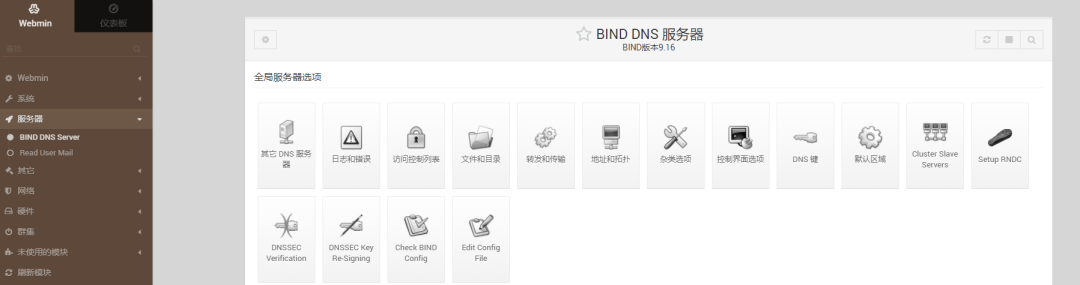
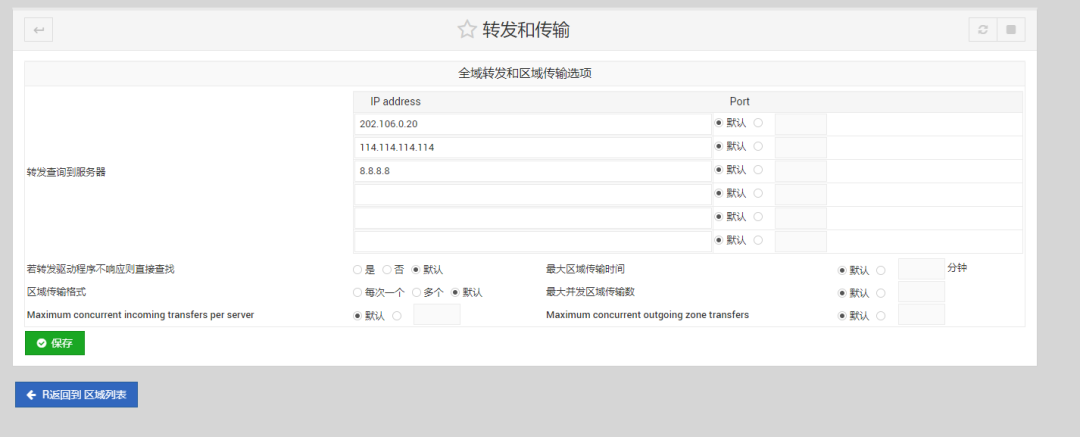
进行转发和传输设置
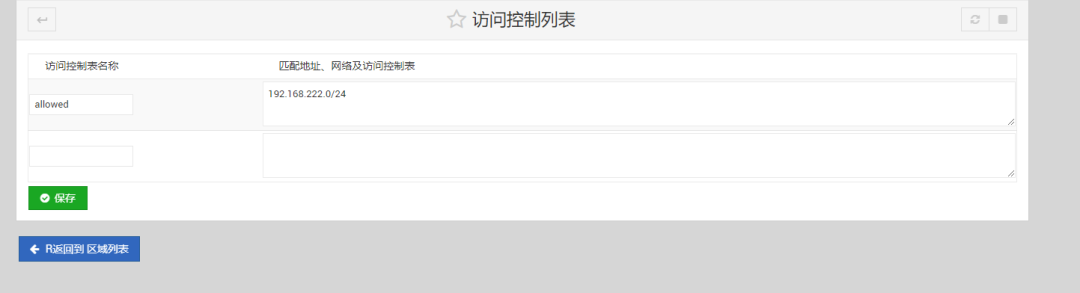
进行访问控制列表设置
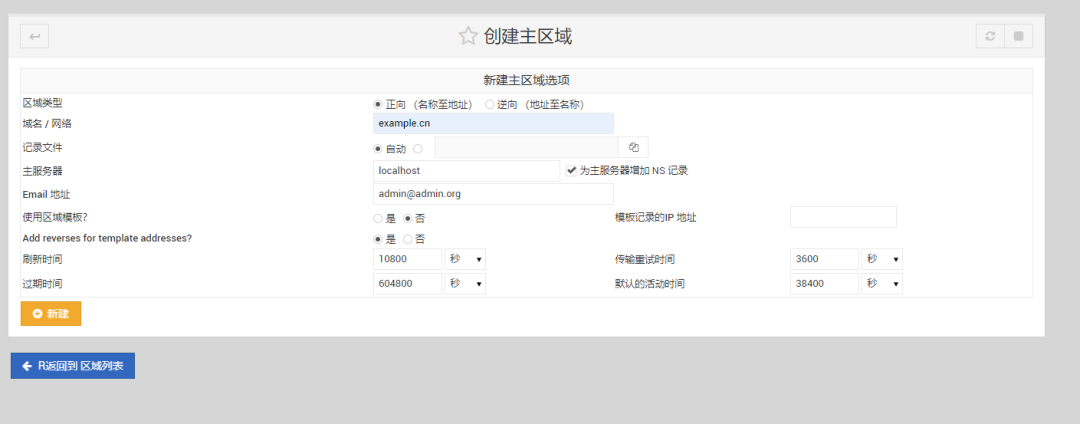
在这里创建新的主区域
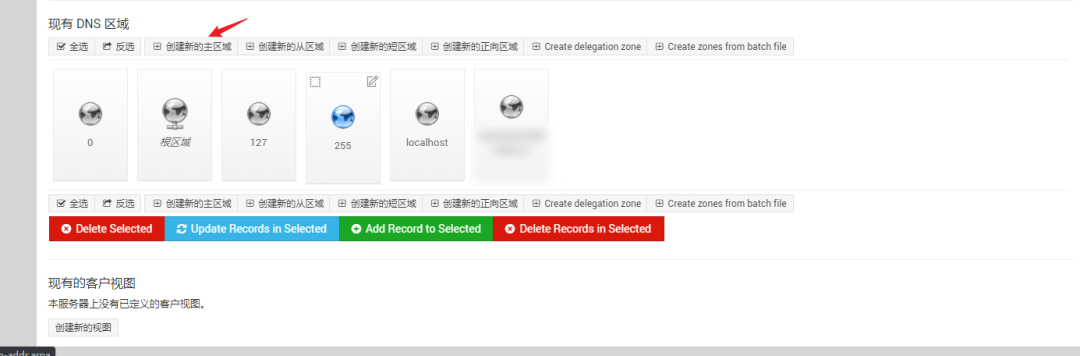
这里根据自己的实际情况去填,Email地址随便写
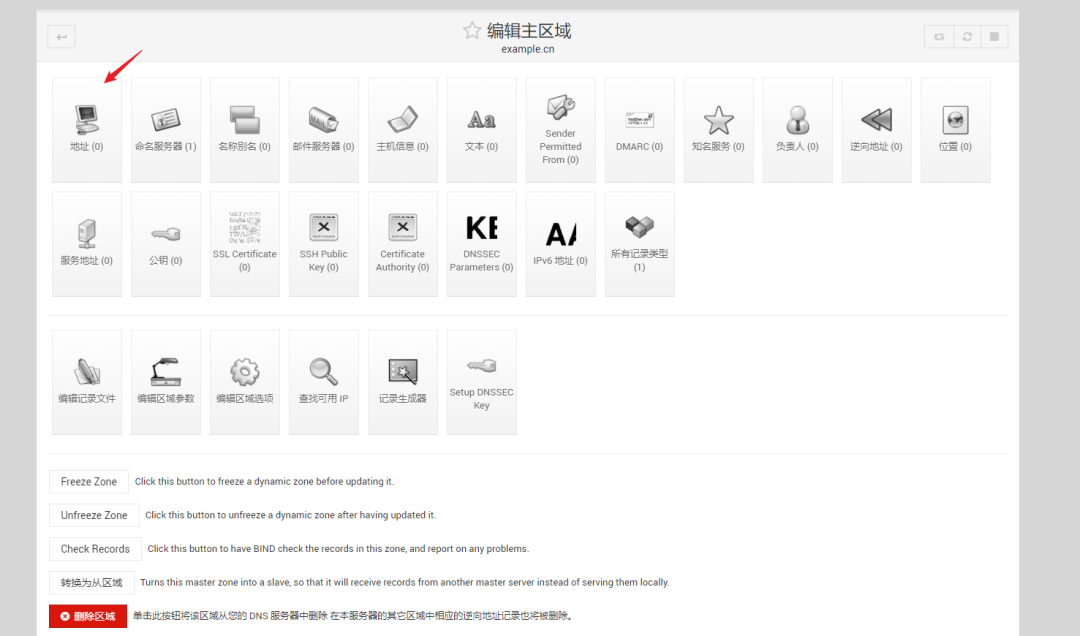
点击新建以后,点击地址
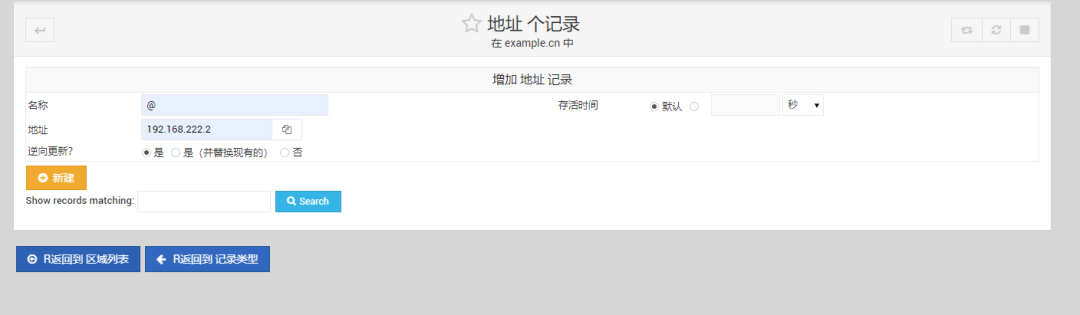
按照如下填写即可
等待一段时间,把路由器的DNS服务器设置为台式机,然后链接到路由器的局域网里,就可以使用host example.cn
来查看地址,如果可以定位到台式机,就没问题了。
下一篇文章,将补齐性能优化和一些相关问题。
本文转载自Coder沙拉公众号,欢迎关注:

