



Tips:一些记录,一些笔记

2024/2/9
FRIDAY
No matter how pain, you are the world won't stop turning for you.The sun also rise.
不管你有多痛苦,这个世界都不会为你停止转动。太阳依旧照样升起。

01
ComfyUI
在【Stable Diffusion】中有两个很知名的UI:
WebUI
ComfyUI
WebUI大家已经很熟悉了,但是比起它,ComfyUI更加自由,也更加符合【Stable Diffusion】的本质,或者说,研究【ComfyUI】能让你更透彻的理解【AI】在【图像生成】领域的原理和本质。
本文介绍的【ComfyUI Manager】是让你能更好的使用【ComfyUI】所不可或缺的一个插件。
下面,我会详细写出如何安装如何使用的一系列细节。
02
ComfyUI Manager:未配置的状态
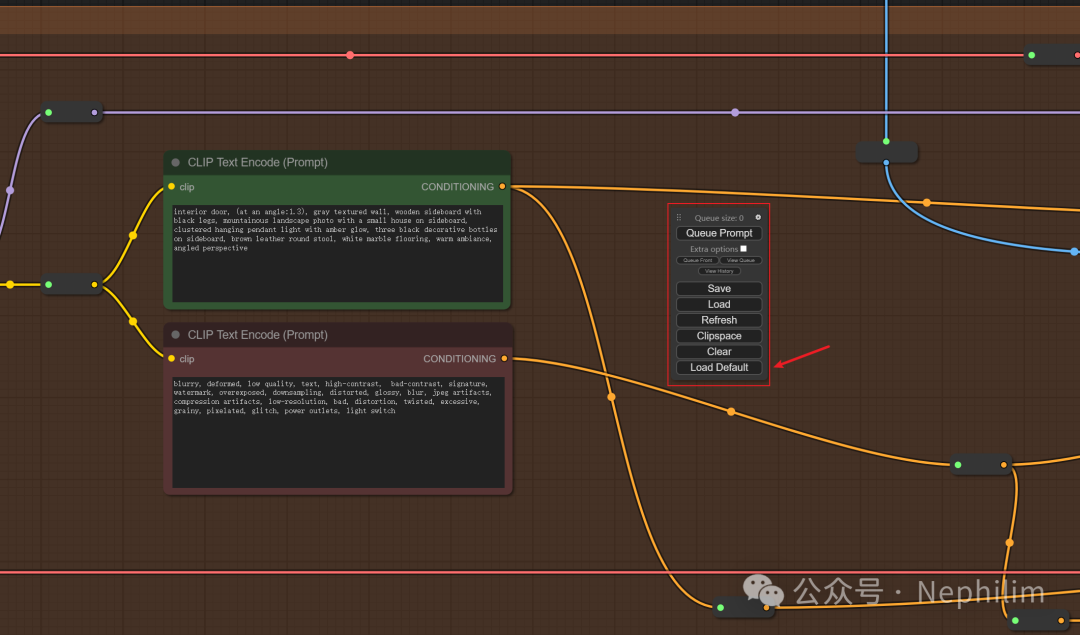
如下的状态,就是没有配置【ComfyUI Manager】的状态:
03
ComfyUI Manager:配置
首先,前往以下路径【ComfyUI根目录/ComfyUI/custom_nodes】
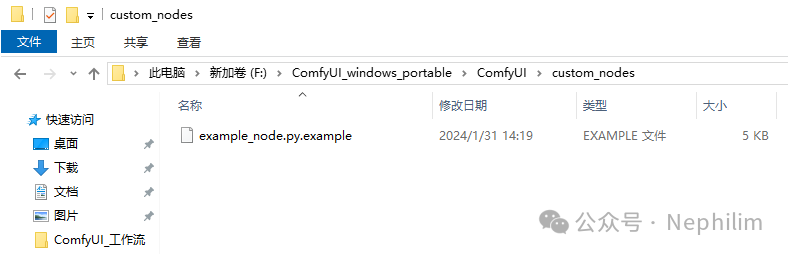
然后,在路径输入框中,输入【cmd】,调出命令行界面,并进入这个当前路径:

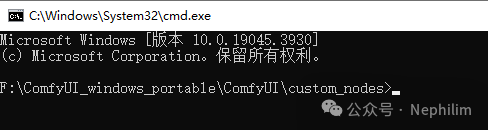
可以看到,已经在命令行界面中了,并且也在刚刚的路径中。
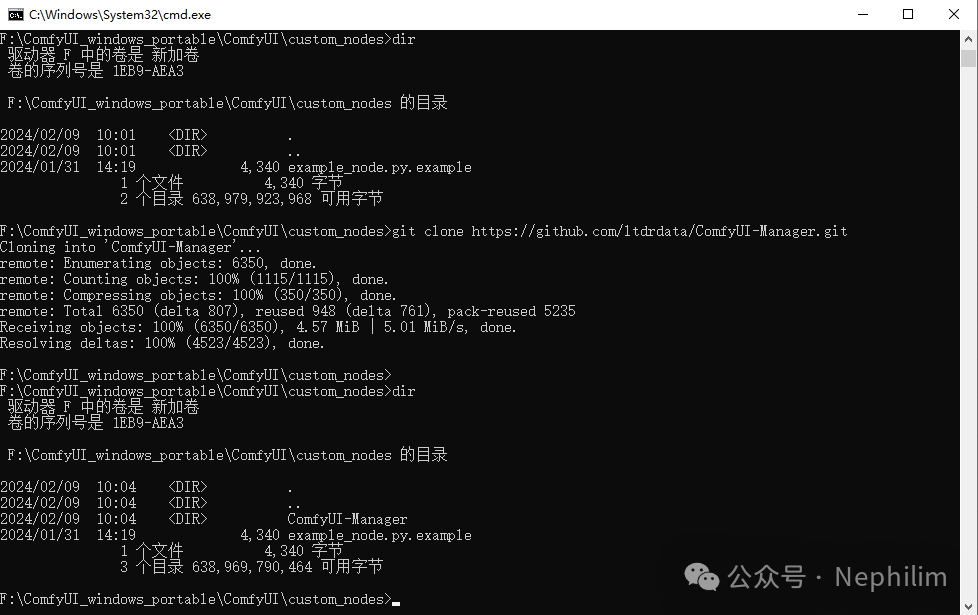
然后,执行GIT命令,从GITHUB或者GITEE的在线代码仓库中,将ComfyUI Manager的代码,拉取到本地:
git clone https://github.com/ltdrdata/ComfyUI-Manager.git
执行命令:
F:\ComfyUI_windows_portable\ComfyUI\custom_nodes>dir驱动器 F 中的卷是 新加卷卷的序列号是 1EB9-AEA3F:\ComfyUI_windows_portable\ComfyUI\custom_nodes 的目录2024/02/09 10:01 <DIR> .2024/02/09 10:01 <DIR> ..2024/01/31 14:19 4,340 example_node.py.example1 个文件 4,340 字节2 个目录 638,979,923,968 可用字节F:\ComfyUI_windows_portable\ComfyUI\custom_nodes>git clone https://github.com/ltdrdata/ComfyUI-Manager.gitCloning into 'ComfyUI-Manager'...remote: Enumerating objects: 6350, done.remote: Counting objects: 100% (1115/1115), done.remote: Compressing objects: 100% (350/350), done.remote: Total 6350 (delta 807), reused 948 (delta 761), pack-reused 5235Receiving objects: 100% (6350/6350), 4.57 MiB | 5.01 MiB/s, done.Resolving deltas: 100% (4523/4523), done.F:\ComfyUI_windows_portable\ComfyUI\custom_nodes>F:\ComfyUI_windows_portable\ComfyUI\custom_nodes>dir驱动器 F 中的卷是 新加卷卷的序列号是 1EB9-AEA3F:\ComfyUI_windows_portable\ComfyUI\custom_nodes 的目录2024/02/09 10:04 <DIR> .2024/02/09 10:04 <DIR> ..2024/02/09 10:04 <DIR> ComfyUI-Manager2024/01/31 14:19 4,340 example_node.py.example1 个文件 4,340 字节3 个目录 638,969,790,464 可用字节F:\ComfyUI_windows_portable\ComfyUI\custom_nodes>
看看目录中的状态:
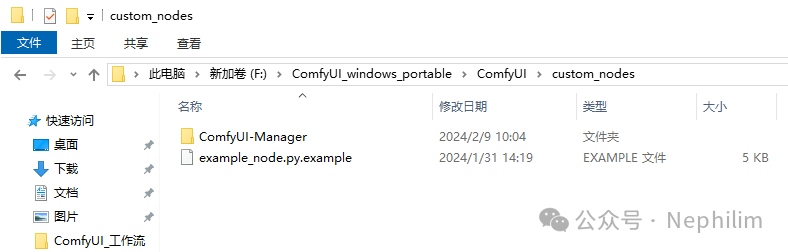
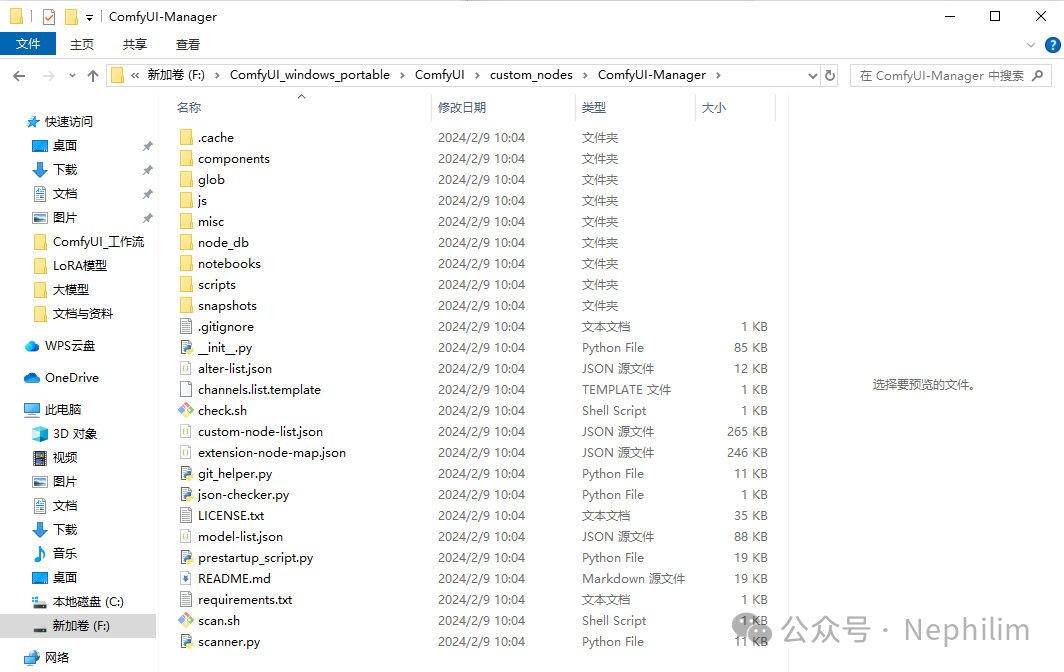
这样就安装好了。
然后,重启【ComfyUI】就可以应用了:
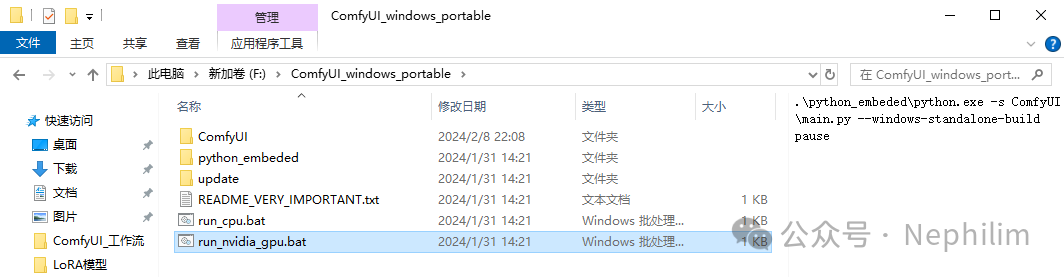
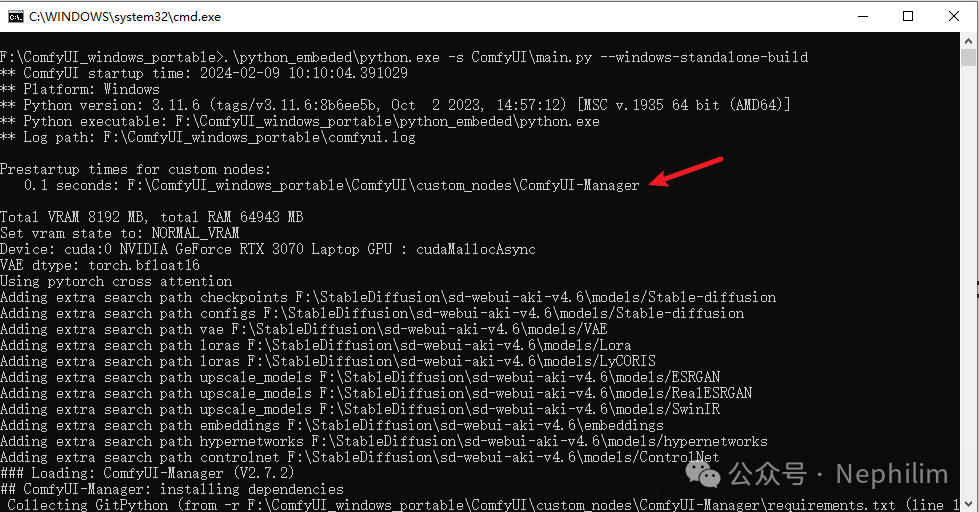
可以看到,启动过程中,正在做一些预配置。
04
ComfyUI Mananger:配置好的状态
当你配置了ComfyUI Manager,你看到的会是这样的画面:
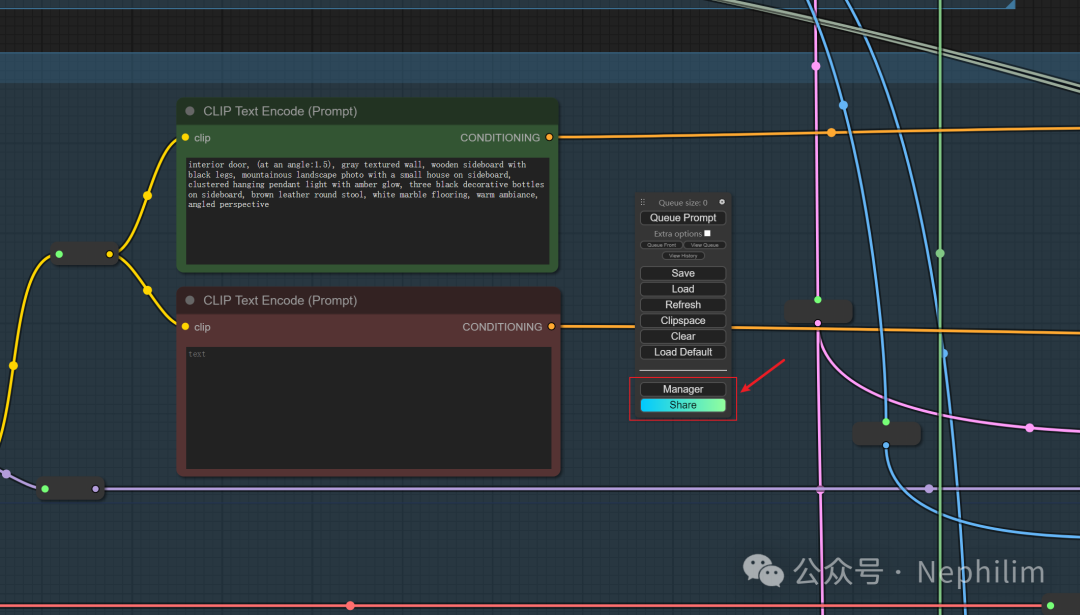
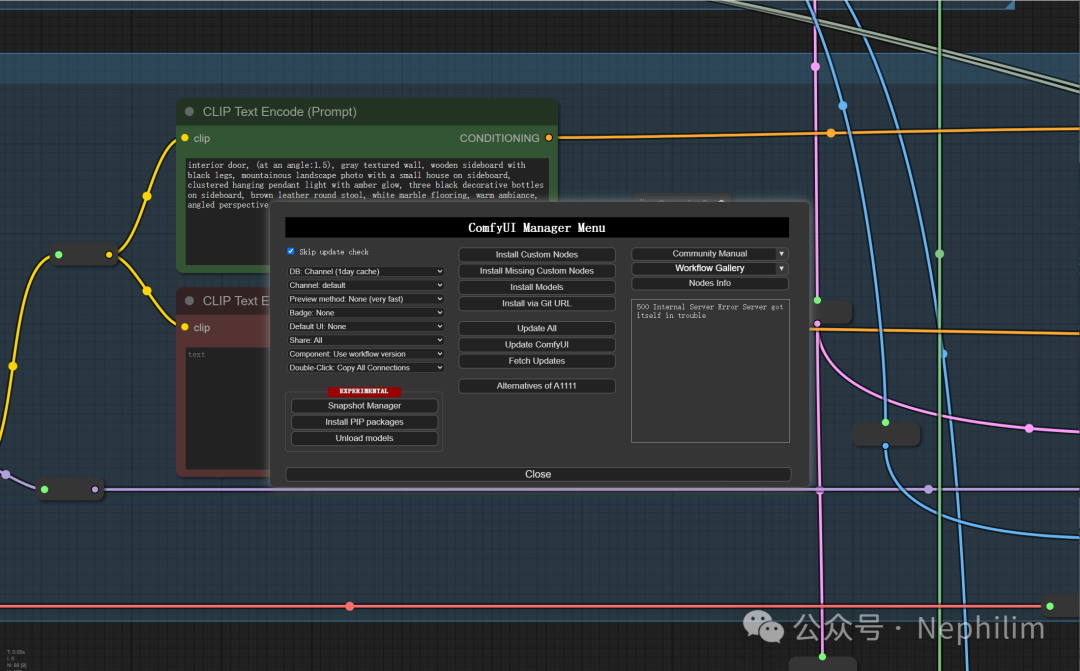
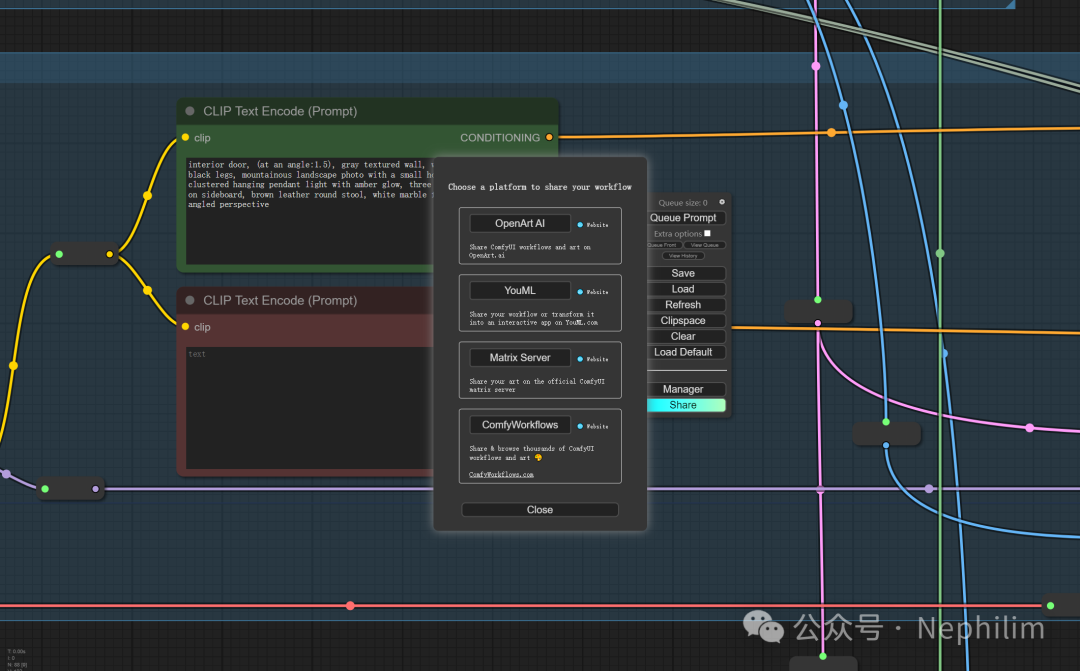
图中箭头所标注的,就是进入ComfyUI Manager的界面的入口
END
温馨提示
如果你喜欢本文,请分享到朋友圈,想要获得更多信息,请关注我。
