



Selenium 自动登录网站、截图及 Requests 抓取登录后的网页内容。一起了解下吧。
Selenium: 支持 Web 浏览器自动化的一系列工具和库的综合项目。
Requests: 唯一的一个非转基因的 Python HTTP 库,人类可以安全享用。
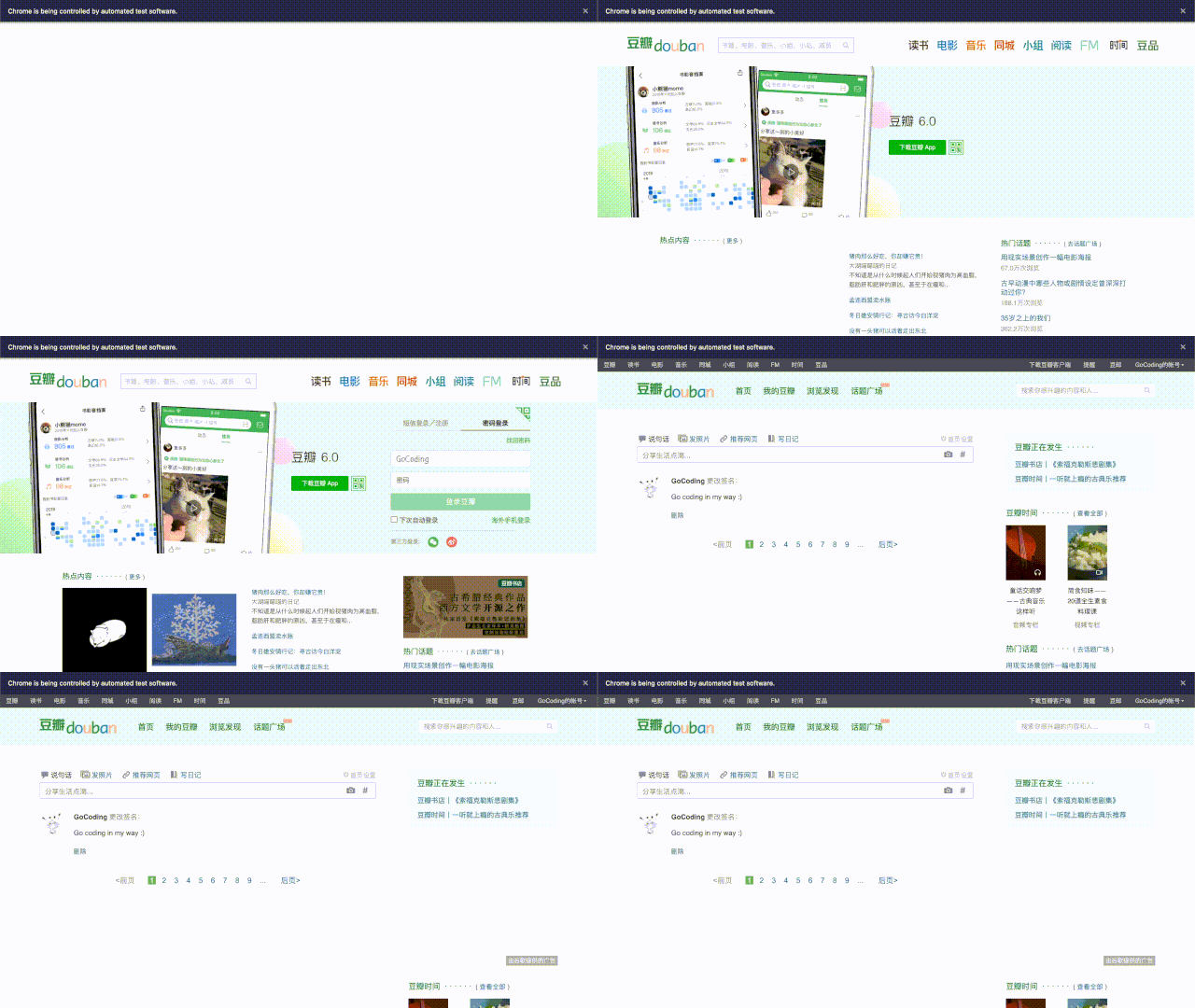
为什么选择 Selenium 实现自动登录?
Selenium 实现,相当于模拟用户手动打开浏览器、进行登录的过程。
相比直接 HTTP 请求登录,有几个好处:
避免登录窗口的复杂情况(iframe, ajax 等),省得分析细节。
用 Selenium 实现,依照用户操作流程即可。
避免模拟 Headers 、记录 Cookies 等 HTTP 完成登录的细节。
用 Selenium 实现,依赖浏览器自身功能即可。
利于实现加载等待、发现特殊情况(登录验证等),加进一步逻辑。
另外,自动登录等过程的可视化,给外行看挺让人感觉高端的。
为什么选择 Requests 抓取网页内容?
抓取登录后的某些内容,而非爬取网站, Requests 够用、好用。
1) 准备 Selenium
基础环境:Python 3.7.4 (anaconda3-2019.10)
pip 安装 Selenium :
1pip install selenium
获取 Selenium 版本信息:
1$ python
2Python 3.7.4 (default, Aug 13 2019, 15:17:50)
3[Clang 4.0.1 (tags/RELEASE_401/final)] :: Anaconda, Inc. on darwin
4Type "help", "copyright", "credits" or "license" for more information.
5>>> import selenium
6>>> print('Selenium version is {}'.format(selenium.__version__))
7Selenium version is 3.141.0
2) 准备浏览器及其驱动
下载 Google Chrome 浏览器并安装:
https://www.google.com/chrome/
下载 Chromium/Chrome WebDriver:
https://chromedriver.storage.googleapis.com/index.html
然后,将 WebDriver 路径加入到 PATH ,例如:
1# macOS, Linux
2export PATH=$PATH:/opt/WebDriver/bin >> ~/.profile
3
4# Windows
5setx /m path "%path%;C:\WebDriver\bin\"
6
3) Go coding!
读取登录配置
登录信息是私密的,我们从 json 配置读取:
 1# load config
 2import json
 3from types import SimpleNamespace as Namespace
 4
 5secret_file = 'secrets/douban.json'
 6# {
 7#   "url": {
 8#     "login": "https://www.douban.com/",
 9#     "target": "https://www.douban.com/mine/"
10#   },
11#   "account": {
12#     "username": "username",
13#     "password": "password"
14#   }
15# }
16with open(secret_file, 'r', encoding='utf-8') as f:
17  config = json.load(f, object_hook=lambda d: Namespace(**d))
18
19login_url = config.url.login
20target_url = config.url.target
21username = config.account.username
22password = config.account.password
Selenium 自动登录
以 Chrome WebDriver 实现,登录测试站点为「豆瓣」。
打开登录页面,自动输入用户名、密码,进行登录:
 1# automated testing
 2from selenium import webdriver
 3
 4# Chrome Start
 5opt = webdriver.ChromeOptions()
 6driver = webdriver.Chrome(options=opt)
 7# Chrome opens with “Data;” with selenium
 8#   https://stackoverflow.com/questions/37159684/chrome-opens-with-data-with-selenium
 9# Chrome End
10
11# driver.implicitly_wait(5)
12
13from selenium.common.exceptions import TimeoutException
14from selenium.webdriver.common.by import By
15from selenium.webdriver.support.ui import WebDriverWait
16from selenium.webdriver.support import expected_conditions as EC
17wait = WebDriverWait(driver, 5)
18
19print('open login page ...')
20driver.get(login_url)
21driver.switch_to.frame(driver.find_elements_by_tag_name("iframe")[0])
22
23driver.find_element_by_css_selector('li.account-tab-account').click()
24driver.find_element_by_name('username').send_keys(username)
25driver.find_element_by_name('password').send_keys(password)
26driver.find_element_by_css_selector('.account-form .btn').click()
27try:
28  wait.until(EC.presence_of_element_located((By.ID, "content")))
29except TimeoutException:
30  driver.quit()
31  sys.exit('open login page timeout')
如果用 IE 浏览器,如下:
 1# Ie Start
 2# Selenium Click is not working with IE11 in Windows 10
 3#   https://github.com/SeleniumHQ/selenium/issues/4292
 4opt = webdriver.IeOptions()
 5opt.ensure_clean_session = True
 6opt.ignore_protected_mode_settings = True
 7opt.ignore_zoom_level = True
 8opt.initial_browser_url = login_url
 9opt.native_events = False
10opt.persistent_hover = True
11opt.require_window_focus = True
12driver = webdriver.Ie(options = opt)
13# Ie End
如果设定更多功能,可以:
1cap = opt.to_capabilities()
2cap['acceptInsecureCerts'] = True
3cap['javascriptEnabled'] = True
打开目标页面,进行截图
 1print('open target page ...')
 2driver.get(target_url)
 3try:
 4  wait.until(EC.presence_of_element_located((By.ID, "board")))
 5except TimeoutException:
 6  driver.quit()
 7  sys.exit('open target page timeout')
 8
 9# save screenshot
10driver.save_screenshot('target.png')
11print('saved to target.png')
Requests 复刻 Cookies ,请求 HTML
 1# save html
 2import requests
 3
 4requests_session = requests.Session()
 5selenium_user_agent = driver.execute_script("return navigator.userAgent;")
 6requests_session.headers.update({"user-agent": selenium_user_agent})
 7for cookie in driver.get_cookies():
 8  requests_session.cookies.set(cookie['name'], cookie['value'], domain=cookie['domain'])
 9
10# driver.delete_all_cookies()
11driver.quit()
12
13resp = requests_session.get(target_url)
14resp.encoding = resp.apparent_encoding
15# resp.encoding = 'utf-8'
16print('status_code = {0}'.format(resp.status_code))
17with open('target.html', 'w+') as fout:
18  fout.write(resp.text)
19
20print('saved to target.html')
4) 运行测试
可以临时将 WebDriver 路径加入到 PATH :
1# macOS, Linux
2export PATH=$(pwd)/drivers:$PATH
3
4# Windows
5set PATH=%cd%\drivers;%PATH%
运行 Python 脚本,输出信息如下:
1$ python douban.py
2Selenium version is 3.141.0
3--------------------------------------------------------------------------------
4open login page ...
5open target page ...
6saved to target.png
7status_code = 200
8saved to target.html
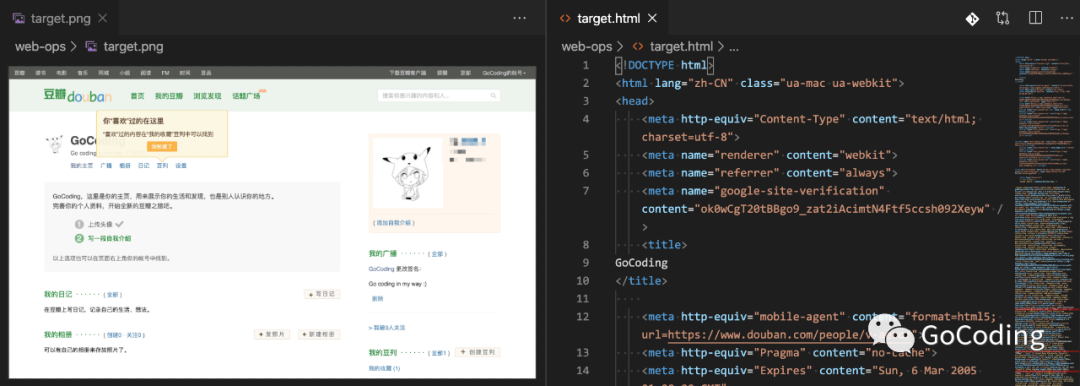
截图 target.png
, HTML 内容 target.html
,结果如下:
结语
登录过程如果遇到验证呢?
滑动验证,可以 Selenium 模拟
滑动距离,图像梯度算法可判断
图文验证,可以 Python AI 库识别
参考
本文代码 Gist 地址:
https://gist.github.com/ikuokuo/1160862c154d550900fb80110828c94c
Selenium:
https://www.selenium.dev/documentation/en/WebDriver:
https://www.selenium.dev/documentation/en/webdriver/driver_requirements/#quick-referencerequests:
https://requests.readthedocs.io/en/latest/requestium:
https://github.com/tryolabs/requestiumSelenium Requests:
https://github.com/cryzed/Selenium-Requests
