本次,我们为大家提供了在统信 UOS 服务器版 V20(AMD64 或 ARM64 架构)上本地离线部署 DeepSeek-R1 模型的攻略,以帮助您顺利完成 DeepSeek-R1 模型部署。
Step 1:防火墙放行端口
firewall-cmd --add-port=11434/tcp --permanentfirewall-cmd --add-port=3000/tcp --permanentfirewall-cmd --reload
注:11434 端口将用于 Ollama 服务,3000 端口将用于 OpenWebUI 服务。
Step 2:部署 Ollama
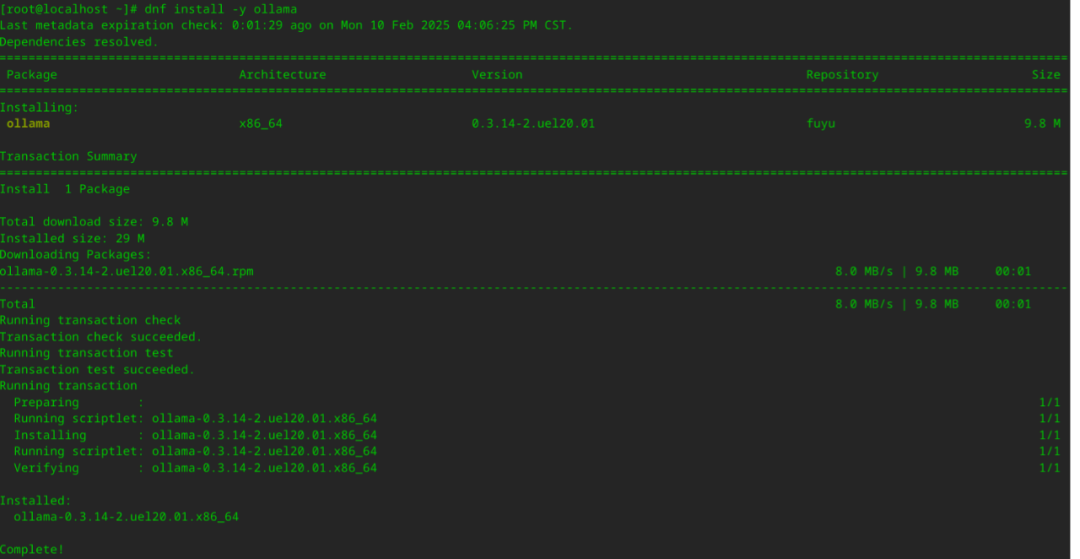
1、执行 dnf install -y ollama 命令,安装 Ollama 软件包。
2、在
/usr/lib/systemd/system/ollama.service
服务配置文件中的 [Service] 下新增如下两行内容,分别用于配置远程访问和跨域请求:
Environment="OLLAMA_HOST=0.0.0.0"Environment="OLLAMA_ORIGINS=*"
3、执行 systemctl daemon-reload 命令,更新服务配置。

注:1.5b 代表模型具备 15 亿参数,您可以根据部署机器的性能将其按需修改为 7b、8b、14b 和 32b 等。
Step 4:部署 OpenWebUI
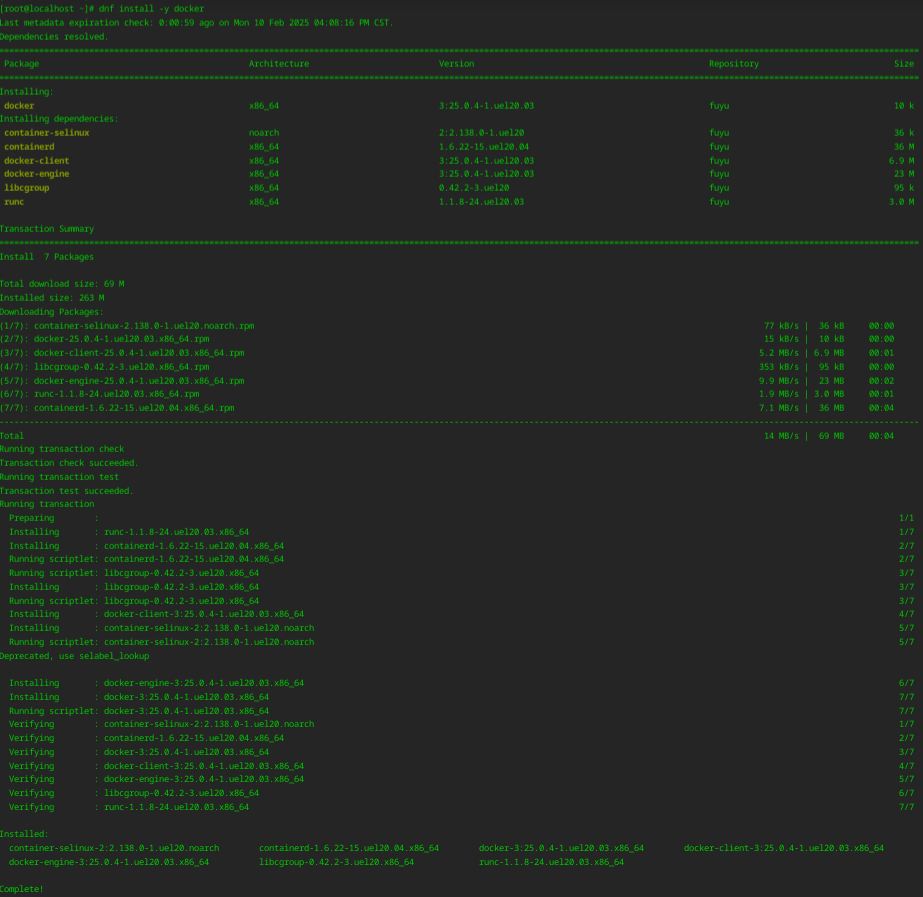
1、执行 dnf install -y docker 命令,安装 docker。
3、执行如下命令,运行 OpenWebUI。
docker run -d -p 3000:8080 --add-host=host.docker.internal:host-gateway -v open-webui:/app/backend/data--name open-webui --restart always ghcr.io/open-webui/open-webui:main
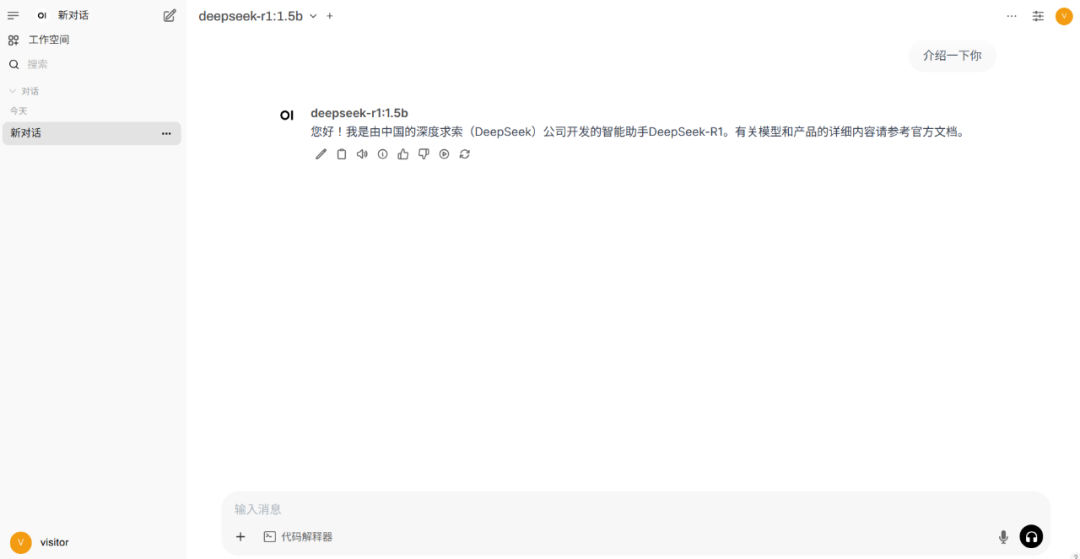
3、在界面左上角,选择 deepseek-r1:1.5b 模型后,输入消息即可开始对话。
Step 1:创建 Kubernetes 集群
1、使用 kubeadm 工具,并将 containerd 作为容器运行时,创建Kubernetes 集群。
注:下文以创建一个包含 1 个控制平面节点、1 个 CPU 工作节点(8 vCPUs + 32GB memory)和 2 个 GPU 工作节点(4 vCPUs + 32 GB memory + 1 GPU + 16GB GPU memory)的 Kubernetes 集群为例进行介绍。
2、安装 NVIDIA 设备驱动 nvidia-driver、NVIDIA 容器工具集 nvidia-container-toolkit。
dnf install -y nvidia-driver nvidia-container-toolkit
nvidia-ctk runtime configure --runtime=containerdsystemctl restart containerd
kubectl create -f https://raw.githubusercontent.com/NVIDIA/k8s-device-plugin/v0.17.0/deployments/static/nvidia-device-plugin.yml
kubectl taint nodes <gpu节点1名字> gpu=true:NoSchedulekubectl taint nodes <gpu节点2名字> gpu=true:NoSchedule
Step 2:编写Ray Serve应用示例
(vLLM 模型推理服务应用)
Step 3:在 Kubernetes 上创建 Ray 集群
#安装Helm工具dnf install -y helm#配置Kuberay官方Helm仓库helm repo add kuberay https://ray-project.github.io/kuberay-helm/#安装kuberay-operatorhelm install kuberay-operator kuberay/kuberay-operator --version 1.2.2#安装kuberay-apiserverhelm install kuberay-apiserver kuberay/kuberay-apiserver --version 1.2.2
2、执行 kubectl get pods 命令,获取 kuberay-apiserver 的 pod 名字,例如 kuberay-apiserver-857869f665-b94px,并配置 KubeRay API Server 的端口转发。
kubectl port-forward <kubeary-apiserver的Pod名> 8888:8888
3、创建一个名字空间,用于驻留与 Ray 集群相关的资源。
kubectl create ray-blog
{"name": "ray-head-cm","namespace": "ray-blog","cpu": 5,"memory": 20}
Ray 工作节点 Pod:
{"name": "ray-worker-cm","namespace": "ray-blog","cpu": 3,"memory": 20,"gpu": 1,"tolerations": [{"key": "gpu","operator": "Equal","value": "true","effect": "NoSchedule"}]}
curl -X POST "http://localhost:8888/apis/v1/namespaces/ray-blog/compute_templates" \-H "Content-Type: application/json" \-d '{"name": "ray-head-cm","namespace": "ray-blog","cpu": 5,"memory": 20}'
curl -X POST "http://localhost:8888/apis/v1/namespaces/ray-blog/compute_templates" \-H "Content-Type: application/json" \-d '{"name": "ray-worker-cm","namespace": "ray-blog","cpu": 3,"memory": 20,"gpu": 1,"tolerations": [{"key": "gpu","operator": "Equal","value": "true","effect": "NoSchedule"}]}'
{"name":"ray-vllm-cluster","namespace":"ray-blog","user":"ishan","version":"v1","clusterSpec":{"headGroupSpec":{"computeTemplate":"ray-head-cm","rayStartParams":{"dashboard-host":"0.0.0.0","num-cpus":"0","metrics-export-port":"8080"},"image":"registry.uniontech.com/uos-app/vllm-0.6.5-ray-2.40.0.22541c-py310-cu121-serve:latest","imagePullPolicy":"Always","serviceType":"ClusterIP"},"workerGroupSpec":[{"groupName":"ray-vllm-worker-group","computeTemplate":"ray-worker-cm","replicas":2,"minReplicas":2,"maxReplicas":2,"rayStartParams":{"node-ip-address":"$MY_POD_IP"},"image":"registry.uniontech.com/uos-app/vllm-0.6.5-ray-2.40.0.22541c-py310-cu121-serve:latest","imagePullPolicy":"Always","environment":{"values":{"HUGGING_FACE_HUB_TOKEN":"<your_token>"}}}]},"annotations":{"ray.io/enable-serve-service":"true"}}
curl -X POST "http://localhost:8888/apis/v1/namespaces/ray-blog/clusters" \-H "Content-Type: application/json" \-d '{"name": "ray-vllm-cluster","namespace": "ray-blog","user": "ishan","version": "v1","clusterSpec": {"headGroupSpec": {"computeTemplate": "ray-head-cm","rayStartParams": {"dashboard-host": "0.0.0.0","num-cpus": "0","metrics-export-port": "8080"},"image": "registry.uniontech.com/uos-app/vllm-0.6.5-ray-2.40.0.22541c-py310-cu121-serve:latest","imagePullPolicy": "Always","serviceType": "ClusterIP"},"workerGroupSpec": [{"groupName": "ray-vllm-worker-group","computeTemplate": "ray-worker-cm","replicas": 2,"minReplicas": 2,"maxReplicas": 2,"rayStartParams": {"node-ip-address": "$MY_POD_IP"},"image": "registry.uniontech.com/uos-app/vllm-0.6.5-ray-2.40.0.22541c-py310-cu121-serve:latest","imagePullPolicy": "Always","environment": {"values": {"HUGGING_FACE_HUB_TOKEN": "<your_token>"}}}]},"annotations": {"ray.io/enable-serve-service": "true"}}'
Step4:部署 Ray Serve 应用
1、执行 kubectl get services -n ray-blog 命令,获取 head-svc 服务的名字,例如 kuberay-head-svc,并配置端口转发。
kubectl port-forward service/<head-svc服务名> 8265:8265 -n ray-blog
2、向
http://localhost:8265/api/serve/applications/ 发送带有如下请求体的 PUT 请求。
{"applications":[{"import_path":"serve:model","name":"deepseek-r1","route_prefix":"/","autoscaling_config":{"min_replicas":1,"initial_replicas":1,"max_replicas":1},"deployments":[{"name":"VLLMDeployment","num_replicas":1,"ray_actor_options":{}}],"runtime_env":{"working_dir":"file:///home/ray/serve.zip","env_vars":{"MODEL_ID":"deepseek-ai/DeepSeek-R1-Distill-Qwen-1.5B","TENSOR_PARALLELISM":"1","PIPELINE_PARALLELISM":"2","MODEL_NAME":"deepseek_r1"}}}]}
curl -X PUT "http://localhost:8265/api/serve/applications/" \-H "Content-Type: application/json" \-d '{"applications": [{"import_path": "serve:model","name": "deepseek-r1","route_prefix": "/","autoscaling_config": {"min_replicas": 1,"initial_replicas": 1,"max_replicas": 1},"deployments": [{"name": "VLLMDeployment","num_replicas": 1,"ray_actor_options": {}}],"runtime_env": {"working_dir": "file:///home/ray/serve.zip","env_vars": {"MODEL_ID": "deepseek-ai/DeepSeek-R1-Distill-Qwen-1.5B","TENSOR_PARALLELISM": "1","PIPELINE_PARALLELISM": "2","MODEL_NAME": "deepseek_r1"}}}]}'
发送请求后,需要一定的时间等待部署完成,应用达到 healthy 状态。
Step 5:访问模型进行推理
kubectl port-forward service/<head-svc服务名> 8000:8000 -n ray-blog
2、向
http://localhost:8000/v1/chat/completions 发送带有如下请求体的 POST 请求。
{"model": "deepseek_r1","messages": [{"role": "user","content": "介绍一下你"}]}
可借助系统里的 curl 命令发送请求:
curl -X POST "http://localhost:8000/v1/chat/completions" \-H "Content-Type: application/json" \-d '{"model": "deepseek_r1","messages": [{"role": "user","content": "介绍一下你"}]}'
GPU内核级优化
# 锁定GPU频率至最高性能sudo nvidia-smi -lgc 1780,1780 # 3060卡默认峰值频率# 启用持久化模式sudo nvidia-smi -pm 1# 启用MPS(多进程服务)sudo nvidia-cuda-mps-control -d
内存与通信优化
# 在模型代码中添加(减少内存碎片)torch.cuda.set_per_process_memory_fraction(0.9)# 启用激活检查点(Activation Checkpointing)from torch.utils.checkpoint import checkpointdef forward(self, x):return checkpoint(self._forward_impl, x)
内核参数调优
#调整swappiness参数,控制着系统将内存数据交换到磁盘交换空间的倾向,取值范围 0 - 100。echo "vm.swappiness = 10" | sudo tee -a etc/sysctl.conf# 调整网络参数echo "net.core.rmem_max = 134217728" | sudo tee -a etc/sysctl.confecho "net.core.wmem_max = 134217728" | sudo tee -a etc/sysctl.confecho "net.core.somaxconn = 65535" | sudo tee -a etc/sysctl.conf# 然后执行以下命令使修改生效sudo sysctl -p
DeepSeek
Ollama
OpenWebUI
Kubernetes
kubeRay
vLLM
FastAPI

未来,统信 UOS 服务器版将针对以 DeepSeek 为代表的大模型推理性能进行更多优化,提供更加完善的 OS+AI 解决方案,敬请期待!
新闻来源:服务器操作系统与云计算产线