



温馨提示:本篇博客的详细代码已发布到 git : https://gitcode.com/nutpi/HarmonyosNext 可以下载运行哦!

HarmonyOS NEXT系列教程之 TabsConcaveCircle组件动画系统实现
本文将详细介绍TabsConcaveCircle组件中的动画系统实现,包括选项切换动画和凹陷圆球的移动动画。
效果演示
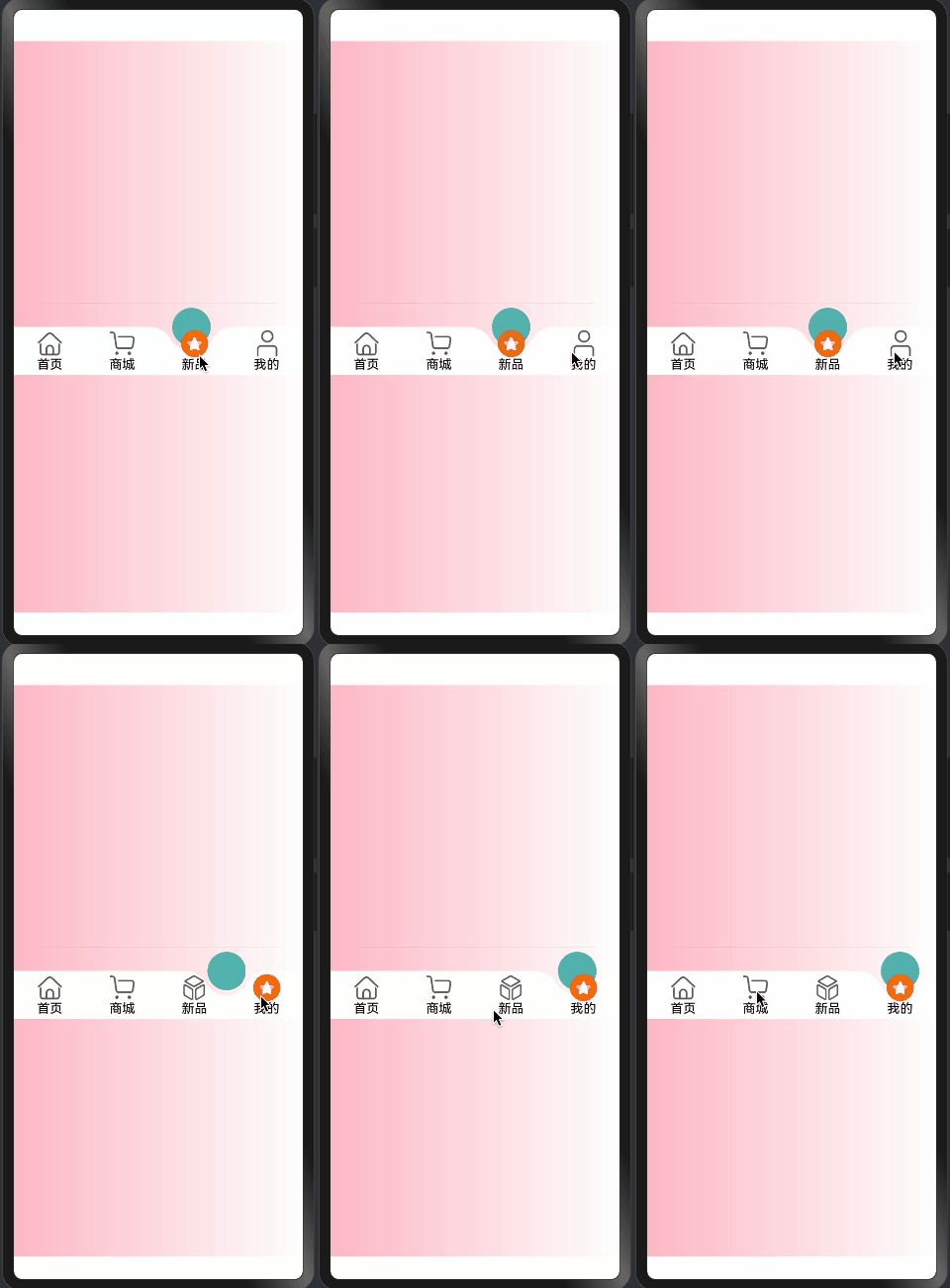
1. 选项切换动画实现
getAnimateSelectIndex() {
  let animateDelay = 500;
  animateTo({
    duration: this.animateTime,
    delay: animateDelay
  }, () => {
    this.animateSelectIndex = this.selectIndex
  })
  this.createAnimation()
}
动画实现说明:
animateDelay: 设置500ms的延迟,用于等待上一个选项动画结束animateTo: ArkUI提供的动画API,用于创建过渡动画- 动画参数:
duration: 动画持续时间delay: 动画延迟时间
- 动画执行时更新
animateSelectIndex,触发UI更新 - 调用
createAnimation()开始圆球移动动画
2. 圆球移动动画实现
createAnimation() {
  if (!this.circleInfo) {
    return;
  }

  this.canvasAnimator = animator.create({
    duration: this.animateTime,
    easing: "ease",
    delay: 0,
    fill: "forwards",
    direction: "normal",
    iterations: 1,
    begin: this.animationPositionX,
    end: this.circleInfo?.getMenuCenterX(this.selectIndex)
  })

  this.canvasAnimator.onFrame = (value: number) => {
    this.animationPositionX = value;
    this.circleInfo?.setPositionXY({ x: value - this.circleInfo.circleRadius })
    this.createCanvas()
  }

  this.canvasAnimator.play()
}
动画配置详解:
-
动画参数设置:
duration: 动画持续时间easing: 使用"ease"缓动函数fill: "forwards"保持动画最后一帧状态direction: "normal"表示正向播放iterations: 1表示只播放一次begin: 起始位置(当前位置)end: 目标位置(选中项的中心位置)
-
帧动画处理:
this.canvasAnimator.onFrame = (value: number) => { this.animationPositionX = value; this.circleInfo?.setPositionXY({ x: value - this.circleInfo.circleRadius }) this.createCanvas() }- 更新动画位置
- 设置圆球新位置
- 重新绘制Canvas
3. 图片偏移动画实现
@Builder
TabItem(item: TabMenusInterfaceIRequired, index: number) {
  Column() {
    if (item.image) {
      Image(getImageUrl(item as TabMenusInterfaceIRequired, index, this.selectIndex))
        .size({
          width: this.imageWH,
          height: this.imageWH,
        })
        .interpolation(ImageInterpolation.High)
        .offset({
          y: this.selectIndex === index && this.animateSelectIndex === index ?
             -this.imageOffsetY : 0,
        })
        .id(`${this.concaveCircleId}${index}`)
    }
    // ... 其他代码
  }
}
图片动画说明:
-
图片大小设置:
- 使用
imageWH控制图片尺寸 - 高清显示设置:
interpolation(ImageInterpolation.High)
- 使用
-
偏移动画:
- 通过
offset属性实现垂直方向的偏移 - 根据选中状态决定是否应用偏移
- 偏移量由
imageOffsetY控制
- 通过
4. 动画初始化和监听
aboutToAppear(): void {
  this.listener = inspector.createComponentObserver(`${this.concaveCircleId}0`)
  this.getImageOffsetY()
  this.animateSelectIndex = this.selectIndex;
}

getImageOffsetY() {
  let onLayoutComplete: () => void = (): void => {
    let modePosition = componentUtils.getRectangleById(`${this.concaveCircleId}0`)
    if (modePosition.localOffset) {
      let halfHeight = px2vp(modePosition.size.height) / 2;
      this.imageOffsetY = px2vp(modePosition.localOffset.y) + halfHeight;
      this.listener?.off('draw')
    }
  }
  let FuncDraw = onLayoutComplete;
  this.listener?.on('draw', FuncDraw)
}
初始化流程说明:
-
组件初始化时:
- 创建组件观察器
- 计算图片偏移量
- 同步选中状态
-
偏移量计算:
- 获取组件位置信息
- 计算垂直方向的偏移量
- 移除监听器
总结
TabsConcaveCircle组件的动画系统主要包含三个部分:
- 选项切换动画:控制整体切换效果
- 圆球移动动画:实现凹陷圆球的平滑移动
- 图片偏移动画:处理选中项的视觉效果
这些动画协同工作,创造出流畅的用户交互体验。通过合理的动画配置和状态管理,实现了一个专业的底部导航栏组件。
「喜欢这篇文章,您的关注和赞赏是给作者最好的鼓励」
关注作者
【版权声明】本文为墨天轮用户原创内容,转载时必须标注文章的来源(墨天轮),文章链接,文章作者等基本信息,否则作者和墨天轮有权追究责任。如果您发现墨天轮中有涉嫌抄袭或者侵权的内容,欢迎发送邮件至:contact@modb.pro进行举报,并提供相关证据,一经查实,墨天轮将立刻删除相关内容。
