



方法一:修改注册表
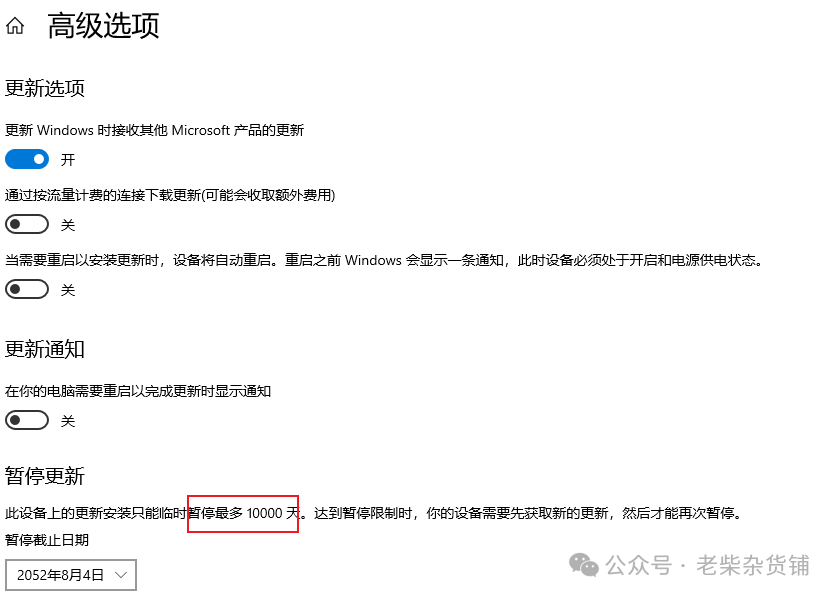
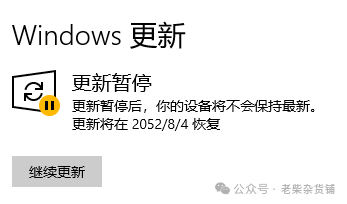
1.暂停更新Win11一万天
reg add "HKEY_LOCAL_MACHINE\SOFTWARE\Microsoft\WindowsUpdate\UX\Settings" /v FlightSettingsMaxPauseDays /t reg_dword /d 10000 /f
方法二:停止并禁用Windows Update服务
停止Windows Update服务:
Stop-Service wuauserv
将服务启动类型设为“禁用”:
Set-Service wuauserv -StartupType Disabled
如果需要恢复自动更新功能,可以将服务启动类型改回“自动”,并重启服务:
Set-Service wuauserv -StartupType AutomaticStart-Service wuauserv
方法三:综合脚本示例
通过注册表关闭自动更新策略,禁用Windows Update服务,并阻止计划任务触发更新流程。
# 管理员权限运行以下脚本function Disable-AutoUpdate {# 1. 修改注册表禁用自动更新策略$regPath = "HKLM:\SOFTWARE\Policies\Microsoft\Windows\WindowsUpdate\AU"if (-not (Test-Path $regPath)) { New-Item -Path $regPath -Force }Set-ItemProperty -Path $regPath -Name "NoAutoUpdate" -Value 1 -Type DWordSet-ItemProperty -Path $regPath -Name "AUOptions" -Value 1 -Type DWord # 完全禁用自动更新# 2. 停止并禁用Windows Update服务Stop-Service wuauserv -ForceSet-Service wuauserv -StartupType Disabled # 禁用服务# 3. 禁用所有与更新相关的计划任务Get-ScheduledTask -TaskPath "\Microsoft\Windows\WindowsUpdate\" | Disable-ScheduledTaskGet-ScheduledTask -TaskPath "\Microsoft\Windows\UpdateOrchestrator\" | Disable-ScheduledTaskGet-ScheduledTask -TaskPath "\Microsoft\Windows\InstallService\" | Disable-ScheduledTask # 彻底阻止任务触发# 4. 删除已下载的更新文件(可选)Remove-Item -Path "C:\Windows\SoftwareDistribution\*" -Recurse -Force -ErrorAction SilentlyContinueWrite-Output "Windows自动更新已禁用"}Disable-AutoUpdate
当微软后台强制恢复更新时,需通过系统权限修改关键文件
# 需提前下载PsTools(https://learn.microsoft.com/en-us/sysinternals/downloads/pstools)# 将PsExec.exe放入脚本目录后运行:function Disable-UpdateBySystem {# 获取系统权限修改计划任务文件Start-Process "psexec.exe" -ArgumentList "-i -d -s mmc taskschd.msc" -Wait# 手动禁用所有包含"Update"名称的任务# 强制重命名系统更新组件takeown /F C:\Windows\System32\Tasks\Microsoft\Windows\UpdateOrchestrator /A /Ricacls C:\Windows\System32\Tasks\Microsoft\Windows\UpdateOrchestrator /grant Administrators:F /TRename-Item "C:\Windows\System32\Tasks\Microsoft\Windows\UpdateOrchestrator" "UpdateOrchestrator_Disabled"}
恢复自动更新方法
function Enable-AutoUpdate {# 恢复注册表设置Set-ItemProperty -Path "HKLM:\SOFTWARE\Policies\Microsoft\Windows\WindowsUpdate\AU" -Name "NoAutoUpdate" -Value 0Set-ItemProperty -Path "HKLM:\SOFTWARE\Policies\Microsoft\Windows\WindowsUpdate\AU" -Name "AUOptions" -Value 4 # 启用自动下载并安装# 重启服务Set-Service wuauserv -StartupType AutomaticStart-Service wuauserv# 重新启用计划任务Get-ScheduledTask -TaskPath "\Microsoft\Windows\WindowsUpdate\" | Enable-ScheduledTask}
以上方法可根据实际需求选择使用,但需要注意的是,禁用自动更新可能使系统面临安全风险,建议在必要时定期手动检查和安装更新,确保系统稳定性和安全性
文章转载自老柴杂货铺,如果涉嫌侵权,请发送邮件至:contact@modb.pro进行举报,并提供相关证据,一经查实,墨天轮将立刻删除相关内容。
