



[HarmonyOS NEXT 实战案例:新闻阅读应用] 高级篇 - 高级布局技巧与组件封装
项目已开源,开源地址: https://gitcode.com/nutpi/HarmonyosNextCaseStudyTutorial , 欢迎fork & star
效果演示
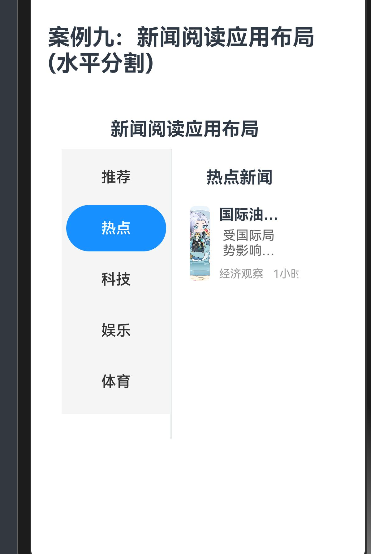
引言
在前两篇教程中,我们学习了如何使用HarmonyOS NEXT的RowSplit组件构建新闻阅读应用的基本布局,以及如何添加交互功能和状态管理。在本篇教程中,我们将进一步探讨高级布局技巧和组件封装,包括自适应布局、自定义组件、高级状态管理等,使应用更加灵活、可维护和专业。
高级布局技巧
自适应布局
在不同屏幕尺寸和方向下,应用界面应该能够自适应调整。我们可以使用以下技巧实现自适应布局:
1. 媒体查询
使用mediaquery模块可以根据屏幕尺寸和方向调整布局:
import mediaquery from '@ohos.mediaquery';

@Component
export struct NewsReaderExample {
  @State isLandscape: boolean = false;
  private landscapeListener: mediaquery.MediaQueryListener | null = null;

  aboutToAppear() {
    // 创建媒体查询监听器
    let mediaQueryList = mediaquery.matchMediaSync('(orientation: landscape)');
    this.landscapeListener = mediaQueryList.on('change', (mediaQueryResult) => {
      this.isLandscape = mediaQueryResult.matches;
    });
  }

  aboutToDisappear() {
    // 移除媒体查询监听器
    if (this.landscapeListener) {
      this.landscapeListener.off('change');
      this.landscapeListener = null;
    }
  }

  build() {
    Column() {
      // 标题行

      // 根据屏幕方向调整布局
      if (this.isLandscape) {
        // 横屏布局
        this.buildLandscapeLayout();
      } else {
        // 竖屏布局
        this.buildPortraitLayout();
      }
    }
    .width('100%')
    .padding(15)
  }

  @Builder
  private buildLandscapeLayout() {
    // 横屏布局实现
    RowSplit() {
      // 左侧新闻分类区域
      Column() {
        // 新闻分类内容
      }
      .width('20%')
      .backgroundColor('#f5f5f5')

      // 中间新闻列表区域
      Column() {
        // 搜索框和新闻列表
      }
      .width('40%')

      // 右侧新闻详情区域
      Column() {
        // 新闻详情内容
      }
      .width('40%')
    }
    .height(600)
  }

  @Builder
  private buildPortraitLayout() {
    // 竖屏布局实现
    if (!this.isDetailMode) {
      RowSplit() {
        // 左侧新闻分类区域
        Column() {
          // 新闻分类内容
        }
        .width('25%')
        .backgroundColor('#f5f5f5')

        // 右侧新闻列表区域
        Column() {
          // 搜索框和新闻列表
        }
        .width('75%')
      }
      .height(600)
    } else {
      // 新闻详情页
      this.NewsDetailComponent(this.selectedNews!)
    }
  }
}
在这个实现中,我们使用媒体查询监听屏幕方向的变化,并根据屏幕方向显示不同的布局:
- 在横屏模式下,使用三栏布局,同时显示分类、列表和详情
- 在竖屏模式下,使用两栏布局,根据状态切换列表和详情
2. 百分比和弹性布局
使用百分比和弹性布局可以使界面元素根据可用空间自动调整大小:
Row() {
  // 左侧区域,固定宽度
  Column() {
    // 内容
  }
  .width(100)

  // 中间区域,弹性宽度
  Column() {
    // 内容
  }
  .layoutWeight(1)

  // 右侧区域,固定宽度
  Column() {
    // 内容
  }
  .width(100)
}
.width('100%')
在这个例子中,中间区域使用layoutWeight属性,会自动占据除左右区域外的所有可用空间。
3. 栅格布局
使用栅格布局可以更精细地控制界面元素的布局:
GridRow() {
  // 新闻分类区域,占3列
  GridCol(3) {
    // 内容
  }

  // 新闻列表区域,占9列
  GridCol(9) {
    // 内容
  }
}
.width('100%')
.gutter(10) // 列间距
在这个例子中,我们使用12列栅格系统,新闻分类区域占3列,新闻列表区域占9列。
高级动画效果
添加动画效果可以使界面更加生动和专业:
1. 页面切换动画
// 页面切换动画
if (!this.isDetailMode) {
  // 新闻列表
  RowSplit() {
    // 内容
  }
  .transition({ type: TransitionType.All, opacity: 0.0, scale: { x: 0.9, y: 0.9 } })
  .animation({
    duration: 300,
    curve: Curve.EaseOut,
    delay: 0,
    iterations: 1,
    playMode: PlayMode.Normal
  })
} else {
  // 新闻详情
  this.NewsDetailComponent(this.selectedNews!)
  .transition({ type: TransitionType.All, opacity: 0.0, scale: { x: 0.9, y: 0.9 } })
  .animation({
    duration: 300,
    curve: Curve.EaseOut,
    delay: 0,
    iterations: 1,
    playMode: PlayMode.Normal
  })
}
在这个例子中,我们为页面切换添加了淡入淡出和缩放动画,使切换过程更加平滑。
2. 列表项动画
List() {
  ForEach(this.getFilteredNews(), (item: NewsItem, index: number) => {
    ListItem() {
      this.NewsItemComponent(item)
    }
    .padding(10)
    .onClick(() => {
      this.selectedNews = item;
      this.isDetailMode = true;
    })
    .transition({ type: TransitionType.All, opacity: 0.0, translate: { x: 50, y: 0 } })
    .animation({
      duration: 300,
      curve: Curve.EaseOut,
      delay: 50 * index, // 延迟时间与索引相关,实现错落有致的动画效果
      iterations: 1,
      playMode: PlayMode.Normal
    })
  })
}
在这个例子中,我们为列表项添加了淡入和平移动画,并根据索引设置不同的延迟时间,实现错落有致的动画效果。
组件封装
随着应用复杂度的增加,将界面拆分为多个可复用的组件变得非常重要。下面我们将新闻阅读应用拆分为多个自定义组件:
1. 新闻分类组件
@Component
struct NewsCategoryPanel {
  @Link selectedCategory: string;
  private categories: string[];
  private onCategorySelected: (category: string) => void;

  build() {
    Column() {
      Button('我的收藏')
        .width('90%')
        .height(50)
        .fontSize(16)
        .margin({ top: 10, bottom: 10 })
        .borderRadius(8)
        .backgroundColor('#ff9500')
        .fontColor('#ffffff')
        .onClick(() => {
          this.onCategorySelected('收藏');
        })

      ForEach(this.categories, (category: string) => {
        Button(category)
          .width('90%')
          .height(50)
          .fontSize(16)
          .margin({ top: 10 })
          .borderRadius(8)
          .backgroundColor(this.selectedCategory === category ? '#007DFF' : '#ffffff')
          .fontColor(this.selectedCategory === category ? '#ffffff' : '#333333')
          .onClick(() => {
            this.onCategorySelected(category);
          })
      })
    }
    .width('100%')
    .height('100%')
    .backgroundColor('#f5f5f5')
    .padding({ top: 10 })
  }
}
2. 新闻列表组件
@Component
struct NewsListPanel {
  @Link searchText: string;
  @Link favoriteNews: Set<string>;
  private newsData: NewsItem[];
  private selectedCategory: string;
  private onNewsSelected: (news: NewsItem) => void;
  private onFavoriteToggle: (title: string, isFavorite: boolean) => void;

  build() {
    Column() {
      // 搜索框
      Row() {
        TextInput({ placeholder: '搜索新闻', text: this.searchText })
          .width('80%')
          .height(40)
          .backgroundColor('#f0f0f0')
          .borderRadius(20)
          .padding({ left: 15, right: 15 })
          .onChange((value: string) => {
            this.searchText = value;
          })

        Button('搜索')
          .width('18%')
          .height(40)
          .fontSize(14)
          .margin({ left: '2%' })
          .borderRadius(20)
          .backgroundColor('#007DFF')
          .onClick(() => {
            // 搜索逻辑
            console.info(`搜索:${this.searchText}`);
          })
      }
      .width('100%')
      .padding({ left: 10, right: 10, top: 10, bottom: 10 })

      // 新闻列表
      List() {
        ForEach(this.getFilteredNews(), (item: NewsItem) => {
          ListItem() {
            this.NewsItemComponent(item)
          }
          .padding(10)
          .onClick(() => {
            this.onNewsSelected(item);
          })
        })
      }
      .width('100%')
      .height('100%')
      .divider({ strokeWidth: 1, color: '#f0f0f0', startMargin: 10, endMargin: 10 })
    }
    .width('100%')
    .height('100%')
  }

  @Builder
  private NewsItemComponent(item: NewsItem) {
    Row() {
      Column() {
        Text(item.title)
          .fontSize(16)
          .fontWeight(FontWeight.Bold)
          .margin({ bottom: 5 })
        Row() {
          Text(item.source)
            .fontSize(14)
            .fontColor('#666')
          Text(item.time)
            .fontSize(14)
            .fontColor('#666')
            .margin({ left: 10 })

          Blank()

          Button(this.favoriteNews.has(item.title) ? '已收藏' : '收藏')
            .fontSize(12)
            .height(24)
            .backgroundColor(this.favoriteNews.has(item.title) ? '#ff9500' : '#f0f0f0')
            .fontColor(this.favoriteNews.has(item.title) ? '#ffffff' : '#333333')
            .borderRadius(12)
            .onClick((event: ClickEvent) => {
              event.stopPropagation();
              this.onFavoriteToggle(item.title, !this.favoriteNews.has(item.title));
            })
        }
      }
      .layoutWeight(1)
      .alignItems(HorizontalAlign.Start)

      Image(item.imageUrl)
        .width(100)
        .height(70)
        .objectFit(ImageFit.Cover)
        .borderRadius(5)
        .margin({ left: 10 })
    }
    .width('100%')
  }

  private getFilteredNews(): NewsItem[] {
    // 根据选中的分类和搜索文本过滤新闻
    let filteredNews = this.newsData;

    // 根据分类过滤
    if (this.selectedCategory !== '推荐') {
      if (this.selectedCategory === '收藏') {
        // 显示收藏的新闻
        filteredNews = filteredNews.filter(item => this.favoriteNews.has(item.title));
      } else {
        // 显示特定分类的新闻
        filteredNews = filteredNews.filter(item => item.category === this.selectedCategory);
      }
    }

    // 根据搜索文本过滤
    if (this.searchText.trim() !== '') {
      const searchLower = this.searchText.toLowerCase();
      filteredNews = filteredNews.filter(item =>
        item.title.toLowerCase().includes(searchLower) ||
        item.source.toLowerCase().includes(searchLower) ||
        item.category.toLowerCase().includes(searchLower)
      );
    }

    return filteredNews;
  }
}
3. 新闻详情组件
@Component
struct NewsDetailPanel {
  @Link favoriteNews: Set<string>;
  private newsItem: NewsItem;
  private newsData: NewsItem[];
  private onRelatedNewsSelected: (news: NewsItem) => void;
  private onFavoriteToggle: (title: string, isFavorite: boolean) => void;

  build() {
    Column() {
      // 新闻标题
      Text(this.newsItem.title)
        .fontSize(24)
        .fontWeight(FontWeight.Bold)
        .margin({ bottom: 15 })

      // 新闻来源和时间
      Row() {
        Text(this.newsItem.source)
          .fontSize(14)
          .fontColor('#666')
        Text(this.newsItem.time)
          .fontSize(14)
          .fontColor('#666')
          .margin({ left: 10 })

        Blank()

        Button(this.favoriteNews.has(this.newsItem.title) ? '已收藏' : '收藏')
          .fontSize(14)
          .height(32)
          .backgroundColor(this.favoriteNews.has(this.newsItem.title) ? '#ff9500' : '#f0f0f0')
          .fontColor(this.favoriteNews.has(this.newsItem.title) ? '#ffffff' : '#333333')
          .borderRadius(16)
          .onClick(() => {
            this.onFavoriteToggle(this.newsItem.title, !this.favoriteNews.has(this.newsItem.title));
          })
      }
      .width('100%')
      .margin({ bottom: 20 })

      // 新闻图片
      Image(this.newsItem.imageUrl)
        .width('100%')
        .height(200)
        .objectFit(ImageFit.Cover)
        .borderRadius(8)
        .margin({ bottom: 20 })

      // 新闻内容
      Text(this.generateNewsContent(this.newsItem))
        .fontSize(16)
        .lineHeight(24)
        .margin({ bottom: 20 })

      // 相关新闻
      Text('相关新闻')
        .fontSize(18)
        .fontWeight(FontWeight.Bold)
        .margin({ bottom: 10 })

      List() {
        ForEach(this.getRelatedNews(), (relatedItem: NewsItem) => {
          ListItem() {
            Row() {
              Text(relatedItem.title)
                .fontSize(14)
                .layoutWeight(1)

              Text(relatedItem.time)
                .fontSize(12)
                .fontColor('#666')
            }
            .width('100%')
            .padding({ top: 8, bottom: 8 })
          }
          .onClick(() => {
            this.onRelatedNewsSelected(relatedItem);
          })
        })
      }
      .width('100%')
      .height(150)
      .divider({ strokeWidth: 1, color: '#f0f0f0' })
    }
    .width('100%')
    .alignItems(HorizontalAlign.Start)
    .padding(15)
  }

  private getRelatedNews(): NewsItem[] {
    // 获取与当前新闻相关的新闻(同一分类的其他新闻)
    return this.newsData
      .filter(item => item.category === this.newsItem.category && item.title !== this.newsItem.title)
      .slice(0, 3); // 最多显示3条相关新闻
  }

  private generateNewsContent(item: NewsItem): string {
    // 生成新闻内容(实际应用中应该从后端获取)
    return `这是一篇关于${item.category}的新闻。${item.title}。这里是新闻的详细内容,包含了事件的起因、经过和结果。\n\n这是第二段落,提供了更多的背景信息和相关数据。根据最新的统计数据显示,这一领域的发展趋势非常明显。\n\n这是第三段落,包含了专家的观点和分析。多位专家认为,这一事件将对行业产生深远的影响。`;
  }
}
4. 主组件
@Component
export struct NewsReaderExample {
  @State selectedCategory: string = '推荐';
  @State searchText: string = '';
  @State favoriteNews: Set<string> = new Set<string>();
  @State selectedNews: NewsItem | null = null;
  @State isDetailMode: boolean = false;
  @State isLandscape: boolean = false;

  private categories: string[] = ['推荐', '科技', '体育', '财经', '娱乐', '健康'];
  @State newsData: NewsItem[] = [
    // 新闻数据
  ];
  private landscapeListener: mediaquery.MediaQueryListener | null = null;

  aboutToAppear() {
    // 创建媒体查询监听器
    let mediaQueryList = mediaquery.matchMediaSync('(orientation: landscape)');
    this.landscapeListener = mediaQueryList.on('change', (mediaQueryResult) => {
      this.isLandscape = mediaQueryResult.matches;
    });
  }

  aboutToDisappear() {
    // 移除媒体查询监听器
    if (this.landscapeListener) {
      this.landscapeListener.off('change');
      this.landscapeListener = null;
    }
  }

  build() {
    Column() {
      Row() {
        Text('新闻阅读应用布局')
          .fontSize(20)
          .fontWeight(FontWeight.Bold)

        Blank()

        if (this.isDetailMode && !this.isLandscape) {
          Button('返回列表')
            .fontSize(14)
            .height(32)
            .backgroundColor('#007DFF')
            .onClick(() => {
              this.isDetailMode = false;
              this.selectedNews = null;
            })
        }
      }
      .width('100%')
      .margin({ bottom: 10 })

      // 根据屏幕方向调整布局
      if (this.isLandscape) {
        // 横屏布局
        this.buildLandscapeLayout();
      } else {
        // 竖屏布局
        this.buildPortraitLayout();
      }
    }
    .width('100%')
    .padding(15)
  }

  @Builder
  private buildLandscapeLayout() {
    // 横屏布局实现
    RowSplit() {
      // 左侧新闻分类区域
      NewsCategoryPanel({
        selectedCategory: $selectedCategory,
        categories: this.categories,
        onCategorySelected: (category: string) => {
          this.selectedCategory = category;
        }
      })
      .width('20%')

      // 中间新闻列表区域
      NewsListPanel({
        searchText: $searchText,
        favoriteNews: $favoriteNews,
        newsData: this.newsData,
        selectedCategory: this.selectedCategory,
        onNewsSelected: (news: NewsItem) => {
          this.selectedNews = news;
          if (!this.isLandscape) {
            this.isDetailMode = true;
          }
        },
        onFavoriteToggle: (title: string, isFavorite: boolean) => {
          if (isFavorite) {
            this.favoriteNews.add(title);
          } else {
            this.favoriteNews.delete(title);
          }
          // 强制更新Set
          this.favoriteNews = new Set(this.favoriteNews);
        }
      })
      .width('40%')

      // 右侧新闻详情区域
      if (this.selectedNews) {
        NewsDetailPanel({
          favoriteNews: $favoriteNews,
          newsItem: this.selectedNews,
          newsData: this.newsData,
          onRelatedNewsSelected: (news: NewsItem) => {
            this.selectedNews = news;
          },
          onFavoriteToggle: (title: string, isFavorite: boolean) => {
            if (isFavorite) {
              this.favoriteNews.add(title);
            } else {
              this.favoriteNews.delete(title);
            }
            // 强制更新Set
            this.favoriteNews = new Set(this.favoriteNews);
          }
        })
        .width('40%')
      } else {
        Column() {
          Text('请选择一条新闻查看详情')
            .fontSize(16)
            .fontColor('#999')
        }
        .width('40%')
        .justifyContent(FlexAlign.Center)
      }
    }
    .height(600)
  }

  @Builder
  private buildPortraitLayout() {
    // 竖屏布局实现
    if (!this.isDetailMode) {
      RowSplit() {
        // 左侧新闻分类区域
        NewsCategoryPanel({
          selectedCategory: $selectedCategory,
          categories: this.categories,
          onCategorySelected: (category: string) => {
            this.selectedCategory = category;
          }
        })
        .width('25%')

        // 右侧新闻列表区域
        NewsListPanel({
          searchText: $searchText,
          favoriteNews: $favoriteNews,
          newsData: this.newsData,
          selectedCategory: this.selectedCategory,
          onNewsSelected: (news: NewsItem) => {
            this.selectedNews = news;
            this.isDetailMode = true;
          },
          onFavoriteToggle: (title: string, isFavorite: boolean) => {
            if (isFavorite) {
              this.favoriteNews.add(title);
            } else {
              this.favoriteNews.delete(title);
            }
            // 强制更新Set
            this.favoriteNews = new Set(this.favoriteNews);
          }
        })
        .width('75%')
      }
      .height(600)
    } else {
      // 新闻详情页
      NewsDetailPanel({
        favoriteNews: $favoriteNews,
        newsItem: this.selectedNews!,
        newsData: this.newsData,
        onRelatedNewsSelected: (news: NewsItem) => {
          this.selectedNews = news;
        },
        onFavoriteToggle: (title: string, isFavorite: boolean) => {
          if (isFavorite) {
            this.favoriteNews.add(title);
          } else {
            this.favoriteNews.delete(title);
          }
          // 强制更新Set
          this.favoriteNews = new Set(this.favoriteNews);
        }
      })
    }
  }
}
在这个实现中,我们将新闻阅读应用拆分为三个主要组件:
NewsCategoryPanel:负责显示新闻分类NewsListPanel:负责显示新闻列表和搜索框NewsDetailPanel:负责显示新闻详情
主组件NewsReaderExample负责协调这些子组件,管理状态,并根据屏幕方向调整布局。
高级状态管理
随着应用复杂度的增加,简单的@State状态管理可能不足以满足需求。HarmonyOS NEXT提供了更高级的状态管理机制:
1. @Provide/@Consume
@Provide和@Consume装饰器可以实现跨组件的状态共享,避免通过属性层层传递:
// 在父组件中提供状态
@Component
export struct NewsReaderExample {
  @Provide('favoriteNews') favoriteNews: Set<string> = new Set<string>();
  // 其他代码
}

// 在子组件中消费状态
@Component
struct NewsItemComponent {
  @Consume('favoriteNews') favoriteNews: Set<string>;
  private item: NewsItem;

  build() {
    // 使用favoriteNews状态
    Button(this.favoriteNews.has(this.item.title) ? '已收藏' : '收藏')
      // 按钮属性
  }
}
2. @Watch
@Watch装饰器可以监听状态变化,执行相应的操作:
@Component
export struct NewsReaderExample {
  @State @Watch('onCategoryChanged') selectedCategory: string = '推荐';
  // 其他代码

  onCategoryChanged(newValue: string, oldValue: string) {
    console.info(`分类从${oldValue}变为${newValue}`);
    // 执行其他操作
  }
}
3. @StorageLink
@StorageLink装饰器可以将状态存储在应用级别的存储中,实现跨页面的状态共享:
// 创建应用级别的存储
let storage = new LocalStorage();

// 在页面中使用存储
@Entry(storage)
@Component
export struct NewsReaderExample {
  @StorageLink('favoriteNews') favoriteNews: Set<string> = new Set<string>();
  // 其他代码
}
高级交互功能
1. 下拉刷新
Refresh({ refreshing: this.isRefreshing, offset: 120, friction: 100 }) {
  List() {
    // 新闻列表
  }
  .width('100%')
  .height('100%')
}
.onRefreshing(() => {
  // 刷新逻辑
  setTimeout(() => {
    // 模拟网络请求
    this.isRefreshing = false;
  }, 1000);
})
2. 手势操作
ListItem() {
  this.NewsItemComponent(item)
}
.padding(10)
.gesture(
  PanGesture({ direction: PanDirection.Left })
    .onAction((event: GestureEvent) => {
      // 左滑操作,例如显示删除按钮
    })
)
3. 拖放操作
ListItem() {
  this.NewsItemComponent(item)
}
.padding(10)
.draggable(true)
.onDragStart(() => {
  // 开始拖动
  return this.createDragItemInfo(item);
})
总结
在本教程中,我们学习了如何使用高级布局技巧和组件封装来构建更加灵活、可维护和专业的新闻阅读应用。
