



[HarmonyOS NEXT 实战案例:文件管理器] 高级篇 - 高级布局技巧与组件封装
项目已开源,开源地址: https://gitcode.com/nutpi/HarmonyosNextCaseStudyTutorial , 欢迎fork & star
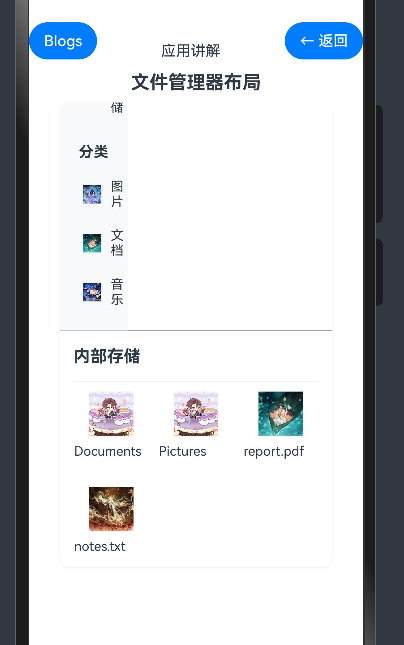
效果演示
引言
在前两篇教程中,我们学习了如何使用HarmonyOS NEXT的ColumnSplit组件构建文件管理器的基本布局,以及如何添加交互功能和状态管理。本篇教程将进一步深入,讲解文件管理器的高级布局技巧和组件封装,包括自适应布局、主题切换、组件封装、性能优化等高级特性,使文件管理器更加专业和易于维护。
自适应布局
在不同的设备和屏幕尺寸上,文件管理器应该能够自动调整布局,提供最佳的用户体验。HarmonyOS NEXT提供了多种方式来实现自适应布局。
1. 媒体查询
使用媒体查询可以根据屏幕宽度调整布局。
// 定义断点
const BREAKPOINT_SM = 320
const BREAKPOINT_MD = 600
const BREAKPOINT_LG = 840

// 状态变量
@State currentBreakpoint: string = 'sm'

// 在build函数中使用媒体查询
build() {
    Column() {
        // 文件管理器内容
    }
    .width('100%')
    .height('100%')
    .backgroundColor('#f5f5f5')
    .onAreaChange((oldArea: Area, newArea: Area) => {
        // 根据宽度更新断点
        const newWidth = newArea.width as number
        if (newWidth < BREAKPOINT_MD) {
            this.currentBreakpoint = 'sm'
        } else if (newWidth < BREAKPOINT_LG) {
            this.currentBreakpoint = 'md'
        } else {
            this.currentBreakpoint = 'lg'
        }
    })
}

// 根据断点调整布局
private getColumnSplitLayoutWeight(): number {
    // 在小屏幕上,侧边栏占比更小
    switch (this.currentBreakpoint) {
        case 'sm':
            return 0.3 // 侧边栏占30%
        case 'md':
            return 0.25 // 侧边栏占25%
        case 'lg':
            return 0.2 // 侧边栏占20%
        default:
            return 0.25
    }
}

// 在ColumnSplit中使用动态权重
ColumnSplit() {
    // 侧边栏
    Column() {
        // 侧边栏内容
    }
    .width('100%')
    .height('100%')
    .backgroundColor('#ffffff')

    // 主内容区
    Column() {
        // 主内容区内容
    }
    .width('100%')
    .height('100%')
    .backgroundColor('#ffffff')
    .padding(15)
}
.layoutWeight({
    left: this.getColumnSplitLayoutWeight(),
    right: 1 - this.getColumnSplitLayoutWeight()
})
在这段代码中,我们定义了三个断点:小屏幕(320px以下)、中屏幕(320px-840px)和大屏幕(840px以上)。我们使用onAreaChange事件监听容器尺寸的变化,并根据宽度更新当前断点。然后,我们定义了一个getColumnSplitLayoutWeight方法,根据当前断点返回不同的侧边栏权重。在ColumnSplit组件中,我们使用这个方法动态设置左右两侧的权重。
2. 百分比和弹性布局
使用百分比和弹性布局可以使组件自动适应容器尺寸。
// 使用百分比设置宽度和高度
Grid() {
    ForEach(this.files, (file: FileItem) => {
        GridItem() {
            // 文件项内容
        }
        .width(this.currentBreakpoint === 'sm' ? '100%' : '50%') // 小屏幕一行一个,中大屏幕一行两个
        .aspectRatio(1) // 保持宽高比为1:1
    })
}
.columnsTemplate(this.getGridColumnsTemplate()) // 动态设置列模板
.width('100%')

// 根据断点返回不同的列模板
private getGridColumnsTemplate(): string {
    switch (this.currentBreakpoint) {
        case 'sm':
            return '1fr' // 一列
        case 'md':
            return '1fr 1fr' // 两列
        case 'lg':
            return '1fr 1fr 1fr 1fr' // 四列
        default:
            return '1fr 1fr'
    }
}
在这段代码中,我们使用百分比设置GridItem的宽度,根据当前断点决定一行显示一个还是两个文件项。我们还使用aspectRatio属性保持文件项的宽高比为1:1,使其始终保持正方形。我们定义了一个getGridColumnsTemplate方法,根据当前断点返回不同的列模板,在小屏幕上显示一列,中屏幕上显示两列,大屏幕上显示四列。
3. 栅格布局
使用栅格布局可以更精细地控制组件的位置和尺寸。
// 定义栅格配置
const GRID_COLUMNS = 12 // 总列数

// 根据断点返回不同的栅格跨度
private getSidebarSpan(): number {
    switch (this.currentBreakpoint) {
        case 'sm':
            return 4 // 小屏幕侧边栏占4列
        case 'md':
            return 3 // 中屏幕侧边栏占3列
        case 'lg':
            return 2 // 大屏幕侧边栏占2列
        default:
            return 3
    }
}

// 使用栅格布局
Row() {
    // 侧边栏
    Column() {
        // 侧边栏内容
    }
    .width(`${this.getSidebarSpan() / GRID_COLUMNS * 100}%`) // 根据栅格跨度计算宽度百分比
    .height('100%')
    .backgroundColor('#ffffff')

    // 主内容区
    Column() {
        // 主内容区内容
    }
    .width(`${(GRID_COLUMNS - this.getSidebarSpan()) / GRID_COLUMNS * 100}%`) // 剩余宽度
    .height('100%')
    .backgroundColor('#ffffff')
    .padding(15)
}
.width('100%')
.height('100%')
在这段代码中,我们定义了一个12列的栅格系统。我们使用getSidebarSpan方法根据当前断点返回侧边栏应该占据的列数。然后,我们使用这个值计算侧边栏和主内容区的宽度百分比。
主题切换
文件管理器应该支持不同的主题,如亮色主题和暗色主题,以适应不同的使用环境和用户偏好。
1. 主题定义
首先,我们需要定义不同主题的颜色和样式。
// 主题类型
type ThemeType = 'light' | 'dark' | 'system'

// 主题颜色
interface ThemeColors {
    backgroundColor: ResourceColor
    cardBackgroundColor: ResourceColor
    primaryTextColor: ResourceColor
    secondaryTextColor: ResourceColor
    borderColor: ResourceColor
    primaryColor: ResourceColor
    selectedBackgroundColor: ResourceColor
    hoverBackgroundColor: ResourceColor
    iconColor: ResourceColor
    errorColor: ResourceColor
    successColor: ResourceColor
    warningColor: ResourceColor
}

// 亮色主题颜色
const lightThemeColors: ThemeColors = {
    backgroundColor: '#f5f5f5',
    cardBackgroundColor: '#ffffff',
    primaryTextColor: '#333333',
    secondaryTextColor: '#999999',
    borderColor: '#f0f0f0',
    primaryColor: '#1890ff',
    selectedBackgroundColor: '#e6f7ff',
    hoverBackgroundColor: '#f5f5f5',
    iconColor: '#666666',
    errorColor: '#ff4d4f',
    successColor: '#52c41a',
    warningColor: '#faad14'
}

// 暗色主题颜色
const darkThemeColors: ThemeColors = {
    backgroundColor: '#141414',
    cardBackgroundColor: '#1f1f1f',
    primaryTextColor: '#ffffff',
    secondaryTextColor: '#999999',
    borderColor: '#303030',
    primaryColor: '#1890ff',
    selectedBackgroundColor: '#111d2c',
    hoverBackgroundColor: '#1f1f1f',
    iconColor: '#a6a6a6',
    errorColor: '#ff4d4f',
    successColor: '#52c41a',
    warningColor: '#faad14'
}
在这段代码中,我们定义了一个ThemeType类型,表示主题类型,可以是亮色主题、暗色主题或跟随系统。我们还定义了一个ThemeColors接口,包含了主题的各种颜色,如背景色、文本色、边框色等。然后,我们定义了亮色主题和暗色主题的颜色。
2. 主题切换
接下来,我们需要实现主题切换功能。
// 状态变量
@State currentTheme: ThemeType = 'system' // 默认跟随系统
@State isDarkMode: boolean = false // 当前是否是暗色模式

// 在aboutToAppear生命周期函数中初始化主题
aboutToAppear() {
    // 获取系统主题
    this.updateThemeBySystem()

    // 监听系统主题变化
    window.on('windowSystemThemeChange', () => {
        if (this.currentTheme === 'system') {
            this.updateThemeBySystem()
        }
    })
}

// 根据系统主题更新当前主题
private updateThemeBySystem() {
    const systemTheme = window.getWindowSystemTheme()
    this.isDarkMode = systemTheme === 'dark'
}

// 切换主题
private switchTheme(theme: ThemeType) {
    this.currentTheme = theme

    if (theme === 'system') {
        // 跟随系统主题
        this.updateThemeBySystem()
    } else {
        // 使用指定主题
        this.isDarkMode = theme === 'dark'
    }
}

// 获取当前主题颜色
private getThemeColors(): ThemeColors {
    return this.isDarkMode ? darkThemeColors : lightThemeColors
}

// 主题切换按钮
Button(this.isDarkMode ? '切换到亮色主题' : '切换到暗色主题')
    .fontSize(14)
    .height(32)
    .backgroundColor(this.getThemeColors().primaryColor)
    .fontColor('#ffffff')
    .borderRadius(5)
    .margin({ right: 10 })
    .onClick(() => {
        this.switchTheme(this.isDarkMode ? 'light' : 'dark')
    })

// 在组件中使用主题颜色
Column() {
    // 文件管理器内容
}
.width('100%')
.height('100%')
.backgroundColor(this.getThemeColors().backgroundColor)
在这段代码中,我们添加了两个状态变量:currentTheme和isDarkMode。currentTheme表示当前选择的主题类型,默认为"system"(跟随系统);isDarkMode表示当前是否是暗色模式。
在aboutToAppear生命周期函数中,我们初始化主题并监听系统主题变化。当系统主题变化时,如果当前选择的是跟随系统,则更新主题。
我们定义了两个方法:updateThemeBySystem和switchTheme。updateThemeBySystem方法用于根据系统主题更新当前主题;switchTheme方法用于切换主题,可以选择亮色主题、暗色主题或跟随系统。
我们还定义了一个getThemeColors方法,根据当前是否是暗色模式返回相应的主题颜色。
我们添加了一个主题切换按钮,点击时在亮色主题和暗色主题之间切换。
在组件中,我们使用getThemeColors方法获取当前主题的颜色,并应用到组件的样式中。
组件封装
随着文件管理器功能的增加,代码会变得越来越复杂。通过组件封装,我们可以将复杂的功能拆分成多个小组件,使代码更加模块化和易于维护。
1. 侧边栏组件
将侧边栏封装成一个独立的组件。
// 侧边栏组件
@Component
struct Sidebar {
    @Link currentCategory: string // 当前选中的分类
    @Prop categories: string[] // 分类列表
    @Prop themeColors: ThemeColors // 主题颜色

    // 分类项点击事件
    private onCategoryClick: (category: string) => void = () => {}

    build() {
        Column() {
            // 应用标题
            Text('文件管理器')
                .fontSize(20)
                .fontWeight(FontWeight.Bold)
                .fontColor(this.themeColors.primaryTextColor)
                .margin({ top: 20, bottom: 30 })

            // 分类列表
            List() {
                ForEach(this.categories, (category: string) => {
                    ListItem() {
                        Row() {
                            // 分类图标
                            Image(this.getCategoryIcon(category))
                                .width(24)
                                .height(24)
                                .margin({ right: 10 })

                            // 分类名称
                            Text(category)
                                .fontSize(16)
                                .fontColor(this.currentCategory === category ? this.themeColors.primaryColor : this.themeColors.primaryTextColor)
                        }
                        .width('100%')
                        .padding(10)
                        .borderRadius(5)
                        .backgroundColor(this.currentCategory === category ? this.themeColors.selectedBackgroundColor : 'transparent')
                        .onClick(() => {
                            this.onCategoryClick(category)
                        })
                    }
                    .margin({ bottom: 5 })
                })
            }
            .width('100%')
            .layoutWeight(1)
        }
        .width('100%')
        .height('100%')
        .backgroundColor(this.themeColors.cardBackgroundColor)
        .padding(15)
    }

    // 获取分类图标
    private getCategoryIcon(category: string): Resource {
        switch (category) {
            case '全部文件':
                return $r('app.media.folder_all')
            case '图片':
                return $r('app.media.folder_image')
            case '视频':
                return $r('app.media.folder_video')
            case '音乐':
                return $r('app.media.folder_music')
            case '文档':
                return $r('app.media.folder_document')
            case '下载':
                return $r('app.media.folder_download')
            case '收藏':
                return $r('app.media.folder_favorite')
            case '回收站':
                return $r('app.media.folder_trash')
            default:
                return $r('app.media.folder')
        }
    }
}
在这段代码中,我们定义了一个Sidebar组件,用于显示文件管理器的侧边栏。该组件接收三个参数:currentCategory(当前选中的分类)、categories(分类列表)和themeColors(主题颜色)。
在build方法中,我们渲染应用标题和分类列表。分类列表使用List组件和ForEach循环渲染每个分类项。每个分类项显示分类图标和名称,并根据是否选中设置不同的背景色和文本颜色。
我们还定义了一个getCategoryIcon方法,根据分类名称返回相应的图标资源。
2. 文件列表组件
将文件列表封装成一个独立的组件。
// 文件列表组件
@Component
struct FileList {
    @Link files: FileItem[] // 文件列表
    @Link selectedFiles: FileItem[] // 选中的文件
    @Link viewMode: 'grid' | 'list' // 视图模式
    @Link isMultiSelectMode: boolean // 是否多选模式
    @Prop themeColors: ThemeColors // 主题颜色

    // 文件项点击事件
    private onFileClick: (file: FileItem) => void = () => {}
    // 文件项选中事件
    private onFileSelect: (file: FileItem, isSelected: boolean) => void = () => {}

    build() {
        Column() {
            // 工具栏
            Row() {
                // 视图模式切换按钮
                Button(this.viewMode === 'grid' ? '列表' : '网格')
                    .fontSize(14)
                    .height(32)
                    .backgroundColor(this.themeColors.primaryColor)
                    .fontColor('#ffffff')
                    .borderRadius(5)
                    .margin({ right: 10 })
                    .onClick(() => {
                        this.viewMode = this.viewMode === 'grid' ? 'list' : 'grid'
                    })

                // 多选按钮
                Button(this.isMultiSelectMode ? '取消' : '多选')
                    .fontSize(14)
                    .height(32)
                    .backgroundColor(this.isMultiSelectMode ? this.themeColors.errorColor : this.themeColors.primaryColor)
                    .fontColor('#ffffff')
                    .borderRadius(5)
                    .onClick(() => {
                        this.isMultiSelectMode = !this.isMultiSelectMode
                        if (!this.isMultiSelectMode) {
                            this.selectedFiles = []
                        }
                    })

                if (this.isMultiSelectMode) {
                    // 选中文件数量
                    Text(`已选择 ${this.selectedFiles.length} 项`)
                        .fontSize(14)
                        .fontColor(this.themeColors.primaryColor)
                        .margin({ left: 10 })
                }
            }
            .width('100%')
            .margin({ bottom: 15 })

            // 文件视图
            if (this.viewMode === 'grid') {
                // 网格视图
                Grid() {
                    ForEach(this.files, (file: FileItem) => {
                        GridItem() {
                            this.FileItem(file)
                        }
                    })
                }
                .columnsTemplate('1fr 1fr 1fr 1fr')
                .columnsGap(10)
                .rowsGap(10)
                .width('100%')
                .layoutWeight(1)
            } else {
                // 列表视图
                List() {
                    ForEach(this.files, (file: FileItem) => {
                        ListItem() {
                            this.FileItem(file)
                        }
                        .margin({ bottom: 10 })
                    })
                }
                .width('100%')
                .layoutWeight(1)
            }
        }
        .width('100%')
        .height('100%')
        .backgroundColor(this.themeColors.cardBackgroundColor)
        .padding(15)
    }

    // 文件项组件
    @Builder
    FileItem(file: FileItem) {
        Column() {
            if (this.viewMode === 'grid') {
                // 网格视图文件项
                Column() {
                    if (this.isMultiSelectMode) {
                        // 多选模式下显示复选框
                        Checkbox({ name: `file_${file.id}`, group: 'selectGroup' })
                            .select(this.isFileSelected(file))
                            .onChange((value: boolean) => {
                                this.onFileSelect(file, value)
                            })
                            .position({ x: 0, y: 0 })
                            .zIndex(1)
                    }

                    // 文件图标
                    Image(file.icon)
                        .width(48)
                        .height(48)
                        .margin({ bottom: 10 })

                    // 文件名称
                    Text(file.name)
                        .fontSize(14)
                        .fontColor(this.themeColors.primaryTextColor)
                        .maxLines(2)
                        .textOverflow({ overflow: TextOverflow.Ellipsis })
                        .textAlign(TextAlign.Center)
                }
                .width('100%')
                .height('100%')
                .alignItems(HorizontalAlign.Center)
                .justifyContent(FlexAlign.Center)
                .padding(10)
            } else {
                // 列表视图文件项
                Row() {
                    if (this.isMultiSelectMode) {
                        // 多选模式下显示复选框
                        Checkbox({ name: `file_${file.id}`, group: 'selectGroup' })
                            .select(this.isFileSelected(file))
                            .onChange((value: boolean) => {
                                this.onFileSelect(file, value)
                            })
                            .margin({ right: 10 })
                    }

                    // 文件图标
                    Image(file.icon)
                        .width(32)
                        .height(32)
                        .margin({ right: 10 })

                    // 文件信息
                    Column() {
                        // 文件名称
                        Text(file.name)
                            .fontSize(14)
                            .fontColor(this.themeColors.primaryTextColor)
                            .maxLines(1)
                            .textOverflow({ overflow: TextOverflow.Ellipsis })

                        // 文件详情
                        if (file.type === 'file') {
                            Row() {
                                if (file.size) {
                                    Text(file.size)
                                        .fontSize(12)
                                        .fontColor(this.themeColors.secondaryTextColor)
                                        .margin({ right: 10 })
                                }

                                if (file.modifiedTime) {
                                    Text(file.modifiedTime)
                                        .fontSize(12)
                                        .fontColor(this.themeColors.secondaryTextColor)
                                }
                            }
                            .margin({ top: 5 })
                        }
                    }
                    .layoutWeight(1)
                }
                .width('100%')
                .padding(10)
            }
        }
        .width('100%')
        .backgroundColor(this.isFileSelected(file) ? this.themeColors.selectedBackgroundColor : this.themeColors.cardBackgroundColor)
        .borderRadius(5)
        .border({
            width: this.isFileSelected(file) ? 2 : 1,
            color: this.isFileSelected(file) ? this.themeColors.primaryColor : this.themeColors.borderColor
        })
        .onClick(() => {
            if (this.isMultiSelectMode) {
                // 多选模式下点击文件项切换选中状态
                this.onFileSelect(file, !this.isFileSelected(file))
            } else {
                // 普通模式下点击文件项
                this.onFileClick(file)
            }
        })
    }

    // 检查文件是否被选中
    private isFileSelected(file: FileItem): boolean {
        return this.selectedFiles.some(selectedFile => selectedFile.id === file.id)
    }
}
在这段代码中,我们定义了一个FileList组件,用于显示文件列表。该组件接收五个参数:files(文件列表)、selectedFiles(选中的文件)、viewMode(视图模式)、isMultiSelectMode(是否多选模式)和themeColors(主题颜色)。
在build方法中,我们渲染工具栏和文件视图。工具栏包含视图模式切换按钮和多选按钮,多选模式下还显示已选择的文件数量。文件视图根据当前的视图模式显示网格视图或列表视图。
我们使用@Builder装饰器定义了一个FileItem方法,用于渲染文件项。根据当前的视图模式和是否多选模式,显示不同的文件项内容。
我们还定义了一个isFileSelected方法,用于检查文件是否被选中。
3. 路径导航组件
将路径导航封装成一个独立的组件。
// 路径导航组件
@Component
struct PathNavigation {
    @Link currentPath: string // 当前路径
    @Link pathSegments: string[] // 路径段
    @Prop themeColors: ThemeColors // 主题颜色

    // 路径段点击事件
    private onPathSegmentClick: (index: number) => void = () => {}
    // 返回上级目录事件
    private onNavigateUp: () => void = () => {}

    build() {
        Row() {
            // 返回按钮
            Button('返回')
                .fontSize(14)
                .height(32)
                .backgroundColor(this.themeColors.primaryColor)
                .fontColor('#ffffff')
                .borderRadius(5)
                .margin({ right: 10 })
                .enabled(this.currentPath !== '/')
                .opacity(this.currentPath !== '/' ? 1 : 0.5)
                .onClick(() => {
                    this.onNavigateUp()
                })

            // 路径段
            Row() {
                ForEach(this.pathSegments, (segment: string, index: number) => {
                    Row() {
                        if (index > 0) {
                            Text('>')
                                .fontSize(16)
                                .fontColor(this.themeColors.secondaryTextColor)
                                .margin({ left: 5, right: 5 })
                        }

                        Text(segment === '/' ? '根目录' : segment)
                            .fontSize(16)
                            .fontColor(index === this.pathSegments.length - 1 ? this.themeColors.primaryTextColor : this.themeColors.primaryColor)
                            .onClick(() => {
                                if (index < this.pathSegments.length - 1) {
                                    this.onPathSegmentClick(index)
                                }
                            })
                    }
                })
            }
            .layoutWeight(1)
            .clip(true) // 超出部分裁剪
        }
        .width('100%')
        .height(40)
        .backgroundColor(this.themeColors.cardBackgroundColor)
        .padding(10)
        .margin({ bottom: 15 })
    }
}
在这段代码中,我们定义了一个PathNavigation组件,用于显示路径导航栏。该组件接收三个参数:currentPath(当前路径)、pathSegments(路径段)和themeColors(主题颜色)。
在build方法中,我们渲染返回按钮和路径段。返回按钮只有在当前路径不是根目录时才可用。路径段使用ForEach循环渲染每个段,每个段之间使用>符号分隔。当前路径段使用主文本颜色显示,其他路径段使用主题颜色显示,并添加点击事件,点击时导航到该路径段。
4. 主组件集成
最后,我们将这些组件集成到主组件中。
// 主组件
@Entry
@Component
struct FileManager {
    // 状态变量
    @State currentCategory: string = '全部文件' // 当前选中的分类
    @State categories: string[] = ['全部文件', '图片', '视频', '音乐', '文档', '下载', '收藏', '回收站'] // 分类列表
    @State currentPath: string = '/' // 当前路径
    @State pathSegments: string[] = ['/'] // 路径段
    @State files: FileItem[] = [] // 文件列表
    @State selectedFiles: FileItem[] = [] // 选中的文件
    @State viewMode: 'grid' | 'list' = 'grid' // 视图模式
    @State isMultiSelectMode: boolean = false // 是否多选模式
    @State currentTheme: ThemeType = 'system' // 当前主题
    @State isDarkMode: boolean = false // 是否暗色模式
    @State currentBreakpoint: string = 'md' // 当前断点

    // 在aboutToAppear生命周期函数中初始化
    aboutToAppear() {
        // 初始化主题
        this.updateThemeBySystem()

        // 监听系统主题变化
        window.on('windowSystemThemeChange', () => {
            if (this.currentTheme === 'system') {
                this.updateThemeBySystem()
            }
        })

        // 加载文件列表
        this.loadFiles()
    }

    build() {
        Column() {
            // 应用标题栏
            Row() {
                Text('文件管理器')
                    .fontSize(20)
                    .fontWeight(FontWeight.Bold)
                    .fontColor(this.getThemeColors().primaryTextColor)

                Blank()

                // 主题切换按钮
                Button(this.isDarkMode ? '亮色' : '暗色')
                    .fontSize(14)
                    .height(32)
                    .backgroundColor(this.getThemeColors().primaryColor)
                    .fontColor('#ffffff')
                    .borderRadius(5)
                    .onClick(() => {
                        this.switchTheme(this.isDarkMode ? 'light' : 'dark')
                    })
            }
            .width('100%')
            .height(50)
            .padding({ left: 15, right: 15 })
            .backgroundColor(this.getThemeColors().cardBackgroundColor)

            // 主内容区
            ColumnSplit() {
                // 侧边栏
                Sidebar({
                    currentCategory: $currentCategory,
                    categories: this.categories,
                    themeColors: this.getThemeColors(),
                    onCategoryClick: (category: string) => {
                        this.currentCategory = category
                        this.currentPath = '/'
                        this.updatePathSegments()
                        this.loadFiles()
                    }
                })

                // 文件区域
                Column() {
                    // 路径导航
                    PathNavigation({
                        currentPath: $currentPath,
                        pathSegments: $pathSegments,
                        themeColors: this.getThemeColors(),
                        onPathSegmentClick: (index: number) => {
                            this.navigateToPathSegment(index)
                        },
                        onNavigateUp: () => {
                            this.navigateUp()
                        }
                    })

                    // 文件列表
                    FileList({
                        files: $files,
                        selectedFiles: $selectedFiles,
                        viewMode: $viewMode,
                        isMultiSelectMode: $isMultiSelectMode,
                        themeColors: this.getThemeColors(),
                        onFileClick: (file: FileItem) => {
                            if (file.type === 'folder') {
                                this.navigateToFolder(file.name)
                            } else {
                                this.openFile(file)
                            }
                        },
                        onFileSelect: (file: FileItem, isSelected: boolean) => {
                            this.toggleFileSelection(file, isSelected)
                        }
                    })
                }
                .width('100%')
                .height('100%')
                .backgroundColor(this.getThemeColors().backgroundColor)
                .padding(15)
            }
            .layoutWeight({
                left: this.getColumnSplitLayoutWeight(),
                right: 1 - this.getColumnSplitLayoutWeight()
            })
            .layoutWeight(1)
        }
        .width('100%')
        .height('100%')
        .backgroundColor(this.getThemeColors().backgroundColor)
        .onAreaChange((oldArea: Area, newArea: Area) => {
            // 根据宽度更新断点
            const newWidth = newArea.width as number
            if (newWidth < BREAKPOINT_MD) {
                this.currentBreakpoint = 'sm'
            } else if (newWidth < BREAKPOINT_LG) {
                this.currentBreakpoint = 'md'
            } else {
                this.currentBreakpoint = 'lg'
            }
        })
    }

    // 根据断点获取ColumnSplit布局权重
    private getColumnSplitLayoutWeight(): number {
        switch (this.currentBreakpoint) {
            case 'sm':
                return 0.3
            case 'md':
                return 0.25
            case 'lg':
                return 0.2
            default:
                return 0.25
        }
    }

    // 根据系统主题更新当前主题
    private updateThemeBySystem() {
        const systemTheme = window.getWindowSystemTheme()
        this.isDarkMode = systemTheme === 'dark'
    }

    // 切换主题
    private switchTheme(theme: ThemeType) {
        this.currentTheme = theme

        if (theme === 'system') {
            this.updateThemeBySystem()
        } else {
            this.isDarkMode = theme === 'dark'
        }
    }

    // 获取当前主题颜色
    private getThemeColors(): ThemeColors {
        return this.isDarkMode ? darkThemeColors : lightThemeColors
    }

    // 更新路径段
    private updatePathSegments() {
        if (this.currentPath === '/') {
            this.pathSegments = ['/']
        } else {
            const segments = this.currentPath.split('/').filter(segment => segment !== '')
            this.pathSegments = ['/', ...segments]
        }
    }

    // 导航到指定路径段
    private navigateToPathSegment(index: number) {
        if (index === 0) {
            this.currentPath = '/'
        } else {
            const segments = this.pathSegments.slice(1, index + 1)
            this.currentPath = '/' + segments.join('/')
        }

        this.updatePathSegments()
        this.loadFiles()
    }

    // 导航到文件夹
    private navigateToFolder(folderName: string) {
        this.currentPath = this.currentPath === '/' ? `/${folderName}` : `${this.currentPath}/${folderName}`
        this.updatePathSegments()
        this.loadFiles()
    }

    // 返回上级目录
    private navigateUp() {
        if (this.currentPath === '/') {
            return
        }

        const lastSlashIndex = this.currentPath.lastIndexOf('/')
        if (lastSlashIndex === 0) {
            this.currentPath = '/'
        } else {
            this.currentPath = this.currentPath.substring(0, lastSlashIndex)
        }

        this.updatePathSegments()
        this.loadFiles()
    }

    // 加载文件列表
    private loadFiles() {
        // 在实际应用中,这里应该从文件系统或数据库中加载文件
        // 这里简化为生成一些示例文件
        this.files = this.generateSampleFiles()
    }

    // 生成示例文件
    private generateSampleFiles(): FileItem[] {
        // 根据当前路径和分类生成不同的文件列表
        // 这里简化为生成一些固定的示例文件
        const files: FileItem[] = []

        // 在根目录下显示一些文件夹
        if (this.currentPath === '/') {
            files.push(
                { id: 1, name: '文档', type: 'folder', icon: $r('app.media.folder') },
                { id: 2, name: '图片', type: 'folder', icon: $r('app.media.folder') },
                { id: 3, name: '视频', type: 'folder', icon: $r('app.media.folder') },
                { id: 4, name: '音乐', type: 'folder', icon: $r('app.media.folder') },
                { id: 5, name: '下载', type: 'folder', icon: $r('app.media.folder') }
            )
        } else if (this.currentPath === '/文档') {
            // 在文档文件夹下显示一些文档文件
            files.push(
                { id: 6, name: '工作报告.docx', type: 'file', icon: $r('app.media.doc'), size: '2.5 MB', modifiedTime: '2023-05-15' },
                { id: 7, name: '会议记录.txt', type: 'file', icon: $r('app.media.txt'), size: '0.1 MB', modifiedTime: '2023-05-18' },
                { id: 8, name: '项目计划.xlsx', type: 'file', icon: $r('app.media.xls'), size: '1.8 MB', modifiedTime: '2023-05-10' },
                { id: 9, name: '演示文稿.pptx', type: 'file', icon: $r('app.media.ppt'), size: '5.2 MB', modifiedTime: '2023-05-12' },
                { id: 10, name: '研究报告.pdf', type: 'file', icon: $r('app.media.pdf'), size: '3.7 MB', modifiedTime: '2023-05-05' }
            )
        } else if (this.currentPath === '/图片') {
            // 在图片文件夹下显示一些图片文件
            files.push(
                { id: 11, name: '风景照片.jpg', type: 'file', icon: $r('app.media.jpg'), size: '4.2 MB', modifiedTime: '2023-05-20' },
                { id: 12, name: '家庭合影.png', type: 'file', icon: $r('app.media.png'), size: '6.8 MB', modifiedTime: '2023-05-19' },
                { id: 13, name: '产品设计.svg', type: 'file', icon: $r('app.media.svg'), size: '0.5 MB', modifiedTime: '2023-05-18' },
                { id: 14, name: '截图.png', type: 'file', icon: $r('app.media.png'), size: '1.2 MB', modifiedTime: '2023-05-17' },
                { id: 15, name: '头像.jpg', type: 'file', icon: $r('app.media.jpg'), size: '0.8 MB', modifiedTime: '2023-05-16' }
            )
        }

        // 根据当前分类过滤文件
        if (this.currentCategory !== '全部文件') {
            return files.filter(file => {
                switch (this.currentCategory) {
                    case '图片':
                        return file.type === 'folder' || file.name.endsWith('.jpg') || file.name.endsWith('.png') || file.name.endsWith('.svg')
                    case '视频':
                        return file.type === 'folder' || file.name.endsWith('.mp4') || file.name.endsWith('.avi') || file.name.endsWith('.mov')
                    case '音乐':
                        return file.type === 'folder' || file.name.endsWith('.mp3') || file.name.endsWith('.wav') || file.name.endsWith('.flac')
                    case '文档':
                        return file.type === 'folder' || file.name.endsWith('.docx') || file.name.endsWith('.txt') || file.name.endsWith('.xlsx') || file.name.endsWith('.pptx') || file.name.endsWith('.pdf')
                    case '下载':
                        return this.currentPath === '/下载'
                    case '收藏':
                        // 在实际应用中,这里应该返回收藏的文件
                        return false
                    case '回收站':
                        // 在实际应用中,这里应该返回回收站中的文件
                        return false
                    default:
                        return true
                }
            })
        }

        return files
    }

    // 打开文件
    private openFile(file: FileItem) {
        // 在实际应用中,这里应该根据文件类型打开相应的应用
        console.info(`打开文件: ${file.name}`)
    }

    // 切换文件选中状态
    private toggleFileSelection(file: FileItem, isSelected: boolean) {
        if (isSelected) {
            // 添加到选中列表
            if (!this.selectedFiles.some(selectedFile => selectedFile.id === file.id)) {
                this.selectedFiles.push(file)
            }
        } else {
            // 从选中列表中移除
            this.selectedFiles = this.selectedFiles.filter(selectedFile => selectedFile.id !== file.id)
        }
    }
}
在这段代码中,我们定义了一个FileManager组件,作为应用的主组件。该组件包含多个状态变量,如当前选中的分类、当前路径、文件列表、选中的文件、视图模式、是否多选模式、当前主题、是否暗色模式和当前断点。
在aboutToAppear生命周期函数中,我们初始化主题、监听系统主题变化并加载文件列表。
在build方法中,我们渲染应用标题栏和主内容区。应用标题栏包含应用名称和主题切换按钮。主内容区使用ColumnSplit组件分为侧边栏和文件区域。侧边栏使用Sidebar组件显示分类列表。文件区域包含路径导航和文件列表,分别使用PathNavigation和FileList组件显示。
我们定义了多个方法来实现各种功能,如获取ColumnSplit布局权重、更新主题、获取主题颜色、更新路径段、导航到指定路径段、导航到文件夹、返回上级目录、加载文件列表、生成示例文件、打开文件和切换文件选中状态。
性能优化
随着文件数量的增加,文件管理器的性能可能会下降。我们需要采取一些措施来优化性能。
1. 虚拟列表
使用虚拟列表可以只渲染可见区域的文件项,减少DOM节点数量,提高渲染性能。
// 在FileList组件中使用LazyForEach代替ForEach
@Component
struct FileList {
    // 其他代码省略

    build() {
        Column() {
            // 工具栏省略

            // 文件视图
            if (this.viewMode === 'grid') {
                // 网格视图
                Grid() {
                    LazyForEach(new VirtualDataSource(this.files), (file: FileItem) => {
                        GridItem() {
                            this.FileItem(file)
                        }
                    }, (file: FileItem) => file.id.toString())
                }
                .columnsTemplate('1fr 1fr 1fr 1fr')
                .columnsGap(10)
                .rowsGap(10)
                .width('100%')
                .layoutWeight(1)
            } else {
                // 列表视图
                List() {
                    LazyForEach(new VirtualDataSource(this.files), (file: FileItem) => {
                        ListItem() {
                            this.FileItem(file)
                        }
                        .margin({ bottom: 10 })
                    }, (file: FileItem) => file.id.toString())
                }
                .width('100%')
                .layoutWeight(1)
            }
        }
        // 其他代码省略
    }

    // 其他代码省略
}

// 虚拟数据源
class VirtualDataSource implements IDataSource {
    private files: FileItem[]

    constructor(files: FileItem[]) {
        this.files = files
    }

    totalCount(): number {
        return this.files.length
    }

    getData(index: number): FileItem {
        return this.files[index]
    }

    registerDataChangeListener(listener: DataChangeListener): void {
        // 注册数据变化监听器
    }

    unregisterDataChangeListener(listener: DataChangeListener): void {
        // 注销数据变化监听器
    }
}
在这段代码中,我们定义了一个VirtualDataSource类,实现了IDataSource接口,用于提供虚拟列表的数据源。在FileList组件中,我们使用LazyForEach代替ForEach,并传入VirtualDataSource实例作为数据源。这样,只有可见区域的文件项会被渲染,大大减少了DOM节点数量,提高了渲染性能。
2. 懒加载
使用懒加载可以分批加载文件,减少初始加载时间。
// 状态变量
@State isLoading: boolean = false
@State hasMoreFiles: boolean = true
@State pageSize: number = 20
@State currentPage: number = 1

// 加载文件列表
private loadFiles() {
    // 重置分页
    this.currentPage = 1
    this.hasMoreFiles = true

    // 加载第一页
    this.loadFilesPage()
}

// 加载更多文件
private loadMoreFiles() {
    if (this.isLoading || !this.hasMoreFiles) {
        return
    }

    this.currentPage++
    this.loadFilesPage()
}

// 加载文件页
private loadFilesPage() {
    this.isLoading = true

    // 在实际应用中,这里应该从文件系统或数据库中分页加载文件
    // 这里简化为生成一些示例文件
    const newFiles = this.generateSampleFiles()

    // 模拟网络延迟
    setTimeout(() => {
        if (this.currentPage === 1) {
            // 第一页,替换文件列表
            this.files = newFiles
        } else {
            // 其他页,追加到文件列表
            this.files = [...this.files, ...newFiles]
        }

        // 判断是否还有更多文件
        this.hasMoreFiles = newFiles.length === this.pageSize

        this.isLoading = false
    }, 500)
}

// 在文件列表底部添加加载更多按钮或加载中指示器
if (this.isLoading) {
    // 加载中指示器
    Row() {
        LoadingProgress()
            .width(24)
            .height(24)
            .margin({ right: 10 })

        Text('加载中...')
            .fontSize(14)
            .fontColor(this.themeColors.secondaryTextColor)
    }
    .width('100%')
    .justifyContent(FlexAlign.Center)
    .margin({ top: 10, bottom: 10 })
} else if (this.hasMoreFiles) {
    // 加载更多按钮
    Button('加载更多')
        .fontSize(14)
        .width('100%')
        .height(40)
        .backgroundColor(this.themeColors.cardBackgroundColor)
        .fontColor(this.themeColors.primaryColor)
        .borderRadius(5)
        .margin({ top: 10 })
        .onClick(() => {
            this.loadMoreFiles()
        })
}
在这段代码中,我们添加了四个状态变量:isLoading、hasMoreFiles、pageSize和currentPage。这些变量用于控制文件的分页加载。
我们修改了loadFiles方法,将其拆分为loadFiles、loadMoreFiles和loadFilesPage三个方法。loadFiles方法用于重置分页并加载第一页;loadMoreFiles方法用于加载下一页;loadFilesPage方法用于加载指定页的文件。
在文件列表底部,我们根据当前状态显示不同的内容。如果正在加载,则显示加载中指示器;如果还有更多文件,则显示加载更多按钮。
3. 缓存
使用缓存可以避免重复加载相同的文件列表。
// 文件列表缓存
private fileListCache: Map<string, FileItem[]> = new Map()

// 加载文件列表
private loadFiles() {
    // 生成缓存键
    const cacheKey = `${this.currentCategory}_${this.currentPath}`

    // 检查缓存
    if (this.fileListCache.has(cacheKey)) {
        // 使用缓存
        this.files = this.fileListCache.get(cacheKey) || []
        return
    }

    // 缓存未命中,加载文件
    this.isLoading = true

    // 在实际应用中,这里应该从文件系统或数据库中加载文件
    // 这里简化为生成一些示例文件
    const newFiles = this.generateSampleFiles()

    // 模拟网络延迟
    setTimeout(() => {
        this.files = newFiles

        // 更新缓存
        this.fileListCache.set(cacheKey, newFiles)

        this.isLoading = false
    }, 500)
}

// 清除缓存
private clearCache() {
    this.fileListCache.clear()
}

// 在文件操作后清除相关缓存
private createFolder(name: string) {
    // 创建文件夹的代码省略

    // 清除当前路径的缓存
    const cacheKey = `${this.currentCategory}_${this.currentPath}`
    this.fileListCache.delete(cacheKey)
}
在这段代码中,我们添加了一个fileListCache变量,用于缓存文件列表。我们修改了loadFiles方法,首先检查缓存,如果缓存命中,则直接使用缓存中的文件列表;否则,加载文件并更新缓存。
我们还添加了一个clearCache方法,用于清除所有缓存,以及在文件操作后清除相关缓存的代码。
小结
在本教程中,我们详细讲解了文件管理器的高级布局技巧和组件封装,包括自适应布局、主题切换、组件封装和性能优化等高级特性。通过这些技巧,我们可以打造出一个专业、易用且易于维护的文件管理器。
