



[HarmonyOS NEXT 实战案例二:Grid] 照片相册网格布局:高级篇
项目已开源,开源地址: https://gitcode.com/nutpi/HarmonyosNextCaseStudyTutorial , 欢迎fork & star
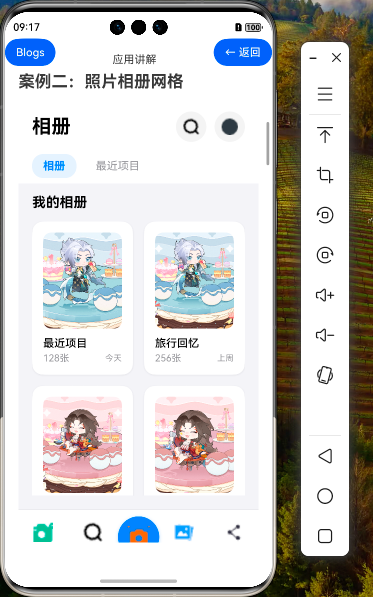
效果演示
1. Grid 组件高级特性应用
1.1 网格项定位与跨行跨列
在照片相册应用中,我们可以使用 Grid 组件的高级定位特性,实现更复杂的布局效果:
// 使用 rowStart、rowEnd、columnStart、columnEnd 实现跨行跨列
Grid() {
    // 标题行 - 跨越所有列
    GridItem() {
        Text('今日精选')
            .fontSize(20)
            .fontWeight(FontWeight.Bold)
            .fontColor('#000000')
    }
    .rowStart(0)
    .rowEnd(1)
    .columnStart(0)
    .columnEnd(3) // 跨越所有3列

    // 主图 - 跨越2行2列
    GridItem() {
        Image(this.featuredPhotos[0].image)
            .width('100%')
            .height('100%')
            .objectFit(ImageFit.Cover)
            .borderRadius(12)
    }
    .rowStart(1)
    .rowEnd(3) // 跨越2行
    .columnStart(0)
    .columnEnd(2) // 跨越2列

    // 右侧小图1
    GridItem() {
        Image(this.featuredPhotos[1].image)
            .width('100%')
            .height('100%')
            .objectFit(ImageFit.Cover)
            .borderRadius(12)
    }
    .rowStart(1)
    .rowEnd(2)
    .columnStart(2)
    .columnEnd(3)

    // 右侧小图2
    GridItem() {
        Image(this.featuredPhotos[2].image)
            .width('100%')
            .height('100%')
            .objectFit(ImageFit.Cover)
            .borderRadius(12)
    }
    .rowStart(2)
    .rowEnd(3)
    .columnStart(2)
    .columnEnd(3)
}
.columnsTemplate('1fr 1fr 1fr')
.rowsTemplate('auto 1fr 1fr')
.columnsGap(12)
.rowsGap(12)
.width('100%')
.height(360)
这种布局技术可以创建更加丰富的视觉效果,如杂志风格的照片展示、照片拼贴等。
1.2 网格自动布局与手动布局结合
我们可以结合 Grid 的自动布局和手动布局特性,实现更灵活的照片展示:
// 结合自动布局和手动布局
Grid() {
    // 手动布局部分 - 精选照片
    GridItem() {
        // 精选照片内容...
    }
    .rowStart(0)
    .rowEnd(1)
    .columnStart(0)
    .columnEnd(3)

    // 自动布局部分 - 普通照片列表
    ForEach(this.normalPhotos, (photo: Recentphoto) => {
        GridItem() {
            // 普通照片内容...
        }
    })
}
.columnsTemplate('1fr 1fr 1fr')
.rowsTemplate('auto 1fr 1fr 1fr') // 第一行为精选照片,后续行为普通照片
这种方式可以在同一个 Grid 中同时使用手动定位和自动布局,非常适合需要特殊处理某些网格项的场景。
1.3 嵌套 Grid 实现复杂布局
对于更复杂的布局需求,我们可以使用嵌套 Grid 实现:
// 外层 Grid - 主要分区
Grid() {
    // 相册分区
    GridItem() {
        Column() {
            Text('我的相册')
                .fontSize(20)
                .fontWeight(FontWeight.Bold)
                .fontColor('#000000')
                .alignSelf(ItemAlign.Start)
                .margin({ bottom: 16 })

            // 内层 Grid - 相册网格
            Grid() {
                ForEach(this.albums, (album: Album) => {
                    GridItem() {
                        // 相册卡片内容...
                    }
                })
            }
            .columnsTemplate('1fr 1fr')
            .columnsGap(16)
            .rowsGap(16)
            .width('100%')
        }
        .width('100%')
    }
    .rowStart(0)
    .rowEnd(1)
    .columnStart(0)
    .columnEnd(1)

    // 最近照片分区
    GridItem() {
        Column() {
            Text('最近照片')
                .fontSize(20)
                .fontWeight(FontWeight.Bold)
                .fontColor('#000000')
                .alignSelf(ItemAlign.Start)
                .margin({ bottom: 16 })

            // 内层 Grid - 照片网格
            Grid() {
                ForEach(this.recentPhotos.slice(0, 9), (photo: Recentphoto) => {
                    GridItem() {
                        // 照片内容...
                    }
                })
            }
            .columnsTemplate('1fr 1fr 1fr')
            .columnsGap(4)
            .rowsGap(4)
            .width('100%')
        }
        .width('100%')
    }
    .rowStart(0)
    .rowEnd(1)
    .columnStart(1)
    .columnEnd(2)
}
.columnsTemplate('1fr 1fr')
.columnsGap(24)
.width('100%')
嵌套 Grid 可以实现更加复杂的布局结构,如分区展示、混合布局等。
2. 高级交互与动画效果
2.1 网格项动画效果
我们可以为网格项添加动画效果,增强用户体验:
// 网格项动画效果
@State pressedItem: number = -1; // 记录当前按下的项

GridItem() {
    Stack({ alignContent: Alignment.BottomStart }) {
        // 照片内容...
    }
    .width('100%')
    .height(120)
    .scale({ x: this.pressedItem === photo.id ? 0.95 : 1, y: this.pressedItem === photo.id ? 0.95 : 1 })
    .opacity(this.pressedItem === photo.id ? 0.8 : 1)
    .animation({
        duration: 100,
        curve: Curve.FastOutSlowIn
    })
}
.onTouch((event: TouchEvent) => {
    if (event.type === TouchType.Down) {
        this.pressedItem = photo.id;
    } else if (event.type === TouchType.Up || event.type === TouchType.Cancel) {
        this.pressedItem = -1;
    }
})
.onClick(() => {
    console.log(`查看照片: ${photo.id}`);
})
这种动画效果可以为用户提供即时反馈,增强交互体验。
2.2 网格视图切换动画
当用户在相册视图和最近项目视图之间切换时,我们可以添加平滑的过渡动画:
// 视图切换动画
@State currentTab: number = 0;
@State previousTab: number = 0;
@State animationValue: number = 0; // 0 表示相册视图,1 表示最近项目视图

// 切换标签页的函数
changeTab(index: number) {
    this.previousTab = this.currentTab;
    this.currentTab = index;

    // 创建动画效果
    animateTo({
        duration: 300,
        curve: Curve.EaseInOut,
        onFinish: () => {
            // 动画完成后更新状态
            this.animationValue = index;
        }
    }, () => {
        this.animationValue = index;
    });
}

// 在构建函数中使用动画值
build() {
    Column() {
        // 标签切换部分...

        // 内容区域
        Stack() {
            // 相册视图
            Column() {
                // 相册内容...
            }
            .width('100%')
            .layoutWeight(1)
            .opacity(1 - this.animationValue)
            .translate({ x: this.animationValue * -100 })

            // 最近项目视图
            Column() {
                // 最近项目内容...
            }
            .width('100%')
            .layoutWeight(1)
            .opacity(this.animationValue)
            .translate({ x: (1 - this.animationValue) * 100 })
        }
        .width('100%')
        .layoutWeight(1)
    }
}
这种动画效果可以使视图切换更加平滑自然,提升用户体验。
2.3 滚动加载与刷新
对于大量照片的展示,我们可以实现滚动加载和下拉刷新功能:
// 滚动加载与刷新
@State isRefreshing: boolean = false;
@State isLoading: boolean = false;
@State hasMorePhotos: boolean = true;

Column() {
    // 最近项目视图
    Refresh({ refreshing: $$this.isRefreshing, offset: 120, friction: 100 }) {
        List({ space: 0 }) {
            // 照片网格
            ListItem() {
                Grid() {
                    ForEach(this.recentPhotos, (photo: Recentphoto) => {
                        GridItem() {
                            // 照片内容...
                        }
                    })
                }
                .columnsTemplate('1fr 1fr 1fr')
                .columnsGap(4)
                .rowsGap(4)
                .width('100%')
            }

            // 加载更多
            if (this.hasMorePhotos) {
                ListItem() {
                    Row() {
                        if (this.isLoading) {
                            LoadingProgress()
                                .width(24)
                                .height(24)
                                .color('#007AFF')

                            Text('加载中...')
                                .fontSize(14)
                                .fontColor('#8E8E93')
                                .margin({ left: 8 })
                        } else {
                            Text('加载更多')
                                .fontSize(14)
                                .fontColor('#007AFF')
                        }
                    }
                    .width('100%')
                    .justifyContent(FlexAlign.Center)
                    .height(60)
                    .onClick(() => {
                        if (!this.isLoading) {
                            this.loadMorePhotos();
                        }
                    })
                }
            }
        }
        .width('100%')
        .layoutWeight(1)
        .onReachEnd(() => {
            if (this.hasMorePhotos && !this.isLoading) {
                this.loadMorePhotos();
            }
        })
    }
    .onRefreshing(() => {
        this.refreshPhotos();
    })
}

// 刷新照片数据
async refreshPhotos() {
    this.isRefreshing = true;

    // 模拟网络请求
    await new Promise((resolve) => setTimeout(resolve, 1500));

    // 更新数据
    // ...

    this.isRefreshing = false;
}

// 加载更多照片
async loadMorePhotos() {
    this.isLoading = true;

    // 模拟网络请求
    await new Promise((resolve) => setTimeout(resolve, 1500));

    // 添加更多照片
    // ...

    this.isLoading = false;

    // 判断是否还有更多照片
    // ...
}
这种实现可以有效处理大量照片数据,提升应用性能和用户体验。
3. 复杂布局与交互场景
3.1 照片分组与分类展示
我们可以实现照片的分组和分类展示功能:
// 照片分组数据结构
interface PhotoGroup {
    title: string,
    date: string,
    photos: Recentphoto[]
}

@State photoGroups: PhotoGroup[] = [
    {
        title: '今天',
        date: '2023年5月15日',
        photos: [/* 照片数据 */]
    },
    {
        title: '昨天',
        date: '2023年5月14日',
        photos: [/* 照片数据 */]
    },
    // 更多分组...
];

// 分组展示照片
Column() {
    List({ space: 20 }) {
        ForEach(this.photoGroups, (group: PhotoGroup) => {
            ListItem() {
                Column() {
                    // 分组标题
                    Row() {
                        Text(group.title)
                            .fontSize(18)
                            .fontWeight(FontWeight.Bold)
                            .fontColor('#000000')

                        Text(group.date)
                            .fontSize(14)
                            .fontColor('#8E8E93')
                            .margin({ left: 8 })
                    }
                    .width('100%')
                    .margin({ bottom: 12 })

                    // 照片网格
                    Grid() {
                        ForEach(group.photos, (photo: Recentphoto) => {
                            GridItem() {
                                // 照片内容...
                            }
                        })
                    }
                    .columnsTemplate('1fr 1fr 1fr')
                    .columnsGap(4)
                    .rowsGap(4)
                    .width('100%')
                }
                .width('100%')
            }
        })
    }
    .width('100%')
    .layoutWeight(1)
}
这种分组展示方式可以帮助用户更好地组织和浏览照片。
3.2 多选模式实现
我们可以实现照片的多选模式,用于批量操作:
// 多选模式
@State isSelectMode: boolean = false;
@State selectedPhotos: number[] = []; // 存储已选中照片的 ID

// 切换选择模式
toggleSelectMode() {
    this.isSelectMode = !this.isSelectMode;
    if (!this.isSelectMode) {
        this.selectedPhotos = [];
    }
}

// 选择或取消选择照片
toggleSelectPhoto(photoId: number) {
    const index = this.selectedPhotos.indexOf(photoId);
    if (index === -1) {
        this.selectedPhotos.push(photoId);
    } else {
        this.selectedPhotos.splice(index, 1);
    }
}

// 在 GridItem 中实现选择状态
GridItem() {
    Stack({ alignContent: Alignment.TopEnd }) {
        // 照片内容...

        // 选择状态指示器
        if (this.isSelectMode) {
            Image(this.selectedPhotos.includes(photo.id) ? $r('app.media.selected_icon') : $r('app.media.unselected_icon'))
                .width(24)
                .height(24)
                .margin({ top: 8, right: 8 })
        }
    }
    .width('100%')
    .height(120)
}
.onClick(() => {
    if (this.isSelectMode) {
        this.toggleSelectPhoto(photo.id);
    } else {
        console.log(`查看照片: ${photo.id}`);
    }
})
多选模式可以支持批量删除、分享、移动等操作,提升用户效率。
3.3 拖拽排序功能
我们可以实现照片的拖拽排序功能:
// 拖拽排序
@State isDragging: boolean = false;
@State draggedPhotoId: number = -1;
@State draggedPosition: { x: number, y: number } = { x: 0, y: 0 };
@State originalPosition: { x: number, y: number } = { x: 0, y: 0 };
@State photoPositions: Map<number, { row: number, col: number }> = new Map();

// 在 GridItem 中实现拖拽功能
GridItem() {
    Stack() {
        // 照片内容...
    }
    .width('100%')
    .height(120)
    .position({ x: this.draggedPhotoId === photo.id ? this.draggedPosition.x : 0, y: this.draggedPhotoId === photo.id ? this.draggedPosition.y : 0 })
    .zIndex(this.draggedPhotoId === photo.id ? 999 : 1)
    .opacity(this.draggedPhotoId === photo.id ? 0.8 : 1)
    .animation({
        duration: this.isDragging ? 0 : 300,
        curve: Curve.EaseOut
    })
}
.gesture(
    PanGesture({ fingers: 1, direction: PanDirection.All })
        .onActionStart((event: GestureEvent) => {
            if (this.isEditMode) {
                this.isDragging = true;
                this.draggedPhotoId = photo.id;
                this.originalPosition = { x: 0, y: 0 };
                this.draggedPosition = { x: 0, y: 0 };
            }
        })
        .onActionUpdate((event: GestureEvent) => {
            if (this.isDragging && this.draggedPhotoId === photo.id) {
                this.draggedPosition = {
                    x: this.originalPosition.x + event.offsetX,
                    y: this.originalPosition.y + event.offsetY
                };

                // 计算当前位置对应的网格位置
                // 实现照片位置交换逻辑
                // ...
            }
        })
        .onActionEnd(() => {
            if (this.isDragging && this.draggedPhotoId === photo.id) {
                this.isDragging = false;
                this.draggedPosition = { x: 0, y: 0 };
                this.draggedPhotoId = -1;

                // 更新照片顺序
                // ...
            }
        })
)
拖拽排序功能可以让用户自定义照片的排列顺序,提升用户体验。
4. 高级布局技巧与最佳实践
4.1 瀑布流布局实现
对于照片展示,瀑布流布局是一种常用的展示方式,我们可以基于 Grid 组件实现:
// 瀑布流布局
@State photoHeights: Map<number, number> = new Map(); // 存储每张照片的高度

// 计算每列的高度
getColumnHeight(columnIndex: number): number {
    let height = 0;
    for (const [photoId, photoInfo] of this.photoPositions.entries()) {
        if (photoInfo.col === columnIndex) {
            height += this.photoHeights.get(photoId) || 0;
        }
    }
    return height;
}

// 为新照片选择最短的列
getShortestColumn(): number {
    let shortestColumn = 0;
    let minHeight = this.getColumnHeight(0);

    for (let i = 1; i < 3; i++) { // 假设有3列
        const height = this.getColumnHeight(i);
        if (height < minHeight) {
            minHeight = height;
            shortestColumn = i;
        }
    }

    return shortestColumn;
}

// 在加载照片时计算位置
loadPhotos() {
    // 清空现有位置信息
    this.photoPositions.clear();

    // 为每张照片分配位置
    this.recentPhotos.forEach((photo, index) => {
        // 根据照片宽高比计算高度
        const aspectRatio = photo.width / photo.height;
        const width = px2vp(window.getWindowWidth() - 48) / 3; // 3列布局,减去边距和间距
        const height = width / aspectRatio;

        this.photoHeights.set(photo.id, height);

        // 选择最短的列
        const column = this.getShortestColumn();

        // 记录照片位置
        this.photoPositions.set(photo.id, {
            row: 0, // 行号在瀑布流中不重要
            col: column
        });
    });
}

// 在 Grid 中展示照片
Grid() {
    ForEach(this.recentPhotos, (photo: Recentphoto) => {
        GridItem() {
            Image(photo.image)
                .width('100%')
                .height(this.photoHeights.get(photo.id) || 120)
                .objectFit(ImageFit.Cover)
                .borderRadius(8)
        }
        .columnStart(this.photoPositions.get(photo.id)?.col || 0)
        .columnEnd((this.photoPositions.get(photo.id)?.col || 0) + 1)
    })
}
.columnsTemplate('1fr 1fr 1fr')
.columnsGap(4)
.rowsGap(4)
.width('100%')
瀑布流布局可以更好地利用屏幕空间,展示不同宽高比的照片。
4.2 混合布局策略
在实际应用中,我们可以结合多种布局策略,创建更丰富的用户界面:
// 混合布局策略
Column() {
    // 顶部轮播图
    Swiper() {
        ForEach(this.featuredPhotos, (photo: Recentphoto) => {
            Image(photo.image)
                .width('100%')
                .height(200)
                .objectFit(ImageFit.Cover)
                .borderRadius(16)
        })
    }
    .width('100%')
    .height(200)
    .margin({ bottom: 20 })
    .indicatorStyle({ selectedColor: '#007AFF' })

    // 相册快速访问 - 水平滚动
    Text('我的相册')
        .fontSize(20)
        .fontWeight(FontWeight.Bold)
        .fontColor('#000000')
        .alignSelf(ItemAlign.Start)
        .margin({ bottom: 12 })

    ScrollBar({ direction: ScrollBarDirection.Horizontal }) {
        Row() {
            ForEach(this.albums, (album: Album) => {
                Column() {
                    // 相册封面
                    Image(album.cover)
                        .width(120)
                        .height(120)
                        .objectFit(ImageFit.Cover)
                        .borderRadius(12)

                    // 相册名称
                    Text(album.name)
                        .fontSize(14)
                        .fontColor('#000000')
                        .maxLines(1)
                        .textOverflow({ overflow: TextOverflow.Ellipsis })
                        .width(120)
                        .margin({ top: 8 })
                }
                .margin({ right: 16 })
            })
        }
        .width('100%')
        .padding({ left: 20, right: 20 })
    }
    .width('100%')
    .height(160)
    .margin({ bottom: 20 })

    // 最近照片 - 网格布局
    Text('最近照片')
        .fontSize(20)
        .fontWeight(FontWeight.Bold)
        .fontColor('#000000')
        .alignSelf(ItemAlign.Start)
        .margin({ bottom: 12 })

    Grid() {
        // 照片网格内容...
    }
    .columnsTemplate('1fr 1fr 1fr')
    .columnsGap(4)
    .rowsGap(4)
    .width('100%')
    .layoutWeight(1)
}
混合布局策略可以为不同类型的内容选择最合适的展示方式,提升用户体验。
4.3 动态布局适配
我们可以实现动态布局适配,根据不同的设备和屏幕方向调整布局:
// 动态布局适配
@State screenWidth: number = 0;
@State screenHeight: number = 0;
@State orientation: string = 'portrait'; // 'portrait' 或 'landscape'

aboutToAppear() {
    // 获取屏幕尺寸
    this.updateScreenSize();

    // 监听屏幕旋转
    window.on('resize', () => {
        this.updateScreenSize();
    });
}

updateScreenSize() {
    this.screenWidth = px2vp(window.getWindowWidth());
    this.screenHeight = px2vp(window.getWindowHeight());
    this.orientation = this.screenWidth > this.screenHeight ? 'landscape' : 'portrait';
}

build() {
    if (this.orientation === 'portrait') {
        // 竖屏布局
        Column() {
            // 竖屏内容...
        }
    } else {
        // 横屏布局
        Row() {
            // 左侧导航
            Column() {
                // 导航内容...
            }
            .width('25%')
            .height('100%')

            // 右侧内容
            Column() {
                // 相册/照片内容...
            }
            .width('75%')
            .height('100%')
        }
    }
}
动态布局适配可以确保应用在不同设备和屏幕方向下都能提供良好的用户体验。
5. 总结
在本教程中,我们深入探讨了 HarmonyOS NEXT 中使用 Grid 组件实现照片相册应用的高级技巧,通过这些高级技巧,我们可以构建出功能丰富、交互流畅、视觉美观的照片相册应用,为用户提供卓越的使用体验。Grid 组件的强大功能和灵活性使得我们能够实现各种复杂的布局需求,满足不同场景下的用户需求。
