



在python3.7环境实现给图片添加图片水印以及文字水印。另附python读取excel单元格内容。
利用本程序修改后可以实现,给商品sku图片批量添加水印的功能。excel操作仅测试了读取单元格内容的代码。
#from PIL import Image
from PIL import Image, ImageDraw, ImageFont
##pip install pillow
#
#import datetime
import time
def pic_add(textin1,textin2,savename):#第一行文本,,第二行文本需要保存的图片名字
#pip install pillow
#创建底图
target = Image.new('RGBA', (300, 300), (0, 0, 0, 0))
#打开头像
nike_image = Image.open("./image1.jpg")
#nike_image = nike_image.resize((300, 300))
#打开装饰,水印图片,这里用固定值了,有需要的可以设置为变量
hnu_image = Image.open("./ll.jpg")
# 分离透明通道
r,g,b,a = hnu_image.split()
# 将头像贴到底图
nike_image.convert("RGBA")
target.paste(nike_image, (0,0))
#将装饰贴到底图
hnu_image.convert("RGBA")
target.paste(hnu_image,(0,0), mask=a)
draw = ImageDraw.Draw(target)
#显示图片
#target.show()
#rawsocket.sendto(imcp_packet,(dst_addr,80))
#OSError: [WinError 10049] 在其上下文中,该请求的地址无效。
#选择文字字体和大小
setFont1 = ImageFont.truetype('C:/windows/Fonts/simsun.ttc', 30)
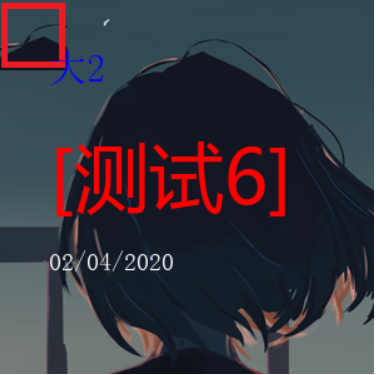
draw.text((40,40),textin1,font=setFont1,fill='#0000ff',direction=None)
setFont2 = ImageFont.truetype('C:/windows/Fonts/msyh.ttc', 60)
draw.text((40,100),textin2,font=setFont2,fill='#FF0000',direction=None)
setFont3 = ImageFont.truetype('C:/windows/Fonts/SIMYOU.TTF', 20)
#draw.text((40,200),str(datetime.datetime.now()),font=setFont3,fill='#FFFFFF',direction=None)
draw.text((40,200),str(time.strftime("%d/%m/%Y")),font=setFont3,fill='#FFFFFF',direction=None)
#target.show()
# 保存图片,只能保存为png格式!
target.save(savename)
##########################
#
#python读取excel操作开始
#
##########################
import openpyxl
#pip install openpyxl
#pip install pymodel
# 打开excel文件,获取工作簿对象
wb = openpyxl.load_workbook('商品示例.xlsx')
# 从工作薄中获取一个表单(sheet)对象
#sheets = wb.sheetnames
#print(sheets, type(sheets))
# 创建一个表单 代码无效??
#mySheet = wb.create_sheet('Sheet1')
#print(wb.sheetnames)
# 获取指定的表单
#sheet3 = wb.get_sheet_by_name('商品信息')
# DeprecationWarning: Call to deprecated function get_sheet_by_name(Use wb[sheetname]).
#sheet4 = wb['商品信息']
#for sheet in wb:
# print(sheet.title)
ws = wb.active # 当前活跃的表单
#print(ws) #<Worksheet "商品信息">
#print(ws['A1']) # 获取A列的第一个对象 #<Cell '商品信息'.A1>
#print(ws['A1'].value) #商品信息xxx
#c = ws['B1']
#print('Row {}, Column {} is {}'.format(c.row, c.column, c.value)) # 打印这个单元格对象所在的行列的数值和内容
#print('Cell {} is {}\n'.format(c.coordinate, c.value)) # 获取单元格对象的所在列的行数和值
#print(ws.cell(row=1, column=2)) # 获取第一行第二列的单元格
#print(ws.cell(row=1, column=2).value)
#print('{}行 {}列'.format(ws.max_row, ws.max_column)) #行和列的总数
max_excel_row = int(format(ws.max_row))+1
#print(max_excel_row)
i =1
j = 0
for i in range(1,max_excel_row):
#print(i)
name = str(ws.cell(i,2).value)
guige_picname = str(ws.cell(i,11).value)
gongying_name = str(ws.cell(i,1).value)
if name != '' and guige_picname !='None':
pic_name = guige_picname + '.png'
print('正在写入第('+str(i)+'/'+str(max_excel_row-1)+')个商品:'+ name +' 的图片文件:'+ pic_name)
write_text1 = gongying_name
write_text2 = '[' + name +']'
pic_add(write_text1,write_text2,pic_name)
j = j+1
print('写入有效商品图片个数:'+str(j))
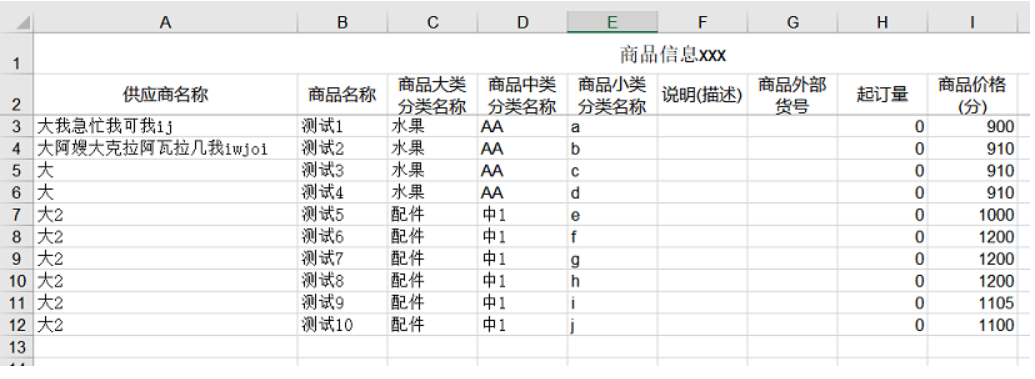
本例中excel示例内容
基于互联网精神,在注明出处的前提下本站文章可自由转载!
本文链接:https://ranjuan.cn/python-watermark-excel/
