



标题
\title{标题}    用于设置论文标题的命令
\author{作者}    用于设置论文作者的命令
\and            论文中有多个作者,用在 \author 中分隔并列
\thanks{脚注}    可用在 \title 或 \author 中,可在底部生成脚注,脚注的内容可以是对标题的说明、作者的介绍或是对某人表示感谢等
\today          自动生成当天日期
\date{日期}      设置论文发表的日期
\maketitle      自动生成论文的标题等相关信息。须置于上述各种命令之后,没有该命令,上述命令都无法生效
声明的标题、作者等命令中可以使用 \\
进行换行。
\documentclass{article}
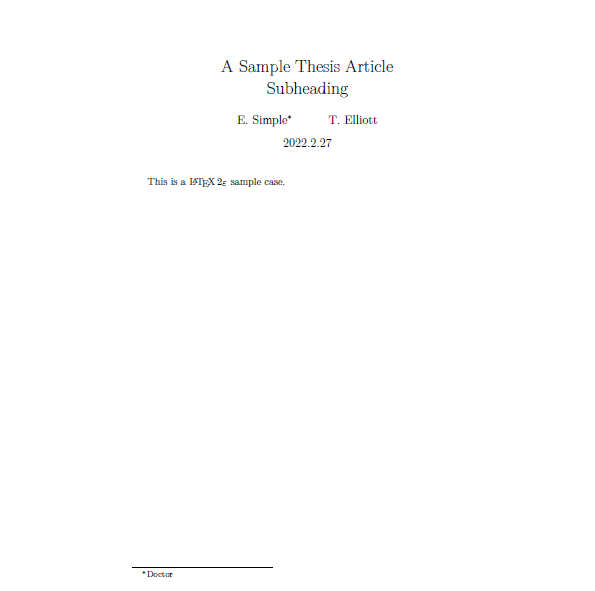
\title{A Sample Thesis Article \\ Subheading}
\author{E. Simple\thanks{Doctor} \and T. Elliott}
\date{2022.2.27}
\begin{document}
\maketitle
This is a \LaTeXe{} sample case.
\end{document}
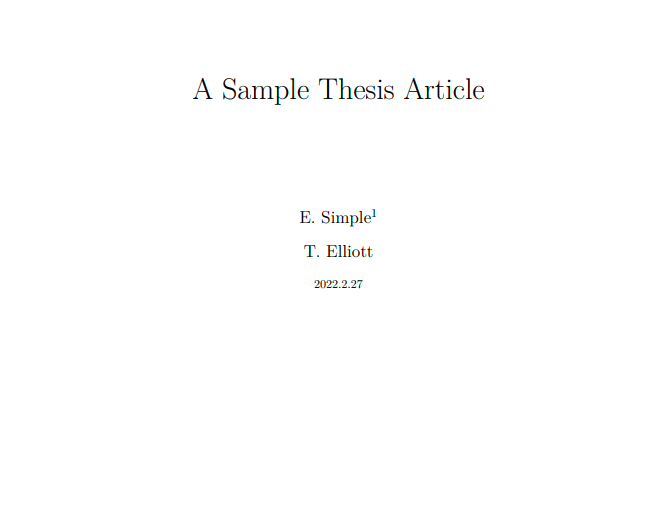
要是将标题格式单独成页,可以在 titlepage
环境中排版。titlepage
环境提供没有页码的单独一页,并使后面的内容页码从 1 开始计数。
\begin{titlepage}
    \vspace*{10mm}
    \begin{center}
        {\Huge A Sample Thesis Article}\\[30mm]
        {\Large E. Simple\footnote{Doctor}}\\[5mm]
        {\Large T. Elliott}\\[5mm]
        2022.2.27
    \end{center}
\end{titlepage}
摘要
一般编写的论文,在正文之前都会要求有摘要,摘要一般是对正文的简单概述。report
和 article
都提供了 abstract
摘要环境。
\begin{abstract}
...
\end{abstract}
这样生成的摘要标题是 Abstract
,可以使用如下命令重定义摘要标题:
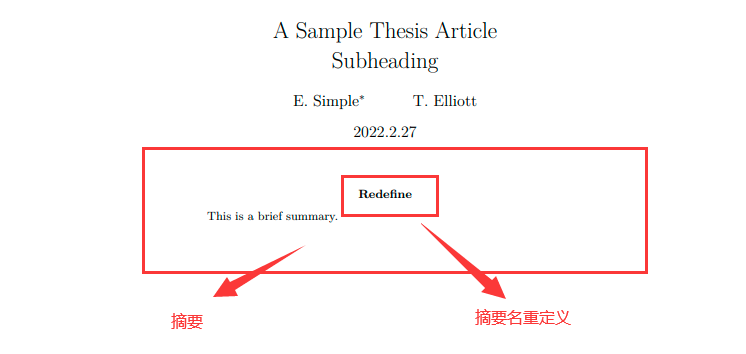
\renewcommand{\abstractname}{Redefine}
例子如下:
\documentclass{article}
\title{A Sample Thesis Article \\ Subheading}
\author{E. Simple\thanks{Doctor} \and T. Elliott}
\date{2022.2.27}
\begin{document}
\maketitle
\renewcommand{\abstractname}{Redefine}
\begin{abstract}
    This is a brief summary.
\end{abstract}
\end{document}
如下效果:
章节
%命令                   层级           说明
\part{...}             %Level -1      部分。想把文档分成几个部分而且不影响章节编号
\chapter{....}         %Level 0       章。使用 report 或者 book 类的时候,使用的最高命令
\section{...}          %Level 1       节
\subsection{...}       %Level 2       小节
\subsubsection{...}    %Level 3       小小节。默认不编号、不编目录
\paragraph{...}        %Level 4       段。默认不编号、不编目录
\subparagraph{...}     %Level 5       小段。默认不编号、不编目录
article
中没有 chapter
,而 report
和 book
则支持所有层次。章节的序号和标题的字号由
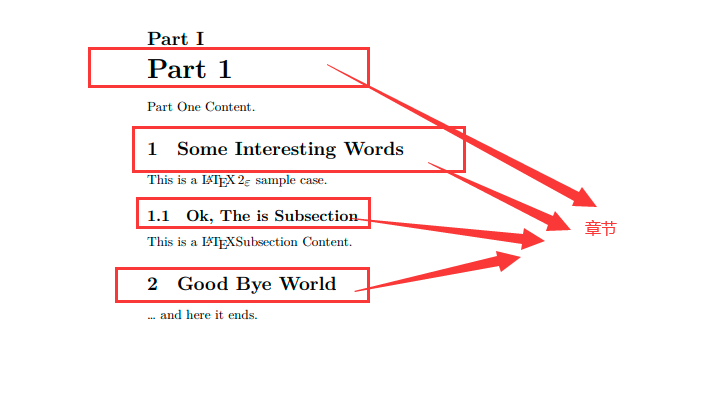
\begin{document}
\part{Part 1}
Part One Content.
\section{Some Interesting Words}
This is a \LaTeXe{} sample case.
\subsection{Ok, The is Subsection}
This is a \LaTeX Subsection Content.
\section{Good Bye World}
\ldots{} and here it ends.
\end{document}
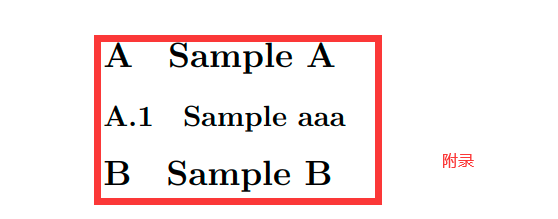
其中 \appendix
命令用来表示附录部分的开始。命令 \appendix
后面的所有章节都将改用字母进行编号。
\appendix
\section{Sample A}
\subsection{Sample aaa}
\section{Sample B}
可以使用带星号的章节(如 \chapter*
)命令表示不编号、不编目的章节。
对于 book
风格的文档。可以使用如下命令来改变章节的标题和页码:
\frontmatter
:紧挨着命令\begin{document}
使用。它把页码更换为罗马数字,并关闭\chapter
的编号。\mainmatter
:会将页码按阿拉伯数字编号。\backmatter
:应该插入与书中最后一部分内容的前面,如参考文献和索引。在标准文档类型中,它对页面没有什么效果。
目录
当设置完章节后,\tableofcontents
命令,提取所定义的各章节标题和页码以生成目录。
\begin{document}
\tableofcontents
\part{Part 1}
Part One Content.
\section{Some Interesting Words}
This is a \LaTeXe{} sample case.
\subsection{Ok, The is Subsection}
This is a \LaTeX Subsection Content.
\section{Good Bye World}
\ldots{} and here it ends.
\end{document}
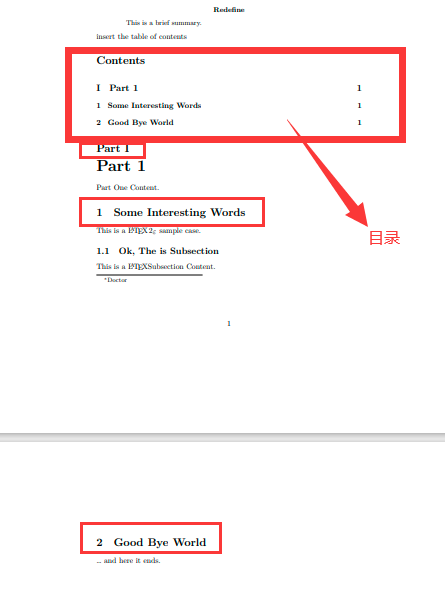
目录出现的标题,一般与输入的文本完全一致。有时这是不可能的,因为标题太长排不进目录。在这种情况下,目录的条目可由实际标题前的可选参量确定。
命令 \listoffigures
和 \listoftables
则会收集在 figure
环境和 table
环境中 \caption
命令的图表标题,产生图表的目录,其格式与章节目录类似。
脚注
\footnote[seq]{text}
seq
:设置序号值。通常不使用,会自动生成序号值。text
:脚注内容。
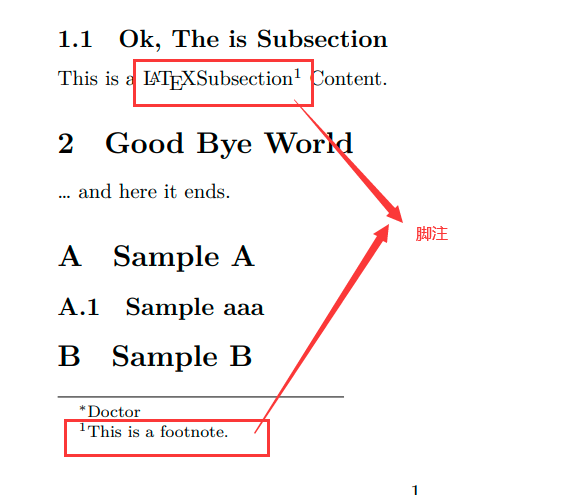
脚注显示在当前页底部,且将脚注命令置于指向的单词或句子的后面。
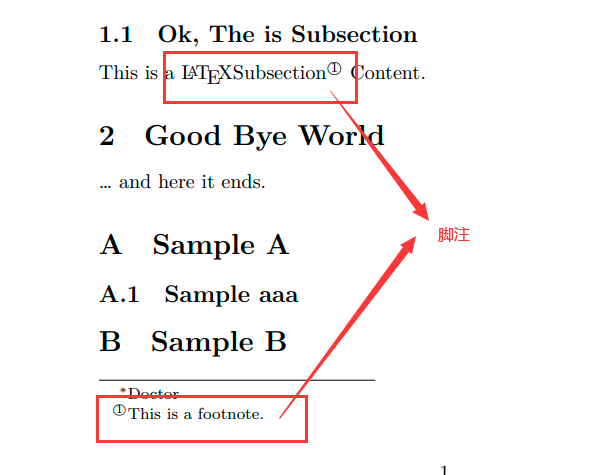
This is a \LaTeX Subsection\footnote{This is a footnote.} Content.
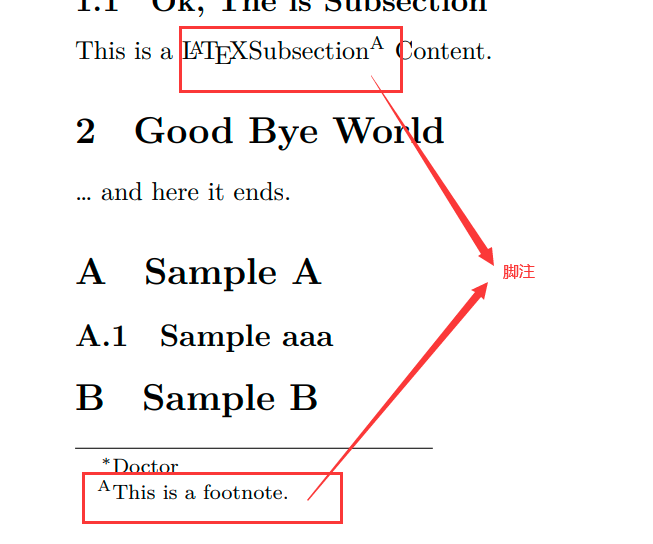
也可以使用如下命令修改脚注的编号。
This is a \LaTeX Subsection\renewcommand{\thefootnote}{\Alph{footnote}}\footnote{This is a footnote.} Content.
或者将命令写在 \begin{document}
之前也可以。
\documentclass{article}
\renewcommand{\thefootnote}{\textcircled{\arabic{footnote}}}
\begin{document}
...
\end{document}
边注
\marginpar{content}
content
:显示在页边的内容。
与脚注使用方法差不多,只是不编号。
单面模式 onecolumn
下,边注在页面的右侧;双肩模式 towcolumn
下,边注在页面的外侧。
This is a \LaTeXe{} sample\marginpar{marginal note} case.

可以使用命令 \reversemarginpar
改变边注的左右位置,或者用命令 \normalmarginpar
复原边注的左右位置。
注释
%
来标明注释,但也可以使用 verbatim
宏包的 comment
环境。
\begin{comment}
...
\end{comment}
段落对齐
对如下文本使用段落对齐功能。
This text is\\ left-aligned.
        \LaTeX{} is not trying to make
        each line the same length.
左对齐使用 flushleft
环境:
\begin{flushleft}
...
\end{flushleft}

右对齐使用 flushright
环境:
\begin{flushright}
...
\end{flushright}

居中对齐使用 center
环境:
\begin{center}
...
\end{center}

如果不输入命令 \\
指定断行点,LaTeX将自行决定。
列表
LaTeX提供了三种列表环境:itemize
无序列表、enumerate
有序列表和 description
描述列表。
使用 itemize
环境实现无序列表。
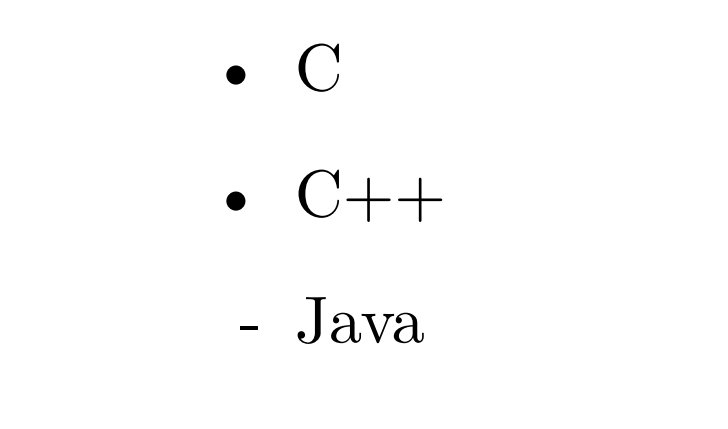
\begin{itemize}
    \item C
    \item C++
    \item[-] Java
\end{itemize}
\item[flag]
可以通过修改 flag
来修改无序列表中的标志 。
使用 enumerate
环境实现有序列表。
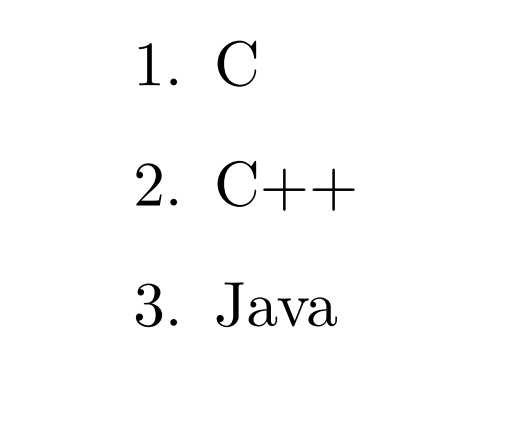
\begin{enumerate}
    \item C
    \item C++
    \item Java
\end{enumerate}
使用 description
环境实现描述列表。
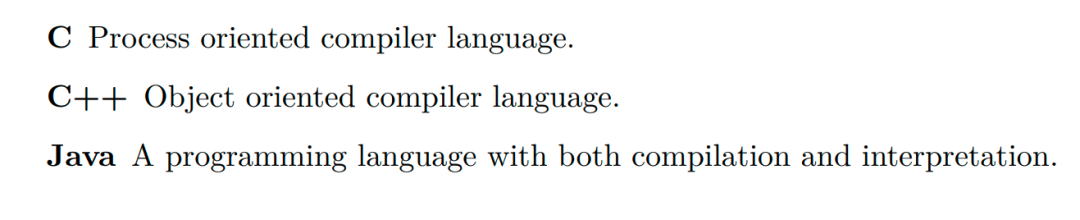
\begin{description}
    \item[C] Process oriented compiler language.
    \item[C++] Object oriented compiler language.
    \item[Java] A programming language with both compilation and interpretation.
\end{description}
交叉引用
交叉引用是通过一个符号标签引用文档中某个对象的编号、页码或章节等信息,而不必知道在什么地方。交叉引用主要用如下三种命令。
\label{marker}
\ref{marker}
\pageref{marker}
marker
:用户选择的标识符。
下面给出实际效果
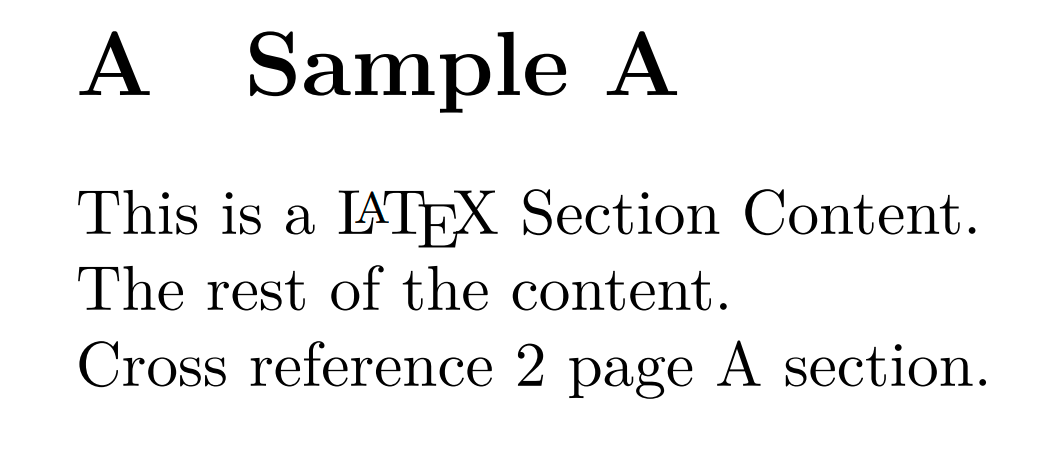
This is a \LaTeX{} Section\label{sec:this} Content. \\
The rest of the content. \\
Cross reference \pageref{sec:this} page \ref{sec:this} section.
摘录
quote
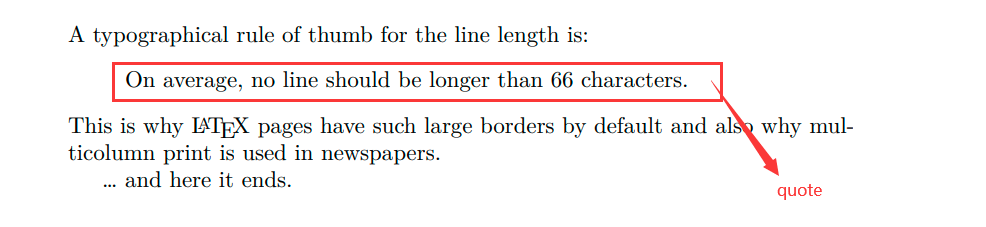
环境用于摘录。
A typographical rule of thumb
for the line length is:
\begin{quote}
On average, no line should
be longer than 66 characters.
\end{quote}
This is why \LaTeX{} pages have
such large borders by default
and also why multicolumn print
is used in newspapers.
quotation
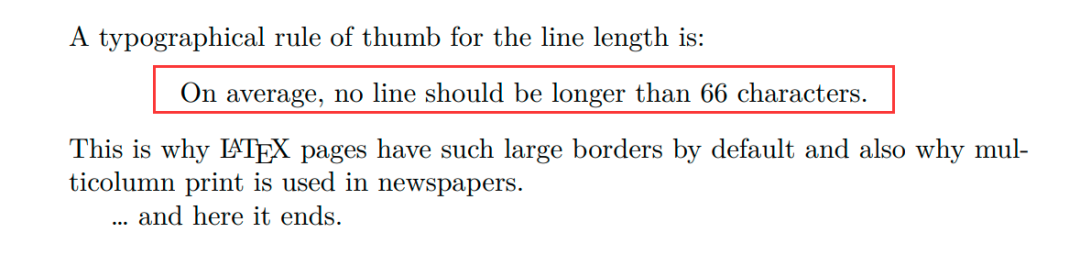
环境也可用于摘录,它在 quote
基础上增加了首行缩进。
verse
环境比 quote
多了第二行起的缩进。主要用于诗歌等。
原文打印
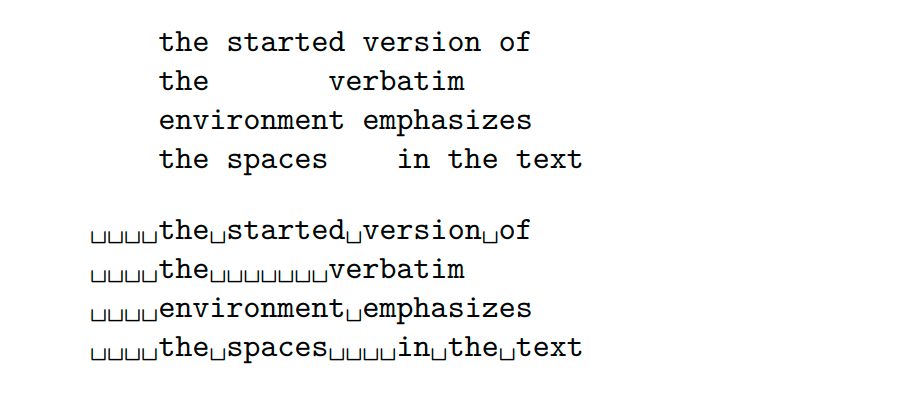
位于 \begin{verbatim}
和 \end{verbatim}
之间的文本将直接打印,包括所有的断行和空白,就像在打字机上键入一样,不执行任何
\begin{verbatim}
    the started version of
    the       verbatim
    environment emphasizes
    the spaces    in the text
\end{verbatim}
\begin{verbatim*}
    the started version of
    the       verbatim
    environment emphasizes
    the spaces    in the text
\end{verbatim*}



 分享、点赞与在看,谢谢支持
