使用SecureCRT开启图形化界面功能,在Windown显示Linux服务器图形化界面
测试时配置如下:
虚拟机Linux IP: 1.1.1.21
Win10主机 IP : 1.1.1.1
1 windows安装Xming(2M)
下载地址:https://sourceforge.net/projects/xming/
2 配置Xming
启动XLaunch.exe 选择Multiple windows --> Start no client --> No Access Constrol --> Save configuration --> 完成退出
3 启动Xming
启动上一步保存的配置文件(注:在安装过程中,默认将文件扩展名.xlaunch附属到XLaunch应用程序。因此双击此文件即可启动Xming)
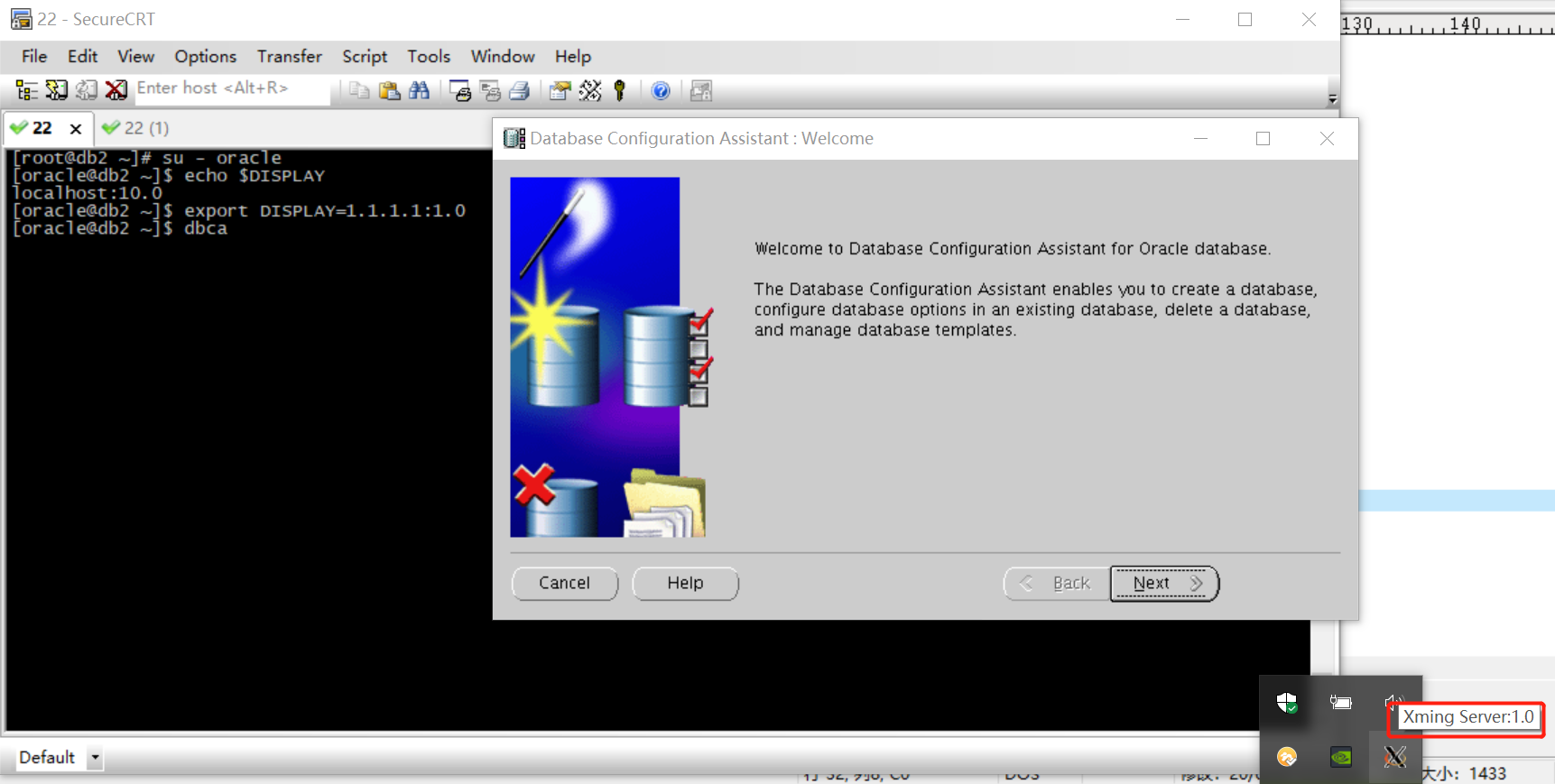
注意:Windows的系统托盘中看到了Xming的图标,则说明启动成功。
注意:Windows系统托盘中Xming图标会显示提示:Xming Server:1.0 其中1.0为Win10的的DISPLAY变量值,
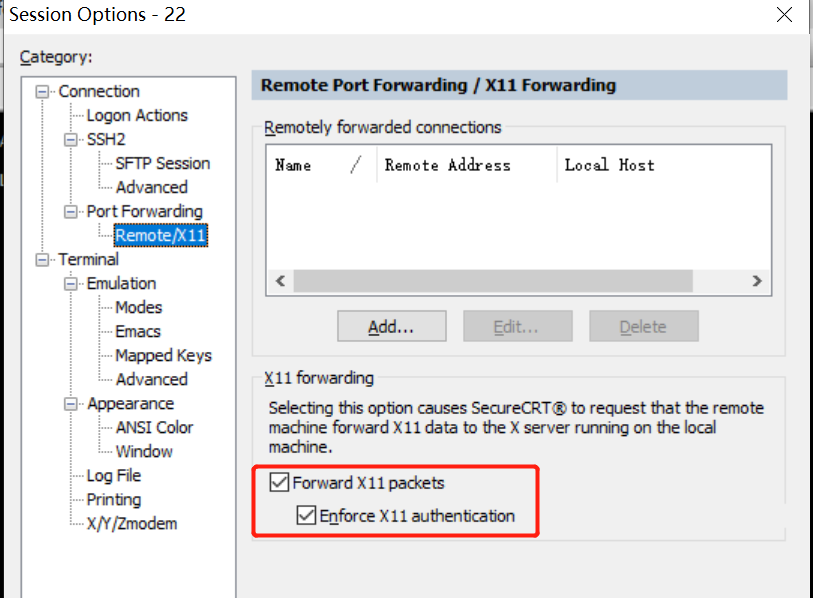
4 配置SecureCRT
Options --> Session Options -->
Connection --> Port Forwarding --> Remote/X11 --> Forward X11 packets(勾选)
Connection --> Port Forwarding --> Remote/X11 --> Enforce X11 authentication(勾选)
5 配置服务端
vi /etc/ssh/sshd_config
Port 22
Protocol 2
X11Forwarding yes
XauthLocation /usr/bin/xauth
6 从Windows SecureCRT启动dbca图形化界面
su - oracle
export DISPLAY=1.1.1.1:1.0
dbca