



终于在树莓派 4B 上将 OHOS3.0 启动起来了,虽然还不完整,目前只能实现的显示和触摸。但是可以和大家分享下我的思路。
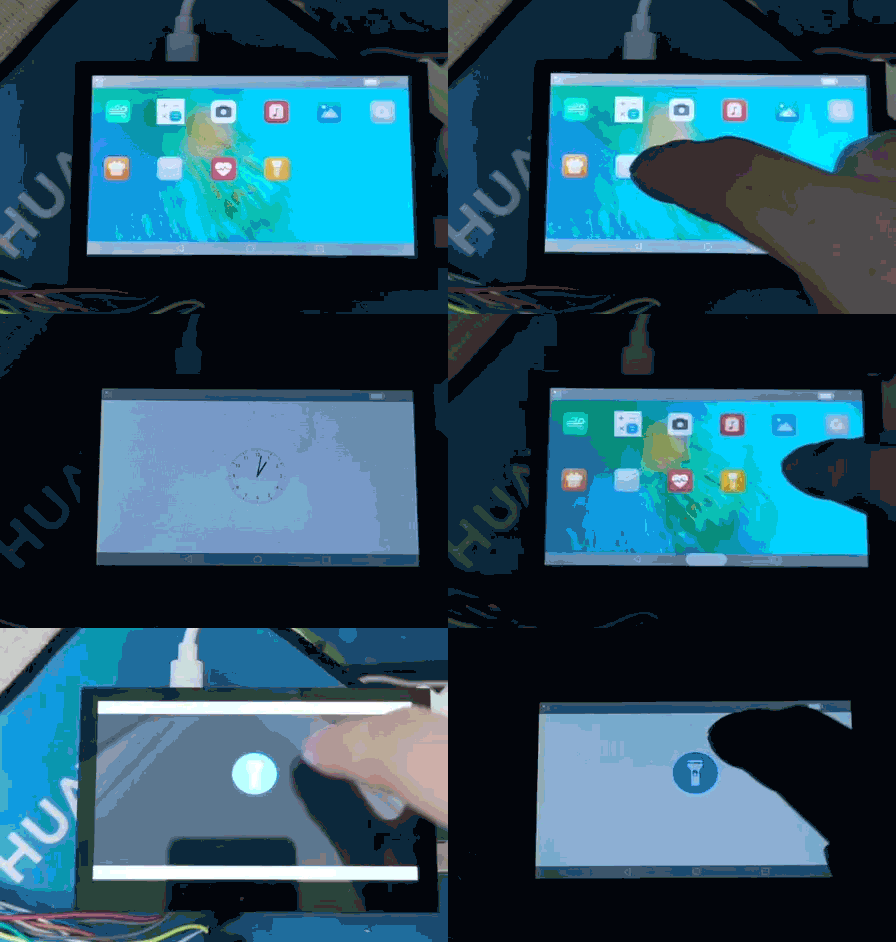
我的方法比较简单粗暴,直接使用的树莓派的树莓派 linux rpi-5.10.y 内核。
https://github.com/raspberrypi/linux
make ARCH=arm CROSS_COMPILE=arm-linux-gnueabihf- menuconfig
Security options  --->
    (32768) Low address space for LSM to protect from user allocation

    [*] NSA SELinux Support                (选中)
    [*]   NSA SELinux boot parameter    (选中)
    [ ]   NSA SELinux runtime disable
    [*]   NSA SELinux Development Support
    [*]   NSA SELinux AVC Statistics
    (1)   NSA SELinux checkreqprot default value    (设置为1)
    (9)   NSA SELinux sidtab hashtable size
    (256) NSA SELinux SID to context string translation cache size
        First legacy 'major LSM' to be initialized (SELinux)  ---> (选中) SELinux
        Ordered list of enabled LSMs (填入:"lockdown,yama,loadpin,safesetid,integrity,selinux,smack,tomoyo,apparmor,bpf")
 Device Drivers  --->
    Android  --->
        [*] Android Drivers (开启)
        [*]   Android Binder IPC Driver (开启)
这里有个比较恶心的地方,OHOS 的根文件系统使用的是 Toybox,但是很多工具不支持,比如 modprobe 就没有,所以只能根据 modules.dep 文件,一个一个 insmod。当然可以直接将驱动编进内核也是可以的。
"insmod /lib/modules/5.10.76-v7l/kernel/drivers/gpu/drm/drm_panel_orientation_quirks.ko",
"insmod /lib/modules/5.10.76-v7l/kernel/drivers/video/backlight/backlight.ko",
"insmod /lib/modules/5.10.76-v7l/kernel/drivers/gpu/drm/drm.ko",
"insmod /lib/modules/5.10.76-v7l/kernel/drivers/media/cec/core/cec.ko",
"insmod /lib/modules/5.10.76-v7l/kernel/drivers/video/fbdev/core/syscopyarea.ko",
"insmod /lib/modules/5.10.76-v7l/kernel/drivers/video/fbdev/core/sysfillrect.ko",
"insmod /lib/modules/5.10.76-v7l/kernel/drivers/video/fbdev/core/sysimgblt.ko",
"insmod /lib/modules/5.10.76-v7l/kernel/drivers/video/fbdev/core/fb_sys_fops.ko",
"insmod /lib/modules/5.10.76-v7l/kernel/drivers/gpu/drm/drm_kms_helper.ko",
"insmod /lib/modules/5.10.76-v7l/kernel/sound/core/snd.ko",
"insmod /lib/modules/5.10.76-v7l/kernel/sound/core/snd-timer.ko",
"insmod /lib/modules/5.10.76-v7l/kernel/sound/core/snd-pcm.ko",
"insmod /lib/modules/5.10.76-v7l/kernel/sound/core/snd-compress.ko",
"insmod /lib/modules/5.10.76-v7l/kernel/sound/core/snd-pcm-dmaengine.ko",
"insmod /lib/modules/5.10.76-v7l/kernel/sound/soc/snd-soc-core.ko",
"insmod /lib/modules/5.10.76-v7l/kernel/drivers/gpu/drm/vc4/vc4.ko",
"insmod /lib/modules/5.10.76-v7l/kernel/drivers/gpu/drm/scheduler/gpu-sched.ko",
"insmod /lib/modules/5.10.76-v7l/kernel/drivers/gpu/drm/v3d/v3d.ko"
为了验证 drm 和 libdrm 是否正常,我写了一个简单的测试:
    fd = open("/dev/dri/card0", O_RDWR | O_CLOEXEC);
    if (fd < 0) {
        printf("open failed");
    }else{
        printf("open seccess\n");
    }

    uint32_t conn_id;
    uint32_t crtc_id;
    res = drmModeGetResources(fd);  // 获取 crtc_id 和 connector_id
    if (!res) {
        printf("ERROR: drmModeGetResources failed!\n");
        drmClose(fd);
        return -1;
    }else{
        printf("drmModeGetResources seccess\n");
    }
    crtc_id = res->crtcs[0];
    conn_id = res->connectors[0];

    conn = drmModeGetConnector(fd, conn_id);    // 获取 drm_mode
    if (!conn) {
        printf("ERROR: drmModeGetConnector failed!\n");
    }else{
        printf("drmModeGetConnector seccess\n");
    }
third_party\libdrm\tests\modetest\BUILD.gn:
import("//build/ohos.gni")

ohos_executable("modetest") {

  sources = [
    "buffers.c",
    "cursor.c",
    "modetest.c",
  ]

  cflags = [
      "-Wno-pointer-arith",
  ]

  include_dirs = [
    "../",
    ".",
  ]

  configs = [ "//third_party/libdrm:libdrm_config" ]

  public_configs = [ "//third_party/libdrm:libdrm_public_config" ]

  deps = [
    "//third_party/libdrm:libdrm",
    "//third_party/libdrm/tests/util/:util",
  ]

  public_deps = []

  install_images = [
    "system",
    "updater",
  ]
  part_name = "graphic_standard"
  subsystem_name = "graphic"
}
third_party\libdrm\tests\util\BUILD.gn:
import("//build/ohos.gni")

ohos_static_library("util") {

  sources = [
    "format.c",
    "kms.c",
    "pattern.c",
  ]

  cflags = []

  include_dirs = [
    "../",
    ".",
  ]

  configs = [ "//third_party/libdrm:libdrm_config" ]

  public_configs = [ "//third_party/libdrm:libdrm_public_config" ]

  deps = [
    "//third_party/libdrm:libdrm",
  ]

  public_deps = []
}
third_party\weston\BUILD.gn:
"//third_party/libdrm:libdrm",
"//third_party/libdrm/tests/util/:util",
"//third_party/libdrm/tests/modetest/:modetest",
有个报错:问题不大,提示这个未使用,注释的就好了。
third_party\libdrm\tests\util\pattern.c:988
    // void *mem_base = mem;
system\etc\weston.ini:
[output]
name=card0
接下来是触摸部分,我使用的是 DSI 接口的触摸屏。
hexdump /dev/input/event2   # 可以使用hexdump看触摸设备有没有输出,可惜这个命令也不支持
cat /dev/input/event2        # cat也可以凑合用,只是输出乱码,但能证明触摸是否好用
然后查看驱动模块:
ls -l /sys/dev/char/|grep input    # 查看input下的触摸设备的主次设备号
cat /sys/dev/char/226\:0/device/uevent    # 然后输入主次设备号,查看设备的驱动程序
DRIVER=raspberrypi-ts
... ...
发现驱动是 raspberrypi-ts,那就好办了,在 init 的时候安装这个模块就好了。
"insmod /lib/modules/5.10.76-v7l/kernel/drivers/input/touchscreen/raspberrypi-ts.ko"
当然加到鸿蒙编译框架可能没有这么简单,接下来我会先整理这部分的文档,就更新在下面这个仓:
https://gitee.com/liangzili/harmony-raspberry
👇👇👇


求分享
求点赞
求在看
文章转载自鸿蒙技术社区,如果涉嫌侵权,请发送邮件至:contact@modb.pro进行举报,并提供相关证据,一经查实,墨天轮将立刻删除相关内容。
