



众所周知,PageSlider 是用于页面之间切换的组件,它通过响应滑动事件完成页面间的切换,而 PageFlipper 可能知道的人就比较少了。

其实 PageFlipper 和 PageSlider 类似,都是视图切换组件,它们都继承自 StackLayout,因此可以将多个 component 层叠在一起,每次只显示一个组件。
当视图从一个 component 切换到另一个 component 时,PageFlipper 支持指定动画效果。
区别:
PageFlipper 通过 addComponent() 添加 component,可使用动画控制多个 component 之间的切换效果,是个轻量级的组件,适合展示少量静态数据。
而 PageSlide 是由 provider 来提供 component 的,更适用复杂的视图切换,实现数据的动态加载。
下面是一个 PageSlider 和 PageFlipper 结合起来的使用效果,页面中间的卡片使用的是 PageSlider,背景图片和底部的数字指示器用的是 PageFlipper。

PageSlider
PageSlider 可以说是鸿蒙中最常用的视图切换组件了,使用方法不用多做介绍,官方文档有详细的说明,这里主要说一下一个特殊的效果。
①一屏多页效果
其实鸿蒙本身有提供一个 setClipEnabled() 的方法,作用是设置是否允许在组件超出其父布局时自动裁剪组件。
理论上通过给 pageSlider 父布局设置 setClipEnabled(false),加上给子组件设置合适的宽度可以实现一屏多页效果,但是经过测试并没达到效果。
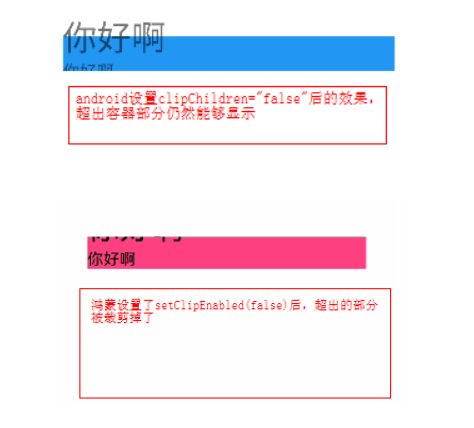

②动态设置缩放透明度变化
设置透明度和缩放比例就不细说了,主要就是在 PageSlider 子组件加载完成后和页面切换中的回调方法中改变 alpha 值和 scale 值。
public final class AlphaScalePageTransformer {
    /**
     * 缩放
     */
    public static final float INACTIVE_SCALE = 0.8f;
    /**
     * 透明度
     */
    public static final float INACTIVE_ALPHA = 0.5f;

    /**
     * 设置初始状态的缩放和透明度
     *
     * @param child
     * @param position
     * @param current
     */
    public static void defaultPage(ListContainer child, int position, float current) {
        if (position != current) {
            child.setAlpha(INACTIVE_ALPHA);
            child.setScaleX(INACTIVE_SCALE);
            child.setScaleY(INACTIVE_SCALE);
        }
    }

    /**
     * 设置滑动中的缩放和透明度
     *
     * @param childList
     * @param position
     * @param offset
     * @param direction
     */
    public static void transformPage(List<ListContainer> childList, int position, float offset, float direction) {
        Component child = childList.get(position);
        float scale = INACTIVE_SCALE + (1 - INACTIVE_SCALE) * (1 - Math.abs(offset));
        float alpha = INACTIVE_ALPHA + (1 - INACTIVE_ALPHA) * (1 - Math.abs(offset));
        child.setScaleX(scale);
        child.setScaleY(scale);
        child.setAlpha(alpha);
        if (direction > 0) {
            if (position < childList.size() - 1) {
                child = childList.get(position + 1);
            }
        } else {
            if (position >= 1) {
                child = childList.get(position - 1);
            }
        }
        scale = INACTIVE_SCALE + (1 - INACTIVE_SCALE) * Math.abs(offset);
        alpha = INACTIVE_ALPHA + (1 - INACTIVE_ALPHA) * Math.abs(offset);
        child.setScaleX(scale);
        child.setScaleY(scale);
        child.setAlpha(alpha);
    }
}
设置两边的 component 透明度和缩放效果:
//设置初始状态缩放和透明度
AlphaScalePageTransformer.defaultPage(image, i, pageSlider.getCurrentPage());

//设置页面切换中缩放和透明度
pageSlider.addPageChangedListener(new PageChangedListener() {
            @Override
            public void onPageSliding(int position, float positionOffset, int positionOffsetPixels) {
                AlphaScalePageTransformer.transformPage(listContainers, position,
                positionOffset, positionOffsetPixels);
            }
        });
PageFlipper(翻页器)
常用方法:
getCurrentComponent()//获取当前组件

showNext():显示下一个组件(如果当前子组件是最后一个,则显示第一个子组件)

showPrevious():显示上一个组件(如果当前子组件是第一个,则显示最后一个子组件)

getFlipInterval() :获取自动翻转时间

setFlipPeriod(int period) :设置翻转周期

startFlipping() :开启自动翻转

stopFlipping() :停止自动翻转

addComponent() :添加组件

setIncomingAnimationA() :设置转入动画

setOutgoingAnimation() :设置转出动画
下面通过设置文字翻页效果来了解下它的使用方法:

代码如下:
public class IndicatorComponent extends DirectionalLayout {
    /**
     * 文字大小
     */
    private static final int TEXT_SIZE = 130;
    /**
     * 动画时长
     */
    private static final int DURATION = 600;
    private PageFlipper textSwitcher;
    private Text textcomponent;

    /**
     * ItemsCountcomponent
     *
     * @param context
     * @param attrSet
     */
    public IndicatorComponent(Context context, AttrSet attrSet) {
        super(context, attrSet);
        init(context);
    }

    private void init(Context context) {
        setOrientation(ComponentContainer.HORIZONTAL);
        textSwitcher = new PageFlipper(context);
        //理论上PageFlipper只需要添加两个子component就能实现动画效果,但是实际测试发现如果切换速度太快就导致子组件衔接不上出现组件消失的额情况,
        //因此这里通过实践多添加了几个子component,防止滑动过快出现bug
        textSwitcher.addComponent(createcomponentForTextSwitcher(context));
        textSwitcher.addComponent(createcomponentForTextSwitcher(context));
        textSwitcher.addComponent(createcomponentForTextSwitcher(context));
        textSwitcher.addComponent(createcomponentForTextSwitcher(context));
        addComponent(textSwitcher, new LayoutConfig(ComponentContainer.LayoutConfig.MATCH_CONTENT,
                ComponentContainer.LayoutConfig.MATCH_CONTENT));
        textcomponent = new Text(context);
        textcomponent.setTextSize(TEXT_SIZE);
        textcomponent.setFont(Font.DEFAULT_BOLD);
        textcomponent.setTextColor(new Color(Color.getIntColor("#8cffffff")));
        addComponent(textcomponent, new LayoutConfig(ComponentContainer.LayoutConfig.MATCH_CONTENT,
                ComponentContainer.LayoutConfig.MATCH_CONTENT));
    }

    /**
     * 创建组件
     *
     * @param context 上下文
     * @return text
     */
    private Text createcomponentForTextSwitcher(Context context) {
        Text text = new Text(context);
        text.setTextSize(TEXT_SIZE);
        text.setFont(Font.DEFAULT_BOLD);
        text.setTextColor(Color.WHITE);
        text.setLayoutConfig(new PageFlipper.LayoutConfig(ComponentContainer.LayoutConfig.MATCH_CONTENT,
                PageFlipper.LayoutConfig.MATCH_CONTENT));
        return text;
    }

    /**
     * update
     *
     * @param newPosition   新位置
     * @param oldPosition   旧位置
     * @param totalElements 总数
     */
    public void update(int newPosition, int oldPosition, int totalElements) {
        textcomponent.setText(" / " + totalElements);
        int offset = textSwitcher.getHeight();
        if (newPosition > oldPosition) {
            //设置组件进入和退出的动画
            textSwitcher.setIncomingAnimation(createPositionAnimation(-offset, 0, 0f, 1f, DURATION));
            textSwitcher.setOutgoingAnimation(createPositionAnimation(0, offset, 1f, 0f, DURATION));
        } else if (oldPosition > newPosition) {
            textSwitcher.setIncomingAnimation(createPositionAnimation(offset, 0, 0f, 1f, DURATION));
            textSwitcher.setOutgoingAnimation(createPositionAnimation(0, -offset, 1f, 0f, DURATION));
        }
        //显示下一个组件并执行动画
        textSwitcher.showNext();
        Text text = (Text) textSwitcher.getCurrentComponent();
        text.setText(String.valueOf(newPosition + 1));
    }

    /**
     * 创建属性动画
     *
     * @param fromY
     * @param toY
     * @param fromAlpha
     * @param toAlpha
     * @param duration
     * @return
     */
    private AnimatorProperty createPositionAnimation(int fromY, int toY, float fromAlpha, float toAlpha, int duration) {
        AnimatorProperty animatorProperty = new AnimatorProperty();
        animatorProperty.setCurveType(Animator.CurveType.DECELERATE);
        animatorProperty.alphaFrom(fromAlpha);
        animatorProperty.alpha(toAlpha);
        animatorProperty.moveFromY(fromY);
        animatorProperty.moveToY(toY);
        animatorProperty.setDuration(duration);
        return animatorProperty;
    }
}
结束
首先生成一个 foreground_gradient.xml:
<shape
    xmlns:ohos="http://schemas.huawei.com/res/ohos"
    ohos:shape="rectangle">

    //设置填充的颜色,可以根据实际需要设置多个
    <solid
        ohos:colors="#000000,#00ffffff,#d8000000"/>
    //设置渐变方向,有三个值可供选择:linear_gradient,radial_gradient,sweep_gradient
    <gradient
        ohos:shader_type="linear_gradient"
        />
</shape>
然后给目标组件设置前景色即可:
ohos:foreground_element="$graphic:foreground_gradient"
👇点击关注鸿蒙技术社区👇
了解鸿蒙一手资讯

求分享
求点赞
求在看
