



6 月 2 日鸿蒙发布,今年的六月已经被鸿蒙刷屏了。从安卓到鸿蒙,最直观的变化应该就是服务卡片了。我也是在学习鸿蒙的同时,实际体验一下服务卡片的开发。

下面是一款纯鸿蒙版的哔哩哔哩服务卡片应用,给大家看看最终的效果:



IDE:DevEco Studio 2.1 Release
SDK:API Version 5
服务卡片设计
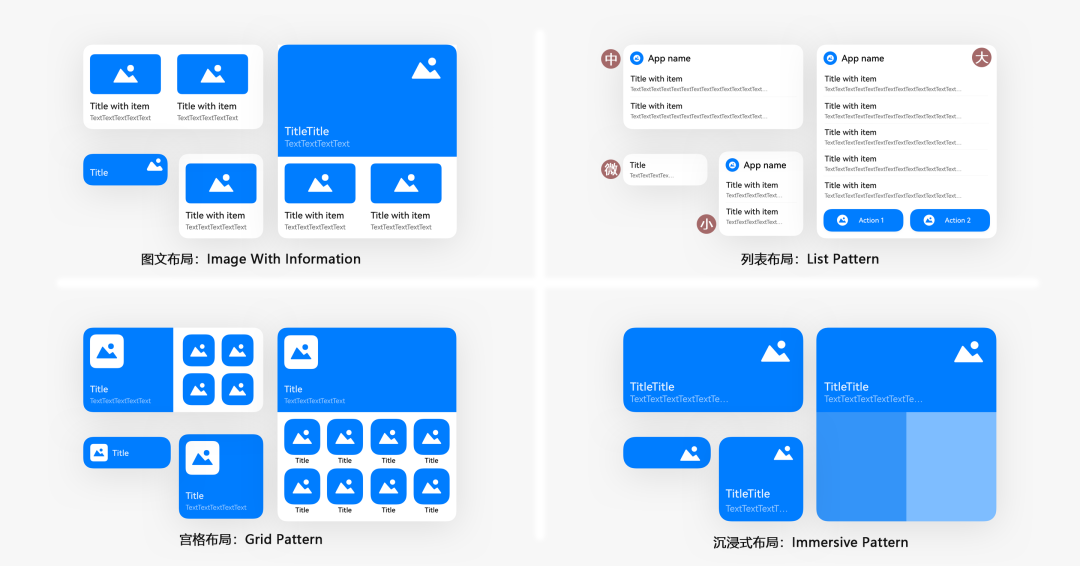
①尺寸规格
基础模板如下图:
②功能设计
服务卡片设计的初衷就是信息显示、服务直达。依照这个原则,我找了几个 Bilibili 中我比较常用的功能,来制作服务卡片,比如追番列表。

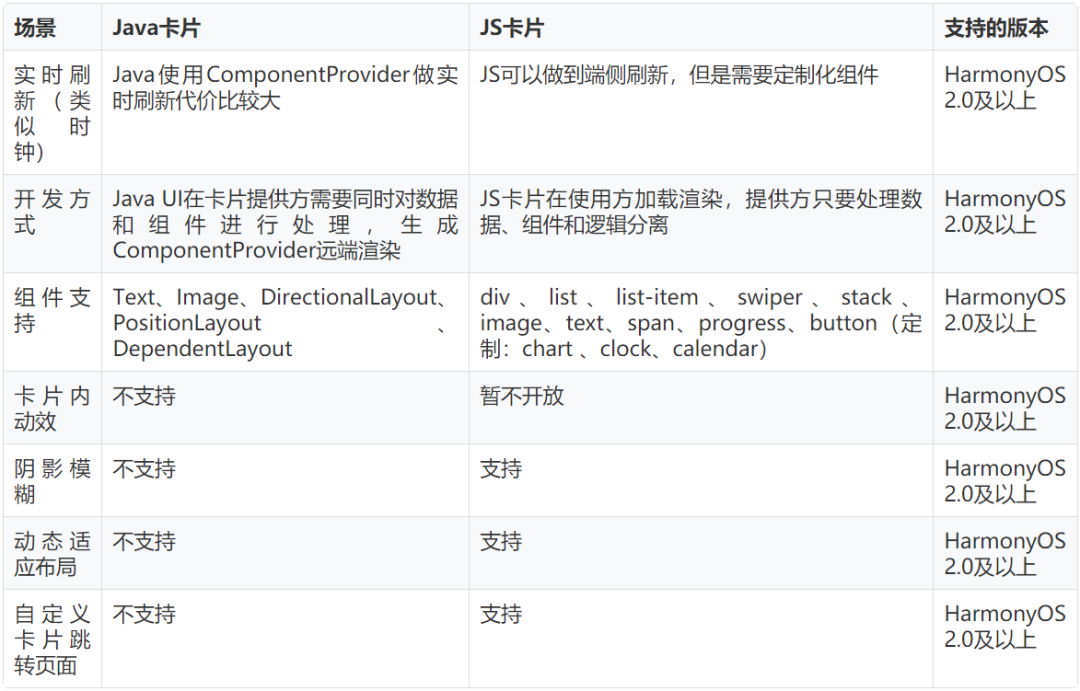
③开发语言
看下表就一目了然了,就是推荐 JS。表格来源:
界面实现
我使用了 4 种尺寸的卡片,并尽可能的使用到所有的容器组件。
①div:基础容器组件
就是用来划分区域的。比较常用。比如追番服务卡片,效果如图:

代码如下:
<div class="div_root"  ><!--在服务卡片设置一个 根div 横向布局-->

    <div class="div_container"><!--在根div 横向放置4个div,每个div内部从上往下排列-->
            <image class="item_image" src="{{ src1 }}" onclick="routerEvent1"></image>
            <text class="item_title">{{ itemTitle1 }}</text>
            <text class="item_content">{{ itemContent1 }}</text>
    </div>

    <div class="div_container"><!--第二列-->
        <image class="item_image" src="{{ src2 }}" onclick="routerEvent2"></image>
        <text class="item_title">{{ itemTitle2 }}</text>
        <text class="item_content">{{ itemContent2 }}</text>
    </div>

    <div class="div_container"><!--第三列-->
        <image class="item_image" src="{{ src3 }}" onclick="routerEvent3"></image>
        <text class="item_title">{{ itemTitle3 }}</text>
        <text class="item_content">{{ itemContent3 }}</text>
    </div>

    <div class="div_container"><!--第四列-->
        <image class="item_image" src="{{ src4 }}" onclick="routerEvent4"></image>
        <text class="item_title">{{ itemTitle4 }}</text>
        <text class="item_content">{{ itemContent4 }}</text>
    </div>

</div>
.div_root {
    flex-direction: row;        /*flex容器主轴方向,row:水平方向从左到右。*/
    justify-content: center;    /*flex容器当前行的主轴对齐格式,center:项目位于容器的中心。*/
    margin:6px;                 /*外边距属性:只有一个值时,这个值会被指定给全部的四个边。*/
    border-radius: 10px;        /*设置元素的外边框圆角半径。*/
}

.div_container {
    flex-direction: column;         /*flex容器主轴方向,column:垂直方向从上到下。*/
    justify-content: flex-start;    /*flex容器当前行的主轴对齐格式,flex-start:项目位于容器的开头。*/
    margin:6px;
}

.item_image {
    height: 60%;                    /*卡片在不同设备,尺寸会发生变化,所以最好使用百分比进行标注。*/
    border-radius: 10px;
    background-color: #F1F3F5;      /*设置背景颜色。*/
}
@media (dark-mode: true) {          /*当前系统为深色模式时,使用这里的配置,如果没有颜色设置,可以不设置*/
    .item_image {
        height: 60%;
        border-radius: 10px;
        background-color: #202224;
    }
}

.item_title {
    margin-top: 10px;           /*设置上边距。*/
    font-size: 12px;            /*设置文本的尺寸。*/
    font-weight: bold;          /*设置文本的字体粗细。取值[100, 900],默认为400。*/
    max-lines:1;                /*设置文本的最大行数。*/
    text-overflow: ellipsis;    /*根据父容器大小显示,显示不下的文本用省略号代替。需配合max-lines使用。*/
    color: #e5000000;           /*设置文本的颜色。*/
}

.item_content {
    margin-top: 5px;
    font-size: 9px;
    font-weight: bold;
    text-overflow: ellipsis;
    max-lines:1;
    color: #99000000;
}
②list:列表容器组件
效果图如下:

代码如下:
<list class="list">
    <list-item for="{{cards}}" class="list-item">
        <div class="div" onclick="sendRouteEvent">
            <image class="item_image" src="{{ $item.pic }}"></image>
            <text class="item_name">{{ $item.name }}</text>
            <text class="item_title">{{ $item.title }}</text>
        </div>
    </list-item>
</list>
.list{
    align-items:center; /*list每一列交叉轴上的对齐格式:元素在交叉轴居中*/
}
.list-item{
    border-radius: 15px;
    background-color: #f2f2f2;
    margin-bottom: 5px;
}
.div{
    flex-direction: column;
}

.item_image {
    border-top-right-radius: 15px;
    border-top-left-radius: 15px;
}

.item_name {
    margin:5px 8px 0px;
    font-size: 12px;
    color: #262626;
}

.item_title{
    margin:3px 8px 8px;
    font-size: 10px;
    color: #AAAAAA;
    max-lines: 2;
    text-overflow: ellipsis;    /* 省略号 */
}
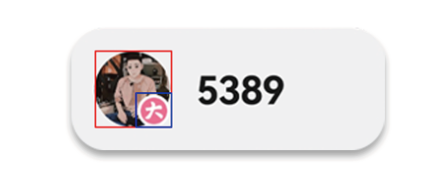
③stack:堆叠容器组件
简单来说就是可以在一张图片上堆叠显示另一张图片,例如下图蓝框的图片覆盖在红框图片的上面。
④swiper:滑动容器组件
但是我个人觉得上下滑动其实还是挺好用的,毕竟在 list 组件上是可以上下滑动的,只可惜目前还不支持。

API 数据请求
①添加联网权限
要在 config.json 配置文件的 module 中添加:“reqPermissions”: [{“name”:“ohos.permission.INTERNET”}]。
{
  ... ...
  "module": {
      ... ...
      "reqPermissions": [{"name":"ohos.permission.INTERNET"}]
  }
}
②添加依赖包
找到 entry/build.gradle 文件,在 dependencies 下添加:
dependencies {
    implementation fileTree(dir: 'libs', include: ['*.jar', '*.har'])
    testImplementation 'junit:junit:4.13'
    ohosTestImplementation 'com.huawei.ohos.testkit:runner:1.0.0.100'

    // ZZRHttp 可以单独一个进程进行http请求
    implementation 'com.zzrv5.zzrhttp:ZZRHttp:1.0.1'

    // fastjson 可以解析JSON格式
    implementation group: 'com.alibaba', name: 'fastjson', version: '1.2.75'
}
③http 请求
以获取粉丝数为例,如果在浏览器中输入 https://api.bilibili.com/x/relation/stat?vmid=383565952。

代码实现:
//获取Bilibili粉丝数,这里就要用到第二步我们添加的ZZRHttp
String url = "https://api.bilibili.com/x/relation/stat?vmid=383565952";
ZZRHttp.get(url, new ZZRCallBack.CallBackString() {
    @Override
    public void onFailure(int i, String s) {
        HiLog.info(TAG, "API返回失败");
    }
    @Override
    public void onResponse(String s) {
        HiLog.info(TAG, "API返回成功");
        // 如果返回成功,返回的结果就会保存在 String s 中。
        // s = {"code":0,"message":"0","ttl":1,"data":{"mid":383565952,"following":70,"whisper":0,"black":0,"follower":5384}}
    }
});
④解析 JSON
先按照 JSON 的内容,生成 JAVA 类。可以自己写,也可以百度搜 ”JSON 生成 Java 实体类“,可直接生成。
public class BilibiliFollower {
    public static class Data{
        private int follower;
        public int getFollower() {
            return follower;
        }
        public void setFollower(int follower) {
            this.follower = follower;
        }
    }
    private BilibiliFollower.Data data;
    public BilibiliFollower.Data getData() {
        return data;
    }
    public void setData(BilibiliFollower.Data data) {
        this.data = data;
    }
}
//解析JSON,使用第二步我们添加的fastjson包
try {
    //1.调用fastjson解析,结果保存在JSON对应的类
    BilibiliFollower bilibiliFollower = JSON.parseObject(s,BilibiliFollower.class);
    //2.get方法获取解析内容
    BilibiliFollower.Data data= bilibiliFollower.getData();
    System.out.println("解析成功"+data.getFollower());

} catch (Exception e) {
    HiLog.info(TAG, "解析失败");
}
数据更新
参考下面的代码:
public class MainAbility extends Ability {

    ... ...

    protected ProviderFormInfo onCreateForm(Intent intent) {...}//在服务卡片上右击>>服务卡片(或上滑)时,通知接口

    protected void onUpdateForm(long formId) {...}//在服务卡片请求更新,定时更新时,通知接口

    protected void onDeleteForm(long formId) {..}//在服务卡片被删除时,通知接口

    protected void onTriggerFormEvent(long formId, String message) {...}//JS服务卡片click时,通知接口
}
①定时更新
config.json 文件“abilities”的 forms 模块配置细节如下:
"forms": [
  {
      "jsComponentName": "widget2",
      "isDefault": true,
      "scheduledUpdateTime": "10:30",//定点刷新的时刻,采用24小时制,精确到分钟。"updateDuration": 0时,才会生效。
      "defaultDimension": "1*2",
      "name": "widget2",
      "description": "This is a service widget",
      "colorMode": "auto",
      "type": "JS",
      "supportDimensions": [
          "1*2"
      ],
      "updateEnabled": true,    //表示卡片是否支持周期性刷新
      "updateDuration": 1        //卡片定时刷新的更新周期,1为30分钟,2为60分钟,N为30*N分钟
  }
]
截取 follower 数据更新的部分代码如下:
public void updateFormData(long formId, Object... vars) {
    HiLog.info(TAG, "update form data: formId" + formId);

    //这部分用来获取粉丝数
    String url = "https://api.bilibili.com/x/relation/stat?vmid=383565952";
    ZZRHttp.get(url, new ZZRCallBack.CallBackString() {
        @Override
        public void onFailure(int i, String s) {HiLog.info(TAG, "API返回失败");}
        @Override
        public void onResponse(String s) {
            HiLog.info(TAG, "API返回成功");
            try {
                //1.调用fastjson解析,结果保存在JSON对应的类
                BilibiliFollower bilibiliFollower = JSON.parseObject(s,BilibiliFollower.class);
                //2.get方法获取解析内容
                BilibiliFollower.Data data= bilibiliFollower.getData();
                System.out.println("解析成功"+data.getFollower());

                //这部分用来更新卡片信息
                ZSONObject zsonObject = new ZSONObject(); //1.将要刷新的数据存放在一个ZSONObject实例中
                zsonObject.put("follower",data.getFollower()); //2.更新数据,data.getFollower()就是在API数据请求中获取的粉丝数。
                FormBindingData formBindingData = new FormBindingData(zsonObject); //3.将其封装在一个FormBindingData的实例中
                try {
                    ((MainAbility)context).updateForm(formId,formBindingData); //4.调用MainAbility的方法updateForm(),并将formBindingData作为第二个实参
                } catch (FormException e) {
                    e.printStackTrace();
                    HiLog.info(TAG, "更新卡片失败");
                }
            } catch (Exception e) {
                HiLog.info(TAG, "解析失败");
            }
        }
    });
}
②手动更新
此时如果在 index.json 中设置初始信息,那么在添加完成的前 30 分钟数据都是写死在 data 中的。如果不设置初始信息那么卡片就是空白的。

这个非常简单用 onCreateForm() 调用 onUpdateForm(formId) 即可。
@Override
protected ProviderFormInfo onCreateForm(Intent intent) {
    ... ...

    //初始化时先在线更新一下卡片
    onUpdateForm(formId);

    return formController.bindFormData();
}
功能直达
详细说明参考官方文档:
https://developer.harmonyos.com/cn/docs/documentation/doc-references/js-service-widget-syntax-hml-0000001152828575
①跳转事件
以番剧更新的卡片为例:

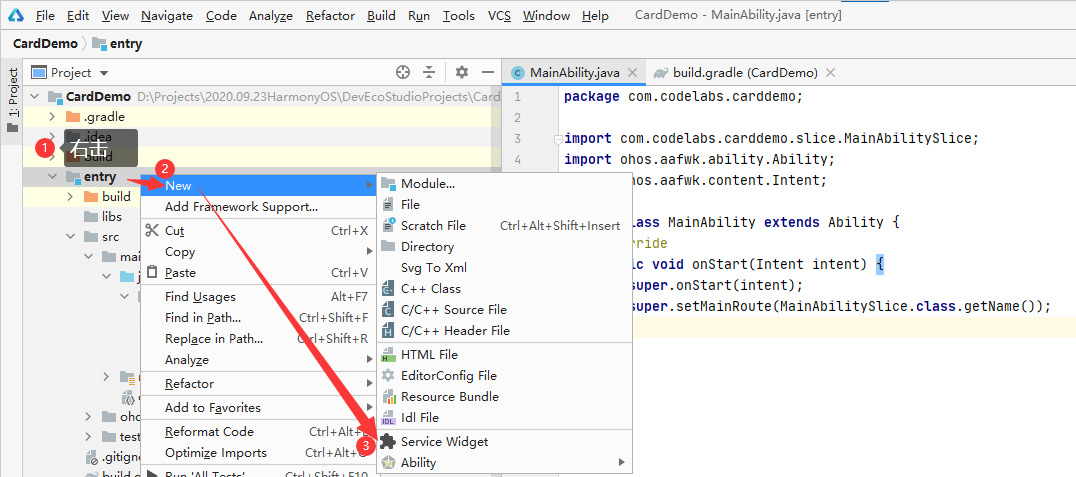
首先我们要先添加一个要跳转的页面。如下图所示添加一个 Page Ability,比如:VideoSlice。
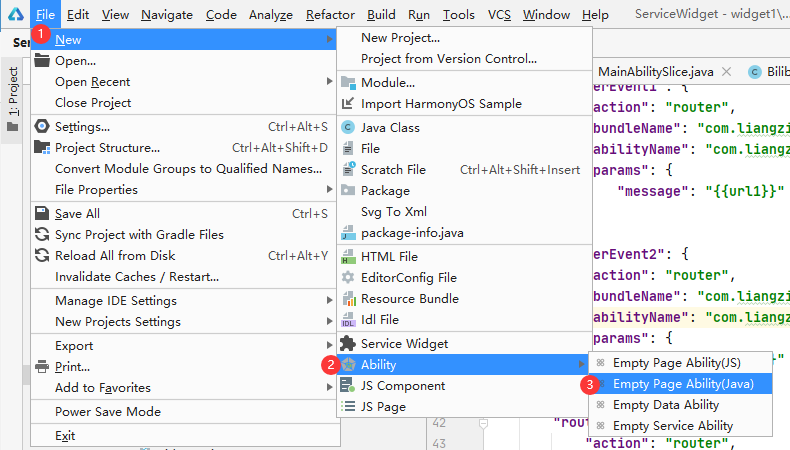
新建完成之后会增加 VideoSlice 和 slice/VideoSliceSlice 两个文件,和 base/layout/ability_bilibili_page.xml 页面文件。
@Override
public void onStart(Intent intent) {
 super.onStart(intent);
 super.setUIContent(ResourceTable.Layout_ability_video);

 Text text = (Text) findComponentById(ResourceTable.Id_text);
 text.setText("页面跳转中");

 // 随机图片数组
 int[] resource = {ResourceTable.Media_36e,ResourceTable.Media_36g,ResourceTable.Media_36h,ResourceTable.Media_38p};
 Component component = findComponentById(ResourceTable.Id_image);
 if (component instanceof Image) {
     Image image = (Image) component;
     image.setPixelMap(resource[(int)(Math.random()*3)]);//随机显示一张图片
 }

 String url = "https://m.bilibili.com";

 String param = intent.getStringParam("params");//从intent中获取 跳转事件定义的params字段的值
 if(param !=null){
     ZSONObject data = ZSONObject.stringToZSON(param);
     url = data.getString("url");
 }

 webview(url);
}
//启动webview
public void webview(String url){
 WebView webView = (WebView) findComponentById(ResourceTable.Id_webview);
 webView.getWebConfig().setJavaScriptPermit(true);  // 如果网页需要使用JavaScript,增加此行;如何使用JavaScript下文有详细介绍
 webView.load(url);
}
增加 webview,将页面默认的 Text 控件修改为 webview。
<?xml version="1.0" encoding="utf-8"?>
<DirectionalLayout
    xmlns:ohos="http://schemas.huawei.com/res/ohos"
    ohos:height="match_parent"
    ohos:width="match_parent"
    ohos:alignment="center"
    ohos:orientation="vertical">
    <ohos.agp.components.webengine.WebView
        ohos:id="$+id:webview"
        ohos:height="match_parent"
        ohos:width="match_parent">
    </ohos.agp.components.webengine.WebView>

</DirectionalLayout>
在 index.hml 中给要触发的控件上添加 onclick,比如:onclick=“routerEvent1”。
<div class="div_root"  ><!--在服务卡片设置一个 根div 横向布局-->
    <div class="div_container"><!--在根div 横向放置4个div,每个div内部从上往下排列-->
            <image class="item_image" src="{{ src1 }}" onclick="routerEvent1"></image>
            <text class="item_title">{{ itemTitle1 }}</text>
            <text class="item_content">{{ itemContent1 }}</text>
    </div>
    ... ...
</div>
在 index.json 中,添加对应的 actions,跳转事件要多加一个参数"abilityName",指定要跳转的页面,并且携带参数 url。
{
  "data": {
  },
  "actions": {
        "routerEvent1": {
            "action": "router",
            "bundleName": "com.liangzili.servicewidget",
            "abilityName": "com.liangzili.servicewidget.VideoSlice",
            "params": {
                "url": "{{url1}}"
            }
        },
      "routerEvent2": {
      ... ...
}
②消息事件
在小卡片上这样的操作体验不好。所以消息事件中的例子,只是为了测试,并没有加到项目里。

在 index.hml 中给要触发的控件上添加 onclick,比如:onclick=“sendMessageEvent”。
<-- 为了方便测试,直接将onclick添加在左右两侧的div组件上 -->
<div class="div" onclick="sendMessageEvent0">
    <image class="item_image" src="{{ src0 }}"></image>
    <text class="item_title">{{ itemTitle0 }}</text>
    <text class="item_content">{{ itemContent0 }}</text>
</div>
<div class="div" onclick="sendMessageEvent1">
    <image class="item_image" src="{{ src1 }}"></image>
    <text class="item_title">{{ itemTitle1 }}</text>
    <text class="item_content">{{ itemContent1 }}</text>
</div>
在 index.json 中,添加对应的 actions。
{
  "data": {
  },
    "actions": {
        "sendMessageEvent0": {
            "action": "message",
            "params": {
                "p1": "left",
                "index": "{{index}}"
            }
        },
        "sendMessageEvent1": {
            "action": "message",
            "params": {
                "p1": "right",
                "index": "{{index}}"
            }
        }
    }
}
如果是消息事件(message)当点击带有 onclick 的控件时,会触发 MainAbility 下的这个函数。
@Override
protected void onTriggerFormEvent(long formId, String message) {
    HiLog.info(TAG, "onTriggerFormEvent: " + message); //params的内容就通过message传递过来
    super.onTriggerFormEvent(formId, message);
    FormControllerManager formControllerManager = FormControllerManager.getInstance(this);
    FormController formController = formControllerManager.getController(formId);//通过formId得到卡片控制器
    formController.onTriggerFormEvent(formId, message);//接着再调用,对应的控制器 WidgetImpl
}
最后调用卡片控制器 WidgetImpl 中的 onTriggerFormEvent()。
public void onTriggerFormEvent(long formId, String message) {
 HiLog.info(TAG, "onTriggerFormEvent."+message);

 //先获取message中的参数
 ZSONObject data = ZSONObject.stringToZSON(message);
 String p1 = data.getString("p1");
 Integer index = data.getIntValue("index");

 ZSONObject zsonObject = new ZSONObject();     //将要刷新的数据存放在一个ZSONObject实例中
 Integer indexMax = 2;                       //有N个滑块组件就设置N-1
 if(p1.equals("right")){                     //判断点击方向,如果是右侧
     if(index == indexMax){index = -1;}      //实现循环滚动
     index = index+1;
     zsonObject.put("index",index);
 }else {                                     //判断点击方向,如果是左侧
     if(index == 0){index = indexMax+1;}     //实现循环滚动
     index = index-1;
     zsonObject.put("index",index);
 }

 FormBindingData formBindingData = new FormBindingData(zsonObject);
 try {
     ((MainAbility)context).updateForm(formId,formBindingData);
 } catch (FormException e) {
     e.printStackTrace();
     HiLog.info(TAG, "更新卡片失败");
 }
}
③list 跳转事件
list 组件只能添加一个 onclick,而且在点击的同时还需要获取点击的是list列表中的哪一项,这个比较特殊。
<list class="list" else>
    <list-item for="{{list}}" class="list-item">
        <div class="div" onclick="sendRouteEvent">
            ... ...
        </div>
    </list-item>
</list>
但是在官方文档并没有找到相关的内容,尝试了很久才解决这个问题。之后的部分就和跳转事件一样了,使用 Video 页面解析 url 进行播放就可以了。
  "actions": {
    "sendRouteEvent": {
      "action": "router",
      "bundleName": "com.liangzili.demos",
      "abilityName": "com.liangzili.demos.Video",
      "params": {
        "url": "{{$item.short_url}}",
        "index": "{{$idx}}"
      }
    }
  }
加载页面,保存 Cookie
①webview 加载页面
在 base/layout/ability_main.xml 中添加 webview 组件,代码如下:
    <ohos.agp.components.webengine.WebView
        ohos:id="$+id:webview"
        ohos:height="match_parent"
        ohos:width="match_parent">
    </ohos.agp.components.webengine.WebView>
然后在启动页面执行加载操作。但其实加载前需要先从数据库中提取 cookie 信息,这个接下来说。
String url = "https://m.bilibili.com";
WebView webView = (WebView) findComponentById(ResourceTable.Id_webview);
webView.getWebConfig().setJavaScriptPermit(true);  // 如果网页需要使用JavaScript,增加此行;如何使用JavaScript下文有详细介绍
webView.load(url);
②Cookie 的读取和保存类
com/liangzili/demos/utils/CookieUtils.java:
public class CookieUtils {
    private static final HiLogLabel TAG = new HiLogLabel(HiLog.DEBUG,0x0,CookieUtils.class.getName());

    /**
     * 使用关系型数据库[读取]Cookie
     * @param preferences
     * @param url
     */
    public static void ExtarctCookie(Preferences preferences, String url){
        Map<String, ?> map = new HashMap<>();
        //先从数据库中取出cookie
        map = PreferenceDataBase.GetCookieMap(preferences);
        //然后写入到cookieStore
        CookieStore cookieStore = CookieStore.getInstance();//1.获取一个CookieStore的示例
        for (Map.Entry<String, ?> entry : map.entrySet()) {
            HiLog.info(TAG,entry.getKey()+"="+entry.getValue().toString());
            cookieStore.setCookie(url,entry.getKey()+"="+entry.getValue().toString());//2.写入数据,只能一条一条写
        }
    }

    /**
     * 使用关系型数据库[保存]Cookie
     * @param preferences  数据库的Preferences实例
     * @param url  指定Cookie对应的域名
     */
    public static void SaveCookie(Preferences preferences,String url){
        //先取出要保存的cookie
        CookieStore cookieStore = CookieStore.getInstance();
        String cookieStr = cookieStore.getCookie(url);
        HiLog.info(TAG,"saveCookie(String url)"+url+cookieStr);

        //然后将cooke转成map
        Map<String,String> cookieMap = cookieToMap(cookieStr);

        //最后将map写入数据库
        PreferenceDataBase.SaveMap(preferences,cookieMap);
    }
    // cookieToMap
    public static Map<String,String> cookieToMap(String value) {
        Map<String, String> map = new HashMap<String, String>();
        value = value.replace(" ", "");
        if (value.contains(";")) {
            String values[] = value.split(";");
            for (String val : values) {
                String vals[] = val.split("=");
                map.put(vals[0], vals[1]);
            }
        } else {
            String values[] = value.split("=");
            map.put(values[0], values[1]);
        }
        return map;
    }
}
偏好型数据库
①获取 Preferences 实例
public class PreferenceDataBase {
    private static final HiLogLabel TAG = new HiLogLabel(HiLog.DEBUG,0x0,PreferenceDataBase.class.getName());

    /**
     * 获取Preferences实例
     * @param context  数据库文件将存储在由context上下文指定的目录里。
     * @param name  fileName表示文件名,其取值不能为空,也不能包含路径
     * @return  //返回对应数据库的Preferences实例
     */
    public static Preferences register(Context context,String name) {
        DatabaseHelper databaseHelper = new DatabaseHelper(context);
        Preferences preferences = databaseHelper.getPreferences(name);
        return preferences;
    }
    ... ...
}
②从数据库中保存和读取 Map
    /**
     * Map[保存]到偏好型数据库
     * @param preferences  数据库的Preferences实例
     * @param map  要保存的map
     */
    public static void SaveMap(Preferences preferences,Map<String,String> map){
        // 遍历map
        for (Map.Entry<String, String> entry : map.entrySet()) {
            HiLog.info(TAG,entry.getKey() + "=" + entry.getValue());
            preferences.putString(entry.getKey(),entry.getValue());//3.将数据写入Preferences实例,
        }
        preferences.flushSync();//4.通过flush()或者flushSync()将Preferences实例持久化。
    }

    /**
     *  从偏好型数据库[读取]Map
     * @param preferences  数据库的Preferences实例
     * @return  要读取的map
     */
    public static Map<String,?> GetCookieMap(Preferences preferences){
        Map<String, ?> map = new HashMap<>();
        map = preferences.getAll();//3.读取数据
        return map;
    }
③提取某些 Cookie 的值
    /**
     * 获取Cookie中的SESSDATA值
     * @param context 上下文用来指定数据文件存储路径
     * @return  Cookie中的SESSDATA值
     */
    public static String getSessData(Context context){
        // 开启数据库
        DatabaseHelper databaseHelper = new DatabaseHelper(context);//1.创建数据库使用数据库操作的辅助类
        Preferences preferences = databaseHelper.getPreferences("bilibili");//2.获取到对应文件名的Preferences实例,filename是String类型
        String SESSDATA = preferences.getString("SESSDATA","");    //3.读取数据
        return SESSDATA;
    }

    /**
     * 获取Cookie中的Vmid值
     * @param context
     * @return Cookie中的Vmid值
     */
    public static String getVmid(Context context){
        // 开启数据库
        DatabaseHelper databaseHelper = new DatabaseHelper(context);//1.创建数据库使用数据库操作的辅助类
        Preferences preferences = databaseHelper.getPreferences("bilibili");//2.获取到对应文件名的Preferences实例,filename是String类型
        String DedeUserID = preferences.getString("DedeUserID","");    //3.读取数据
        return DedeUserID;
    }
👇点击关注鸿蒙技术社区👇
了解鸿蒙一手资讯

点“阅读原文”了解更多
