



从本节开始,我们就开始真正的使用PowerShell了,再次声明一下,本系列文章都是基于Windows PowerShell 5.1版本来讲解和演示的。如何查看PowerShell当前版本,请参考上一篇文章。
学习一种新的脚本语言,最重要的是什么?对,语法格式。打个不太恰当的比方,你之前没打过羽毛球,现在让你去参加比赛,这个时候你首先要了解一下羽毛球的比赛规则,在这个规则之下开始练习发球,接球,杀球等技能。
有点儿扯远了,再扯回来,我们来说一下PowerShell基本语法规则,很简单,就一条,所有的PowerShell命令都遵循一个规则,即:动词-名词(名词词组),比如:
Get-Command
Get-Help
Write-Host
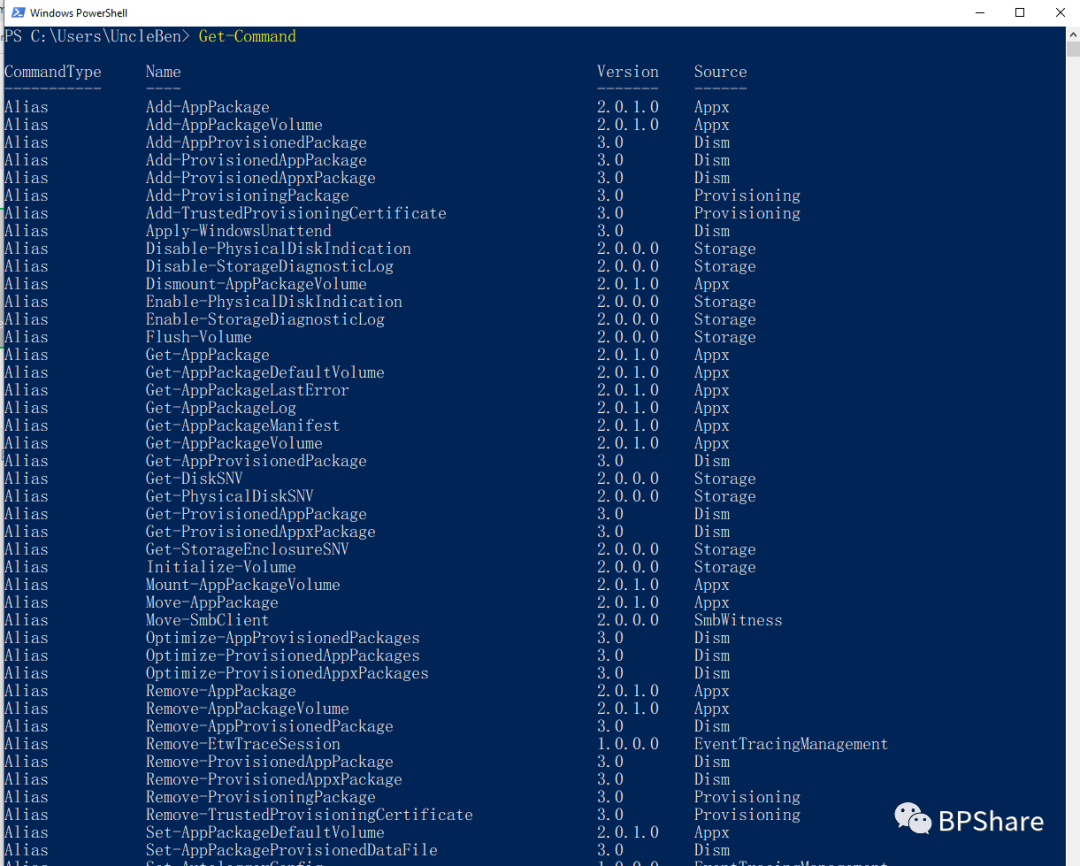
我们就来运行第一条PowerShell命令:Get-Command,我们从开始菜单里先打开Windows PowerShell,然后输入:get-command,然后回车,结果出来了,有很多屏的内容,翻到最上面,见下图,来看一下Name那一列,发现什么规律了么?是不是都是以动词开头,中间一条横线,后面接上名字。恭喜你,PowerShell命令的最基本的规则你已经学会了。
【Tips】
与其它shell类似,PowerShell也是有自动补全命令的功能的。例如,如果你不记得后面名词的单词怎么拼写了,你只需要知道这个单词的头一个或者头几个字母就行,按tab键,PowerShell会帮助你自动补齐的,如果有多条命令都以你输入的那一个或者几个字母开头,那你接着按tab键,PowerShell会自动切换到下一个匹配到的命令。
【试一试】在PowerShell命令行中输入:get-com 然后按tab键,观察第一个匹配到的是哪条命令?然后再按tab键,匹配到哪条命令?接着再按tab键,看看一共匹配到多少条命令。
那我们看看当前PowerShell一共有多少个命令呢?简单,继续输入:Get-Command | measure 然后回车(里面的有一个管道符号:|,初学者可暂时忽略),走你:
PS D:\mylab\pslab> Get-Command | measureCount : 1596Average :Sum :Maximum :Minimum :Property :
这系统默认的PowerShell命令就都有1596个,后期如果你写开发PowerShell脚本,可能会引入更多的PowerShell模块,到时候命令比现在的更多。。。我就问你,你怎么能记住这么多?就算是最强大脑的神人,估计也很难记住这么多的PowerShell命令了。那怎么搞?不急,你不需要死记硬背那么多命令如何拼写,只需要告诉PowerShell你想用它来做关于哪方面的活就可以了。比如说你想了解关于network有哪些PowerShell命令,那你就输入:
Get-Command *network*
PS D:\mylab\pslab> Get-Command *network*CommandType Name Version Source----------- ---- ------- ------Function Add-NetEventNetworkAdapter 1.0.0.0 NetEventPacketCaptureFunction Add-NetEventVmNetworkAdapter 1.0.0.0 NetEventPacketCaptureFunction Add-VpnConnectionTriggerTrustedNetwork 2.0.0.0 VpnClientFunction Disable-NetworkSwitchEthernetPort 1.0.0.0 NetworkSwitchManager... ... ... 1.0.0.0 PcsvDeviceFunction Set-VpnConnectionTriggerTrustedNetwork 2.0.0.0 VpnClientApplication gatherNetworkInfo.vbs 0.0.0.0 C:\Windows\system32\gatherNetworkInfo.vbs
又比如说你想了解关于service,有哪些PowerShell命令,那你就输入:
Get-Command *service*
PS D:\mylab\pslab> Get-Command *service*CommandType Name Version Source----------- ---- ------- ------Function Get-NetFirewallServiceFilter 2.0.0.0 NetSecurityFunction Set-NetFirewallServiceFilter 2.0.0.0 NetSecurityCmdlet Get-Service 3.1.0.0 Microsoft.PowerShell.ManagementCmdlet New-Service 3.1.0.0 Microsoft.PowerShell.ManagementCmdlet New-WebServiceProxy 3.1.0.0 Microsoft.PowerShell.ManagementCmdlet Restart-Service 3.1.0.0 Microsoft.PowerShell.ManagementCmdlet Resume-Service 3.1.0.0 Microsoft.PowerShell.ManagementCmdlet Set-Service 3.1.0.0 Microsoft.PowerShell.ManagementCmdlet Start-Service 3.1.0.0 Microsoft.PowerShell.ManagementCmdlet Stop-Service 3.1.0.0 Microsoft.PowerShell.ManagementCmdlet Suspend-Service 3.1.0.0 Microsoft.PowerShell.ManagementApplication AgentService.exe 10.0.18... C:\Windows\system32\AgentService.exeApplication FMService64.exe 0.1.0.23 C:\Windows\system32\FMService64.exeApplication RtkAudUService64.exe 1.0.192.1 C:\Windows\system32\RtkAudUService64.exeApplication SecurityHealthService.exe 4.18.19... C:\Windows\system32\SecurityHealthServ...Application SensorDataService.exe 10.0.18... C:\Windows\system32\SensorDataService.exeApplication services.exe 10.0.18... C:\Windows\system32\services.exeApplication services.msc 0.0.0.0 C:\Windows\system32\services.mscApplication TieringEngineService.exe 10.0.18... C:\Windows\system32\TieringEngineServi...Application Windows.WARP.JITService.exe 0.0.0.0 C:\Windows\system32\Windows.WARP.JITSe...
发现了么?Get-Command这条PowerShell命令是支持模糊查询的,而且还很准确。这条命令也算是高频PowerShell命令了。那现在我让你查找一下关于共享文件夹的PowerShell命令,你会了嘛?

是的,在PowerShell命令行工具里,只要输入:Get-Command *fileshare*
PS D:\mylab\pslab> Get-Command *fileshare*CommandType Name Version Source----------- ---- ------- ------Function Block-FileShareAccess 2.0.0.0 StorageFunction Debug-FileShare 2.0.0.0 StorageFunction Get-FileShare 2.0.0.0 StorageFunction Get-FileShareAccessControlEntry 2.0.0.0 StorageFunction Grant-FileShareAccess 2.0.0.0 StorageFunction New-FileShare 2.0.0.0 StorageFunction Remove-FileShare 2.0.0.0 StorageFunction Revoke-FileShareAccess 2.0.0.0 StorageFunction Set-FileShare 2.0.0.0 StorageFunction Unblock-FileShareAccess 2.0.0.0 Storage
那如果我这么输入呢?
PS D:\mylab\pslab> get-command *file*
还有这样?
PS D:\mylab\pslab> Get-Command *share*
观察一下上面3个命令的运行结果,是不同?还是相同?为什么呢?这个就算是本节的课后作业吧!这节课就先讲到这里,下课!
如果喜欢这篇文章,请点个赞,转发一下呗!
本人微信号,欢迎骚扰!


扫码关注微信公众号,都是干货哦!

点个赞,点个在看呗!~
