



参考Xfce桌面简介及其安装:https://www.xmmup.com/xfcezhuomianjianjiejiqianzhuang.html
安装xfce桌面
 1-- 直接使用我的openeuler容器(无图形化)
 2docker rm -f lhropeneuler22
 3docker run -itd --name lhropeneuler22 -h lhropeneuler22 \
 4-p 225:22 -p 7654:7654 -p 7389:3389 \
 5--privileged=true \
 6-v /sys/fs/cgroup:/sys/fs/cgroup \
 7lhrbest/openeuler22:1.0 \
 8init
 9
10docker exec -it lhropeneuler22 bash
11
12
13-- 安装xfce桌面:https://docs.openeuler.org/zh/docs/22.03_LTS/docs/desktop/Install_XFCE.html
14sudo dnf update
15sudo dnf install -y dejavu-fonts liberation-fonts gnu-*-fonts \
16      google-*-fonts xorg-* xfwm4 xfdesktop xfce4-* xfce4-*-plugin \
17      network-manager-applet *fonts lightdm lightdm-gtk
18sudo dnf install -y firefox
19echo 'user-session=xfce' >> /etc/lightdm/lightdm.conf.d/60-lightdm-gtk-greeter.conf
20sudo systemctl start lightdm
21sudo systemctl enable lightdm
22sudo systemctl status lightdm
23
24sudo systemctl set-default graphical.target
25
26systemctl disable gdm
27
28sudo reboot
安装远程桌面xrdp
 1-- 安装远程连接软件xrdp
 2wget https://mirrors.aliyun.com/epel/epel-release-latest-8.noarch.rpm
 3rpm -ivh epel-release-latest-8.noarch.rpm --nodeps
 4yum -y install xrdp
 5# sed -i 's/port=3389/port=3390/g' /etc/xrdp/xrdp.ini
 6sed -i 's/max_bpp=32/max_bpp=24/g' /etc/xrdp/xrdp.ini
 7echo xfce4-session > /root/.xsession
 8chmod +x /root/.xsession
 9systemctl restart xrdp && systemctl enable xrdp
10rm -rf /etc/yum.repos.d/epel*
11
12# 访问Linux(mstsc):192.168.59.220:3389
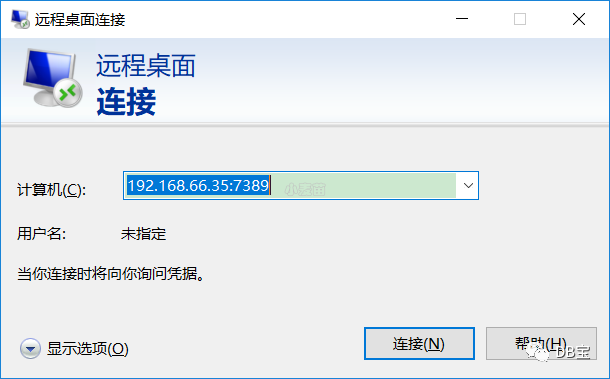
使用mstsc连接到openEuler系统
访问Linux(mstsc):192.168.66.35:7389
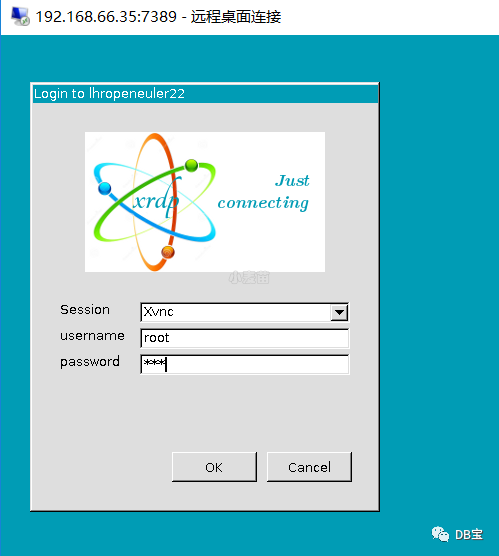
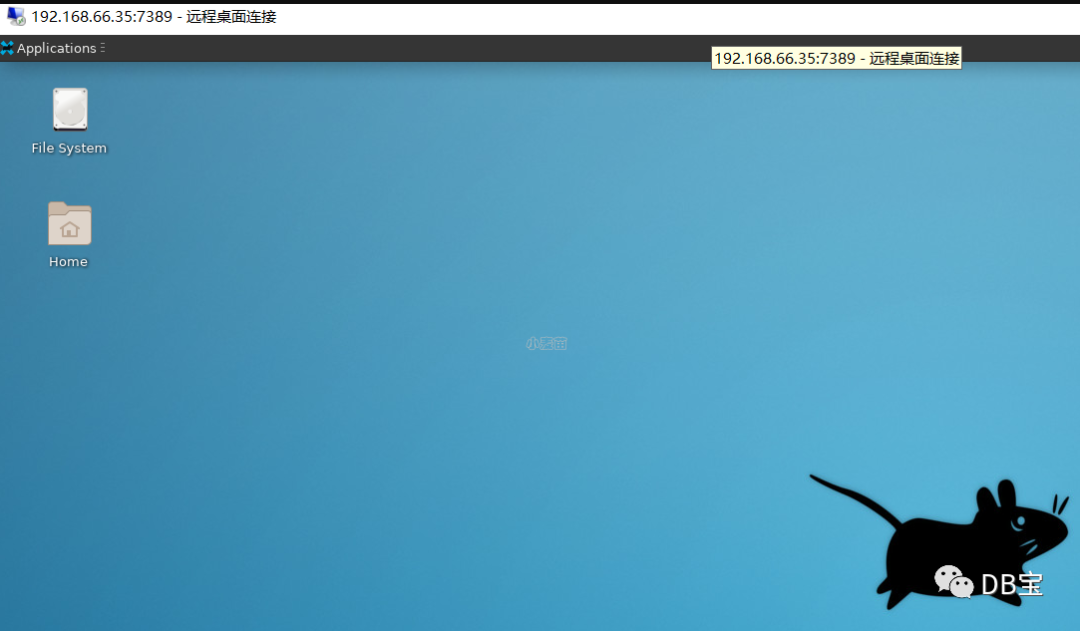
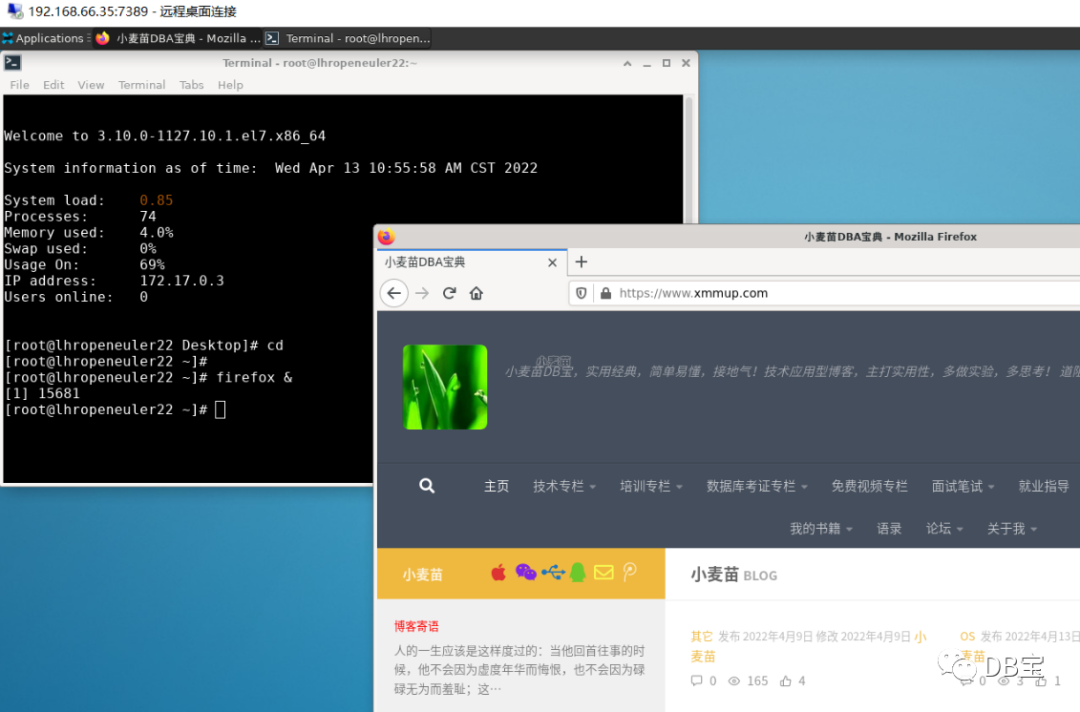
就可以做很多图形化的操作了。
文章转载自DB宝,如果涉嫌侵权,请发送邮件至:contact@modb.pro进行举报,并提供相关证据,一经查实,墨天轮将立刻删除相关内容。
