



一、Podman简介
Podman 是一个开源的容器运行时项目,可在大多数 Linux 平台上使用。Podman 提供与 Docker 非常相似的功能。正如前面提到的那样,它不需要在你的系统上运行任何守护进程,并且它也可以在没有 root 权限的情况下运行。
Podman 可以管理和运行任何符合 OCI(Open Container Initiative)规范的容器和容器镜像。Podman 提供了一个与 Docker 兼容的命令行前端来管理 Docker 镜像。
Podman 官网地址:
https://podman.io/
二、Debian安装Podman
首先切换到root账户:
su
1.更新系统到最新
sudo apt-get update
sudo apt-get upgrade
2.安装Podman
sudo apt-get -y install podman
3.并安装一些必要系统工具。
sudo apt-get install \
  btrfs-progs \
  git \
  golang-go \
  go-md2man \
  iptables \
  libassuan-dev \
  libbtrfs-dev \
  libc6-dev \
  libdevmapper-dev \
  libglib2.0-dev \
  libgpgme-dev \
  libgpg-error-dev \
  libprotobuf-dev \
  libprotobuf-c-dev \
  libseccomp-dev \
  libselinux1-dev \
  libsystemd-dev \
  pkg-config \
  runc \
  uidmap
4.启动Podman
sudo systemctl start podman
三、设置国内镜像仓库加速器
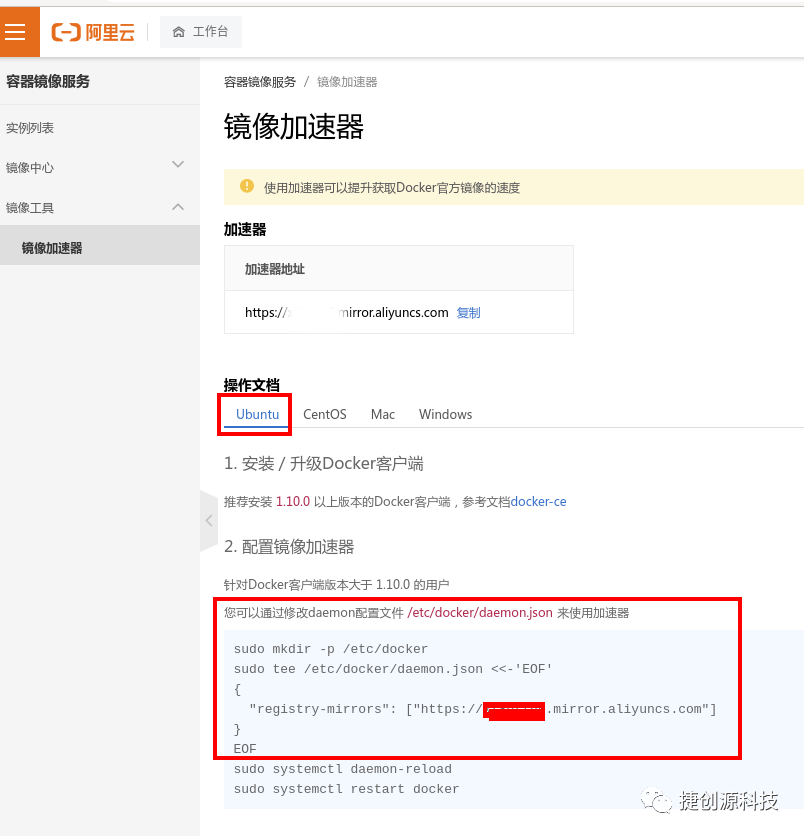
1.获取镜像加速衔接
阿里云镜像加速地址:https://cr.console.aliyun.com/cn-hangzhou/instances/mirrors
打开后复制加速链接。链接格式为https://xxxxxxxx.mirror.aliyuncs.com
其中xxxxxxxx是一串字母和数字组成的字符,每个人的不一样。
2.备份原配置文件
sudo cp etc/containers/registries.conf etc/containers/registries.conf.bak
3.使用文本编辑器打开配置文件
sudo vi etc/containers/registries.conf
4.删除原有内容,重新编写文件内容后保存,下面xxxxxxxx是个人阿里云ID
# 取消从默认地址搜索的仓库域名
unqualified-search-registries = ["docker.io"]

# 自定义搜索器
[[registry]]
# 仓库前缀
prefix = "docker.io"
# 加速器地址
location = "xxxxxxxx.mirror.aliyuncs.com"
另可选择中科大源
# 取消从默认地址搜索的仓库域名
unqualified-search-registries = ["docker.io"]

# 自定义搜索器
[[registry]]
# 仓库前缀
prefix = "docker.io"
# 加速器地址
location = "docker.mirrors.ustc.edu.cn"
四、修改 SELinux 配置文件,永久关闭 SELinux
使用文本编辑器打开"/etc/selinux/config"文件:
sudo vi etc/selinux/config
将 "SELINUX" 参数设置为:"permissive" 或者 "disabled",并保存:
# enforcing - 表示启用 SELinux 安全策略。
# permissive - 表示启用 SELinux 安全策略,但不强制验证。如果执行第一步可以正常运行,则建议设置此值。
# disabled - 关闭 SELinux 安全策略,相当于没有安装 SELinux。

SELINUX=disabled
重启Debian系统
reboot
五、Podman测试是否安装成功
1.帮助命令
podman version           # 显示docker的版本信息
podman info              # 显示docker的系统信息,包括镜像和容器的数量
podman 命令xxx  --help    # 帮助命令
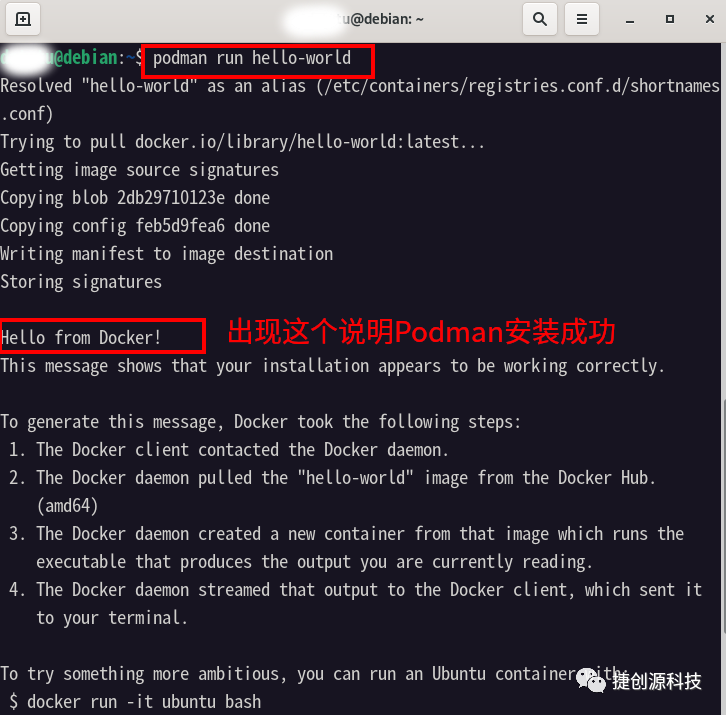
2.通过运行 hello-world 镜像来验证 Podman 引擎是否已正确安装。
sudo podman run hello-world
3.Podman列出存在镜像:
podman images
root@debian:~$ podman images
REPOSITORY                     TAG     IMAGE ID      CREATED       SIZE
docker.io/library/hello-world  latest  feb5d9fea6a5  7 months ago  19.9 kB
六、卸载Podman
sudo apt-get remove podman
sudo apt-get purge podman
sudo apt-get autoremove
更多技术资料请参考Podman官网:
https://podman.io/
如果本文对您有所帮助,请关注微信公众号“捷创源科技”。加入知识星球,可以获取更多技术干货!

文章转载自捷创源科技,如果涉嫌侵权,请发送邮件至:contact@modb.pro进行举报,并提供相关证据,一经查实,墨天轮将立刻删除相关内容。
