



编者按:
纸上得来终觉浅,元知此事要躬行。
【免责声明】本公众号文章仅代表个人观点,与任何公司无关。

本文介绍通过RPM方式安装MySQL 8.0的方法。
下载MySQL RPM 程序包
1.对于MySQL软件的下载,建议通过官网免费下载,安全且有保证。
下载地址:
https://dev.mysql.com/downloads/mysql/
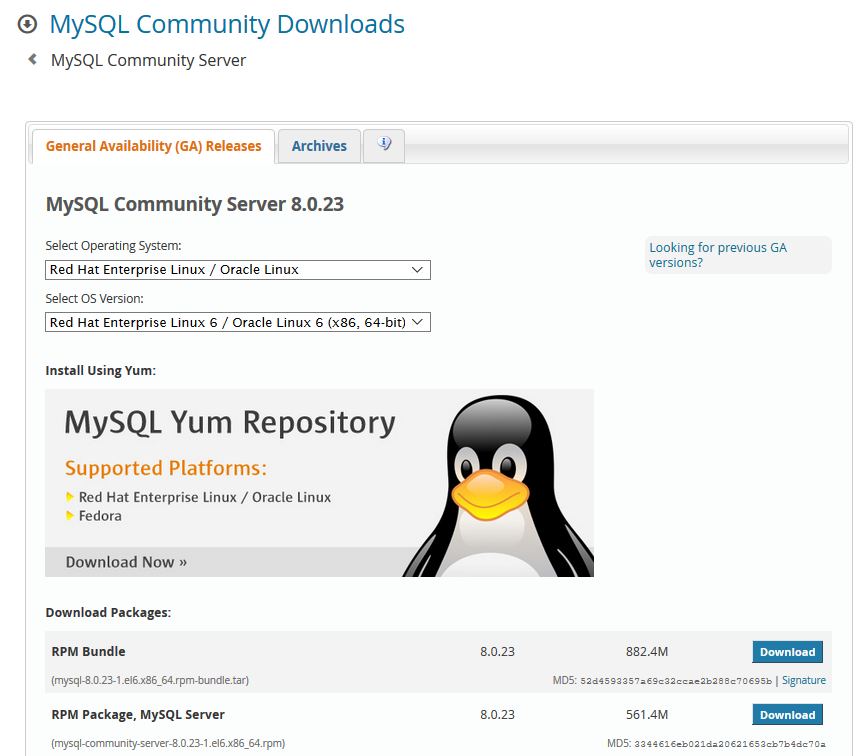
可以在下载页面根据OS的版本选择RPM包,本次选择Linux 6的 RPM包(RPM Bundle)。
下载后上传到linux服务器。使用Tar命令解压。tar -xvf 包名
例:
-bash-4.1$ tar -xvf mysql-8.0.23-1.el6.x86_64.rpm-bundle.tarmysql-community-client-8.0.23-1.el6.x86_64.rpmmysql-community-client-plugins-8.0.23-1.el6.x86_64.rpmmysql-community-common-8.0.23-1.el6.x86_64.rpmmysql-community-devel-8.0.23-1.el6.x86_64.rpmmysql-community-libs-8.0.23-1.el6.x86_64.rpmmysql-community-libs-compat-8.0.23-1.el6.x86_64.rpmmysql-community-server-8.0.23-1.el6.x86_64.rpmmysql-community-test-8.0.23-1.el6.x86_64.rpm
确认RPM包中的文件
可以通过rpm -qpl 命令确认RPM包中的文件。
shell> rpm -qpl mysql-community-server-version-distribution-arch.rpm
安装MySQL RPM包
可通过如下命令安装MySQL RPM包。
shell> sudo yum install mysql-community-{server,client,common,libs}-*
确认安装成功
1.查看mysql文件:
-bash-4.1$ rpm -qa | grep mysqlmysql-community-common-8.0.23-1.el6.x86_64mysql-community-libs-8.0.23-1.el6.x86_64mysql-community-server-8.0.23-1.el6.x86_64mysql-community-client-8.0.23-1.el6.x86_64mysql-community-client-plugins-8.0.23-1.el6.x86_64mysql-community-libs-compat-8.0.23-1.el6.x86_64
2.查看mysql启动状态
-bash-4.1$ service mysqld statusmysqld is stopped
注:
我这里使用的是Oracle Linux 6,所以使用service命令
-bash-4.1$ serviceUsage: service < option > | --status-all | [ service_name [ command | --full-restart ] ]
Linux 7以后可以使用systemctl
systemctl status mysqld.service
启动mysql
Linux 6 使用service命令:
root用户使用service start mysqld命令启动mysql。
-bash-4.1$ sudo service start mysqldstart: unrecognized service-bash-4.1$ sudo service mysqld startInitializing MySQL database: [ OK ]Starting mysqld: [ OK ]-bash-4.1$ sudo service mysqld statusmysqld (pid 28030) is running...
Linux 7以后可以使用systemctl:
systemctl start mysqld
重置密码
服务器初次启动时,会创建了超级用户帐户'root'@'localhost',并且设置了超级用户的密码并将其存储在错误日志文件中。
可以通过如下命令查看临时密码。
sudo grep 'temporary password' /var/log/mysqld.log
例:
-bash-4.1$ sudo grep 'temporary password' var/log/mysqld.log2021-02-16T09:16:36.715031Z 6 [Note] [MY-010454] [Server] A temporary password is generated for root@localhost: u7hf5?5:4hG4
登录并输入临时密码,然后修改密码。
shell> mysql -uroot -pmysql> ALTER USER 'root'@'localhost' IDENTIFIED BY '密码';
例:
-bash-4.1$ mysql -uroot -pEnter password:Welcome to the MySQL monitor. Commands end with ; or \g.Your MySQL connection id is 10Server version: 8.0.23Copyright (c) 2000, 2021, Oracle and/or its affiliates.Oracle is a registered trademark of Oracle Corporation and/or itsaffiliates. Other names may be trademarks of their respectiveowners.Type 'help;' or '\h' for help. Type '\c' to clear the current input statement.mysql>mysql> ALTER USER 'root'@'localhost' IDENTIFIED BY 'MyNewPass4!';Query OK, 0 rows affected (0.03 sec)
登录确认
例:
-bash-4.1$ mysql -uroot -pMyNewPass4!mysql: [Warning] Using a password on the command line interface can be insecure.Welcome to the MySQL monitor. Commands end with ; or \g.Your MySQL connection id is 11Server version: 8.0.23 MySQL Community Server - GPLCopyright (c) 2000, 2021, Oracle and/or its affiliates.Oracle is a registered trademark of Oracle Corporation and/or itsaffiliates. Other names may be trademarks of their respectiveowners.Type 'help;' or '\h' for help. Type '\c' to clear the current input statement.mysql> show databases;+--------------------+| Database |+--------------------+| information_schema || mysql || performance_schema || sys |+--------------------+4 rows in set (0.01 sec)mysql> use mysqlReading table information for completion of table and column namesYou can turn off this feature to get a quicker startup with -ADatabase changedmysql> select Host,User from user;+-----------+------------------+| Host | User |+-----------+------------------+| localhost | mysql.infoschema || localhost | mysql.session || localhost | mysql.sys || localhost | root |+-----------+------------------+4 rows in set (0.00 sec)mysql> SELECT VERSION(), CURRENT_DATE;+-----------+--------------+| VERSION() | CURRENT_DATE |+-----------+--------------+| 8.0.23 | 2021-02-16 |+-----------+--------------+1 row in set (0.00 sec)
参考:
https://dev.mysql.com/doc/refman/8.0/en/linux-installation-rpm.html
2.5.4 Installing MySQL on Linux Using RPM Packages from Oracle
后续文章更加精彩,欢迎关注本公众号。
——End——
专注于技术不限于技术!
用碎片化的时间,一点一滴地提高数据库技术和个人能力。
欢迎关注!
MySQL相关:
手把手教你在Windows 10安装MySQL 8.0(详细图文)
《MySQL基础教程》译作出版
