



在虚拟机Vmware中我们有时候需要添加新的虚拟磁盘或给已有的虚拟磁盘扩容(expand),在新增磁盘或磁盘扩容后,Linux系统并不能马上识别到。也就是说你看不到磁盘空间变化(使用fdisk -l查看没有变化),这时我们可以通过重启系统(reboot)解决这个问题,但是很多时候,我们并不想在存储扩容时重启系统,因为这样会影响到现有的业务系统。那么为什么新增磁盘或磁盘扩容后,Linux系统识别不到呢?这个是因为连接存储设备的SCSI总线需要重新扫描,才能识别到这些新的存储设备。下面测试一下在添加新的虚拟磁盘或给已有虚拟磁盘扩容如何操作才能不用重启系统
1:Vmware虚拟磁盘扩容
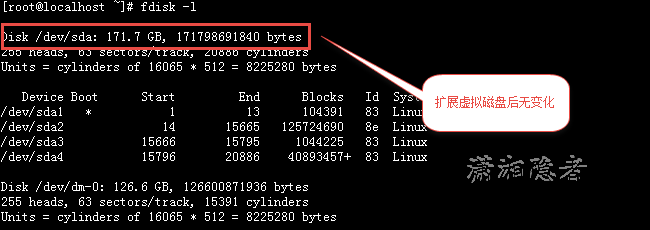
如下所示,Vmware虚拟磁盘扩容后,使用fdisk -l看不到任何变化
[root@localhost ~]# fdisk -l

Disk /dev/sda: 171.7 GB, 171798691840 bytes
255 heads, 63 sectors/track, 20886 cylinders
Units = cylinders of 16065 * 512 = 8225280 bytes

   Device Boot      Start         End      Blocks   Id  System
/dev/sda1   *           1          13      104391   83  Linux
/dev/sda2              14       15665   125724690   8e  Linux LVM
/dev/sda3           15666       15795     1044225   83  Linux
/dev/sda4           15796       20886    40893457+  83  Linux

Disk /dev/dm-0: 126.6 GB, 126600871936 bytes
255 heads, 63 sectors/track, 15391 cylinders
Units = cylinders of 16065 * 512 = 8225280 bytes

Disk /dev/dm-0 doesn't contain a valid partition table

Disk /dev/dm-1: 2113 MB, 2113929216 bytes
255 heads, 63 sectors/track, 257 cylinders
Units = cylinders of 16065 * 512 = 8225280 bytes

Disk /dev/dm-1 doesn't contain a valid partition table
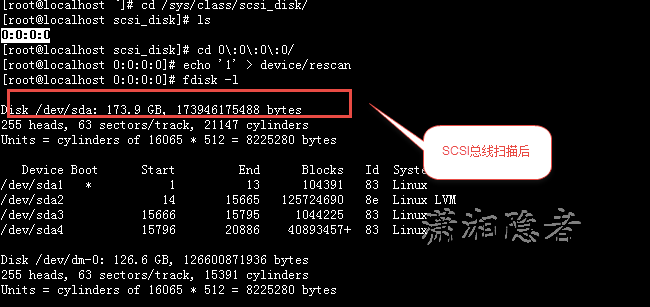
[root@localhost ~]# cd /sys/class/scsi_disk/
[root@localhost scsi_disk]# ls
0:0:0:0
[root@localhost scsi_disk]# cd 0\:0\:0\:0/
[root@localhost 0:0:0:0]# echo '1' > device/rescan
[root@localhost 0:0:0:0]# fdisk -l

Disk /dev/sda: 173.9 GB, 173946175488 bytes
255 heads, 63 sectors/track, 21147 cylinders
Units = cylinders of 16065 * 512 = 8225280 bytes

   Device Boot      Start         End      Blocks   Id  System
/dev/sda1   *           1          13      104391   83  Linux
/dev/sda2              14       15665   125724690   8e  Linux LVM
/dev/sda3           15666       15795     1044225   83  Linux
/dev/sda4           15796       20886    40893457+  83  Linux

Disk /dev/dm-0: 126.6 GB, 126600871936 bytes
255 heads, 63 sectors/track, 15391 cylinders
Units = cylinders of 16065 * 512 = 8225280 bytes

Disk /dev/dm-0 doesn't contain a valid partition table

Disk /dev/dm-1: 2113 MB, 2113929216 bytes
255 heads, 63 sectors/track, 257 cylinders
Units = cylinders of 16065 * 512 = 8225280 bytes

Disk /dev/dm-1 doesn't contain a valid partition table
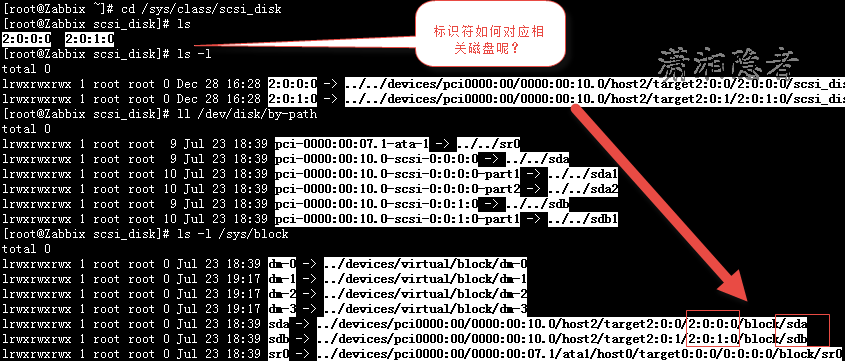
注意:你实验遇到的情况可能跟上面有所细微不同,例如下面例子,而且我们怎么将系统总线标识(2:0:0:0 2:0:1:0)和对应的磁盘联系起来呢?
[root@Zabbix ~]# cd /sys/class/scsi_disk/
[root@Zabbix scsi_disk]# ls
2:0:0:0  2:0:1:0
[root@Zabbix scsi_disk]# ls -l
total 0
lrwxrwxrwx 1 root root 0 Dec 28 16:28 2:0:0:0 -> ../../devices/pci0000:00/0000:00:10.0/host2/target2:0:0/2:0:0:0/scsi_disk/2:0:0:0
lrwxrwxrwx 1 root root 0 Dec 28 16:28 2:0:1:0 -> ../../devices/pci0000:00/0000:00:10.0/host2/target2:0:1/2:0:1:0/scsi_disk/2:0:1:0
[root@Zabbix scsi_disk]# ll /dev/disk/by-path
total 0
lrwxrwxrwx 1 root root  9 Jul 23 18:39 pci-0000:00:07.1-ata-1 -> ../../sr0
lrwxrwxrwx 1 root root  9 Jul 23 18:39 pci-0000:00:10.0-scsi-0:0:0:0 -> ../../sda
lrwxrwxrwx 1 root root 10 Jul 23 18:39 pci-0000:00:10.0-scsi-0:0:0:0-part1 -> ../../sda1
lrwxrwxrwx 1 root root 10 Jul 23 18:39 pci-0000:00:10.0-scsi-0:0:0:0-part2 -> ../../sda2
lrwxrwxrwx 1 root root  9 Jul 23 18:39 pci-0000:00:10.0-scsi-0:0:1:0 -> ../../sdb
lrwxrwxrwx 1 root root 10 Jul 23 18:39 pci-0000:00:10.0-scsi-0:0:1:0-part1 -> ../../sdb1
[root@Zabbix scsi_disk]# ls -l /sys/block
total 0
lrwxrwxrwx 1 root root 0 Jul 23 18:39 dm-0 -> ../devices/virtual/block/dm-0
lrwxrwxrwx 1 root root 0 Jul 23 19:17 dm-1 -> ../devices/virtual/block/dm-1
lrwxrwxrwx 1 root root 0 Jul 23 19:17 dm-2 -> ../devices/virtual/block/dm-2
lrwxrwxrwx 1 root root 0 Jul 23 19:17 dm-3 -> ../devices/virtual/block/dm-3
lrwxrwxrwx 1 root root 0 Jul 23 18:39 sda -> ../devices/pci0000:00/0000:00:10.0/host2/target2:0:0/2:0:0:0/block/sda
lrwxrwxrwx 1 root root 0 Jul 23 18:39 sdb -> ../devices/pci0000:00/0000:00:10.0/host2/target2:0:1/2:0:1:0/block/sdb
lrwxrwxrwx 1 root root 0 Jul 23 18:39 sr0 -> ../devices/pci0000:00/0000:00:07.1/ata1/host0/target0:0:0/0:0:0:0/block/sr0
[root@Zabbix scsi_disk]#
如上所示,你可以使用命令 ls -l sys/block将对应的系统总线标识和对应的磁盘联系起来,如下截图所示:
2:0:0:0 对应磁盘sda 2:0:1:0 对应磁盘sdb
方法2:重新扫描特定的 SCSI Device
echo 1 > sys/block/$DEVICE/device/rescan 用sda, sdb, sdc等替换$DEVICE
[root@localhost ~]# echo 1 > /sys/block/sda/device/rescan
2:Vmware新增虚拟磁盘
首先找到您的主机总线编号
[root@localhost ~]# grep mpt /sys/class/scsi_host/host?/proc_name
/sys/class/scsi_host/host0/proc_name:mptspi
使用下面命令扫描SCSI总线,就能看到新增的磁盘了。
[root@localhost ~]# echo "- - -" > /sys/class/scsi_host/host0/scan
注意事项:"- - -" 这三个-之间是有空格的。
参考资料:
http://thornelabs.net/2012/08/22/linux-rescan-scsi-bus.html
http://blog.pluralsight.com/resize-vmware-linux-drives
https://blogs.it.ox.ac.uk/oxcloud/2013/03/25/rescanning-your-scsi-bus-to-see-new-storage/
