



Table of Contents
- 一.武装飞船
- 二.外星人
- 三.记分
- 参考:
一.武装飞船
我们来开发一个游戏吧!我们将使用Pygame,这是一组功能强大而有趣的模块,可用于管理图形、动画乃至声音,让你能够更轻松地开发复杂的游戏。通过使用
Pygame来处理在屏幕上绘制图像等任务,你不用考虑众多烦琐而艰难的编码工作,而是将重点放在程序的高级逻辑上。
1.1 项目规划
开发大型项目时,做好规划后再动手编写项目很重要。规划可确保你不偏离轨道,从而提高项目成功的可能性。
下面来编写有关游戏《外星人入侵》的描述,其中虽然没有涵盖这款游戏的所有细节,但能让你清楚地知道该如何动手开发它。
在游戏《外星人入侵》中,玩家控制着一艘最初出现在屏幕底部中央的飞船。玩家可以使用箭头键左右移动飞船,还可使用空格键进行射击。游戏开始时,一群外星人出现在天空中,他们在屏幕中向下移动。玩家的任务是射杀这些外星人。玩家将所有外星人都消灭干净后,将出现一群新的外星人,他们移动的速度更快。只要有外星人撞到了玩家的飞船或到达了屏幕底部,玩家就损失一艘飞船。玩家损失三艘飞船后,游戏结束。
在第一个开发阶段,我们将创建一艘可左右移动的飞船,这艘飞船在用户按空格键时能够开火。设置好这种行为后,我们就能够将注意力转向外星人,并提高这款游戏的可玩
性。
1.2 安装pygame
直接用pip进行安装
C:\>pip install pygame
Collecting pygame
  Downloading pygame-2.0.1-cp36-cp36m-win_amd64.whl (5.2 MB)
     |████████████████████████████████| 5.2 MB 44 kB/s
Installing collected packages: pygame
Successfully installed pygame-2.0.1
1.3 开始游戏项目
现在来开始开发游戏《外星人入侵》。首先创建一个空的Pygame窗口,供后面用来绘制游戏元素,如飞船和外星人。我们还将让这个游戏响应用户输入、设置背景色以及加载飞船图像。
1.3.1 创建Pygame窗口以及响应用户输入
首先,我们创建一个空的Pygame窗口。使用Pygame编写的游戏的基本结构如下:
代码:
alien_invasion.py
import sys
import pygame

def run_game():
    # 初始化游戏并创建一个屏幕对象
    pygame.init()
    screen = pygame.display.set_mode((1200, 800))
    pygame.display.set_caption("Alien Invasion")

    # 开始游戏的主循环
    while True:

        # 监视键盘和鼠标事件
        for event in pygame.event.get():
            if event.type == pygame.QUIT:
                sys.exit()

        # 让最近绘制的屏幕可见
        pygame.display.flip()

run_game()
测试记录:
上面的一段代码就是生成了一个游戏的界面
1.3.2 设置背景色
Pygame默认创建一个黑色屏幕,这太乏味了。下面来将背景设置为另一种颜色:
代码:
alien_invasion.py
import sys
import pygame

def run_game():
    # 初始化游戏并创建一个屏幕对象
    pygame.init()
    screen = pygame.display.set_mode((1200, 800))
    pygame.display.set_caption("Alien Invasion")

    # 设置背景颜色
    bg_color = (230, 230, 230)

    # 开始游戏的主循环
    while True:

        # 监视键盘和鼠标事件
        for event in pygame.event.get():
            if event.type == pygame.QUIT:
                sys.exit()

        # 每次循环时都重绘屏幕
        screen.fill(bg_color)

        # 让最近绘制的屏幕可见
        pygame.display.flip()

run_game()
测试记录:
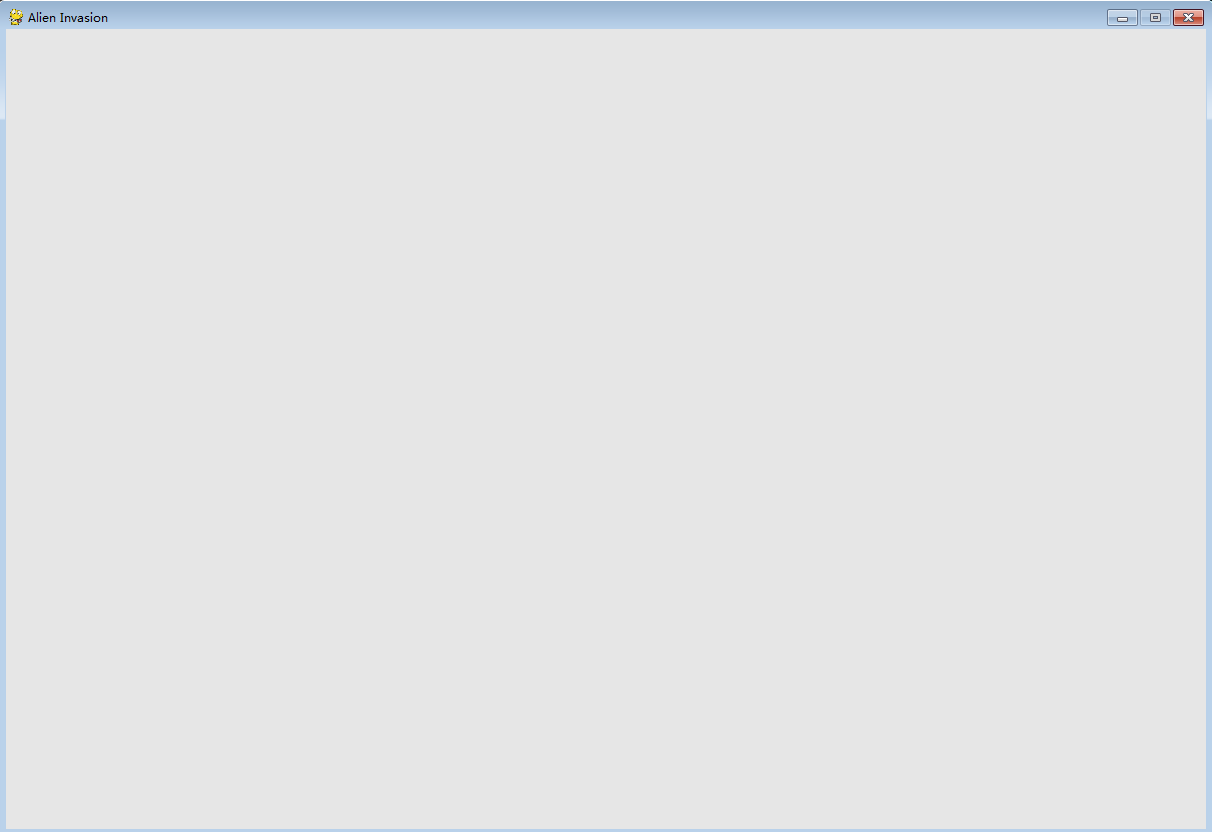
首先,我们创建了一种背景色,并将其存储在bg_color 中。该颜色只需指定一次,因此我们在进入主while 循环前定义它。
在Pygame中,颜色是以RGB值指定的。这种颜色由红色、绿色和蓝色值组成,其中每个值的可能取值范围都为0~255。颜色值(255, 0, 0)表示红色,(0, 255, 0)表示绿色,而(0, 0,
255)表示蓝色。通过组合不同的RGB值,可创建1600万种颜色。在颜色值(230, 230, 230)中,红色、蓝色和绿色量相同,它将背景设置为一种浅灰色。我们调用方法screen.fill() ,用背景色填充屏幕;这个方法只接受一个实参:一种颜色。
1.3.3 创建设置类
每次给游戏添加新功能时,通常也将引入一些新设置。下面来编写一个名为settings 的模块,其中包含一个名为Settings 的类,用于将所有设置存储在一个地方,以免在代码中到处添加设置。这样,我们就能传递一个设置对象,而不是众多不同的设置。另外,这让函数调用更简单,且在项目增大时修改游戏的外观更容易:要修改游戏,只需修改settings.py中的一些值,而无需查找散布在文件中的不同设置。
代码:
settings.py
class Settings():

    def __init__(self):
        """ 初始化游戏的设置 """
        # 屏幕设置
        self.screen_width = 1200
        self.screen_height = 800
        self.bg_color = (230, 230, 230)
alien_invasion.py
import sys
import pygame

from settings import Settings

def run_game():
    # 初始化游戏并创建一个屏幕对象
    pygame.init()
    ai_settings = Settings()
    screen = pygame.display.set_mode((ai_settings.screen_width, ai_settings.screen_height))
    pygame.display.set_caption("Alien Invasion")

    # 设置背景颜色
    bg_color = (ai_settings.bg_color)

    # 开始游戏的主循环
    while True:

        # 监视键盘和鼠标事件
        for event in pygame.event.get():
            if event.type == pygame.QUIT:
                sys.exit()

        # 每次循环时都重绘屏幕
        screen.fill(bg_color)

        # 让最近绘制的屏幕可见
        pygame.display.flip()

run_game()
1.4 添加飞船图像
下面将飞船加入到游戏中。为了在屏幕上绘制玩家的飞船,我们将加载一幅图像,再使用Pygame方法blit() 绘制它。
为游戏选择素材时,务必要注意许可。最安全、最不费钱的方式是使用http://pixabay.com/ 等网站提供的图形,这些图形无需许可,你可以对其进行修改。
在游戏中几乎可以使用任何类型的图像文件,但使用位图(.bmp)文件最为简单,因为Pygame默认加载位图。虽然可配置Pygame以使用其他文件类型,但有些文件类型要求你在计算机上安装相应的图像库。大多数图像都为.jpg、.png或.gif格式,但可使用Photoshop、GIMP和Paint等工具将其转换为位图。
选择图像时,要特别注意其背景色。请尽可能选择背景透明的图像,这样可使用图像编辑器将其背景设置为任何颜色。图像的背景色与游戏的背景色相同时,游戏看起来最漂亮;你也可以将游戏的背景色设置成与图像的背景色相同。
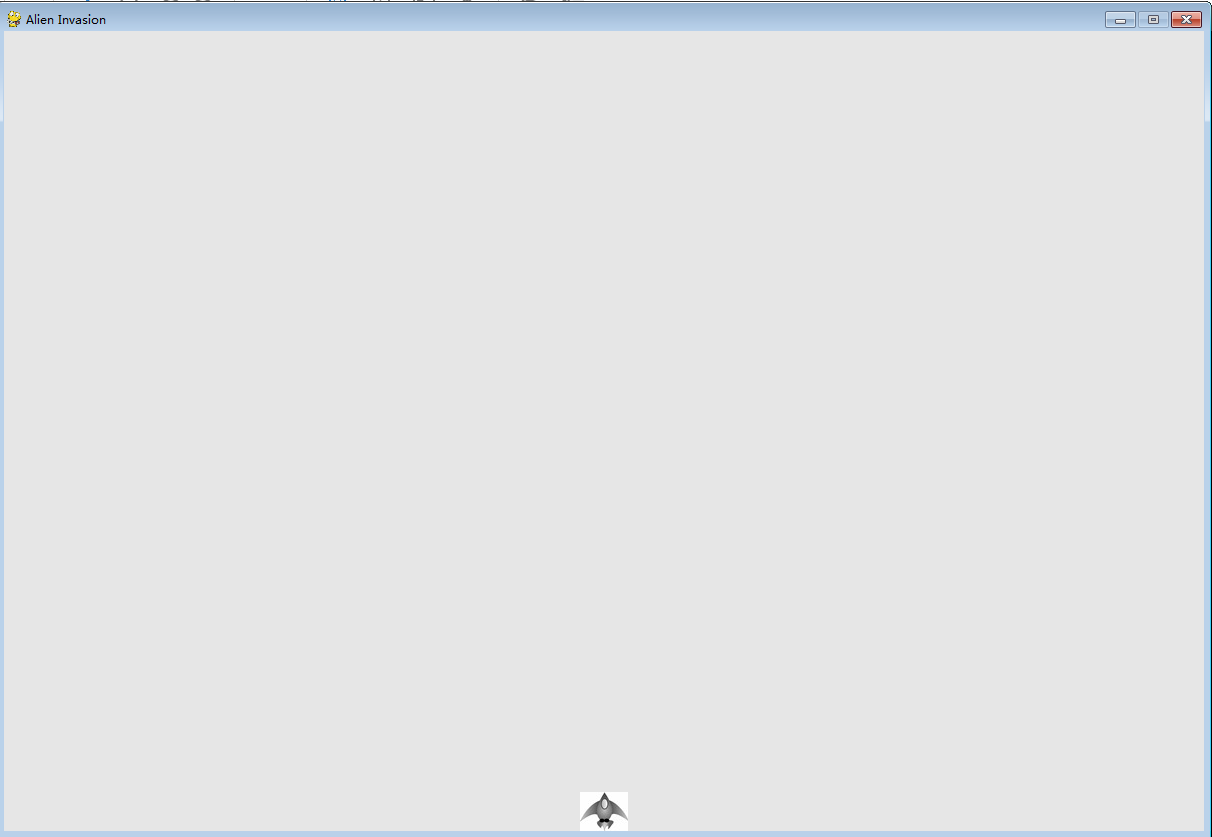
就游戏《外星人入侵》而言,你可以使用文件ship.bmp,这个文件可在本书的配套资源(https://www.nostarch.com/pythoncrashcourse/ )中找到。这个文件的背景色与这个项目使用的设置相同。请在主项目文件夹(alien_invasion)中新建一个文件夹,将其命名为images,并将文件ship.bmp保存到这个文件夹中。
1.4.1 创建Ship 类
代码:
ship.py
import pygame

class Ship():

    def __init__(self, screen):
        """ 初始化飞船并设置其起始位置 """
        self.screen = screen

        # 加载飞船图像并获取其外接矩形
        self.image = pygame.image.load('images/ship.bmp')
        self.rect = self.image.get_rect()
        self.screen_rect = screen.get_rect()

        # 将每艘新飞船刚在屏幕底部中央
        self.rect.centerx = self.screen_rect.centerx
        self.rect.bottom = self.screen_rect.bottom


    def blitme(self):
        """ 在指定的位置绘制飞船 """
        self.screen.blit(self.image, self.rect)
1.4.2 在屏幕上绘制飞船
下面来更新alien_invasion.py,使其创建一艘飞船,并调用其方法blitme():
代码:
alien_invasion.py
import sys
import pygame

from settings import Settings
from ship import Ship

def run_game():
    # 初始化游戏并创建一个屏幕对象
    pygame.init()
    ai_settings = Settings()
    screen = pygame.display.set_mode((ai_settings.screen_width, ai_settings.screen_height))
    pygame.display.set_caption("Alien Invasion")

    # 设置背景颜色
    bg_color = (ai_settings.bg_color)

    # 创建一艘飞船
    ship = Ship(screen)

    # 开始游戏的主循环
    while True:

        # 监视键盘和鼠标事件
        for event in pygame.event.get():
            if event.type == pygame.QUIT:
                sys.exit()

        # 每次循环时都重绘屏幕
        screen.fill(bg_color)
        ship.blitme()

        # 让最近绘制的屏幕可见
        pygame.display.flip()

run_game()
测试记录:
这个地方图片的尺寸可以通过图片编辑软件来重新定义
1.5 重构:模块game_functions
在大型项目中,经常需要在添加新代码前重构既有代码。重构旨在简化既有代码的结构,使其更容易扩展。在本节中,我们将创建一个名为game_functions 的新模块,它将存储大量让游戏《外星人入侵》运行的函数。通过创建模块game_functions ,可避免alien_invasion.py太长,并使其逻辑更容易理解。
1.5.1 函数check_events()
我们将首先把管理事件的代码移到一个名为check_events() 的函数中,以简化run_game() 并隔离事件管理循环。通过隔离事件循环,可将事件管理与游戏的其他方面(如更新屏幕)分离。
将check_events() 放在一个名为game_functions 的模块中:
代码:
game_functions.py
import sys
import pygame

def check_events():
    """ 响应案件和鼠标事件 """
    for event in pygame.event.get():
        if event.type == pygame.QUIT:
            sys.exit()
alien_invasion.py
import sys
import pygame

from settings import Settings
from ship import Ship
import game_functions as gf

def run_game():
    # 初始化游戏并创建一个屏幕对象
    pygame.init()
    ai_settings = Settings()
    screen = pygame.display.set_mode((ai_settings.screen_width, ai_settings.screen_height))
    pygame.display.set_caption("Alien Invasion")

    # 设置背景颜色
    bg_color = (ai_settings.bg_color)

    # 创建一艘飞船
    ship = Ship(screen)

    # 开始游戏的主循环
    while True:
        gf.check_events()

        # 每次循环时都重绘屏幕
        screen.fill(bg_color)
        ship.blitme()

        # 让最近绘制的屏幕可见
        pygame.display.flip()

run_game()
1.5.2 函数update_screen()
为进一步简化run_game() ,下面将更新屏幕的代码移到一个名为update_screen() 的函数中,并将这个函数放在模块game_functions.py 中:
代码:
game_functions.py
import sys
import pygame

def check_events():
    """ 响应案件和鼠标事件 """
    for event in pygame.event.get():
        if event.type == pygame.QUIT:
            sys.exit()


def update_screen(ai_settings, screen, ship):
    """ 更新屏幕上的图像,并切换到新屏幕 """
    # 每次循环事都重绘屏幕
    screen.fill(ai_settings.bg_color)
    ship.blitme()

    # 让最近绘制的屏幕可见
    pygame.display.flip()
alien_invasion.py
import sys
import pygame

from settings import Settings
from ship import Ship
import game_functions as gf

def run_game():
    # 初始化游戏并创建一个屏幕对象
    pygame.init()
    ai_settings = Settings()
    screen = pygame.display.set_mode((ai_settings.screen_width, ai_settings.screen_height))
    pygame.display.set_caption("Alien Invasion")

    # 设置背景颜色
    bg_color = (ai_settings.bg_color)

    # 创建一艘飞船
    ship = Ship(screen)

    # 开始游戏的主循环
    while True:
        gf.check_events()
        gf.update_screen(ai_settings, screen, ship)

run_game()
这两个函数让while 循环更简单,并让后续开发更容易:在模块game_functions 而不是run_game() 中完成大部分工作。
鉴于我们一开始只想使用一个文件,因此没有立刻引入模块game_functions 。这让你能够了解实际的开发过程:一开始将代码编写得尽可能简单,并在项目越来越复杂时进行重构。
1.6 驾驶飞船
下面来让玩家能够左右移动飞船。为此,我们将编写代码,在用户按左或右箭头键时作出响应。我们将首先专注于向右移动,再使用同样的原理来控制向左移动。通过这样做,你将学会如何控制屏幕图像的移动。
1.6.1 响应按键
每当用户按键时,都将在Pygame中注册一个事件。事件都是通过方法pygame.event.get() 获取的,因此在函数check_events() 中,我们需要指定要检查哪些类型的事件。每次按键都被注册为一个KEYDOWN 事件。
检测到KEYDOWN 事件时,我们需要检查按下的是否是特定的键。例如,如果按下的是右箭头键,我们就增大飞船的rect.centerx 值,将飞船向右移动:
代码:
game_functions.py
import sys
import pygame

def check_events(ship):
    """ 响应案件和鼠标事件 """
    for event in pygame.event.get():
        if event.type == pygame.QUIT:
            sys.exit()
        elif  event.type == pygame.KEYDOWN:
            if event.key == pygame.K_RIGHT:
                # 向右移动飞船
                ship.rect.centerx += 1


def update_screen(ai_settings, screen, ship):
    """ 更新屏幕上的图像,并切换到新屏幕 """
    # 每次循环事都重绘屏幕
    screen.fill(ai_settings.bg_color)
    ship.blitme()

    # 让最近绘制的屏幕可见
    pygame.display.flip()
alien_invasion.py
import sys
import pygame

from settings import Settings
from ship import Ship
import game_functions as gf

def run_game():
    # 初始化游戏并创建一个屏幕对象
    pygame.init()
    ai_settings = Settings()
    screen = pygame.display.set_mode((ai_settings.screen_width, ai_settings.screen_height))
    pygame.display.set_caption("Alien Invasion")

    # 设置背景颜色
    bg_color = (ai_settings.bg_color)

    # 创建一艘飞船
    ship = Ship(screen)

    # 开始游戏的主循环
    while True:
        gf.check_events(ship)
        gf.update_screen(ai_settings, screen, ship)

run_game()
测试记录:
自己实地测试了下,飞船可以向右移动,但是不能向左移动,需要丰富update_screen函数。
1.6.2 允许不断移动
玩家按住右箭头键不放时,我们希望飞船不断地向右移动,直到玩家松开为止。我们将让游戏检测pygame.KEYUP 事件,以便玩家松开右箭头键时我们能够知道这一点;然后,我们将结合使用KEYDOWN 和KEYUP 事件,以及一个名为moving_right 的标志来实现持续移动。
飞船不动时,标志moving_right 将为False 。玩家按下右箭头键时,我们将这个标志设置为True ;而玩家松开时,我们将这个标志重新设置为False 。
飞船的属性都由Ship 类控制,因此我们将给这个类添加一个名为moving_right 的属性和一个名为update() 的方法。方法update() 检查标志moving_right 的状态,如果这个标志为True ,就调整飞船的位置。每当需要调整飞船的位置时,我们都调用这个方法。
代码:
ship.py
import pygame

class Ship():

    def __init__(self, screen):
        """ 初始化飞船并设置其起始位置 """
        self.screen = screen

        # 加载飞船图像并获取其外接矩形
        self.image = pygame.image.load('images/ship.bmp')
        self.rect = self.image.get_rect()
        self.screen_rect = screen.get_rect()

        # 将每艘新飞船刚在屏幕底部中央
        self.rect.centerx = self.screen_rect.centerx
        self.rect.bottom = self.screen_rect.bottom

        # 移动标志
        self.moving_right = False


    def update(self):
        """ 根据移动标志调整飞船的位置 """
        if self.moving_right:
            self.rect.centerx += 1


    def blitme(self):
        """ 在指定的位置绘制飞船 """
        self.screen.blit(self.image, self.rect)
game_functions.py
import sys
import pygame

def check_events(ship):
    """ 响应案件和鼠标事件 """
    for event in pygame.event.get():
        if event.type == pygame.QUIT:
            sys.exit()
        elif  event.type == pygame.KEYDOWN:
            if event.key == pygame.K_RIGHT:
                ship.moving_right = True

        elif event.type == pygame.KEYUP:
            if event.key == pygame.K_RIGHT:
                ship.moving_right = False

                # 向右移动飞船
                # ship.rect.centerx += 1


def update_screen(ai_settings, screen, ship):
    """ 更新屏幕上的图像,并切换到新屏幕 """
    # 每次循环事都重绘屏幕
    screen.fill(ai_settings.bg_color)
    ship.blitme()

    # 让最近绘制的屏幕可见
    pygame.display.flip()
alien_invasion.py
import sys
import pygame

from settings import Settings
from ship import Ship
import game_functions as gf

def run_game():
    # 初始化游戏并创建一个屏幕对象
    pygame.init()
    ai_settings = Settings()
    screen = pygame.display.set_mode((ai_settings.screen_width, ai_settings.screen_height))
    pygame.display.set_caption("Alien Invasion")

    # 设置背景颜色
    bg_color = (ai_settings.bg_color)

    # 创建一艘飞船
    ship = Ship(screen)

    # 开始游戏的主循环
    while True:
        gf.check_events(ship)
        ship.update()
        gf.update_screen(ai_settings, screen, ship)

run_game()
1.6.3 左右移动
飞船能够不断地向右移动后,添加向左移动的逻辑很容易。我们将再次修改Ship 类和函数check_events() 。下面显示了对Ship 类的方法__init__() 和update() 所做的相关修改:
代码:
ship.py
import pygame

class Ship():

    def __init__(self, screen):
        """ 初始化飞船并设置其起始位置 """
        self.screen = screen

        # 加载飞船图像并获取其外接矩形
        self.image = pygame.image.load('images/ship.bmp')
        self.rect = self.image.get_rect()
        self.screen_rect = screen.get_rect()

        # 将每艘新飞船刚在屏幕底部中央
        self.rect.centerx = self.screen_rect.centerx
        self.rect.bottom = self.screen_rect.bottom

        # 移动标志
        self.moving_right = False
        self.moving_left = False


    def update(self):
        """ 根据移动标志调整飞船的位置 """
        if self.moving_right:
            self.rect.centerx += 1
        if self.moving_left:
            self.rect.centerx -= 1


    def blitme(self):
        """ 在指定的位置绘制飞船 """
        self.screen.blit(self.image, self.rect)
game_functions.py
import sys
import pygame

def check_events(ship):
    """ 响应案件和鼠标事件 """
    for event in pygame.event.get():
        if event.type == pygame.QUIT:
            sys.exit()
        elif  event.type == pygame.KEYDOWN:
            if event.key == pygame.K_RIGHT:
                ship.moving_right = True
            elif event.key == pygame.K_LEFT:
                ship.moving_left = True

        elif event.type == pygame.KEYUP:
            if event.key == pygame.K_RIGHT:
                ship.moving_right = False
            elif event.key == pygame.K_LEFT:
                ship.moving_left = False

                # 向右移动飞船
                # ship.rect.centerx += 1


def update_screen(ai_settings, screen, ship):
    """ 更新屏幕上的图像,并切换到新屏幕 """
    # 每次循环事都重绘屏幕
    screen.fill(ai_settings.bg_color)
    ship.blitme()

    # 让最近绘制的屏幕可见
    pygame.display.flip()
1.6.4 调整飞船的速度
当前,每次执行while 循环时,飞船最多移动1像素,但我们可以在Settings 类中添加属性ship_speed_factor ,用于控制飞船的速度。我们将根据这个属性决定飞船在每次循环时最多移动多少距离。下面演示了如何在settings.py中添加这个新属性:
代码:
settings.py
class Settings():

    def __init__(self):
        """ 初始化游戏的设置 """
        --snip--
        # 飞船设置
        self.ship_speed_factor = 1.5
ship.py
import pygame

class Ship():

    def __init__(self, ai_settings, screen):
        """ 初始化飞船并设置其起始位置 """
        self.screen = screen
        self.ai_settings = ai_settings

        # 加载飞船图像并获取其外接矩形
        self.image = pygame.image.load('images/ship.bmp')
        self.rect = self.image.get_rect()
        self.screen_rect = screen.get_rect()

        # 在飞船的属性center中存储小数值
        self.center = float(self.rect.centerx)

        # 将每艘新飞船刚在屏幕底部中央
        self.rect.centerx = self.screen_rect.centerx
        self.rect.bottom = self.screen_rect.bottom

        # 移动标志
        self.moving_right = False
        self.moving_left = False


    def update(self):
        """ 根据移动标志调整飞船的位置 """
        # 更新飞船的center值,而不是rect
        if self.moving_right:
            self.center += self.ai_settings.ship_speed_factor
        if self.moving_left:
            self.center -= self.ai_settings.ship_speed_factor

        # 根据self.center更新rect对象
        self.rect.centerx = self.center


    def blitme(self):
        """ 在指定的位置绘制飞船 """
        self.screen.blit(self.image, self.rect)
alien_invasion.py
import sys
import pygame

from settings import Settings
from ship import Ship
import game_functions as gf

def run_game():
    # 初始化游戏并创建一个屏幕对象
    pygame.init()
    ai_settings = Settings()
    screen = pygame.display.set_mode((ai_settings.screen_width, ai_settings.screen_height))
    pygame.display.set_caption("Alien Invasion")

    # 设置背景颜色
    bg_color = (ai_settings.bg_color)

    # 创建一艘飞船
    ship = Ship(ai_settings, screen)

    # 开始游戏的主循环
    while True:
        gf.check_events(ship)
        ship.update()
        gf.update_screen(ai_settings, screen, ship)

run_game()
1.6.5 限制飞船的活动范围
当前,如果玩家按住箭头键的时间足够长,飞船将移到屏幕外面,消失得无影无踪。下面来修复这种问题,让飞船到达屏幕边缘后停止移动。为此,我们将修改Ship 类的方法update() :
代码:
ship.py
import pygame

class Ship():

    def __init__(self, ai_settings, screen):
        """ 初始化飞船并设置其起始位置 """
        self.screen = screen
        self.ai_settings = ai_settings

        # 加载飞船图像并获取其外接矩形
        self.image = pygame.image.load('images/ship.bmp')
        self.rect = self.image.get_rect()
        self.screen_rect = screen.get_rect()

        # 在飞船的属性center中存储小数值
        self.center = float(self.rect.centerx)

        # 将每艘新飞船刚在屏幕底部中央
        self.rect.centerx = self.screen_rect.centerx
        self.rect.bottom = self.screen_rect.bottom

        # 移动标志
        self.moving_right = False
        self.moving_left = False


    def update(self):
        """ 根据移动标志调整飞船的位置 """
        # 更新飞船的center值,而不是rect
        if self.moving_right and self.rect.right < self.screen_rect.right:
            self.center += self.ai_settings.ship_speed_factor
        if self.moving_left and self.rect.left >0:
            self.center -= self.ai_settings.ship_speed_factor

        # 根据self.center更新rect对象
        self.rect.centerx = self.center


    def blitme(self):
        """ 在指定的位置绘制飞船 """
        self.screen.blit(self.image, self.rect)
1.6.6 重构check_events()
随着游戏开发的进行,函数check_events() 将越来越长,我们将其部分代码放在两个函数中:一个处理KEYDOWN 事件,另一个处理KEYUP 事件:
代码:
game_functin.py
import sys
import pygame

def check_keydown_events(event, ship):
    """ 响应按键 """
    if event.key == pygame.K_RIGHT:
        ship.moving_right = True
    elif event.key == pygame.K_LEFT:
        ship.moving_left = True

def check_keyup_events(event, ship):
    """ 响应松开 """
    if event.key == pygame.K_RIGHT:
        ship.moving_right = False
    elif event.key == pygame.K_LEFT:
        ship.moving_left = False


def check_events(ship):
    """  响应按键和鼠标事件 """
    for event in pygame.event.get():
        if event.type == pygame.QUIT:
            sys.exit()
        elif event.type == pygame.KEYDOWN:
            check_keydown_events(event, ship)
        elif event.type == pygame.KEYUP:
            check_keyup_events(event, ship)


def update_screen(ai_settings, screen, ship):
    """ 更新屏幕上的图像,并切换到新屏幕 """
    # 每次循环事都重绘屏幕
    screen.fill(ai_settings.bg_color)
    ship.blitme()

    # 让最近绘制的屏幕可见
    pygame.display.flip()
1.7 简单回顾
下一节将添加射击功能,这需要新增一个名为bullet.py的文件,并对一些既有文件进行修改。当前,我们有四个文件,其中包含很多类、函数和方法。添加其他功能之前,为让你
清楚这个项目的组织结构,先来回顾一下这些文件。
12.7.1 alien_invasion.py
主文件alien_invasion.py创建一系列整个游戏都要用到的对象:存储在ai_settings 中的设置、存储在screen 中的主显示surface以及一个飞船实例。文件alien_invasion.py还包含游
戏的主循环,这是一个调用check_events() 、ship.update() 和update_screen() 的while 循环。
要玩游戏《外星人入侵》,只需运行文件alien_invasion.py。其他文件(settings.py、game_functions.py、ship.py)包含的代码被直接或间接地导入到这个文件中。
12.7.2 settings.py
文件settings.py包含Settings 类,这个类只包含方法__init__() ,它初始化控制游戏外观和飞船速度的属性。
12.7.3 game_functions.py
文件game_functions.py包含一系列函数,游戏的大部分工作都是由它们完成的。函数check_events() 检测相关的事件,如按键和松开,并使用辅助函数check_keydown_events() 和check_keyup_events() 来处理这些事件。就目前而言,这些函数管理飞船的移动。模块game_functions 还包含函数update_screen() ,它用于在每次执行主循环时都重绘屏幕。
12.7.4 ship.py
文件ship.py包含Ship 类,这个类包含方法__init__() 、管理飞船位置的方法update() 以及在屏幕上绘制飞船的方法blitme() 。表示飞船的图像存储在文件夹images下的
文件ship.bmp中。
1.8 射击
下面来添加射击功能。我们将编写玩家按空格键时发射子弹(小矩形)的代码。子弹将在屏幕中向上穿行,抵达屏幕上边缘后消失。
1.8.1 添加子弹设置
首先,更新settings.py,在其方法__init__() 末尾存储新类Bullet 所需的值:
代码:
class Settings():

    def __init__(self):
        """ 初始化游戏的设置 """
        # 屏幕设置
        self.screen_width = 1200
        self.screen_height = 800
        self.bg_color = (230, 230, 230)

        # 飞船的设置
        self.ship_speed_factor = 1.5

        # 子弹设置
        self.bullet_speed_factor = 1
        self.bullet_width = 3
        self.bullet_height = 15
        self.bullet_color = 60, 60, 60
这些设置创建宽3像素、高15像素的深灰色子弹。子弹的速度比飞船稍低。
1.8.2 创建Bullet 类
下面来创建存储Bullet 类的文件bullet.py,如下:
bullet.py
import pygame
from pygame.sprite import Sprite

class Bullet(Sprite):
    """  一个对飞船发射子单进行管理的类  """

    def __init__(self, ai_settings, screen, ship):
        """ 在飞船所处的位置创建一个子弹对象 """
        super().__init__()
        self.screen = screen

        # 在(0, 0)处创建一个表示子弹的矩形,再设置正确的位置
        self.rect = pygame.Rect(0, 0, ai_settings.bullet_width, ai_settings.bullet_height)
        self.rect.centerx = ship.rect.centerx
        self.rect.top = ship.rect.top

        # 存储小数表示的子弹位置
        self.y = float(self.rect.y)

        self.color = ai_settings.bullet_color
        self.speed_factor = ai_settings.bullet_speed_factor


    def update(self):
        """  向上移动子弹 """
        # 更新表示子弹位置的小数值
        self.y -= self.speed_factor
        # 更新表示子弹的rect的位置
        self.rect.y = self.y


    def draw_bullet(self):
        """ 在屏幕上绘制子弹 """
        pygame.draw.rect(self.screen, self.color, self.rect)
1.8.3 将子弹存储到编组中
定义Bullet 类和必要的设置后,就可以编写代码了,在玩家每次按空格键时都射出一发子弹。首先,我们将在alien_invasion.py中创建一个编组(group),用于存储所有有效的子弹,以便能够管理发射出去的所有子弹。这个编组将是pygame.sprite.Group 类的一个实例;pygame.sprite.Group 类类似于列表,但提供了有助于开发游戏的额外功能。在主循环中,我们将使用这个编组在屏幕上绘制子弹,以及更新每颗子弹的位置:
代码:
alien_invasion.py
import sys
import pygame
from pygame.sprite import Group

from settings import Settings
from ship import Ship
import game_functions as gf


def run_game():
    # 初始化游戏并创建一个屏幕对象
    pygame.init()
    ai_settings = Settings()
    screen = pygame.display.set_mode((ai_settings.screen_width, ai_settings.screen_height))
    pygame.display.set_caption("Alien Invasion")

    # 设置背景颜色
    bg_color = (ai_settings.bg_color)

    # 创建一艘飞船
    ship = Ship(ai_settings, screen)
    # 创建一个用于存储子弹的编组
    bullets = Group()

    # 开始游戏的主循环
    while True:
        gf.check_events(ai_settings, screen, ship, bullets)
        ship.update()
        bullets.update()
        gf.update_screen(ai_settings, screen, ship, bullets)

run_game()
1.8.4 开火
在game_functions.py中,我们需要修改check_keydown_events() ,以便在玩家按空格键时发射一颗子弹。我们无需修改check_keyup_events() ,因为玩家松开空格键时什么都不会发生。我们还需修改update_screen() ,确保在调用flip() 前在屏幕上重绘每颗子弹。下面是对game_functions.py所做的相关修改:
代码:
game_functions.py
import sys
import pygame
from bullet import Bullet

def check_keydown_events(event, ai_settings, screen, ship, bullets):
    """ 响应按键 """
    if event.key == pygame.K_RIGHT:
        ship.moving_right = True
    elif event.key == pygame.K_LEFT:
        ship.moving_left = True
    elif event.key == pygame.K_SPACE:
        # 创建一颗子弹,并将其加入到编组bullets中
        new_bullet = Bullet(ai_settings, screen, ship)
        bullets.add(new_bullet)

def check_keyup_events(event, ship):
    """ 响应松开 """
    if event.key == pygame.K_RIGHT:
        ship.moving_right = False
    elif event.key == pygame.K_LEFT:
        ship.moving_left = False


def check_events(ai_settings, screen, ship, bullets):
    """  响应按键和鼠标事件 """
    for event in pygame.event.get():
        if event.type == pygame.QUIT:
            sys.exit()
        elif event.type == pygame.KEYDOWN:
            check_keydown_events(event, ai_settings, screen, ship, bullets)
        elif event.type == pygame.KEYUP:
            check_keyup_events(event, ship)


def update_screen(ai_settings, screen, ship, bullets):
    """ 更新屏幕上的图像,并切换到新屏幕 """
    # 每次循环事都重绘屏幕
    screen.fill(ai_settings.bg_color)

    # 在飞船和外星人后面重绘所有子弹
    for bullet in bullets.sprites():
        bullet.draw_bullet()

    ship.blitme()

    # 让最近绘制的屏幕可见
    pygame.display.flip()
1.8.5 删除已消失的子弹
当前,子弹抵达屏幕顶端后消失,这仅仅是因为Pygame无法在屏幕外面绘制它们。这些子弹实际上依然存在,它们的 y 坐标为负数,且越来越小。这是个问题,因为它们将继续消耗内存和处理能力。
我们需要将这些已消失的子弹删除,否则游戏所做的无谓工作将越来越多,进而变得越来越慢。为此,我们需要检测这样的条件,即表示子弹的rect 的bottom 属性为零,它表明子弹已穿过屏幕顶端:
代码:
alien_invasion.py
import sys
import pygame
from pygame.sprite import Group

from settings import Settings
from ship import Ship
import game_functions as gf


def run_game():
    # 初始化游戏并创建一个屏幕对象
    pygame.init()
    ai_settings = Settings()
    screen = pygame.display.set_mode((ai_settings.screen_width, ai_settings.screen_height))
    pygame.display.set_caption("Alien Invasion")

    # 设置背景颜色
    bg_color = (ai_settings.bg_color)

    # 创建一艘飞船
    ship = Ship(ai_settings, screen)
    # 创建一个用于存储子弹的编组
    bullets = Group()

    # 开始游戏的主循环
    while True:
        gf.check_events(ai_settings, screen, ship, bullets)
        ship.update()
        bullets.update()

        # 删除已消失的子弹
        for bullet in bullets.copy():
            if bullet.rect.bottom <=0:
                bullets.remove(bullet)

        print(len(bullets))

        gf.update_screen(ai_settings, screen, ship, bullets)

run_game()
1.8.6 限制子弹数量
很多射击游戏都对可同时出现在屏幕上的子弹数量进行限制,以鼓励玩家有目标地射击。下面在游戏《外星人入侵》中作这样的限制。
首先,在settings.py中存储所允许的最大子弹数:
settings.py
class Settings():

    def __init__(self):
        """ 初始化游戏的设置 """
        # 屏幕设置
        self.screen_width = 1200
        self.screen_height = 800
        self.bg_color = (230, 230, 230)

        # 飞船的设置
        self.ship_speed_factor = 1.5

        # 子弹设置
        self.bullet_speed_factor = 1
        self.bullet_width = 3
        self.bullet_height = 15
        self.bullet_color = 60, 60, 60
        self.bullets_allowed = 3
这将未消失的子弹数限制为3颗。在game_functions.py的check_keydown_events() 中,我们在创建新子弹前检查未消失的子弹数是否小于该设置:
game_functions.py
import sys
import pygame
from bullet import Bullet

def check_keydown_events(event, ai_settings, screen, ship, bullets):
    """ 响应按键 """
    if event.key == pygame.K_RIGHT:
        ship.moving_right = True
    elif event.key == pygame.K_LEFT:
        ship.moving_left = True
    elif event.key == pygame.K_SPACE:
        # 创建一颗子弹,并将其加入到编组bullets中
        if len(bullets) < ai_settings.bullets_allowed:
            new_bullet = Bullet(ai_settings, screen, ship)
            bullets.add(new_bullet)

def check_keyup_events(event, ship):
    """ 响应松开 """
    if event.key == pygame.K_RIGHT:
        ship.moving_right = False
    elif event.key == pygame.K_LEFT:
        ship.moving_left = False


def check_events(ai_settings, screen, ship, bullets):
    """  响应按键和鼠标事件 """
    for event in pygame.event.get():
        if event.type == pygame.QUIT:
            sys.exit()
        elif event.type == pygame.KEYDOWN:
            check_keydown_events(event, ai_settings, screen, ship, bullets)
        elif event.type == pygame.KEYUP:
            check_keyup_events(event, ship)


def update_screen(ai_settings, screen, ship, bullets):
    """ 更新屏幕上的图像,并切换到新屏幕 """
    # 每次循环事都重绘屏幕
    screen.fill(ai_settings.bg_color)

    # 在飞船和外星人后面重绘所有子弹
    for bullet in bullets.sprites():
        bullet.draw_bullet()

    ship.blitme()

    # 让最近绘制的屏幕可见
    pygame.display.flip()
1.8.7 创建函数update_bullets()
编写并检查子弹管理代码后,可将其移到模块game_functions 中,以让主程序文件alien_invasion.py尽可能简单。我们创建一个名为update_bullets() 的新函数,并将其添
加到game_functions.py的末尾
代码:
game_functions.py
import sys
import pygame
from bullet import Bullet

def check_keydown_events(event, ai_settings, screen, ship, bullets):
    """ 响应按键 """
    if event.key == pygame.K_RIGHT:
        ship.moving_right = True
    elif event.key == pygame.K_LEFT:
        ship.moving_left = True
    elif event.key == pygame.K_SPACE:
        # 创建一颗子弹,并将其加入到编组bullets中
        if len(bullets) < ai_settings.bullets_allowed:
            new_bullet = Bullet(ai_settings, screen, ship)
            bullets.add(new_bullet)

def check_keyup_events(event, ship):
    """ 响应松开 """
    if event.key == pygame.K_RIGHT:
        ship.moving_right = False
    elif event.key == pygame.K_LEFT:
        ship.moving_left = False


def check_events(ai_settings, screen, ship, bullets):
    """  响应按键和鼠标事件 """
    for event in pygame.event.get():
        if event.type == pygame.QUIT:
            sys.exit()
        elif event.type == pygame.KEYDOWN:
            check_keydown_events(event, ai_settings, screen, ship, bullets)
        elif event.type == pygame.KEYUP:
            check_keyup_events(event, ship)


def update_screen(ai_settings, screen, ship, bullets):
    """ 更新屏幕上的图像,并切换到新屏幕 """
    # 每次循环事都重绘屏幕
    screen.fill(ai_settings.bg_color)

    # 在飞船和外星人后面重绘所有子弹
    for bullet in bullets.sprites():
        bullet.draw_bullet()

    ship.blitme()

    # 让最近绘制的屏幕可见
    pygame.display.flip()


def update_bullets(bullets):
    """  更新子弹的位置,并删除已消失的子弹 """
    # 更新子弹的位置
    bullets.update()

    # 删除已消失的子弹
    for bullet in bullets.copy():
        if bullet.rect.bottom <= 0:
            bullets.remove(bullet)
alien_invasion.py
import sys
import pygame
from pygame.sprite import Group

from settings import Settings
from ship import Ship
import game_functions as gf


def run_game():
    # 初始化游戏并创建一个屏幕对象
    pygame.init()
    ai_settings = Settings()
    screen = pygame.display.set_mode((ai_settings.screen_width, ai_settings.screen_height))
    pygame.display.set_caption("Alien Invasion")

    # 设置背景颜色
    bg_color = (ai_settings.bg_color)

    # 创建一艘飞船
    ship = Ship(ai_settings, screen)
    # 创建一个用于存储子弹的编组
    bullets = Group()

    # 开始游戏的主循环
    while True:
        gf.check_events(ai_settings, screen, ship, bullets)
        ship.update()

        gf.update_bullets(bullets)
        gf.update_screen(ai_settings, screen, ship, bullets)

run_game()
二.外星人
2.1 回顾项目
开发较大的项目时,进入每个开发阶段前回顾一下开发计划,搞清楚接下来要通过编写代码来完成哪些任务都是不错的主意。本章涉及以下内容。
- 研究既有代码,确定实现新功能前是否要进行重构。
- 在屏幕左上角添加一个外星人,并指定合适的边距。
- 根据第一个外星人的边距和屏幕尺寸计算屏幕上可容纳多少个外星人。我们将编写一个循环来创建一系列外星人,这些外星人填满了屏幕的上半部分。
- 让外星人群向两边和下方移动,直到外星人被全部击落,有外星人撞到飞船,或有外星人抵达屏幕底端。如果整群外星人都被击落,我们将再创建一群外星人。如果有外星人撞到了飞船或抵达屏幕底端,我们将销毁飞船并再创建一群外星人。
- 限制玩家可用的飞船数量,配给的飞船用完后,游戏结束。
我们在开发的同时一直不断地重构,因此当前需要做的清理工作不多,但每次为测试新功能而运行这个游戏时,都必须使用鼠标来关闭它,这太讨厌了。下面来添加一个结束游戏的快捷键Q:
代码:
game_functions.py
import sys
import pygame
from bullet import Bullet

def check_keydown_events(event, ai_settings, screen, ship, bullets):
    """ 响应按键 """
    if event.key == pygame.K_RIGHT:
        ship.moving_right = True
    elif event.key == pygame.K_LEFT:
        ship.moving_left = True
    elif event.key == pygame.K_SPACE:
        # 创建一颗子弹,并将其加入到编组bullets中
        if len(bullets) < ai_settings.bullets_allowed:
            new_bullet = Bullet(ai_settings, screen, ship)
            bullets.add(new_bullet)
    elif event.key == pygame.K_q:
        sys.exit()

def check_keyup_events(event, ship):
    """ 响应松开 """
    if event.key == pygame.K_RIGHT:
        ship.moving_right = False
    elif event.key == pygame.K_LEFT:
        ship.moving_left = False


def check_events(ai_settings, screen, ship, bullets):
    """  响应按键和鼠标事件 """
    for event in pygame.event.get():
        if event.type == pygame.QUIT:
            sys.exit()
        elif event.type == pygame.KEYDOWN:
            check_keydown_events(event, ai_settings, screen, ship, bullets)
        elif event.type == pygame.KEYUP:
            check_keyup_events(event, ship)


def update_screen(ai_settings, screen, ship, bullets):
    """ 更新屏幕上的图像,并切换到新屏幕 """
    # 每次循环事都重绘屏幕
    screen.fill(ai_settings.bg_color)

    # 在飞船和外星人后面重绘所有子弹
    for bullet in bullets.sprites():
        bullet.draw_bullet()

    ship.blitme()

    # 让最近绘制的屏幕可见
    pygame.display.flip()


def update_bullets(bullets):
    """  更新子弹的位置,并删除已消失的子弹 """
    # 更新子弹的位置
    bullets.update()

    # 删除已消失的子弹
    for bullet in bullets.copy():
        if bullet.rect.bottom <= 0:
            bullets.remove(bullet)
2.2 创建第一个外星人
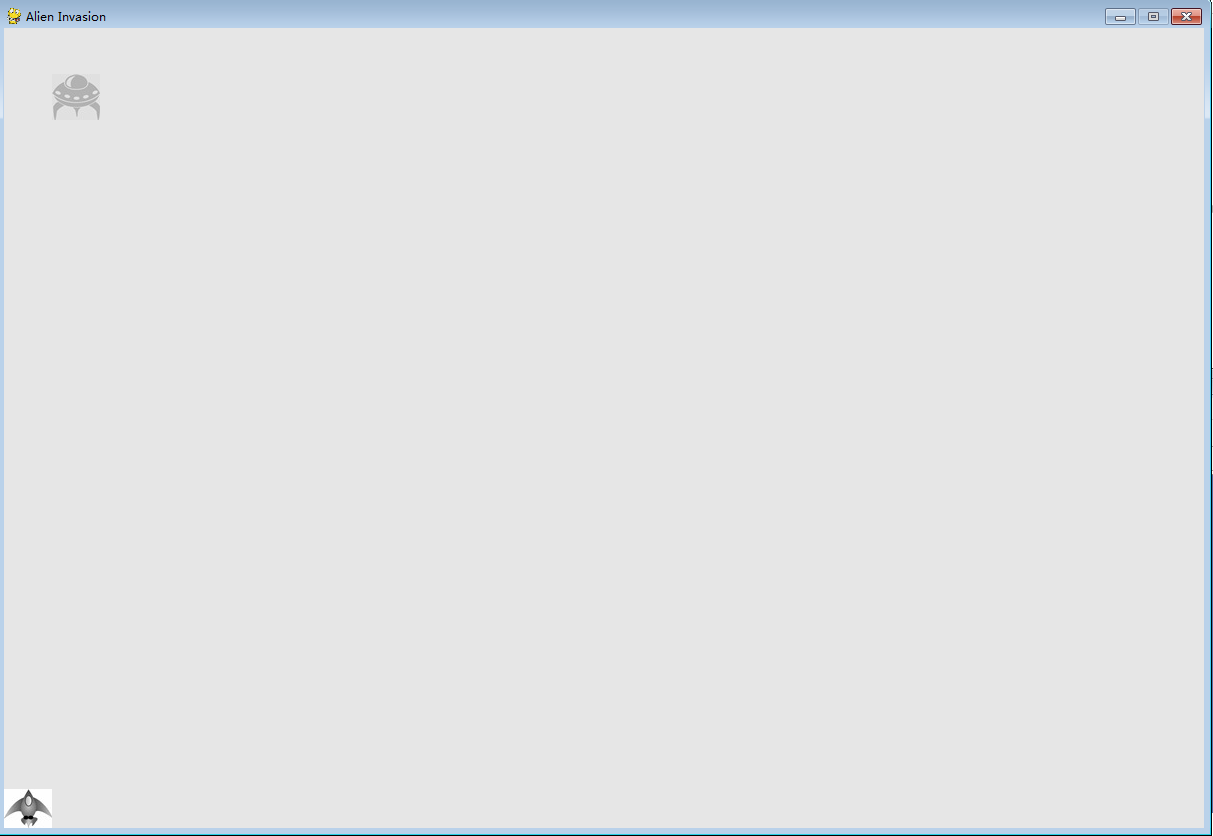
在屏幕上放置外星人与放置飞船类似。每个外星人的行为都由Alien 类控制,我们将像创建Ship 类那样创建这个类。出于简化考虑,我们也使用位图来表示外星人。你可以自己寻找表示外星人的图像,也可使用图13-1所示的图像,可在本书配套资源(https://www.nostarch.com/pythoncrashcourse/ )中找到。这幅图像的背景为灰色,与屏幕背景色一致。请务必将你选择的图像文件保存到文件夹images中。
代码:
alien.py
import pygame
from pygame.sprite import  Sprite

class Alien(Sprite):
    """ 表示单个外星人的类 """

    def __init__(self, ai_settings, screen):
        """  初始化外星人并设置其起始位置 """
        super(Alien, self).__init__()
        self.screen = screen
        self.ai_settings = ai_settings

        # 加载外星人图像,并设置其rect属性
        self.image = pygame.image.load('images/alien.bmp')
        self.rect = self.image.get_rect()

        # 每个外星人最初都在屏幕左上角附近
        self.rect.x = self.rect.width
        self.rect.y = self.rect.height

        # 存储外星人的准确位置
        self.x = float(self.rect.x)


    def blitme(self):
        """  在指定的位置绘制外星人 """
        self.screen.blit(self.image, self.rect)
2.2.2 创建Alien 实例
下面在alien_invasion.py中创建一个Alien 实例:
代码:
alien_invasion.py
import sys
import pygame
from pygame.sprite import Group

from settings import Settings
from ship import Ship
from alien import Alien
import game_functions as gf


def run_game():
    # 初始化游戏并创建一个屏幕对象
    pygame.init()
    ai_settings = Settings()
    screen = pygame.display.set_mode((ai_settings.screen_width, ai_settings.screen_height))
    pygame.display.set_caption("Alien Invasion")

    # 设置背景颜色
    bg_color = (ai_settings.bg_color)

    # 创建一艘飞船
    ship = Ship(ai_settings, screen)
    # 创建一个用于存储子弹的编组
    bullets = Group()

    # 创建一个外星人
    alien = Alien(ai_settings, screen)

    # 开始游戏的主循环
    while True:
        gf.check_events(ai_settings, screen, ship, bullets)
        ship.update()

        gf.update_bullets(bullets)
        gf.update_screen(ai_settings, screen, ship, bullets)

run_game()
2.2.3 让外星人出现在屏幕上
为让外星人出现在屏幕上,我们在update_screen() 中调用其方法blitme()
代码:
game_functions.py
import sys
import pygame
from bullet import Bullet

def check_keydown_events(event, ai_settings, screen, ship, bullets):
    """ 响应按键 """
    if event.key == pygame.K_RIGHT:
        ship.moving_right = True
    elif event.key == pygame.K_LEFT:
        ship.moving_left = True
    elif event.key == pygame.K_SPACE:
        # 创建一颗子弹,并将其加入到编组bullets中
        if len(bullets) < ai_settings.bullets_allowed:
            new_bullet = Bullet(ai_settings, screen, ship)
            bullets.add(new_bullet)
    elif event.key == pygame.K_q:
        sys.exit()

def check_keyup_events(event, ship):
    """ 响应松开 """
    if event.key == pygame.K_RIGHT:
        ship.moving_right = False
    elif event.key == pygame.K_LEFT:
        ship.moving_left = False


def check_events(ai_settings, screen, ship, bullets):
    """  响应按键和鼠标事件 """
    for event in pygame.event.get():
        if event.type == pygame.QUIT:
            sys.exit()
        elif event.type == pygame.KEYDOWN:
            check_keydown_events(event, ai_settings, screen, ship, bullets)
        elif event.type == pygame.KEYUP:
            check_keyup_events(event, ship)


def update_screen(ai_settings, screen, ship, alien, bullets):
    """ 更新屏幕上的图像,并切换到新屏幕 """
    # 每次循环事都重绘屏幕
    screen.fill(ai_settings.bg_color)

    # 在飞船和外星人后面重绘所有子弹
    for bullet in bullets.sprites():
        bullet.draw_bullet()

    ship.blitme()
    alien.blitme()

    # 让最近绘制的屏幕可见
    pygame.display.flip()


def update_bullets(bullets):
    """  更新子弹的位置,并删除已消失的子弹 """
    # 更新子弹的位置
    bullets.update()

    # 删除已消失的子弹
    for bullet in bullets.copy():
        if bullet.rect.bottom <= 0:
            bullets.remove(bullet)
alien_invasion.py
import sys
import pygame
from pygame.sprite import Group

from settings import Settings
from ship import Ship
from alien import Alien
import game_functions as gf


def run_game():
    # 初始化游戏并创建一个屏幕对象
    pygame.init()
    ai_settings = Settings()
    screen = pygame.display.set_mode((ai_settings.screen_width, ai_settings.screen_height))
    pygame.display.set_caption("Alien Invasion")

    # 设置背景颜色
    bg_color = (ai_settings.bg_color)

    # 创建一艘飞船
    ship = Ship(ai_settings, screen)
    # 创建一个用于存储子弹的编组
    bullets = Group()

    # 创建一个外星人
    alien = Alien(ai_settings, screen)

    # 开始游戏的主循环
    while True:
        gf.check_events(ai_settings, screen, ship, bullets)
        ship.update()

        gf.update_bullets(bullets)
        gf.update_screen(ai_settings, screen, ship, alien, bullets)

run_game()
测试记录:
2.3 创建一群外星人
要绘制一群外星人,需要确定一行能容纳多少个外星人以及要绘制多少行外星人。我们将首先计算外星人之间的水平间距,并创建一行外星人,再确定可用的垂直空间,并创建整群外星人。
2.3.1 确定一行可容纳多少个外星人
为确定一行可容纳多少个外星人,我们来看看可用的水平空间有多大。屏幕宽度存储在ai_settings.screen_width 中,但需要在屏幕两边都留下一定的边距,把它设置为外星人的宽度。由于有两个边距,因此可用于放置外星人的水平空间为屏幕宽度减去外星人宽度的两倍:
available_space_x = ai_settings.screen_width – (2 * alien_width)
我们还需要在外星人之间留出一定的空间,即外星人宽度。因此,显示一个外星人所需的水平空间为外星人宽度的两倍:一个宽度用于放置外星人,另一个宽度为外星人右边的空白区域。为确定一行可容纳多少个外星人,我们将可用空间除以外星人宽度的两倍:
number_aliens_x = available_space_x / (2 * alien_width)
2.3.2 创建多行外星人
为创建一行外星人,首先在alien_invasion.py中创建一个名为aliens 的空编组,用于存储全部外星人,再调用game_functions.py中创建外星人群的函数
代码:
alien_invasion.py
import sys
import pygame
from pygame.sprite import Group

from settings import Settings
from ship import Ship
from alien import Alien
import game_functions as gf


def run_game():
    # 初始化游戏并创建一个屏幕对象
    pygame.init()
    ai_settings = Settings()
    screen = pygame.display.set_mode((ai_settings.screen_width, ai_settings.screen_height))
    pygame.display.set_caption("Alien Invasion")

    # 设置背景颜色
    bg_color = (ai_settings.bg_color)

    # 创建一艘飞船、一个子弹编组和一个外星人编组
    ship = Ship(ai_settings, screen)
    bullets = Group()
    aliens = Group()

    # 创建外星人群
    gf.create_fleet(ai_settings, screen, aliens)

    # 开始游戏的主循环
    while True:
        gf.check_events(ai_settings, screen, ship, bullets)
        ship.update()

        gf.update_bullets(bullets)
        gf.update_screen(ai_settings, screen, ship, aliens, bullets)

run_game()
game_functions.py
import sys
import pygame
from bullet import Bullet

def check_keydown_events(event, ai_settings, screen, ship, bullets):
    """ 响应按键 """
    if event.key == pygame.K_RIGHT:
        ship.moving_right = True
    elif event.key == pygame.K_LEFT:
        ship.moving_left = True
    elif event.key == pygame.K_SPACE:
        # 创建一颗子弹,并将其加入到编组bullets中
        if len(bullets) < ai_settings.bullets_allowed:
            new_bullet = Bullet(ai_settings, screen, ship)
            bullets.add(new_bullet)
    elif event.key == pygame.K_q:
        sys.exit()

def check_keyup_events(event, ship):
    """ 响应松开 """
    if event.key == pygame.K_RIGHT:
        ship.moving_right = False
    elif event.key == pygame.K_LEFT:
        ship.moving_left = False


def check_events(ai_settings, screen, ship, bullets):
    """  响应按键和鼠标事件 """
    for event in pygame.event.get():
        if event.type == pygame.QUIT:
            sys.exit()
        elif event.type == pygame.KEYDOWN:
            check_keydown_events(event, ai_settings, screen, ship, bullets)
        elif event.type == pygame.KEYUP:
            check_keyup_events(event, ship)


def update_screen(ai_settings, screen, ship, aliens, bullets):
    """ 更新屏幕上的图像,并切换到新屏幕 """
    # 每次循环事都重绘屏幕
    screen.fill(ai_settings.bg_color)

    # 在飞船和外星人后面重绘所有子弹
    for bullet in bullets.sprites():
        bullet.draw_bullet()

    ship.blitme()
    aliens.draw(screen)

    # 让最近绘制的屏幕可见
    pygame.display.flip()


def update_bullets(bullets):
    """  更新子弹的位置,并删除已消失的子弹 """
    # 更新子弹的位置
    bullets.update()

    # 删除已消失的子弹
    for bullet in bullets.copy():
        if bullet.rect.bottom <= 0:
            bullets.remove(bullet)
2.3.3 创建外星人群
现在可以创建外星人群了。下面是新函数create_fleet() ,我们将它放在game_functions.py的末尾。我们还需要导入Alien 类,因此务必在文件game_functions.py开头添加相应的import 语句
代码:
game_functions.py
import sys
import pygame
from bullet import Bullet
from alien import Alien

def check_keydown_events(event, ai_settings, screen, ship, bullets):
    """ 响应按键 """
    if event.key == pygame.K_RIGHT:
        ship.moving_right = True
    elif event.key == pygame.K_LEFT:
        ship.moving_left = True
    elif event.key == pygame.K_SPACE:
        # 创建一颗子弹,并将其加入到编组bullets中
        if len(bullets) < ai_settings.bullets_allowed:
            new_bullet = Bullet(ai_settings, screen, ship)
            bullets.add(new_bullet)
    elif event.key == pygame.K_q:
        sys.exit()

def check_keyup_events(event, ship):
    """ 响应松开 """
    if event.key == pygame.K_RIGHT:
        ship.moving_right = False
    elif event.key == pygame.K_LEFT:
        ship.moving_left = False


def check_events(ai_settings, screen, ship, bullets):
    """  响应按键和鼠标事件 """
    for event in pygame.event.get():
        if event.type == pygame.QUIT:
            sys.exit()
        elif event.type == pygame.KEYDOWN:
            check_keydown_events(event, ai_settings, screen, ship, bullets)
        elif event.type == pygame.KEYUP:
            check_keyup_events(event, ship)


def update_screen(ai_settings, screen, ship, aliens, bullets):
    """ 更新屏幕上的图像,并切换到新屏幕 """
    # 每次循环事都重绘屏幕
    screen.fill(ai_settings.bg_color)

    # 在飞船和外星人后面重绘所有子弹
    for bullet in bullets.sprites():
        bullet.draw_bullet()

    ship.blitme()
    aliens.draw(screen)

    # 让最近绘制的屏幕可见
    pygame.display.flip()


def update_bullets(bullets):
    """  更新子弹的位置,并删除已消失的子弹 """
    # 更新子弹的位置
    bullets.update()

    # 删除已消失的子弹
    for bullet in bullets.copy():
        if bullet.rect.bottom <= 0:
            bullets.remove(bullet)


def create_fleet(ai_settings, screen, aliens):
    """  创建外星人群 """
    # 创建一个外星人,并计算一行可容纳多少个外星人
    # 外星人间距为外星人宽度
    alien = Alien(ai_settings, screen)
    alien_width = alien.rect.width
    available_space_x = ai_settings.screen_width - 2 * alien_width
    number_aliens_x = int(available_space_x / (2 * alien_width))

    # 创建第一行外星人
    for alien_number in range(number_aliens_x):
        # 创建一个外星人并将其加入当前行
        alien = Alien(ai_settings, screen)
        alien.x = alien_width + 2 * alien_width * alien_number
        alien.rect.x = alien.x
        aliens.add(alien)
测试记录:
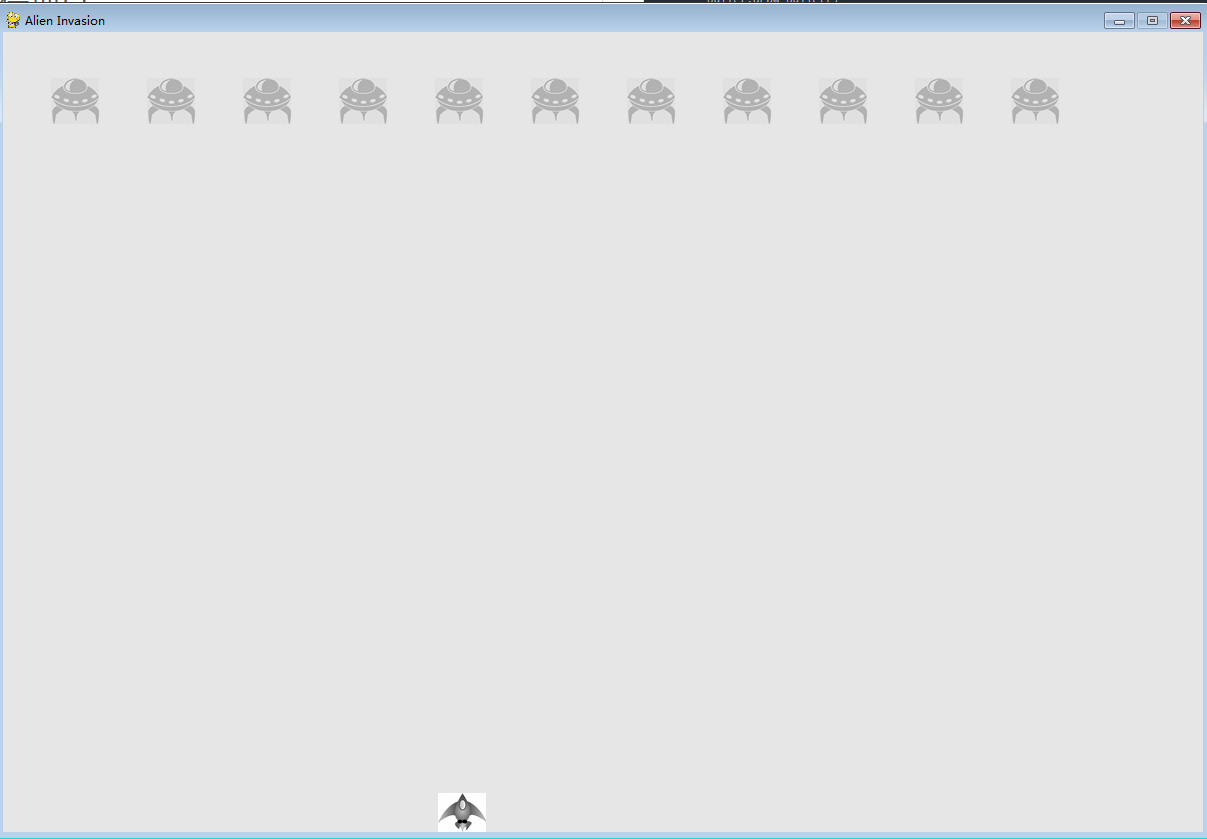
2.3.4 重构create_fleet()
倘若我们创建了外星人群,也许应该让create_fleet() 保持原样,但鉴于创建外星人的工作还未完成,我们稍微清理一下这个函数。下面是create_fleet() 和两个新函 数,get_number_aliens_x() 和create_alien()
代码:
game_functions.py
import sys
import pygame
from bullet import Bullet
from alien import Alien

def check_keydown_events(event, ai_settings, screen, ship, bullets):
    """ 响应按键 """
    if event.key == pygame.K_RIGHT:
        ship.moving_right = True
    elif event.key == pygame.K_LEFT:
        ship.moving_left = True
    elif event.key == pygame.K_SPACE:
        # 创建一颗子弹,并将其加入到编组bullets中
        if len(bullets) < ai_settings.bullets_allowed:
            new_bullet = Bullet(ai_settings, screen, ship)
            bullets.add(new_bullet)
    elif event.key == pygame.K_q:
        sys.exit()

def check_keyup_events(event, ship):
    """ 响应松开 """
    if event.key == pygame.K_RIGHT:
        ship.moving_right = False
    elif event.key == pygame.K_LEFT:
        ship.moving_left = False


def check_events(ai_settings, screen, ship, bullets):
    """  响应按键和鼠标事件 """
    for event in pygame.event.get():
        if event.type == pygame.QUIT:
            sys.exit()
        elif event.type == pygame.KEYDOWN:
            check_keydown_events(event, ai_settings, screen, ship, bullets)
        elif event.type == pygame.KEYUP:
            check_keyup_events(event, ship)


def update_screen(ai_settings, screen, ship, aliens, bullets):
    """ 更新屏幕上的图像,并切换到新屏幕 """
    # 每次循环事都重绘屏幕
    screen.fill(ai_settings.bg_color)

    # 在飞船和外星人后面重绘所有子弹
    for bullet in bullets.sprites():
        bullet.draw_bullet()

    ship.blitme()
    aliens.draw(screen)

    # 让最近绘制的屏幕可见
    pygame.display.flip()


def update_bullets(bullets):
    """  更新子弹的位置,并删除已消失的子弹 """
    # 更新子弹的位置
    bullets.update()

    # 删除已消失的子弹
    for bullet in bullets.copy():
        if bullet.rect.bottom <= 0:
            bullets.remove(bullet)


def get_number_aliens_x(ai_settings, alien_width):
    """  计算每行可容纳多少外星人 """
    available_space_x = ai_settings.screen_width - 2 * alien_width
    number_aliens_x = int(available_space_x / (2 * alien_width))
    return number_aliens_x


def create_alien(ai_settings, screen, aliens, alien_number):
    """  创建一个外星人并将其放在当前行 """
    alien = Alien(ai_settings, screen)
    alien_width = alien.rect.width
    alien.x = alien_width + 2 * alien_width * alien_number
    alien.rect.x = alien.x
    aliens.add(alien)


def create_fleet(ai_settings, screen, aliens):
    """  创建外星人群 """
    # 创建一个外星人,并计算每行可容纳多少外星人
    alien = Alien(ai_settings, screen)
    number_aliens_x = get_number_aliens_x(ai_settings, alien.rect.width)

    # 创建第一行外星人
    for alien_number in range(number_aliens_x):
        create_alien(ai_settings, screen, aliens, alien_number)
2.3.5 添加行
要创建外星人群,需要计算屏幕可容纳多少行,并对创建一行外星人的循环重复相应的次数。为计算可容纳的行数,我们这样计算可用垂直空间:将屏幕高度减去第一行外星人的上边距(外星人高度)、飞船的高度以及最初外星人群与飞船的距离(外星人高度的两倍).
代码:
game_functions.py
import sys
import pygame
from bullet import Bullet
from alien import Alien

def check_keydown_events(event, ai_settings, screen, ship, bullets):
    """ 响应按键 """
    if event.key == pygame.K_RIGHT:
        ship.moving_right = True
    elif event.key == pygame.K_LEFT:
        ship.moving_left = True
    elif event.key == pygame.K_SPACE:
        # 创建一颗子弹,并将其加入到编组bullets中
        if len(bullets) < ai_settings.bullets_allowed:
            new_bullet = Bullet(ai_settings, screen, ship)
            bullets.add(new_bullet)
    elif event.key == pygame.K_q:
        sys.exit()

def check_keyup_events(event, ship):
    """ 响应松开 """
    if event.key == pygame.K_RIGHT:
        ship.moving_right = False
    elif event.key == pygame.K_LEFT:
        ship.moving_left = False


def check_events(ai_settings, screen, ship, bullets):
    """  响应按键和鼠标事件 """
    for event in pygame.event.get():
        if event.type == pygame.QUIT:
            sys.exit()
        elif event.type == pygame.KEYDOWN:
            check_keydown_events(event, ai_settings, screen, ship, bullets)
        elif event.type == pygame.KEYUP:
            check_keyup_events(event, ship)


def update_screen(ai_settings, screen, ship, aliens, bullets):
    """ 更新屏幕上的图像,并切换到新屏幕 """
    # 每次循环事都重绘屏幕
    screen.fill(ai_settings.bg_color)

    # 在飞船和外星人后面重绘所有子弹
    for bullet in bullets.sprites():
        bullet.draw_bullet()

    ship.blitme()
    aliens.draw(screen)

    # 让最近绘制的屏幕可见
    pygame.display.flip()


def update_bullets(bullets):
    """  更新子弹的位置,并删除已消失的子弹 """
    # 更新子弹的位置
    bullets.update()

    # 删除已消失的子弹
    for bullet in bullets.copy():
        if bullet.rect.bottom <= 0:
            bullets.remove(bullet)


def get_number_aliens_x(ai_settings, alien_width):
    """  计算每行可容纳多少外星人 """
    available_space_x = ai_settings.screen_width - 2 * alien_width
    number_aliens_x = int(available_space_x / (2 * alien_width))
    return number_aliens_x


def get_number_rows(ai_setttings, ship_height, alien_height):
    """  计算屏幕可容纳多少行外星人 """
    available_space_y = (ai_setttings.screen_height - (3 * alien_height) - ship_height )
    number_rows = int(available_space_y / ( 2 * alien_height ))
    return number_rows


def create_alien(ai_settings, screen, aliens, alien_number, row_number):
    """  创建一个外星人并将其放在当前行 """
    alien = Alien(ai_settings, screen)
    alien_width = alien.rect.width
    alien.x = alien_width + 2 * alien_width * alien_number
    alien.rect.x = alien.x
    alien.rect.y = alien.rect.height + 2 * alien.rect.height * row_number
    aliens.add(alien)


def create_fleet(ai_settings, screen, ship, aliens):
    """  创建外星人群 """
    # 创建一个外星人,并计算每行可容纳多少外星人
    alien = Alien(ai_settings, screen)
    number_aliens_x = get_number_aliens_x(ai_settings, alien.rect.width)
    number_rows = get_number_rows(ai_settings, ship.rect.height, alien.rect.height)

    # 获取外星人群
    for row_number in range(number_rows):
        for alien_number in range(number_aliens_x):
            create_alien(ai_settings, screen, aliens, alien_number, row_number)
alien_invasion.py
# 创建外星人群
    gf.create_fleet(ai_settings, screen, ship, aliens)
测试记录:
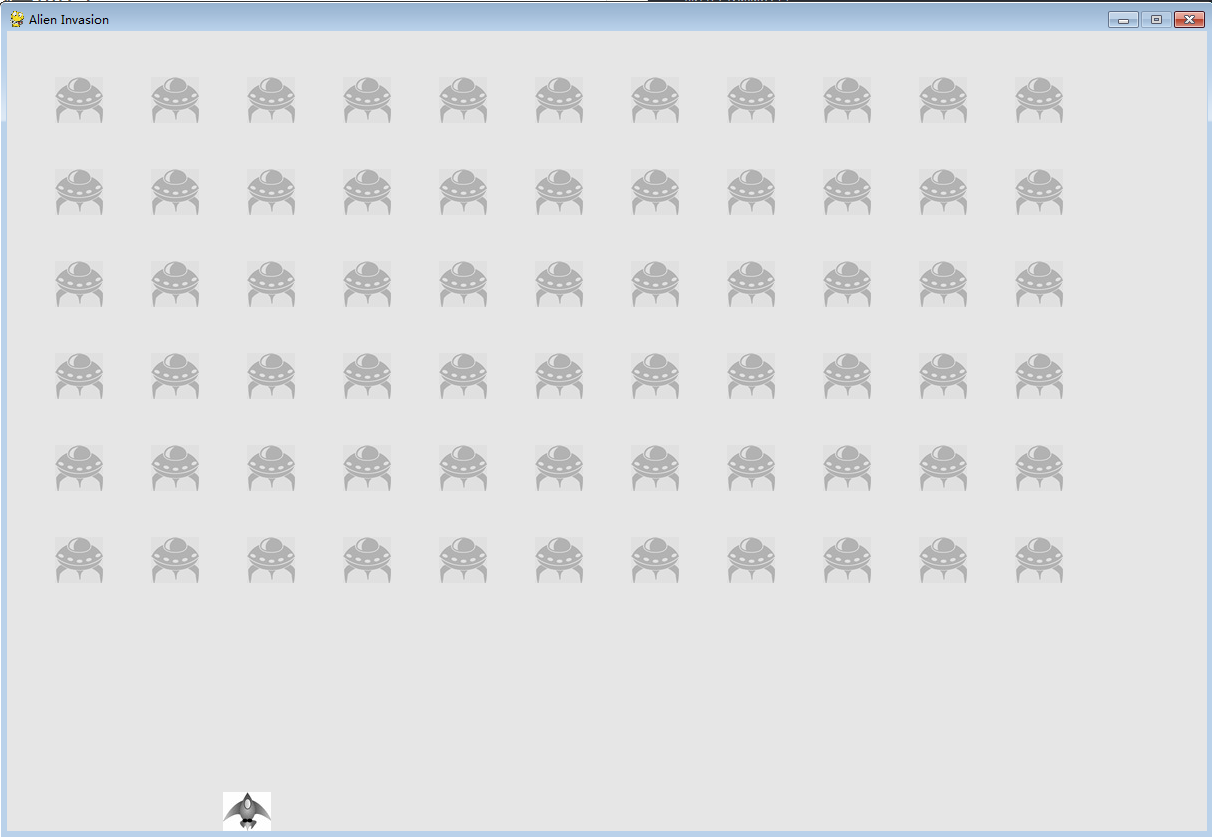
2.4 让外星人群移动
下面来让外星人群在屏幕上向右移动,撞到屏幕边缘后下移一定的距离,再沿相反的方向移动。我们将不断地移动所有的外星人,直到所有外星人都被消灭,有外星人撞上飞船,或有外星人抵达屏幕底端。下面先来让外星人向右移动。
2.4.1 向右移动外星人
为移动外星人,我们将使用alien.py中的方法update() ,且对外星人群中的每个外星人都调用它。首先,添加一个控制外星人速度的设置.
settings.py
class Settings():

    def __init__(self):
        """ 初始化游戏的设置 """
       -- snip --

        # 外星人设置
        self.alien_speed_factor = 1
然后,使用这个设置来实现update()
alien.py
import pygame
from pygame.sprite import  Sprite

class Alien(Sprite):
    """ 表示单个外星人的类 """
    -- snip --

    def update(self):
        """  向右移动外星人 """
        self.x += self.ai_settings.alien_speed_factor
        self.rect.x = self.x
在主while 循环中已调用了更新飞船和子弹的方法,但现在还需更新每个外星人的位置
alien_invasion.py
    while True:
        gf.check_events(ai_settings, screen, ship, bullets)
        ship.update()

        gf.update_bullets(bullets)
        gf.update_aliens(aliens)
        gf.update_screen(ai_settings, screen, ship, aliens, bullets)
最后,在文件game_functions.py末尾添加新函数update_aliens()
game_functions.py
def update_aliens(aliens):
    """  更新外星人群众所有外星人的位置 """
    aliens.update()
2.4.2 创建表示外星人移动方向的设置
下面来创建让外星人撞到屏幕右边缘后向下移动、再向左移动的设置。实现这种行为的代码如下:
settings.py
        # 外星人设置
        self.alien_speed_factor = 1
        self.fleet_drop_speed = 10
        # fleet_direction 为1表示向右移,为-1表示向左移动
        self.fleet_direction = -1
2.4.3 检查外星人是否撞到了屏幕边缘
现在需要编写一个方法来检查是否有外星人撞到了屏幕边缘,还需修改update() ,以让每个外星人都沿正确的方向移动
alien.py
    def check_edges(self):
        """  如果外星人位于屏幕边缘,就返回True """
        screen_rect = self.screen.get_rect()
        if self.rect.right >= screen_rect.right:
            return True
        elif self.rect.left <= 0:
            return True


    def update(self):
        """  向左或向右移动外星人 """
        self.x += ( self.ai_settings.alien_speed_factor * self.ai_settings.fleet_direction  )
        self.rect.x = self.x
2.4.4 向下移动外星人群并改变移动方向
有外星人到达屏幕边缘时,需要将整群外星人下移,并改变它们的移动方向。我们需要对game_functions.py做重大修改,因为我们要在这里检查是否有外星人到达了左边缘或右边缘。为此,我们编写函数check_fleet_edges() 和change_fleet_direction() ,并对update_aliens() 进行修改:
game_functions.py
def check_fleet_edges(ai_settings, aliens):
    """  有外星人到达边缘时采取相应的措施 """
    for alien in aliens.sprites():
        if alien.check_edges():
            change_fleet_direction(ai_settings, aliens)


def change_fleet_direction(ai_settings, aliens):
    """ 将整群外星人下移,并改变他们的方向  """
    for alien in aliens.sprites():
        alien.rect.y += ai_settings.fleet_drop_speed
    ai_settings.fleet_direction *= -1


def update_aliens(ai_settings, aliens):
    """  检查是否有外星人位于屏幕边缘,并更新整群外星人的位置 """
    check_fleet_edges(ai_settings, aliens)
    aliens.update()
alien_invasion.py
    # 开始游戏的主循环
    while True:
        gf.check_events(ai_settings, screen, ship, bullets)
        ship.update()

        gf.update_bullets(bullets)
        gf.update_aliens(ai_settings, aliens)
        gf.update_screen(ai_settings, screen, ship, aliens, bullets)
2.5 射杀外星人
我们创建了飞船和外星人群,但子弹击中外星人时,将穿过外星人,因为我们还没有检查碰撞。在游戏编程中,碰撞指的是游戏元素重叠在一起。要让子弹能够击落外星人,我们将使用sprite.groupcollide() 检测两个编组的成员之间的碰撞。
2.5.1 检测子弹与外星人的碰撞
子弹击中外星人时,我们要马上知道,以便碰撞发生后让外星人立即消失。为此,我们将在更新子弹的位置后立即检测碰撞。
方法sprite.groupcollide() 将每颗子弹的rect 同每个外星人的rect 进行比较,并返回一个字典,其中包含发生了碰撞的子弹和外星人。在这个字典中,每个键都是一
颗子弹,而相应的值都是被击中的外星人。
在函数update_bullets() 中,使用下面的代码来检查碰撞
代码:
game_functions.py
def update_bullets(aliens, bullets):
    """  更新子弹的位置,并删除已消失的子弹 """
    # 更新子弹的位置
    bullets.update()

    # 删除已消失的子弹
    for bullet in bullets.copy():
        if bullet.rect.bottom <= 0:
            bullets.remove(bullet)

    # 检查是否有子弹击中外星人
    # 如果是这样,就删除相应的子弹和外星人
    collisions = pygame.sprite.groupcollide(bullets, aliens, True, True)
alien_invasion.py
    # 开始游戏的主循环
    while True:
        gf.check_events(ai_settings, screen, ship, bullets)
        ship.update()

        gf.update_bullets(aliens, bullets)
        gf.update_aliens(ai_settings, aliens)
        gf.update_screen(ai_settings, screen, ship, aliens, bullets)
测试记录:
现在可以消灭外星人了
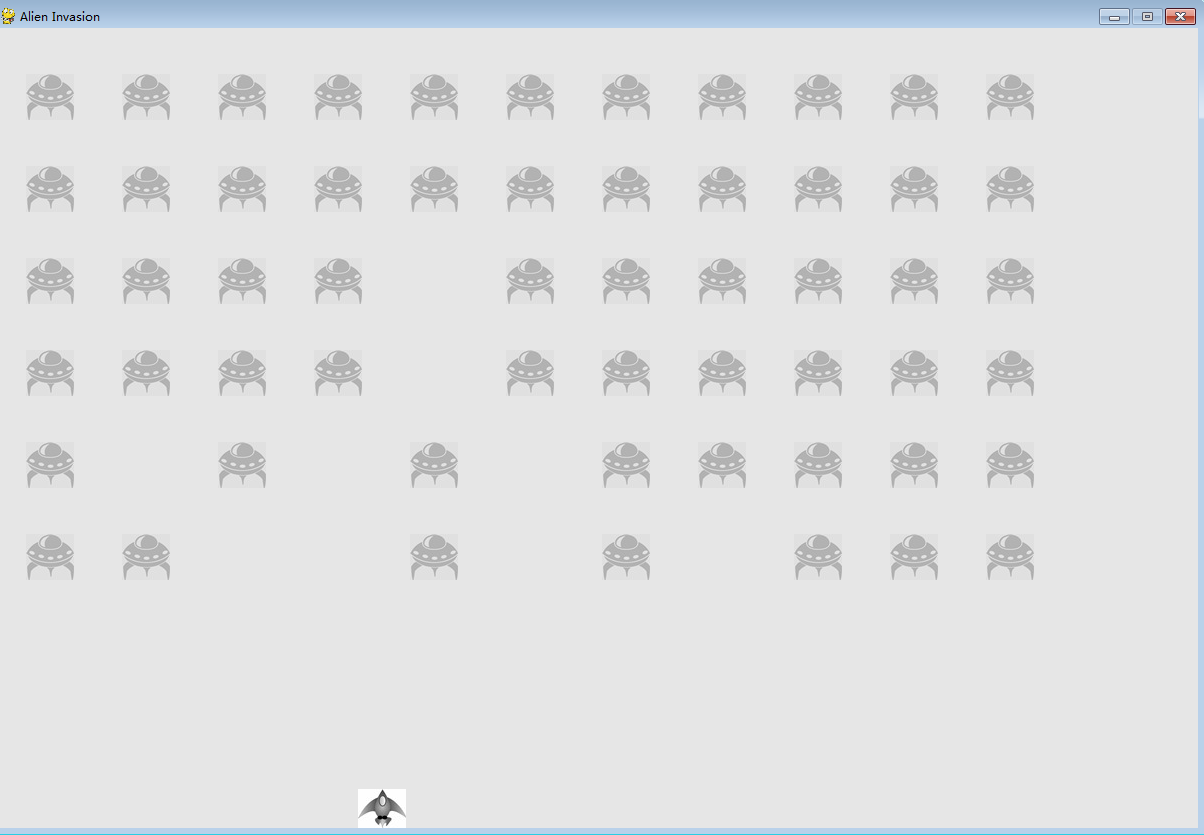
2.5.2 为测试创建大子弹
只需通过运行这个游戏就可以测试其很多功能,但有些功能在正常情况下测试起来比较烦琐。例如,要测试代码能否正确地处理外星人编组为空的情形,需要花很长时间将屏幕上的外星人都击落。
测试有些功能时,可以修改游戏的某些设置,以便专注于游戏的特定方面。例如,可以缩小屏幕以减少需要击落的外星人数量,也可以提高子弹的速度,以便能够在单位时间内发射大量子弹。
测试这个游戏时,我喜欢做的一项修改是增大子弹的尺寸,使其在击中外星人后依然有效,如图13-6所示。请尝试将bullet_width 设置为300,看看将所有外星人都射杀有多快!
类似这样的修改可提高测试效率,还可能激发出如何赋予玩家更大威力的思想火花。(完成测试后,别忘了将设置恢复正常。)
2.5.3 生成新的外星人群
这个游戏的一个重要特点是外星人无穷无尽,一个外星人群被消灭后,又会出现一群外星人。
要在外星人群被消灭后又显示一群外星人,首先需要检查编组aliens 是否为空。如果为空,就调用create_fleet() 。我们将在update_bullets() 中执行这种检查,因为外星人都是在这里被消灭的:
代码:
game_functions.py
def update_bullets(ai_settings, screen, ship, aliens, bullets):
    """  更新子弹的位置,并删除已消失的子弹 """
    # 更新子弹的位置
    bullets.update()

    # 删除已消失的子弹
    for bullet in bullets.copy():
        if bullet.rect.bottom <= 0:
            bullets.remove(bullet)

    # 检查是否有子弹击中外星人
    # 如果是这样,就删除相应的子弹和外星人
    collisions = pygame.sprite.groupcollide(bullets, aliens, True, True)

    if len(aliens) == 0:
        # 删除现有的子弹并新建一群外星人
        bullets.empty()
        create_fleet(ai_settings, screen, ship, aliens)
alien_invasion.py
    # 开始游戏的主循环
    while True:
        gf.check_events(ai_settings, screen, ship, bullets)
        ship.update()

        gf.update_bullets(ai_settings, screen, ship, aliens, bullets)
        gf.update_aliens(ai_settings, aliens)
        gf.update_screen(ai_settings, screen, ship, aliens, bullets)
2.5.4 提高子弹的速度
如果你现在尝试在这个游戏中射杀外星人,可能发现子弹的速度比以前慢,这是因为在每次循环中,Pygame需要做的工作更多了。为提高子弹的速度,可调整settings.py中bullet_speed_factor 的值。例如,如果将这个值增大到3,子弹在屏幕上向上穿行的速度将变得相当快.
代码:
settings.py
        # 子弹设置
        self.bullet_speed_factor = 3
        self.bullet_width = 3
        self.bullet_height = 15
        self.bullet_color = 60, 60, 60
        self.bullets_allowed = 5
2.5.5 重构update_bullets()
下面来重构update_bullets() ,使其不再完成那么多任务。我们将把处理子弹和外星人碰撞的代码移到一个独立的函数中
代码:
game_functions.py
def update_bullets(ai_settings, screen, ship, aliens, bullets):
    """  更新子弹的位置,并删除已消失的子弹 """
    # 更新子弹的位置
    bullets.update()

    # 删除已消失的子弹
    for bullet in bullets.copy():
        if bullet.rect.bottom <= 0:
            bullets.remove(bullet)

    check_bullet_alien_collisions(ai_settings, screen, ship, aliens, bullets)


def check_bullet_alien_collisions(ai_settings, screen, ship, aliens, bullets):
    # 检查是否有子弹击中外星人
    # 如果是这样,就删除相应的子弹和外星人
    collisions = pygame.sprite.groupcollide(bullets, aliens, True, True)

    if len(aliens) == 0:
        # 删除现有的子弹并新建一群外星人
        bullets.empty()
        create_fleet(ai_settings, screen, ship, aliens)
2.6 结束游戏
如果玩家根本不会输,游戏还有什么趣味和挑战性可言?如果玩家没能在足够短的时间内将整群外星人都消灭干净,且有外星人撞到了飞船,飞船将被摧毁。与此同时,我们还限制了可供玩家使用的飞船数,而有外星人抵达屏幕底端时,飞船也将被摧毁。玩家用光了飞船后,游戏便结束。
2.6.1 检测外星人和飞船碰撞
我们首先检查外星人和飞船之间的碰撞,以便外星人撞上飞船时我们能够作出合适的响应。我们在更新每个外星人的位置后立即检测外星人和飞船之间的碰撞。
代码:
game_functions.py
def update_aliens(ai_settings, ship, aliens):
    """  检查是否有外星人位于屏幕边缘,并更新整群外星人的位置 """
    check_fleet_edges(ai_settings, aliens)
    aliens.update()

    # 检查外星人和飞船之间的碰撞
    if pygame.sprite.spritecollideany(ship, aliens):
        print("Ship hit!!!")
alien_invasion.py
    # 开始游戏的主循环
    while True:
        gf.check_events(ai_settings, screen, ship, bullets)
        ship.update()

        gf.update_bullets(ai_settings, screen, ship, aliens, bullets)
        gf.update_aliens(ai_settings, ship, aliens)
        gf.update_screen(ai_settings, screen, ship, aliens, bullets)
2.6.2 到 2.6.4
2.6.2 响应外星人和飞船碰撞
现在需要确定外星人与飞船发生碰撞时,该做些什么。我们不销毁ship 实例并创建一个新的ship 实例,而是通过跟踪游戏的统计信息来记录飞船被撞了多少次(跟踪统计信息还有助于记分)。
2.6.3 有外星人到达屏幕底端
如果有外星人到达屏幕底端,我们将像有外星人撞到飞船那样作出响应。请添加一个执行这项任务的新函数,并将其命名为update_aliens()
2.6.4 游戏结束
现在这个游戏看起来更完整了,但它永远都不会结束,只是ships_left 不断变成更小的负数。下面在GameStats 中添加一个作为标志的属性game_active ,以便在玩家的
飞船用完后结束游戏:
代码:
game_stats.py
class GameStats():
    """  跟踪游戏的统计信息 """

    def __init__(self, ai_settings):
        """" 初始化统计信息 """
        self.ai_settings = ai_settings
        self.reset_stats()

        # 游戏刚开始时处于活动状态
        self.game_active = True

    def reset_stats(self):
        """  初始化在游戏运行期间可能变化的统计信息 """
        self.ships_left = self.ai_settings.ship_limit
settings.py
        # 飞船的设置
        self.ship_speed_factor = 1.5
        self.ship_limit = 3
alien_invasion.py
import sys
import pygame
from pygame.sprite import Group

from settings import Settings
from ship import Ship
from alien import Alien
import game_functions as gf
from game_stats import GameStats


def run_game():
    # 初始化游戏并创建一个屏幕对象
    pygame.init()
    ai_settings = Settings()
    screen = pygame.display.set_mode((ai_settings.screen_width, ai_settings.screen_height))
    pygame.display.set_caption("Alien Invasion")

    # 创建一个用于存储游戏统计信息的实例
    stats = GameStats(ai_settings)

    # 设置背景颜色
    bg_color = (ai_settings.bg_color)

    # 创建一艘飞船、一个子弹编组和一个外星人编组
    ship = Ship(ai_settings, screen)
    bullets = Group()
    aliens = Group()

    # 创建外星人群
    gf.create_fleet(ai_settings, screen, ship, aliens)

    # 开始游戏的主循环
    while True:
        gf.check_events(ai_settings, screen, ship, bullets)

        print(stats.game_active)

        if stats.game_active:
            ship.update()
            gf.update_bullets(ai_settings, screen, ship, aliens, bullets)
            gf.update_aliens(ai_settings, stats, screen, ship, aliens, bullets)

        gf.update_screen(ai_settings, screen, ship, aliens, bullets)

run_game()
game_functions.py
def ship_hit(ai_settings, stats, screen, ship, aliens, bullets):
    """  响应被外星人撞到的飞船 """
    if stats.ships_left > 0:
        # 将ships_left减1
        stats.ships_left -= 1

        # 清空外星人列表和子单列表
        aliens.empty()
        bullets.empty()

        # 创建一群新的外星人,并将飞船放到屏幕底端中央
        create_fleet(ai_settings, screen, ship, aliens)
        ship.center_ship()

        # 暂停
        sleep(0.5)
    else:
        stats.game_active = False


def check_aliens_bottom(ai_settings, stats, screen, ship, aliens, bullets):
    """  检查是否有外星人到达屏幕底端 """
    screen_rect = screen.get_rect()
    for alien in aliens.sprites():
        if alien.rect.bottom >= screen_rect.bottom:
            # 像飞船被撞到一样处理
            ship_hit(ai_settings, stats, screen, ship, aliens, bullets)
            break


def update_aliens(ai_settings, stats, screen, ship, aliens, bullets):
    """  检查是否有外星人位于屏幕边缘,并更新整群外星人的位置 """
    check_fleet_edges(ai_settings, aliens)
    aliens.update()

    # 检查外星人和飞船之间的碰撞
    if pygame.sprite.spritecollideany(ship, aliens):
        ship_hit(ai_settings, stats, screen, ship, aliens, bullets)

    # 检查是否有外星人到达屏幕底端
    check_aliens_bottom(ai_settings, stats, screen, ship, aliens, bullets)
ship.py
    def center_ship(self):
        """ 让飞船在屏幕上居中 """
        self.center = self.screen_rect.centerx
2.7 确定应运行游戏的哪些部分
在alien_invasion.py中,我们需要确定游戏的哪些部分在任何情况下都应运行,哪些部分仅在游戏处于活动状态时才运行
代码:
alien_invasion.py
    # 开始游戏的主循环
    while True:
        gf.check_events(ai_settings, screen, ship, bullets)

        print(stats.game_active)

        if stats.game_active:
            ship.update()
            gf.update_bullets(ai_settings, screen, ship, aliens, bullets)
            gf.update_aliens(ai_settings, stats, screen, ship, aliens, bullets)

        gf.update_screen(ai_settings, screen, ship, aliens, bullets)
三.记分
3.1 添加Play按钮
当前,这个游戏在玩家运行alien_invasion.py时就开始了。下面让游戏一开始处于非活动状态,并提示玩家单击Play按钮来开始游戏。为此,在game_stats.py中输入如下代码:
class GameStats():
    """  跟踪游戏的统计信息 """

    def __init__(self, ai_settings):
        """" 初始化统计信息 """
        self.ai_settings = ai_settings
        self.reset_stats()

        # 游戏刚开始时处于非活动状态
        self.game_active = False

    def reset_stats(self):
        """  初始化在游戏运行期间可能变化的统计信息 """
        self.ships_left = self.ai_settings.ship_limit
3.1.1 创建Button 类
由于Pygame没有内置创建按钮的方法,我们创建一个Button 类,用于创建带标签的实心矩形。你可以在游戏中使用这些代码来创建任何按钮。下面是Button 类的第一部分,请将这个类保存为文件button.py
import pygame.font

class Button():

    def __init__(self, ai_settings, screen, msg):
        """  初始化按钮的属性 """
        self.screen = screen
        self.screen_rect = screen.get_rect()

        # 设置按钮的尺寸和其他属性
        self.width, self.height = 200, 50
        self.button_color = (0, 250, 0)
        self.text_color = (255, 255, 255)
        self.font = pygame.font.SysFont(None, 48)

        # 创建按钮的rect对象,并使其居中
        self.rect = pygame.Rect(0, 0, self.width, self.height)
        self.rect.center = self.screen_rect.center

        # 按钮的标签只需创建一次
        self.prep_msg(msg)


    def prep_msg(self, msg):
        """  将msg渲染为图像,并使其在按钮上居中 """
        self.msg_image = self.font.render(msg, True, self.text_color, self.button_color)
        self.msg_image_rect = self.msg_image.get_rect()
        self.msg_image_rect.center = self.rect.center


    def draw_button(self):
        # 绘制一个用颜色填充的按钮,再绘制文本
        self.screen.fill(self.button_color, self.rect)
        self.screen.blit(self.msg_image, self.msg_image_rect)
3.1.2 在屏幕上绘制按钮
我们将使用Button 类来创建一个Play按钮。鉴于只需要一个Play按钮,我们直接在alien_invasion.py中创建它.
alien_invasion.py
--snip
from game_stats import GameStats
from button import Button


def run_game():
    --snip--
    pygame.display.set_caption("Alien Invasion")

    # 创建Play按钮
    play_button = Button(ai_settings, screen, "Play")

   --snip--

    # 开始游戏的主循环
    while True:
        --snip--
            gf.update_aliens(ai_settings, stats, screen, ship, aliens, bullets)

        gf.update_screen(ai_settings, screen, stats, ship, aliens, bullets, play_button)

run_game()
我们导入Button 类,并创建一个名为play_button 的实例,然后我们将play_button 传递给update_screen() ,以便能够在屏幕更新时显示按钮。
接下来,修改update_screen() ,以便在游戏处于非活动状态时显示Play按钮:
game_functions.py
def update_screen(ai_settings, screen, stats ,ship, aliens, bullets,play_button):
    --snip--

    # 如果游戏处于非活动状态,就绘制Play按钮
    if not stats.game_active:
        play_button.draw_button()

    # 让最近绘制的屏幕可见
    pygame.display.flip()
测试记录:
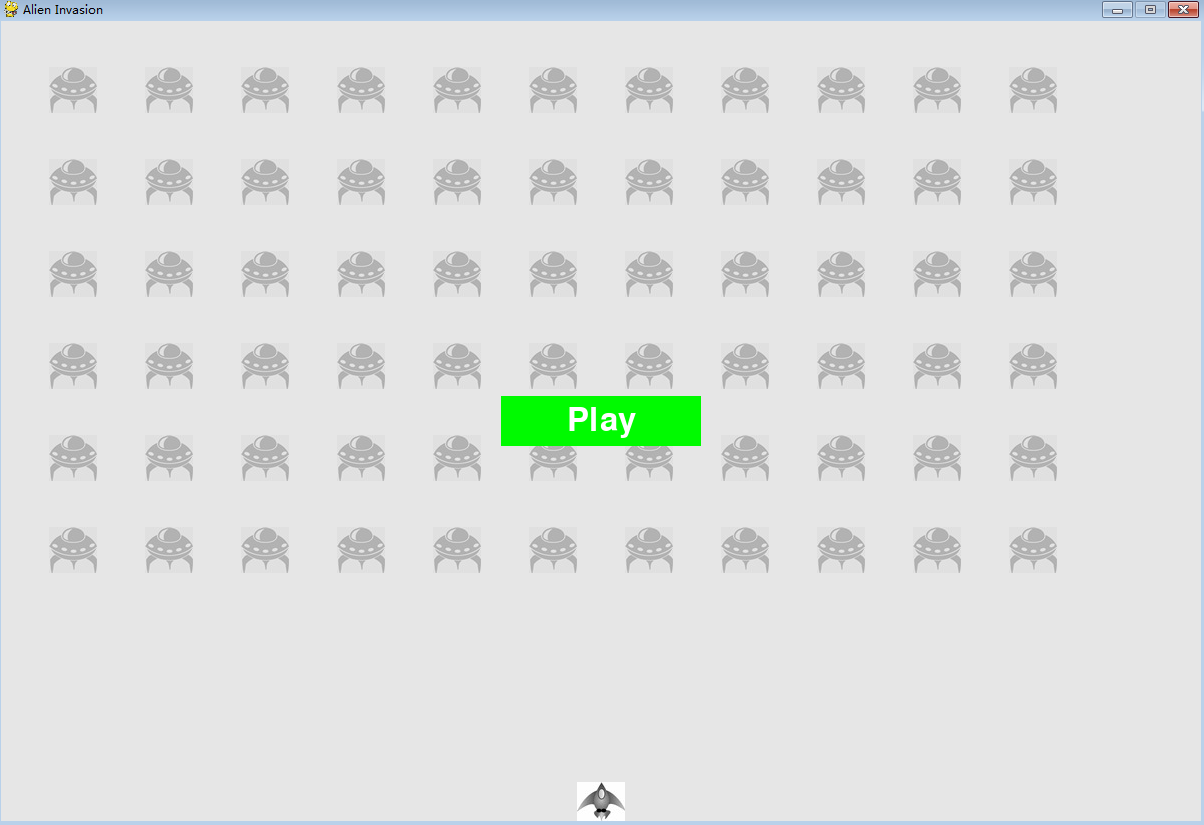
3.1.3 开始游戏
为在玩家单击Play按钮时开始新游戏,需在game_functions.py中添加如下代码,以监视与这个按钮相关的鼠标事件
game_functions.py
def check_events(ai_settings, screen, stats,play_button, ship, bullets):
    """  响应按键和鼠标事件 """
    for event in pygame.event.get():
        if event.type == pygame.QUIT:
            --snip--
        elif event,type == pygame.MOUSEBUTTONDOWN:
            mouse_x, mouse_y = pygame.mouse.get_pos()
            check_play_button(stats, play_button, mouse_x, mouse_y)

def check_play_button(stats, play_button, mouse_x, mouse_y):
    """  在玩家单机Play按钮时开始新游戏 """
    if play_button.rect.collidepoint(mouse_x, mouse_y):
        stats.game_active = True
我们修改了check_events() 的定义,在其中添加了形参stats 和play_button 。我们将使用stats 来访问标志game_active ,并使用play_button 来检查玩家是否单击了Play按钮。
无论玩家单击屏幕的什么地方,Pygame都将检测到一个MOUSEBUTTONDOWN 事件,但我们只想让这个游戏在玩家用鼠标单击Play按钮时作出响应。为此,我们使用了pygame.mouse.get_pos() ,它返回一个元组,其中包含玩家单击时鼠标的x 和y 坐标。我们将这些值传递给函数check_play_button(),而这个函数使用collidepoint() 检查鼠标单击位置是否在Play按钮的rect 内。如果是这样的,我们就将game_active 设置为True ,让游戏就此开始!
在alien_invasion.py 中调用check_events() ,需要传递另外两个实参 stats 和play_button
alien_invasion.py
    # 开始游戏的主循环
    while True:
        gf.check_events(ai_settings, screen, stats,play_button, ship, bullets)
3.1.4 重置游戏
前面编写的代码只处理了玩家第一次单击Play按钮的情况,而没有处理游戏结束的情况,因为没有重置导致游戏结束的条件。
为在玩家每次单击Play按钮时都重置游戏,需要重置统计信息、删除现有的外星人和子弹、创建一群新的外星人,并让飞船居中,如下所示
game_functions.py
def check_play_button(ai_settings, screen, stats, play_button, ship, aliens, bullets, mouse_x, mouse_y):
    """  在玩家单机Play按钮时开始新游戏 """
    if play_button.rect.collidepoint(mouse_x, mouse_y):
        # 重置游戏统计信息
        stats.reset_stats()
        stats.game_active = True

        # 清空外星人列表和子单列表
        aliens.empty()
        bullets.empty()

        # 创建一群新的外星人,并让飞船居中
        create_fleet(ai_settings, screen, ship, aliens)
        ship.center_ship()
我们更新了check_play_button() 的定义,使其能够访问ai_settings 、stats 、ship 、aliens 和bullets 。为重置在游戏期间发生了变化的设置以及刷新游戏的视觉元素,它需要这些对象。
我们重置了游戏统计信息,给玩家提供了三艘新飞船。接下来,我们将game_active 设置为True (这样,这个函数的代码执行完毕后,游戏就会开始),清空编组aliens 和bullets,创建一群新的外星人,并将飞船居中。
check_events() 的定义需要修改,调用check_play_button() 的代码亦如此。
game_functions.py
def check_events(ai_settings, screen, stats,play_button, ship,aliens, bullets):
    """  响应按键和鼠标事件 """
    for event in pygame.event.get():
        if event.type == pygame.QUIT:
            sys.exit()
        elif event.type == pygame.KEYDOWN:
            check_keydown_events(event, ai_settings, screen, ship, bullets)
        elif event.type == pygame.KEYUP:
            check_keyup_events(event, ship)
        elif event.type == pygame.MOUSEBUTTONDOWN:
            mouse_x, mouse_y = pygame.mouse.get_pos()
            check_play_button(ai_settings, screen, stats, play_button, ship, aliens, bullets, mouse_x, mouse_y)
check_events() 的定义需要形参aliens ,以便将它传递给check_play_button() 。接下来,我们修改了调用check_play_button() 的代码,以将合适的实参传递给它。
下面来修改alien_invasion.py中调用check_events() 的代码,以将实参aliens 传递给它.
alien_invasion.py
    # 开始游戏的主循环
    while True:
        gf.check_events(ai_settings, screen, stats, play_button, ship, aliens, bullets)
现在,每当玩家单击Play按钮时,这个游戏都将正确地重置,让玩家想玩多少次就玩多少次!
3.1.5 将Play按钮切换到非活动状态
当前,Play按钮存在一个问题,那就是即便Play按钮不可见,玩家单击其原来所在的区域时,游戏依然会作出响应。游戏开始后,如果玩家不小心单击了Play按钮原来所处的区域,游戏将重新开始!
为修复这个问题,可让游戏仅在game_active 为False 时才开始.
game_functions.py
def check_play_button(ai_settings, screen, stats, play_button, ship, aliens, bullets, mouse_x, mouse_y):
    """  在玩家单机Play按钮时开始新游戏 """
    button_clicked = play_button.rect.collidepoint(mouse_x, mouse_y)
    if button_clicked and not stats.game_active:
        # 重置游戏统计信息
       --snip--
3.1.6 隐藏光标
为让玩家能够开始游戏,我们要让光标可见,但游戏开始后,光标只会添乱。为修复这种问题,我们在游戏处于活动状态时让光标不可见.
game_functions.py
def check_play_button(ai_settings, screen, stats, play_button, ship, aliens, bullets, mouse_x, mouse_y):
    """  在玩家单机Play按钮时开始新游戏 """
    button_clicked = play_button.rect.collidepoint(mouse_x, mouse_y)
    if button_clicked and not stats.game_active:
        #  隐藏光标
        pygame.mouse.set_visible(False)
        --snip--
通过向set_visible() 传递False ,让Pygame在光标位于游戏窗口内时将其隐藏起来。
游戏结束后,我们将重新显示光标,让玩家能够单击Play按钮来开始新游戏。相关的代码如下:
** game_functions.py **
def ship_hit(ai_settings, stats, screen, ship, aliens, bullets):
    """  响应被外星人撞到的飞船 """
    if stats.ships_left > 0:
        --snip--
    else:
        stats.game_active = False
        pygame.mouse.set_visible(True)
在ship_hit() 中,我们在游戏进入非活动状态后,立即让光标可见。关注这样的细节让游戏显得更专业,也让玩家能够专注于玩游戏而不是费力搞明白用户界面。
3.2 提高等级
当前,将整群外星人都消灭干净后,玩家将提高一个等级,但游戏的难度并没有变。下面来增加一点趣味性:每当玩家将屏幕上的外星人都消灭干净后,加快游戏的节奏,让游戏玩起来更难。
3.2.1 修改速度设置
我们首先重新组织Settings 类,将游戏设置划分成静态的和动态的两组。对于随着游戏进行而变化的设置,我们还确保它们在开始新游戏时被重置。settings.py的方法__init__() 如下:
settings.py
class Settings():

    def __init__(self):
        """ 初始化游戏的设置 """
        # 屏幕设置
        self.screen_width = 1200
        self.screen_height = 800
        self.bg_color = (230, 230, 230)

        # 飞船的设置
        self.ship_limit = 3

        # 子弹设置
        self.bullet_width = 3
        self.bullet_height = 15
        self.bullet_color = 60, 60, 60
        self.bullets_allowed = 5

        # 外星人设置
        self.fleet_drop_speed = 10

        # 以什么样的速度加快游戏节奏
        self.speedup_scale = 1.1

        self.initialize_dynamic_settings()
我们依然在__init__() 中初始化静态设置。我们添加了设置speedup_scale ,用于控制游戏节奏的加快速度:2表示玩家每提高一个等级,游戏的节奏就翻倍;1表示游戏节奏始终不变。将其设置为1.1能够将游戏节奏提高到够快,让游戏既有难度,又并非不可完成。最后,我们调用initialize_dynamic_settings() ,以初始化随
游戏进行而变化的属性。
initialize_dynamic_settings() 的代码如下:
settings.py
        def initialize_dynamic_settings(self):
            """  初始化随游戏进行而变化的设置 """
            self.ship_speed_factor = 1.5
            self.bullet_speed_factor = 3
            self.alien_speed_factor = 0.1

            # fleet_direction 为1表示向右移,为-1表示向左移动
            self.fleet_direction = 1
这个方法设置了飞船、子弹和外星人的初始速度。随游戏的进行,我们将提高这些速度,而每当玩家开始新游戏时,都将重置这些速度。在这个方法中,我们还设置了fleet_direction ,使得游戏刚开始时,外星人总是向右移动。每当玩家提高一个等级时,我们都使用increase_speed() 来提高飞船、子弹和外星人的速度.
settings.py
        def increase_speed(self):
            """ 提高速度设置 """
            self.ship_speed_factor *= self.speedup_scale
            self.bullet_speed_factor *= self.speedup_scale
            self.alien_speed_factor *= self.speedup_scale
通过修改速度设置ship_speed_factor 、alien_speed_factor 和bullet_speed_factor 的值,足以加快整个游戏的节奏!
为提高这些游戏元素的速度,我们将每个速度设置都乘以speedup_scale 的值。
在check_bullet_alien_collisions() 中,我们在整群外星人都被消灭后调用increase_speed() 来加快游戏的节奏,再创建一群新的外星人
game_functions.py
def check_bullet_alien_collisions(ai_settings, screen, ship, aliens, bullets):
    # 检查是否有子弹击中外星人
    # 如果是这样,就删除相应的子弹和外星人
    collisions = pygame.sprite.groupcollide(bullets, aliens, True, True)

    if len(aliens) == 0:
        # 删除现有的子弹,加快游戏节奏,并创建一群新的外星人
        bullets.empty()
        ai_settings.increase_speed()
        create_fleet(ai_settings, screen, ship, aliens)
3.2.2 重置速度
每当玩家开始新游戏时,我们都需要将发生了变化的设置重置为初始值,否则新游戏开始时,速度设置将是前一次游戏增加了的值.
game_functions.py
def check_play_button(ai_settings, screen, stats, play_button, ship, aliens, bullets, mouse_x, mouse_y):
    """  在玩家单机Play按钮时开始新游戏 """
    button_clicked = play_button.rect.collidepoint(mouse_x, mouse_y)
    if button_clicked and not stats.game_active:
        # 重置游戏设置
        ai_settings.initialize_dynamic_settings()

        #  隐藏光标
        pygame.mouse.set_visible(False)

        --snip--
现在,游戏《外星人入侵》玩起来更有趣,也更有挑战性。每当玩家将屏幕上的外星人消灭干净后,游戏都将加快节奏,因此难度会更大些。如果游戏的难度提高得太快,可降低settings.speedup_scale 的值;如果游戏的挑战性不足,可稍微提高这个设置的值。找出这个设置的最佳值,让难度的提高速度相对合理:一开始的几群外星人很容易消灭干净;接下来的几群消灭起来有一定难度,但也不是不可能;而要将更靠后的外星人群消灭干净几乎不可能。
3.3 记分
下面来实现一个记分系统,以实时地跟踪玩家的得分,并显示最高得分、当前等级和余下的飞船数。
得分是游戏的一项统计信息,因此我们在GameStats 中添加一个score 属性
game_stats.py
class GameStats():
    """  跟踪游戏的统计信息 """

    --snip--

    def reset_stats(self):
        """  初始化在游戏运行期间可能变化的统计信息 """
        self.ships_left = self.ai_settings.ship_limit
        self.score = 0
为在每次开始游戏时都重置得分,我们在reset_stats() 而不是__init__() 中初始化score 。
3.3.1 显示得分
为在屏幕上显示得分,我们首先创建一个新类Scoreboard 。就当前而言,这个类只显示当前得分,但后面我们也将使用它来显示最高得分、等级和余下的飞船数。下面是这个
类的前半部分,它被保存为文件scoreboard.py:
scoreboard.py
import pygame.font

class Scoreboard():
    """ 显示得分信息的类 """

    def __init__(self, ai_settings, screen, stats):
        """ 初始化显示得分涉及的属性 """
        self.screen = screen
        self.screen_rect = screen.get_rect()
        self.ai_settings = ai_settings
        self.stats = stats

        # 显示得分信息时使用的字体设置
        self.text_color = (30, 30, 30)
        self.font = pygame.font.SysFont(None, 48)

        # 准备初始得分图像
        self.prep_score()

    def prep_score(self):
        """ 将得分转换为一副渲染的图像 """
        score_str = str(self.stats.score)
        self.score_image = self.font.render(score_str, True, self.text_color, self.ai_settings.bg_color)

        # 将得分放在屏幕右上角
        self.score_rect = self.score_image.get_rect()
        self.score_rect.right = self.screen_rect.right - 20
        self.score_rect.top = 20


    def show_score(self):
        """ 在屏幕上显示得分 """
        self.screen.blit(self.score_image, self.score_rect)
由于Scoreboard 在屏幕上显示文本,因此我们首先导入模块pygame.font 。接下来,我们在__init__() 中包含形参ai_settings 、screen 和stats ,让它能够报告我们跟踪的值。然后,我们设置文本颜色并实例化一个字体对象.
在prep_score() 中,我们首先将数字值stats.score 转换为字符串,再将这个字符串传递给创建图像的render() 。为在屏幕上清晰地显示得分,我们向render() 传递了屏幕背景色,以及文本颜色。
我们将得分放在屏幕右上角,并在得分增大导致这个数字更宽时让它向左延伸。为确保得分始终锚定在屏幕右边,我们创建了一个名为score_rect 的rect ,让其右边缘与屏幕右边缘相距20像素,并让其上边缘与屏幕上边缘也相距20像素。
最后,我们创建方法show_score() ,用于显示渲染好的得分图像
3.3.2 创建记分牌
为显示得分,我们在alien_invasion.py中创建一个Scoreboard 实例
alien_invasion.py
--snip--
from button import Button
from scoreboard import Scoreboard


def run_game():
    --snip--
    # 创建一个用于存储游戏统计信息的实例,并创建记分牌
    stats = GameStats(ai_settings)
    sb = Scoreboard(ai_settings, screen, stats)

   --snip--

        gf.update_screen(ai_settings, screen, stats, sb,ship, aliens, bullets, play_button)

run_game()
我们导入新创建的类Scoreboard ,并在创建实例stats 后创建了一个名为sb 的Scoreboard 实例。接下来,我们将sb 传递给update_screen() ,让它能够在屏幕上显示得分.
为显示得分,将update_screen() 修改成下面这样:
game_functions.py
def update_screen(ai_settings, screen, stats, sb ,ship, aliens, bullets,play_button):
    """ 更新屏幕上的图像,并切换到新屏幕 """
    # 每次循环事都重绘屏幕
    --snip--

    # 显示得分
    sb.show_score()

    # 如果游戏处于非活动状态,就绘制Play按钮
    if not stats.game_active:
        play_button.draw_button()

    # 让最近绘制的屏幕可见
    pygame.display.flip()
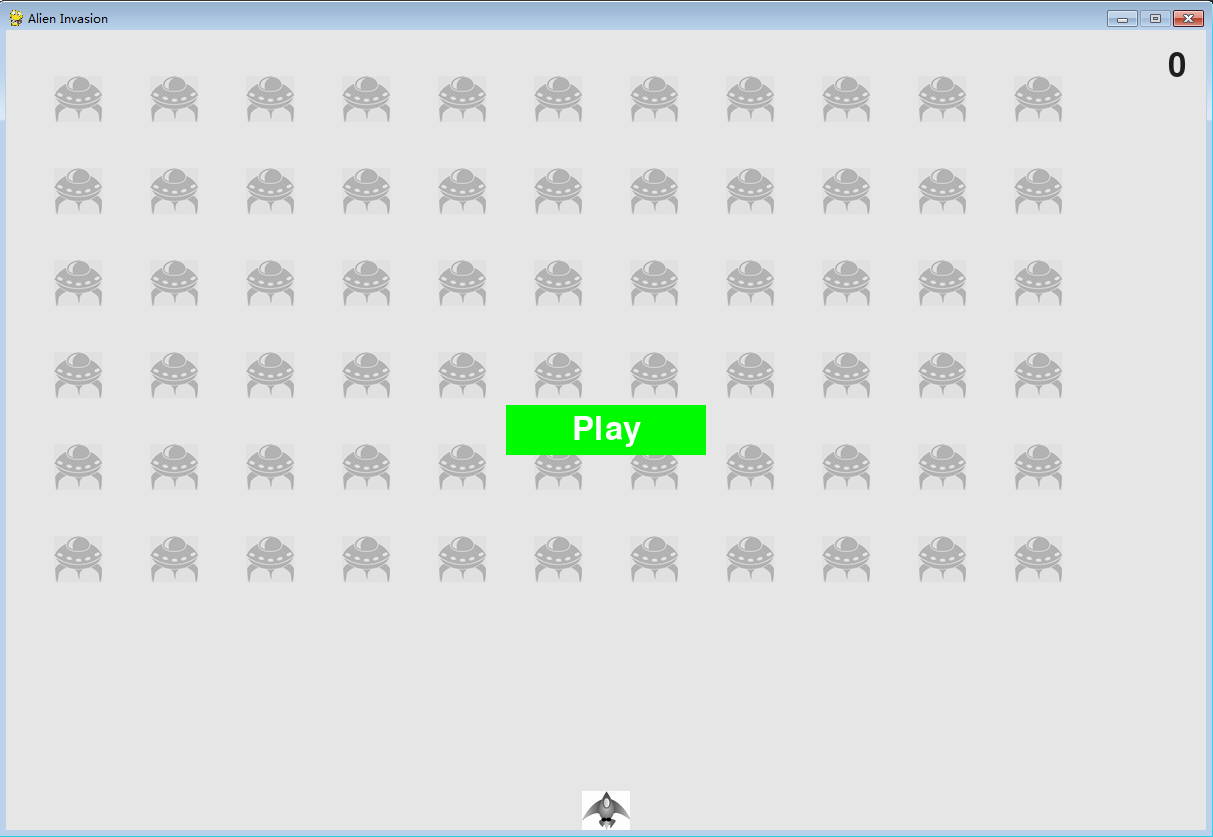
我们在update_screen() 的形参列表中添加了sb ,并在绘制Play按钮前调用show_score 。如果现在运行这个游戏,你将在屏幕右上角看到0(当前,我们只想在进一步开发记分系统前确认得分出现在正确的地方)
3.3.3 在外星人被消灭时更新得分
为在屏幕上实时地显示得分,每当有外星人被击中时,我们都更新stats.score 的值,再调用prep_score() 更新得分图像。但在此之前,我们需要指定玩家每击落一个外星人都将得到多少个点:
settings.py
    def initialize_dynamic_settings(self):
        """  初始化随游戏进行而变化的设置 """
        --snip--

        # 记分
        self.alien_points = 50
随着游戏的进行,我们将提高每个外星人值的点数。为确保每次开始新游戏时这个值都会被重置,我们在initialize_dynamic_settings() 中设置它。
在check_bullet_alien_collisions() 中,每当有外星人被击落时,都更新得分。
game_functions.py
def check_bullet_alien_collisions(ai_settings, screen, stats, sb, ship, aliens, bullets):
    # 检查是否有子弹击中外星人
    # 如果是这样,就删除相应的子弹和外星人
    collisions = pygame.sprite.groupcollide(bullets, aliens, True, True)

    if collisions:
        stats.score += ai_settings.alien_points
        sb.prep_score()

    --snip--
我们更新check_bullet_alien_collisions() 的定义,在其中包含了形参stats 和sb ,让它能够更新得分和记分牌。有子弹撞到外星人时,Pygame返回一个字典(collisions )。我们检查这个字典是否存在,如果存在,就将得分加上一个外星人值的点数。接下来,我们调用prep_score() 来创建一幅显示最新得分的新图像。
我们需要修改update_bullets() ,确保在函数之间传递合适的实参
game_functions.py
def update_bullets(ai_settings, screen, stats, sb, ship, aliens, bullets):
    """  更新子弹的位置,并删除已消失的子弹 """
    --snip--

        check_bullet_alien_collisions(ai_settings, screen, stats, sb, ship, aliens, bullets)
在update_bullets() 的定义中,需要新增形参stats 和sb ,而调用check_bullet_alien_collisions() 时,也需要传递实参stats 和sb 。
我们还需要修改主while 循环中调用update_bullets() 的代码:
alien_invasion.py
# 开始游戏的主循环
    while True:
        gf.check_events(ai_settings, screen, stats, play_button, ship, aliens, bullets)

        # print(stats.game_active)

        if stats.game_active:
            ship.update()
            gf.update_bullets(ai_settings, screen, stats, sb, ship, aliens, bullets)
            gf.update_aliens(ai_settings, stats, screen, ship, aliens, bullets)

        gf.update_screen(ai_settings, screen, stats, sb,ship, aliens, bullets, play_button)
调用update_bullets() 时,需要传递实参stats 和sb 。
如果你现在运行这个游戏,得分将不断增加!
3.3.4 将消灭的每个外星人的点数都计入得分
当前,我们的代码可能遗漏了一些被消灭的外星人。例如,如果在一次循环中有两颗子弹射中了外星人,或者因子弹更宽而同时击中了多个外星人,玩家将只能得到一个被消灭的外星人的点数。为修复这种问题,我们来调整检测子弹和外星人碰撞的方式。
在check_bullet_alien_collisions() 中,与外星人碰撞的子弹都是字典collisions 中的一个键;而与每颗子弹相关的值都是一个列表,其中包含该子弹撞到的外星人。我们遍历字典collisions ,确保将消灭的每个外星人的点数都记入得分:
game_functions.py
def check_bullet_alien_collisions(ai_settings, screen, stats, sb, ship, aliens, bullets):
    # 检查是否有子弹击中外星人
    # 如果是这样,就删除相应的子弹和外星人
    collisions = pygame.sprite.groupcollide(bullets, aliens, True, True)

    if collisions:
        for aliens in collisions.values():
            stats.score += ai_settings.alien_points
            sb.prep_score()

    --snip--
3.3.5 提高点数
玩家每提高一个等级,游戏都变得更难,因此处于较高的等级时,外星人的点数应更高。为实现这种功能,我们添加一些代码,以在游戏节奏加快时提高点数:
settings.py
class Settings():

    def __init__(self):
        """ 初始化游戏的设置 """
        --snip--

        # 加快游戏节奏的速度
        self.speedup_scale = 1.1
        # 外星人点数的提高速度
        self.score_scale = 1.5

        self.initialize_dynamic_settings()

 --snip--

    def increase_speed(self):
        """ 提高速度设置 """
        self.ship_speed_factor *= self.speedup_scale
        self.bullet_speed_factor *= self.speedup_scale
        self.alien_speed_factor *= self.speedup_scale

        self.alien_points = int(self.alien_points * self.score_scale)
        print(self.alien_points)
我们定义了点数提高的速度,并称之为score_scale。很小的节奏加快速度(1.1)让游戏很快就变得极具挑战性,但为让记分发生显著的变化,需要将点数的提高速度设置为更大的值(1.5)。现在,我们在加快游戏节奏的同时,提高了每个外星人的点数。为让点数为整数,我们使用了函数int() 。
为显示外星人的点数,我们在Settings 的方法increase_speed() 中添加了一条print 语句
3.3.6 将得分圆整
大多数街机风格的射击游戏都将得分显示为10的整数倍,下面让我们的记分系统遵循这个原则。我们还将设置得分的格式,在大数字中添加用逗号表示的千位分隔符。我们在Scoreboard 中执行这种修改:
scoreboard.py
    def prep_score(self):
        """ 将得分转换为一副渲染的图像 """
        rounded_score = int(round(self.stats.score, -1))
        score_str = "{:,}".format(rounded_score)
        self.score_image = self.font.render(score_str, True, self.text_color, self.ai_settings.bg_color)
        --snip--
函数round() 通常让小数精确到小数点后多少位,其中小数位数是由第二个实参指定的。然而,如果将第二个实参指定为负数,round() 将圆整到最近的10、100、1000等整数倍。让Python将stats.score 的值圆整到最近的10的整数倍,并将结果存储到rounded_score 中。
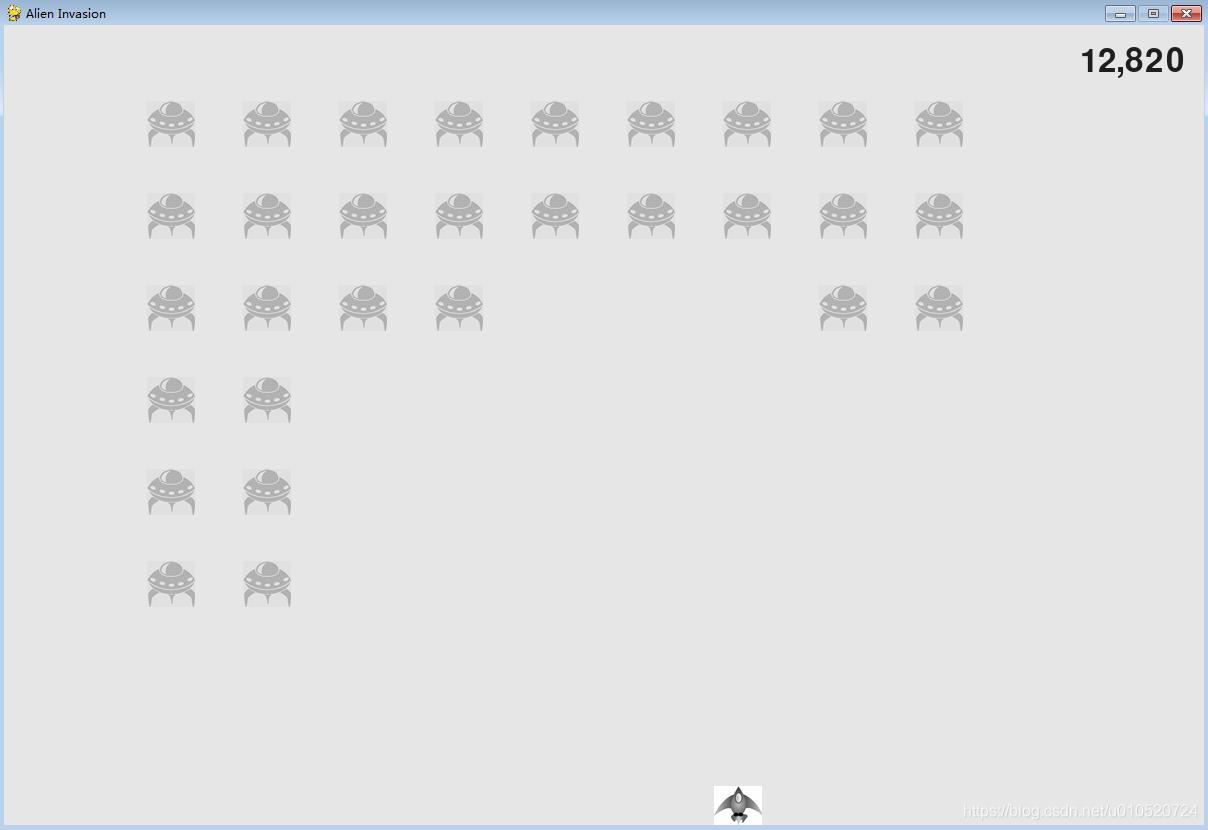
注意 在Python 2.7中,round() 总是返回一个小数值,因此我们使用int() 来确保报告的得分为整数。如果你使用的是Python 3,可省略对int() 的调用。使用了一个字符串格式设置指令,它让Python将数值转换为字符串时在其中插入逗号,例如,输出1,000,000 而不是1000000 。如果你现在运行这个游戏,看到的将是10的整数倍的整洁得分,即便得分很高亦如此,如下图所示:
3.3.7 最高得分
每个玩家都想超过游戏的最高得分记录。下面来跟踪并显示最高得分,给玩家提供要超越的目标。我们将最高得分存储在GameStats 中
game_stats.py
    def __init__(self, ai_settings):
        """" 初始化统计信息 """
        --snip--

        # 在任何情况下都不应该重置最高得分
        self.high_score = 0
鉴于在任何情况下都不会重置最高得分,我们在__init__() 中而不是reset_stats() 中初始化high_score 。
下面来修改Scoreboard 以显示最高得分。先来修改方法__init__() :
scoreboard.py
    def __init__(self, ai_settings, screen, stats):
        """ 初始化显示得分涉及的属性 """
        --snip--

        # 准备包含最高得分和当前得分的图像
        self.prep_score()
        self.prep_high_score()
最高得分将与当前得分分开显示,因此我们需要编写一个新方法prep_high_score() ,用于准备包含最高得分的图像。
方法prep_high_score() 的代码如下:
scoreboard.py
    def prep_high_score(self):
        """ 将最高得分转换为渲染的图像 """
        high_score = round(self.stats.high_score, -1)
        high_score_str =  "{:,}".format(high_score)
        self.high_score_image = self.font.render(high_score_str, True, self.text_color, self.ai_settings.bg_color)

        # 将最高分放在屏幕顶部中央
        self.high_score_rect = self.high_score_image.get_rect()
        self.high_score_rect.centerx = self.screen_rect.centerx
        self.high_score_rect.top = self.score_rect.top
我们将最高得分圆整到最近的10的整数倍,并添加了用逗号表示的千分位分隔符。然后,我们根据最高得分生成一幅图像,使其水平居中,并将其top 属性设置为当前得分图像的top 属性。
现在,方法show_score() 需要在屏幕右上角显示当前得分,并在屏幕顶部中央显示最高得分:
scoreboard.py
    def show_score(self):
        """ 在屏幕上显示得分 和 最高得分 """
        self.screen.blit(self.score_image, self.score_rect)
        self.screen.blit(self.high_score_image, self.high_score_rect)
为检查是否诞生了新的最高得分,我们在game_functions.py中添加一个新函数check_high_score() :
game_functions.py
def check_high_score(stats, sb):
    """  检查是否诞生了新的最高得分 """
    if stats.score > stats.high_score:
        stats.high_score = stats.score
        sb.prep_high_score()
函数check_high_score() 包含两个形参:stats 和sb 。它使用stats 来比较当前得分和最高得分,并在必要时使用sb 来修改最高得分图像。我们比较当前得分和最高得分,如果当前得分更高,就更新high_score 的值,并调用prep_high_score() 来更新包含最高得分的图像。
在check_bullet_alien_collisions() 中,每当有外星人被消灭,都需要在更新得分后调用check_high_score() :
game_functions.py
def check_bullet_alien_collisions(ai_settings, screen, stats, sb, ship, aliens, bullets):
    --snip--

    if collisions:
        for aliens in collisions.values():
            stats.score += ai_settings.alien_points
            sb.prep_score()
        check_high_score(stats, sb)
    --snip
字典collisions 存在时,我们根据消灭了多少外星人来更新得分,再调用check_high_score() 。
第一次玩这款游戏时,当前得分就是最高得分,因此两个地方显示的都是当前得分。但再次开始这个游戏时,最高得分出现在中央,而当前得分出现在右边,如下图所示。
测试记录
忘记截图了,忽略掉下一个章节才有的级别及剩余飞船数。
默认有10次生命,都耗尽了重新开始玩会保留最高分
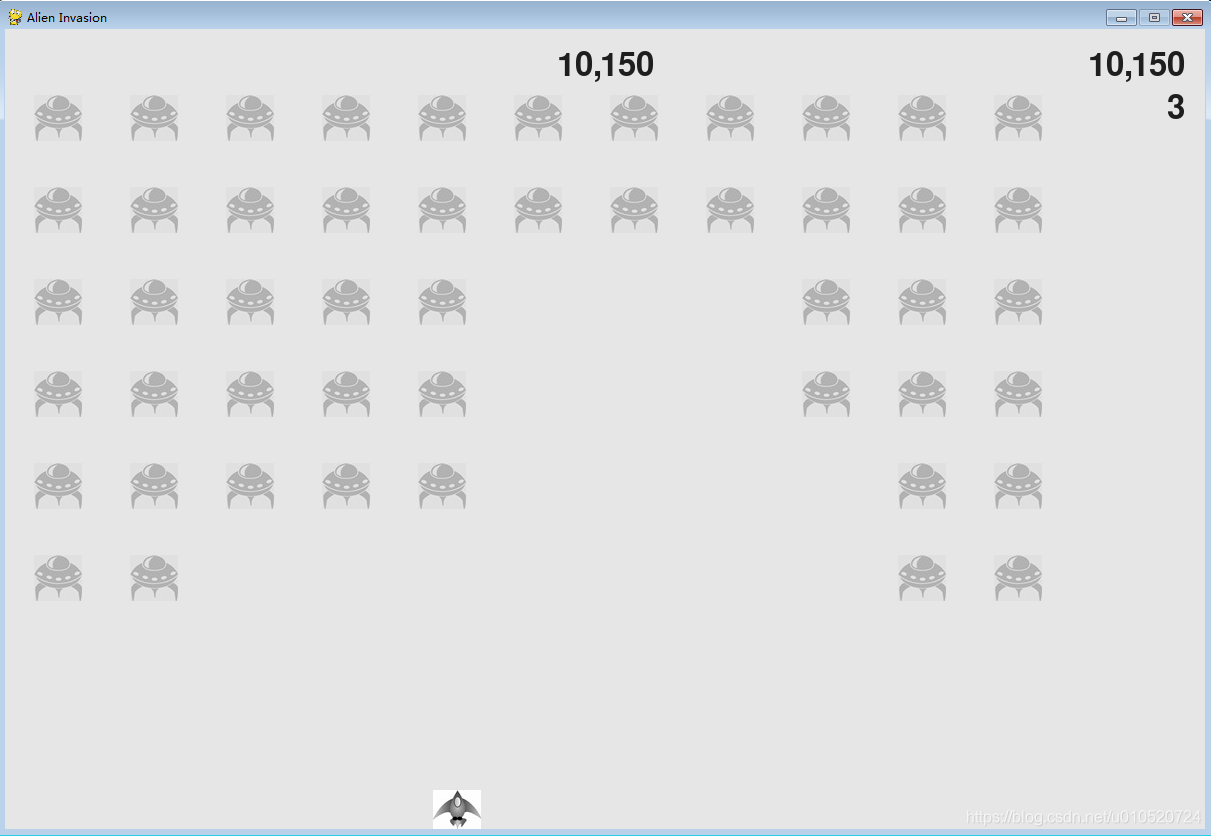
第二次玩就会有最高分
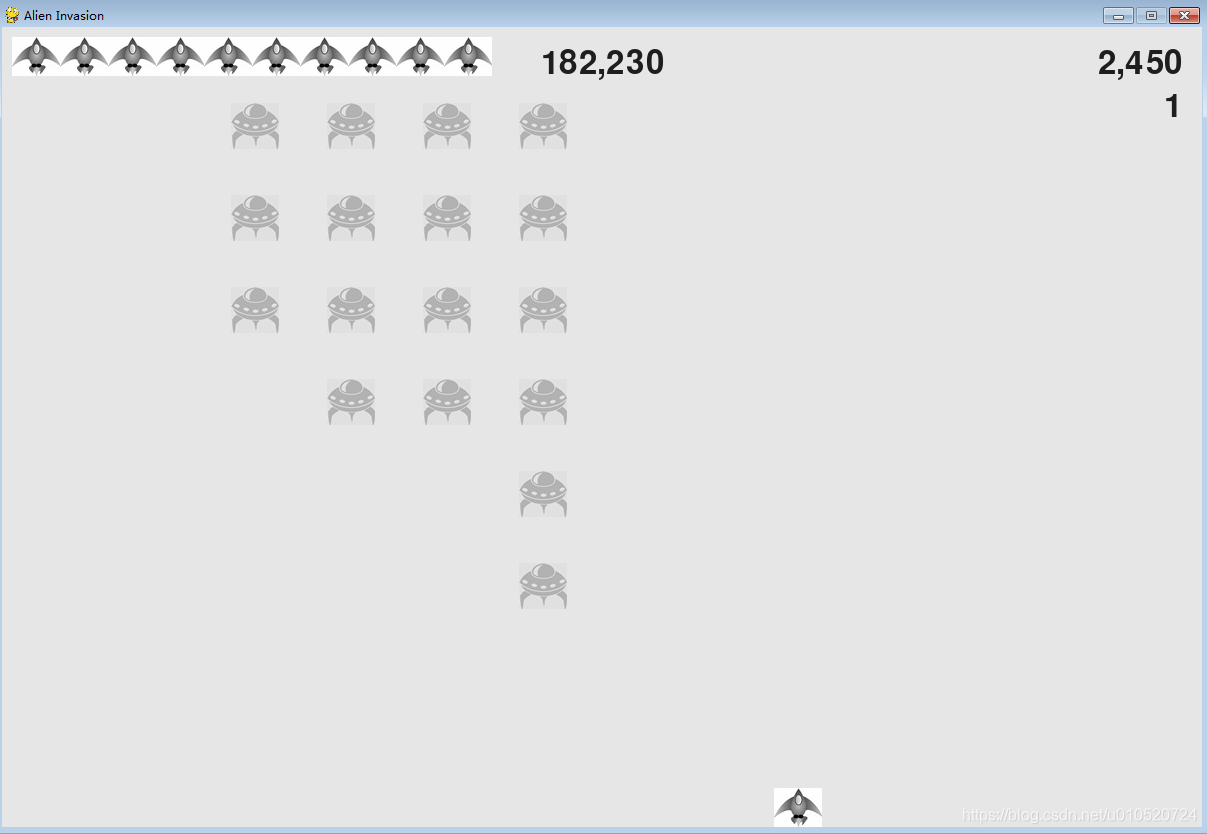
3.3.8 显示等级
为在游戏中显示玩家的等级,首先需要在GameStats 中添加一个表示当前等级的属性。为确保每次开始新游戏时都重置等级,在reset_stats() 中初始化它:
game_stats.py
    def reset_stats(self):
        """  初始化在游戏运行期间可能变化的统计信息 """
        self.ships_left = self.ai_settings.ship_limit
        self.score = 0
        self.level = 1
为让Scoreboard 能够在当前得分下方显示当前等级,我们在__init__() 中调用了一个新方法prep_level()
scoreboard.py
    def __init__(self, ai_settings, screen, stats):
        --snip--

        # 准备包含最高得分和当前得分的图像
        self.prep_score()
        self.prep_high_score()
        self.prep_level()

    def prep_level(self):
        """ 将登记转换为渲染的图像 """
        self.level_image = self.font.render(str(self.stats.level), True, self.text_color, self.ai_settings.bg_color)

        # 将等级放在得分下方
        self.level_rect = self.level_image.get_rect()
        self.level_rect.right = self.score_rect.right
        self.level_rect.top = self.score_rect.bottom + 10
方法prep_level() 根据存储在stats.level 中的值创建一幅图像,并将其right 属性设置为得分的right 属性。然后,将top 属性设置为比得分图像的bottom 属性大10像素,以便在得分和等级之间留出一定的空间。
我们还需要更新show_score() :
scoreboard.py
    def show_score(self):
        """ 在屏幕上显示得分 和 最高得分 """
        self.screen.blit(self.score_image, self.score_rect)
        self.screen.blit(self.high_score_image, self.high_score_rect)
        self.screen.blit(self.level_image, self.level_rect)
在这个方法中,添加了一行在屏幕上显示等级图像的代码。
我们在check_bullet_alien_collisions() 中提高等级,并更新等级图像:
game_functions.py
def check_bullet_alien_collisions(ai_settings, screen, stats, sb, ship, aliens, bullets):
    --snip--
    if len(aliens) == 0:
        # 如果整群外星人都被消灭,就提高一个等级
        bullets.empty()
        ai_settings.increase_speed()

        # 提高等级
        stats.level += 1
        sb.prep_level()

        create_fleet(ai_settings, screen, ship, aliens)
如果整群外星人都被消灭,我们就将stats.level 的值加1,并调用prep_level() ,以确保正确地显示新等级。
为确保开始新游戏时更新记分和等级图像,在按钮Play被单击时触发重置:
game_functions.py
def check_play_button(ai_settings, screen, stats, stats, sb, play_button, ship, aliens, bullets, mouse_x, mouse_y):
    """  在玩家单机Play按钮时开始新游戏 """
    --snip--

        # 重置游戏统计信息
        stats.reset_stats()
        stats.game_active = True

        # 重置记分牌图像
        sb.prep_score()
        sb.prep_high_score()
        sb.prep_level()

        # 清空外星人列表和子单列表
        aliens.empty()
        bullets.empty()

        --snip--
check_play_button() 的定义需要包含对象sb 。为重置记分牌图像,我们在重置相关游戏设置后调用prep_score() 、prep_high_score() 和prep_level() 。
在check_events() 中,现在需要向check_play_button() 传递sb ,让它能够访问记分牌对象:
game_functions.py
def check_events(ai_settings, screen, stats, sb, play_button, ship,aliens, bullets):
    """  响应按键和鼠标事件 """
    for event in pygame.event.get():
        --snip--
        elif event.type == pygame.MOUSEBUTTONDOWN:
            mouse_x, mouse_y = pygame.mouse.get_pos()
            check_play_button(ai_settings, screen, stats, sb, play_button, ship, aliens, bullets, mouse_x, mouse_y)
check_events() 的定义需要包含形参sb ,这样调用check_play_button() 时,才能将sb 作为实参传递给它。
最后,更新alien_invasion.py中调用check_events() 的代码,也向它传递sb :
alien_invasion.py
    # 开始游戏的主循环
    while True:
        gf.check_events(ai_settings, screen, stats, sb, play_button, ship, aliens, bullets)
        --snip--
3.3.9 显示余下的飞船数
最后,我们来显示玩家还有多少艘飞船,但使用图形而不是数字。为此,我们在屏幕左上角绘制飞船图像来指出还余下多少艘飞船,就像众多经典的街机游戏那样。
首先,需要让Ship 继承Sprite ,以便能够创建飞船编组:
ship.py
import pygame
from pygame.sprite import Sprite

class Ship(Sprite):

    def __init__(self, ai_settings, screen):
        super(Ship, self).__init__()
        --snip--
在这里,我们导入了Sprite ,让Ship 继承Sprite ,并在__init__() 的开头就调用了super() 。
接下来,需要修改Scoreboard ,在其中创建一个可供显示的飞船编组。下面是其中的import 语句和方法__init__() :
scoreboard.py
import pygame.font
from pygame.sprite import Group

from ship import Ship
class Scoreboard():
    """ 显示得分信息的类 """

    def __init__(self, ai_settings, screen, stats):

        --snip--
        self.prep_level()
        self.prep_ships()
鉴于要创建一个飞船编组,我们导入Group 和Ship 类。调用prep_level() 后,我们调用了prep_ships() 。
prep_ships() 的代码如下:
scoreboard.py
    def prep_ships(self):
        """ 显示还余下多少艘飞船 """
        self.ships = Group()
        for ship_number in range(self.stats.ships_left):
            ship = Ship(self.ai_settings, self.screen)
            ship.rect.x = 10 + ship_number * ship.rect.width
            ship.rect.y = 10
            self.ships.add(ship)

    def show_score(self):
        """ 在屏幕上显示得分 和 最高得分 """
        self.screen.blit(self.score_image, self.score_rect)
        self.screen.blit(self.high_score_image, self.high_score_rect)
        self.screen.blit(self.level_image, self.level_rect)
        # 绘制飞船
        self.ships.draw(self.screen)
为在屏幕上显示飞船,我们对编组调用了draw() 。Pygame将绘制每艘飞船。
为在游戏开始时让玩家知道他有多少艘飞船,我们在开始新游戏时调用prep_ships() 。这是在game_functions.py的check_play_button() 中进行的:
game_functions.py
def check_play_button(ai_settings, screen, stats, sb, play_button, ship, aliens, bullets, mouse_x, mouse_y):
    """  在玩家单机Play按钮时开始新游戏 """
    button_clicked = play_button.rect.collidepoint(mouse_x, mouse_y)
    if button_clicked and not stats.game_active:
        --snip--

        # 重置记分牌图像
        sb.prep_score()
        sb.prep_high_score()
        sb.prep_level()
        sb.prep_ships()
我们还在飞船被外星人撞到时调用prep_ships() ,从而在玩家损失一艘飞船时更新飞船图像:
game_functions.py
def ship_hit(ai_settings, stats,sb , screen, ship, aliens, bullets):
    """  响应被外星人撞到的飞船 """
    if stats.ships_left > 0:
        # 将ships_left减1
        stats.ships_left -= 1

        # 更新计分牌
        sb.prep_ships()

        # 清空外星人列表和子单列表
        aliens.empty()
        bullets.empty()

        # 创建一群新的外星人,并将飞船放到屏幕底端中央
        create_fleet(ai_settings, screen, ship, aliens)
        ship.center_ship()

        # 暂停
        sleep(0.5)
    else:
        stats.game_active = False
        pygame.mouse.set_visible(True)

def update_aliens(ai_settings, stats, sb, screen, ship, aliens, bullets):
    """  检查是否有外星人位于屏幕边缘,并更新整群外星人的位置 """
    check_fleet_edges(ai_settings, aliens)
    aliens.update()

    # 检查外星人和飞船之间的碰撞
    if pygame.sprite.spritecollideany(ship, aliens):
        ship_hit(ai_settings, stats,sb , screen, ship, aliens, bullets)

    # 检查是否有外星人到达屏幕底端
    check_aliens_bottom(ai_settings, stats, sb, screen, ship, aliens, bullets)
首先,我们在update_aliens() 的定义中添加了形参sb 。然后,我们向ship_hit() 和check_aliens_bottom() 都传递了sb ,让它们都能够访问记分牌对象。
接下来,我们更新了ship_hit() 的定义,使其包含形参sb 。我们在将ships_left 的值减1后调用了prep_ships() ,这样每次损失了飞船时,显示的飞船数都是正确的。
在check_aliens_bottom() 中需要调用ship_hit() ,因此对这个函数进行更新:
game_functions.py
def check_aliens_bottom(ai_settings, stats, sb, screen, ship, aliens, bullets):
    """  检查是否有外星人到达屏幕底端 """
    screen_rect = screen.get_rect()
    for alien in aliens.sprites():
        if alien.rect.bottom >= screen_rect.bottom:
            # 像飞船被撞到一样处理
            ship_hit(ai_settings, stats, sb, screen, ship, aliens, bullets)
            break
现在,check_aliens_bottom() 包含形参sb ,并在调用ship_hit() 时传递了实参sb 。
最后,在alien_invasion.py中修改调用update_aliens() 的代码,向它传递实参sb :
alien_invasion.py
    # 开始游戏的主循环
    while True:
        gf.check_events(ai_settings, screen, stats, sb, play_button, ship, aliens, bullets)

        # print(stats.game_active)

        if stats.game_active:
            ship.update()
            gf.update_bullets(ai_settings, screen, stats, sb, ship, aliens, bullets)
            gf.update_aliens(ai_settings, stats, sb, screen, ship, aliens, bullets)

        gf.update_screen(ai_settings, screen, stats, sb,ship, aliens, bullets, play_button)
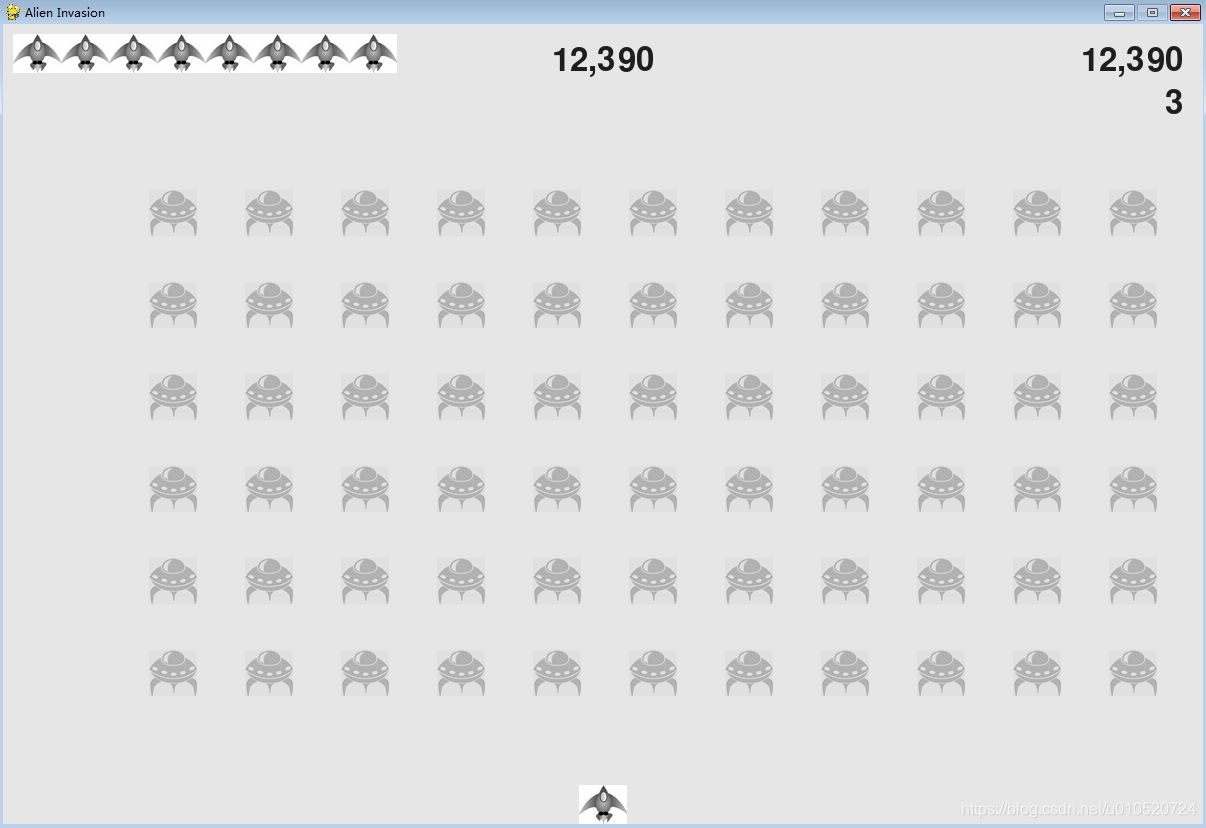
参考:
1.Python编程:从入门到实践
