



Nginx是什么?
Nginx是一款轻量级的Web服务器/反向代理服务器及电子邮件(IMAP/POP3)代理服务器,其特点是占有内存少,并发能力强,支持FastCGI、SSL、Virtual Host、URL Rewrite、Gzip等功能,并且支持很多第三方的模块扩展。
Nginx配置过程
1.配置本地yum源,之前章节已配置完毕。
清除缓存:
dnf clean all
创建缓存:
dnf makecache
安装服务器:
dnf install nginx
查看安装后的rpm包:
dnf list all | grep nginx
查看nginx安装位置
whereis nginx
4个位置分别为:程序执行文件/库文件/配置文件/share文件
/usr/sbin/nginx usr/lib64/nginx etc/nginx usr/share/nginx
2.跳转到/usr/sbin/ 目录,执行
./nginx
3.在浏览器输入服务器IP地址进行测试,若打不开关闭系统防火墙。
1:查看防火状态
systemctl status firewalld
service iptables status
2:暂时关闭防火墙
systemctl stop firewalld
service iptables stop
3:永久关闭防火墙
systemctl disable firewalld
chkconfig iptables off
4:重启防火墙
systemctl enable firewalld
service iptables restart
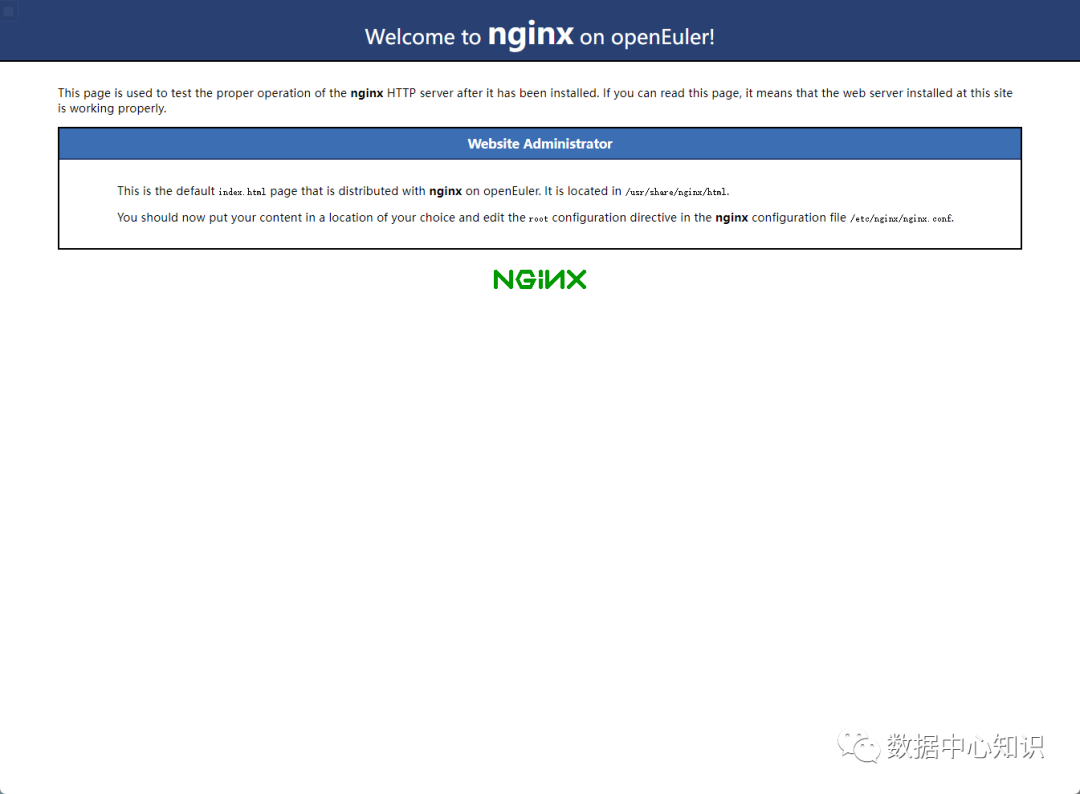
Nginx在绝对路径下启动比较麻烦,接下来设置成服务并开机自动启动
在/etc/init.d下创建文件nginx,并保存以下代码:
#!/bin/sh
#
# nginx - this script starts and stops the nginx daemon
#
# chkconfig: - 85 15
# description: NGINX is an HTTP(S) server, HTTP(S) reverse \
# proxy and IMAP/POP3 proxy server
# processname: nginx
# config: etc/nginx/nginx.conf
# config: etc/sysconfig/nginx
# pidfile: /var/run/nginx.pid
# Source function library.
. etc/rc.d/init.d/functions
# Source networking configuration.
. etc/sysconfig/network
# Check that networking is up.
[ "$NETWORKING" = "no" ] && exit 0
nginx="/usr/sbin/nginx"
prog=$(basename $nginx)
NGINX_CONF_FILE="/etc/nginx/nginx.conf"
[ -f etc/sysconfig/nginx ] && . etc/sysconfig/nginx
lockfile=/var/lock/subsys/nginx
make_dirs() {
# make required directories
user=`$nginx -V 2>&1 | grep "configure arguments:.*--user=" | sed 's/[^*]*--user=\([^ ]*\).*/\1/g' -`
if [ -n "$user" ]; then
if [ -z "`grep $user etc/passwd`" ]; then
useradd -M -s bin/nologin $user
fi
options=`$nginx -V 2>&1 | grep 'configure arguments:'`
for opt in $options; do
if [ `echo $opt | grep '.*-temp-path'` ]; then
value=`echo $opt | cut -d "=" -f 2`
if [ ! -d "$value" ]; then
# echo "creating" $value
mkdir -p $value && chown -R $user $value
fi
fi
done
fi
}
start() {
[ -x $nginx ] || exit 5
[ -f $NGINX_CONF_FILE ] || exit 6
make_dirs
echo -n $"Starting $prog: "
daemon $nginx -c $NGINX_CONF_FILE
retval=$?
echo
[ $retval -eq 0 ] && touch $lockfile
return $retval
}
stop() {
echo -n $"Stopping $prog: "
killproc $prog -QUIT
retval=$?
echo
[ $retval -eq 0 ] && rm -f $lockfile
return $retval
}
restart() {
configtest || return $?
stop
sleep 1
start
}
reload() {
configtest || return $?
echo -n $"Reloading $prog: "
killproc $prog -HUP
retval=$?
echo
}
force_reload() {
restart
}
configtest() {
$nginx -t -c $NGINX_CONF_FILE
}
rh_status() {
status $prog
}
rh_status_q() {
rh_status >/dev/null 2>&1
}
case "$1" in
start)
rh_status_q && exit 0
$1
;;
stop)
rh_status_q || exit 0
$1
;;
restart|configtest)
$1
;;
reload)
rh_status_q || exit 7
$1
;;
force-reload)
force_reload
;;
status)
rh_status
;;
condrestart|try-restart)
rh_status_q || exit 0
;;
*)
echo $"Usage: $0 {start|stop|status|restart|condrestart|try-restart|reload|force-reload|configtest}"
exit 2
esac
需要注意的配置:
nginx=”/usr/local/nginx/sbin/nginx” //修改成nginx安装执行程序的路径
NGINX_CONF_FILE=”/usr/local/nginx/conf/nginx.conf” //修改成nginx.conf文件配置的路径
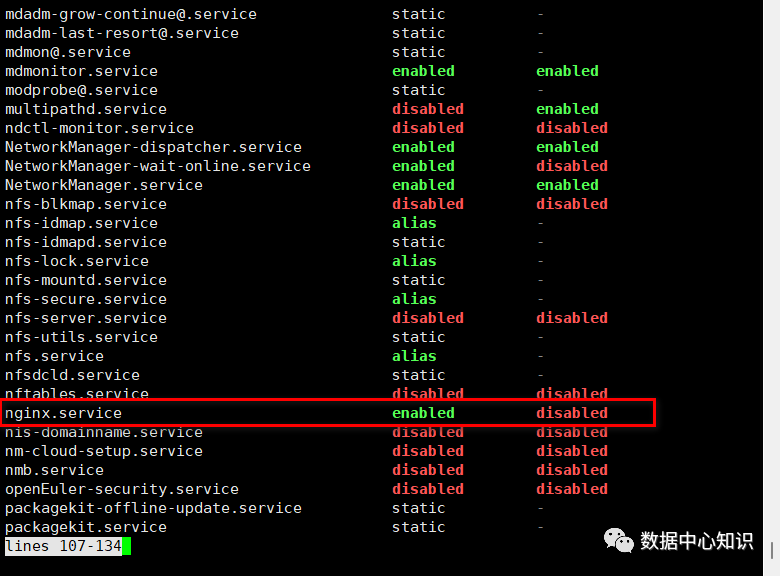
保存后设置文件的执行权限,然后将nginx服务加入chkconfig管理列表,最后设置开机自动启动!重启系统查看运行的服务或者浏览器ping服务器IP地址。
chmod a+x /etc/init.d/nginx
chkconfig --add /etc/init.d/nginx
chkconfig nginx on
systemctl list-unit-files
验证服务启动
点击关注,一个专注于IT服务的公众号!
