



一、离线安装部署 docker
1、检查docker ps
[root@CAIP122 ~]# docker ps
-bash: docker: command not found

2、下载docker 二进制包
https://docs.docker.com/engine/install/binaries/
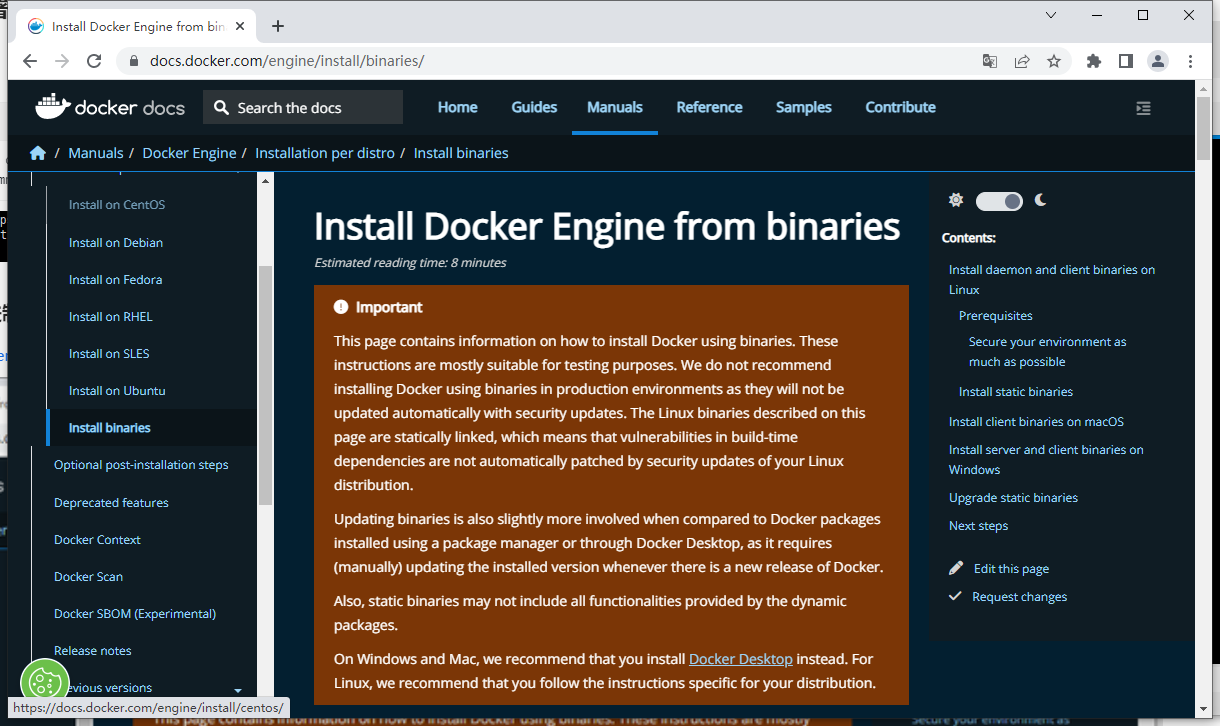
下载到本机
[root@CAIP122 opt]# ls
docker-19.03.9.tgz

3、解压
[root@CAIP122 opt]# tar -xvf docker-19.03.9.tgz
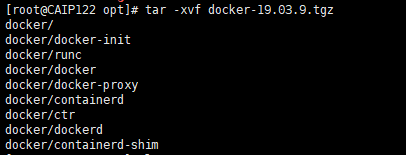
复制文件到/bin目录
[root@CAIP122 opt]# ls
docker  docker-19.03.9.tgz
[root@CAIP122 opt]# cp docker/* /usr/bin/

4、编辑离线安装配置文件
[root@CAIP122 opt]# vim /etc/systemd/system/docker.service

[Unit]
Description=Docker Application Container Engine
Documentation=https://docs.docker.com
After=network-online.target firewalld.service
Wants=network-online.target
[Service]
Type=notify
# the default is not to use systemd for cgroups because the delegate issues still
# exists and systemd currently does not support the cgroup feature set required
# for containers run by docker
ExecStart=/usr/bin/dockerd
ExecReload=/bin/kill -s HUP $MAINPID
# Having non-zero Limit*s causes performance problems due to accounting overhead
# in the kernel. We recommend using cgroups to do container-local accounting.
LimitNOFILE=infinity
LimitNPROC=infinity
LimitCORE=infinity
# Uncomment TasksMax if your systemd version supports it.
# Only systemd 226 and above support this version.
#TasksMax=infinity
TimeoutStartSec=0
# set delegate yes so that systemd does not reset the cgroups of docker containers
Delegate=yes
# kill only the docker process, not all processes in the cgroup
KillMode=process
# restart the docker process if it exits prematurely
Restart=on-failure
StartLimitBurst=3
StartLimitInterval=60s
[Install]
WantedBy=multi-user.target
5、配置启动项
[root@CAIP122 opt]# chmod +x /etc/systemd/system/docker.service
[root@CAIP122 opt]# systemctl daemon-reload
[root@CAIP122 opt]# systemctl start docker
[root@CAIP122 opt]# systemctl enable docker.service
Created symlink from /etc/systemd/system/multi-user.target.wants/docker.service to /etc/systemd/system/docker.service.

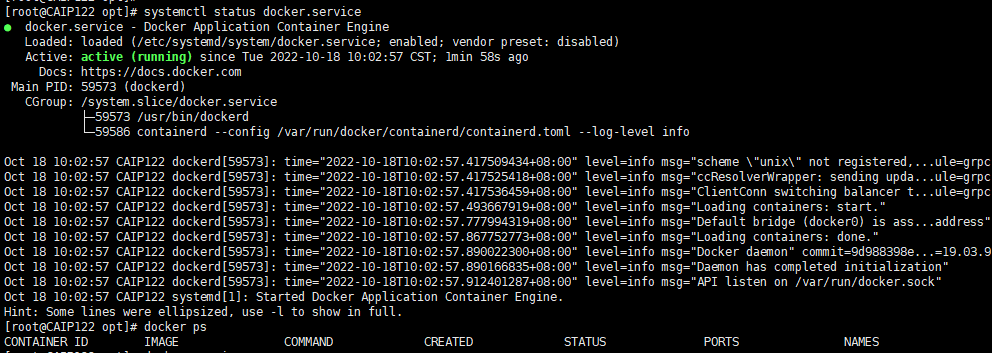
检查状态和版本
[root@CAIP122 opt]# systemctl status docker.service
● docker.service - Docker Application Container Engine
   Loaded: loaded (/etc/systemd/system/docker.service; enabled; vendor preset: disabled)
   Active: active (running) since Tue 2022-10-18 10:02:57 CST; 1min 58s ago
     Docs: https://docs.docker.com
 Main PID: 59573 (dockerd)
   CGroup: /system.slice/docker.service
           ├─59573 /usr/bin/dockerd
           └─59586 containerd --config /var/run/docker/containerd/containerd.toml --log-level info

Oct 18 10:02:57 CAIP122 dockerd[59573]: time="2022-10-18T10:02:57.417509434+08:00" level=info msg="scheme \"unix\" not registered,...ule=grpc
Oct 18 10:02:57 CAIP122 dockerd[59573]: time="2022-10-18T10:02:57.417525418+08:00" level=info msg="ccResolverWrapper: sending upda...ule=grpc
Oct 18 10:02:57 CAIP122 dockerd[59573]: time="2022-10-18T10:02:57.417536459+08:00" level=info msg="ClientConn switching balancer t...ule=grpc
Oct 18 10:02:57 CAIP122 dockerd[59573]: time="2022-10-18T10:02:57.493667919+08:00" level=info msg="Loading containers: start."
Oct 18 10:02:57 CAIP122 dockerd[59573]: time="2022-10-18T10:02:57.777994319+08:00" level=info msg="Default bridge (docker0) is ass...address"
Oct 18 10:02:57 CAIP122 dockerd[59573]: time="2022-10-18T10:02:57.867752773+08:00" level=info msg="Loading containers: done."
Oct 18 10:02:57 CAIP122 dockerd[59573]: time="2022-10-18T10:02:57.890022300+08:00" level=info msg="Docker daemon" commit=9d988398e...=19.03.9
Oct 18 10:02:57 CAIP122 dockerd[59573]: time="2022-10-18T10:02:57.890166835+08:00" level=info msg="Daemon has completed initialization"
Oct 18 10:02:57 CAIP122 dockerd[59573]: time="2022-10-18T10:02:57.912401287+08:00" level=info msg="API listen on /var/run/docker.sock"
Oct 18 10:02:57 CAIP122 systemd[1]: Started Docker Application Container Engine.
Hint: Some lines were ellipsized, use -l to show in full.
[root@CAIP122 opt]# docker ps
CONTAINER ID        IMAGE               COMMAND             CREATED             STATUS              PORTS               NAMES
检查版本
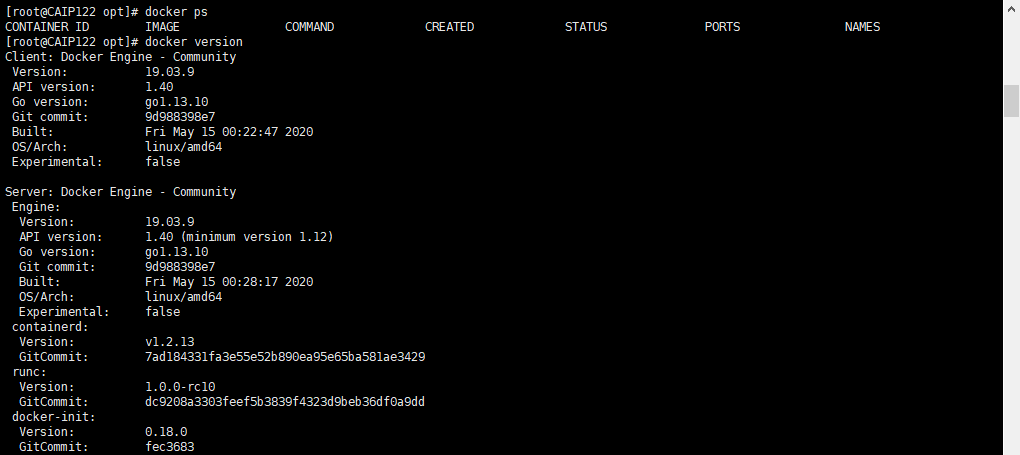
[root@CAIP122 opt]# docker version
Client: Docker Engine - Community
 Version:           19.03.9
 API version:       1.40
 Go version:        go1.13.10
 Git commit:        9d988398e7
 Built:             Fri May 15 00:22:47 2020
 OS/Arch:           linux/amd64
 Experimental:      false

Server: Docker Engine - Community
 Engine:
  Version:          19.03.9
  API version:      1.40 (minimum version 1.12)
  Go version:       go1.13.10
  Git commit:       9d988398e7
  Built:            Fri May 15 00:28:17 2020
  OS/Arch:          linux/amd64
  Experimental:     false
 containerd:
  Version:          v1.2.13
  GitCommit:        7ad184331fa3e55e52b890ea95e65ba581ae3429
 runc:
  Version:          1.0.0-rc10
  GitCommit:        dc9208a3303feef5b3839f4323d9beb36df0a9dd
 docker-init:
  Version:          0.18.0
  GitCommit:        fec3683
二、docker 安装 mysql
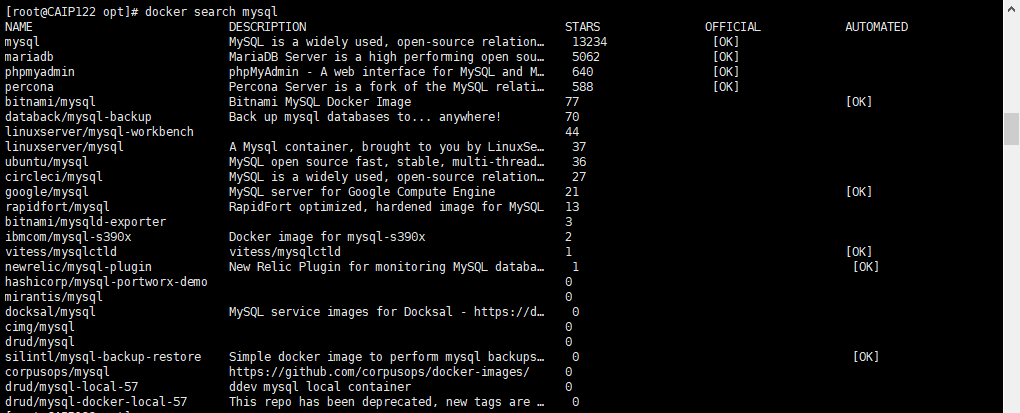
1、docker search搜索镜像:
[root@CAIP122 opt]# docker search mysql
NAME                            DESCRIPTION                                     STARS               OFFICIAL            AUTOMATED
mysql                           MySQL is a widely used, open-source relation…   13234               [OK]
mariadb                         MariaDB Server is a high performing open sou…   5062                [OK]
phpmyadmin                      phpMyAdmin - A web interface for MySQL and M…   640                 [OK]
percona                         Percona Server is a fork of the MySQL relati…   588                 [OK]
bitnami/mysql                   Bitnami MySQL Docker Image                      77                                      [OK]
databack/mysql-backup           Back up mysql databases to... anywhere!         70
linuxserver/mysql-workbench                                                     44
linuxserver/mysql               A Mysql container, brought to you by LinuxSe…   37
ubuntu/mysql                    MySQL open source fast, stable, multi-thread…   36
circleci/mysql                  MySQL is a widely used, open-source relation…   27
google/mysql                    MySQL server for Google Compute Engine          21                                      [OK]
rapidfort/mysql                 RapidFort optimized, hardened image for MySQL   13
bitnami/mysqld-exporter                                                         3
ibmcom/mysql-s390x              Docker image for mysql-s390x                    2
vitess/mysqlctld                vitess/mysqlctld                                1                                       [OK]
newrelic/mysql-plugin           New Relic Plugin for monitoring MySQL databa…   1                                       [OK]
hashicorp/mysql-portworx-demo                                                   0
mirantis/mysql                                                                  0
docksal/mysql                   MySQL service images for Docksal - https://d…   0
cimg/mysql                                                                      0
drud/mysql                                                                      0
silintl/mysql-backup-restore    Simple docker image to perform mysql backups…   0                                       [OK]
corpusops/mysql                 https://github.com/corpusops/docker-images/     0
drud/mysql-local-57             ddev mysql local container                      0
drud/mysql-docker-local-57      This repo has been deprecated, new tags are …   0
[root@CAIP122 opt]# d
2、docker pull 下载镜像:版本根据需要调整
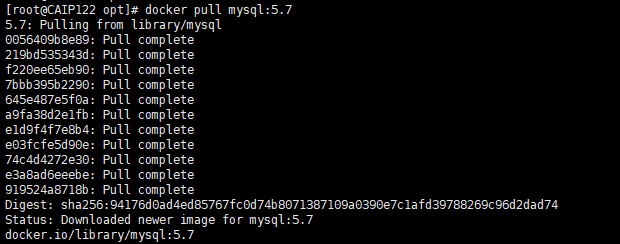
[root@CAIP122 opt]# docker pull mysql:5.7
5.7: Pulling from library/mysql
0056409b8e89: Pull complete
219bd535343d: Pull complete
f220ee65eb90: Pull complete
7bbb395b2290: Pull complete
645e487e5f0a: Pull complete
a9fa38d2e1fb: Pull complete
e1d9f4f7e8b4: Pull complete
e03fcfe5d90e: Pull complete
74c4d4272e30: Pull complete
e3a8ad6eeebe: Pull complete
919524a8718b: Pull complete
Digest: sha256:94176d0ad4ed85767fc0d74b8071387109a0390e7c1afd39788269c96d2dad74
Status: Downloaded newer image for mysql:5.7
docker.io/library/mysql:5.7
检查镜像
[root@CAIP122 opt]# docker images
REPOSITORY          TAG                 IMAGE ID            CREATED             SIZE
mysql               5.7                 262701d58edd        6 days ago          495MB

3、启动容器
[root@CAIP122 opt]# docker run -d -p 3310:3306 -v /home/mysql/conf:/etc/mysql/conf.d -v /home/mysql/data:/var/lib/mysql -e MYSQL_ROOT_PASSWORD=123456 --name mysql mysql:5.7
ae921ec10632f332817aac2059f4da11bc23f5fccf1be4aaf4a7e6daa09b908d

# docker run -p 对外暴露的端口:mysql运行端口 --name 容器名称 -e MYSQL_ROOT_PASSWORD=mysql连接密码 -d 镜像名:版本号
# -p 对外暴露的端口:mysql运行端口		例:3310:3306
# --name 容器名称	//镜像首次启动时会自动创建容器,需要给容器命名
# -e MYSQL_ROOT_PASSWORD=mysql连接密码		//mysql镜像容器创建时必须设置连接密码,否则无法创建容器
# -d 后台运行
检查容器
[root@CAIP122 opt]# docker ps
CONTAINER ID        IMAGE               COMMAND                  CREATED             STATUS              PORTS                               NAMES
ae921ec10632        mysql:5.7           "docker-entrypoint.s…"   4 minutes ago       Up 4 minutes        33060/tcp, 0.0.0.0:3310->3306/tcp   mysql

4、进入容器exec
[root@CAIP122 opt]# docker exec -it mysql bash
bash-4.2#
#mysql为容器名 或容器ID缩写也可例ae921ec10632

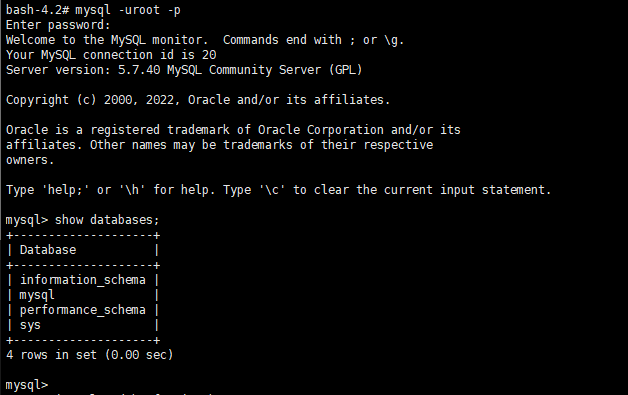
5、在容器内连接mysql
bash-4.2# mysql -uroot -p
Enter password:
Welcome to the MySQL monitor.  Commands end with ; or \g.
Your MySQL connection id is 20
Server version: 5.7.40 MySQL Community Server (GPL)

Copyright (c) 2000, 2022, Oracle and/or its affiliates.

Oracle is a registered trademark of Oracle Corporation and/or its
affiliates. Other names may be trademarks of their respective
owners.

Type 'help;' or '\h' for help. Type '\c' to clear the current input statement.

mysql> show databases;
+--------------------+
| Database           |
+--------------------+
| information_schema |
| mysql              |
| performance_schema |
| sys                |
+--------------------+
4 rows in set (0.00 sec)
6、不进入容器连接mysql测试
[root@CAIP122 opt]# mysql -h127.0.0.1 -uroot -P3310 -p
Enter password:
Welcome to the MySQL monitor.  Commands end with ; or \g.
Your MySQL connection id is 2
Server version: 5.7.40 MySQL Community Server (GPL)

Copyright (c) 2000, 2019, Oracle and/or its affiliates. All rights reserved.

Oracle is a registered trademark of Oracle Corporation and/or its
affiliates. Other names may be trademarks of their respective
owners.

Type 'help;' or '\h' for help. Type '\c' to clear the current input statement.
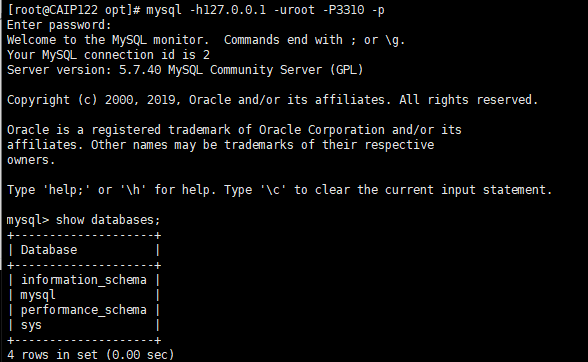
不进入容器,需要加上IP和映射端口3310,通过 root 和密码 123456 访问 MySQL 服务。
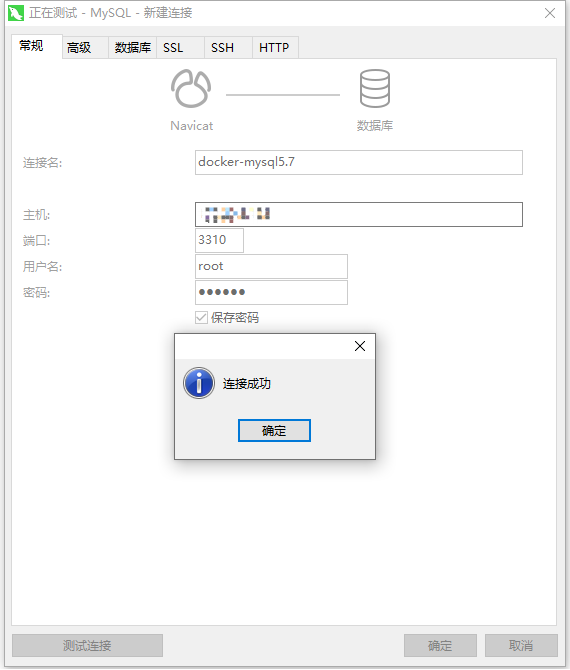
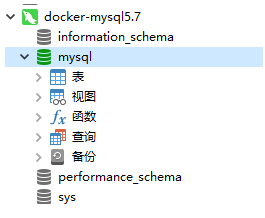
7、启动成功,用Navicat 测试连接
Navicat 连接到服务器3310, 3310和容器内的3306映射 就可以连接上了
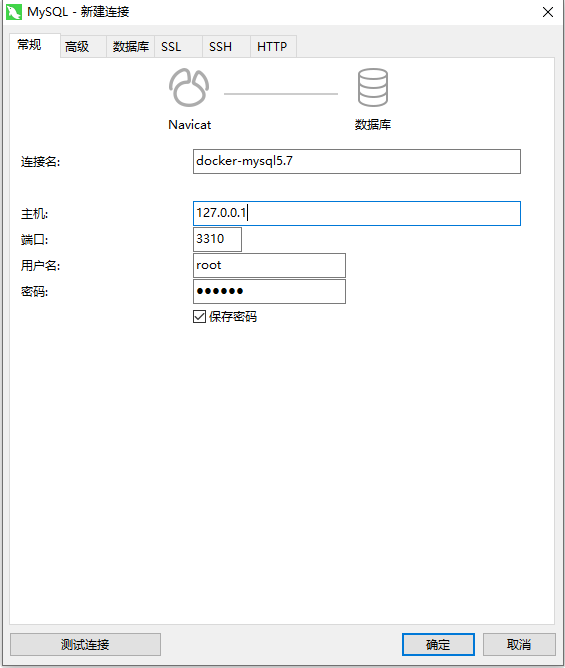
测试连接
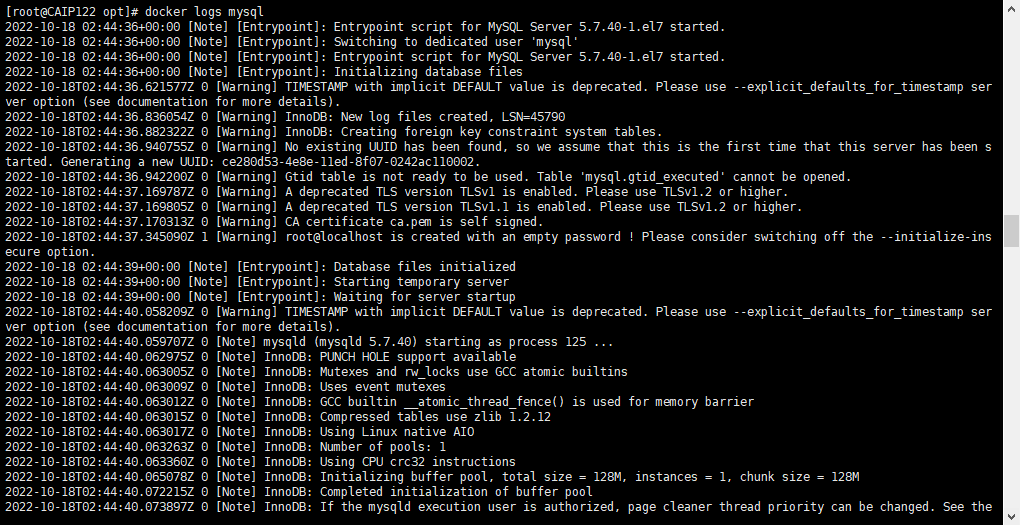
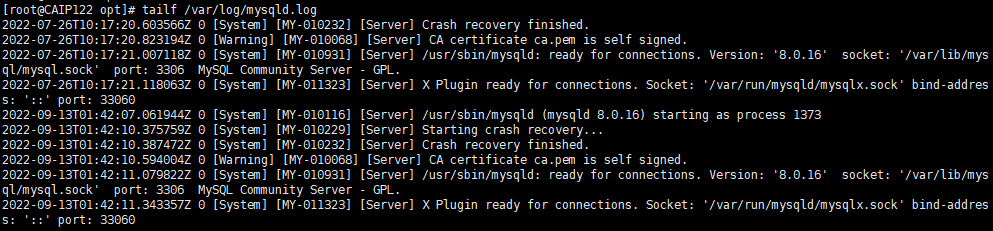
8、Docker查看日志
[root@CAIP122 opt]# docker logs mysql
#监控日志
[root@CAIP122 opt]# tailf /var/log/mysqld.log
「喜欢这篇文章,您的关注和赞赏是给作者最好的鼓励」
关注作者
【版权声明】本文为墨天轮用户原创内容,转载时必须标注文章的来源(墨天轮),文章链接,文章作者等基本信息,否则作者和墨天轮有权追究责任。如果您发现墨天轮中有涉嫌抄袭或者侵权的内容,欢迎发送邮件至:contact@modb.pro进行举报,并提供相关证据,一经查实,墨天轮将立刻删除相关内容。
