



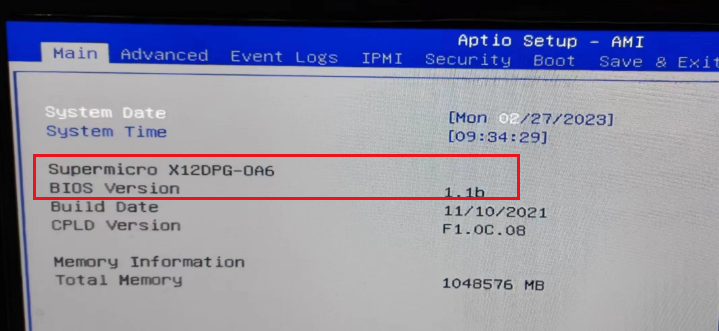
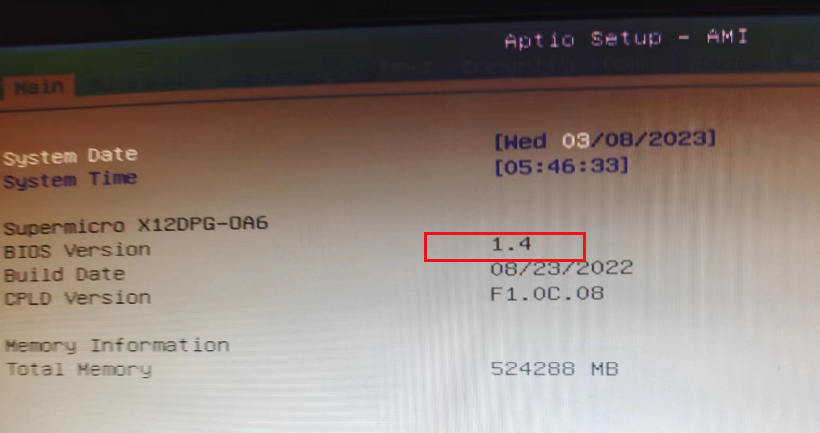
按del进入bios界面查看型号版本:
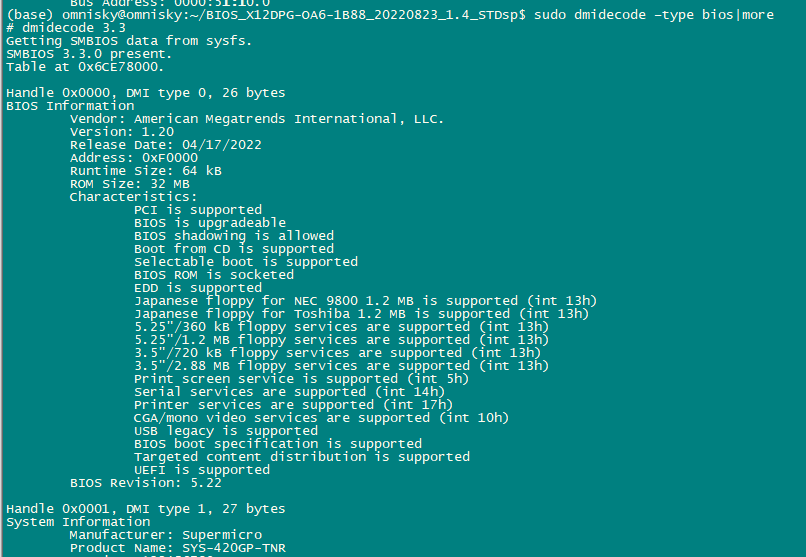
更新步骤:
下载驱动:根据上面查到的主板型号查
https://www.supermicro.org.cn/en/products/motherboard/X12DPG-OA6
bios驱动:https://www.supermicro.org.cn/en/support/resources/downloadcenter/firmware/MBD-X12DPG-OA6/BIOS
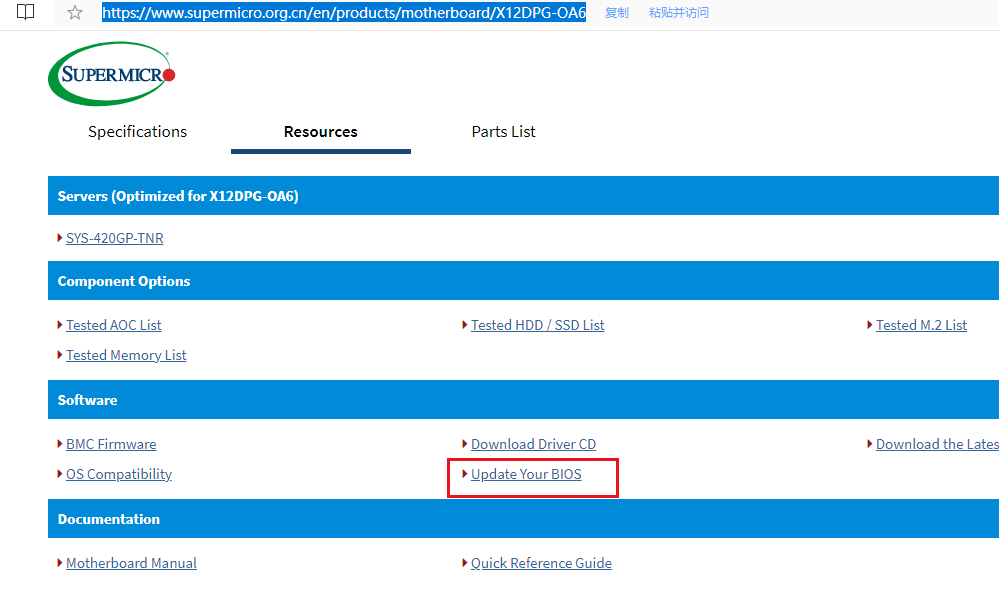
下载后:
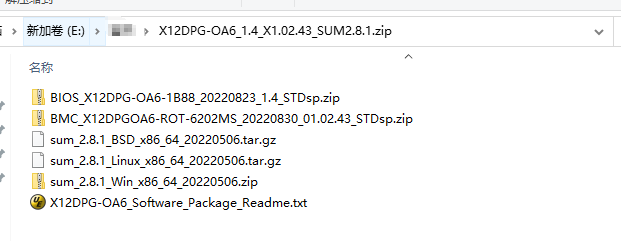
将zip文件上传到服务器,unzip解压.
根据readme指导:
(base) omnisky@omnisky:~/BIOS_X12DPG-OA6-1B88_20220823_1.4_STDsp$ more X12_AMI_BIOS_Upgrade_README.TXT
************************************
Important Notice for the BIOS Update
************************************

On the X12 Whitley platform, Supermicro starts to use the Supermicro Update
Manager (SUM) UEFI tool to perform the motherboard BIOS update. The update is
performed by the BMC in-band command. Please note that the AMI flash utility
(AFU) used in previous generations will no longer work on this platform.

=======================================
Known Limitations of the SUM (EFI) Tool
=======================================
1. The -UpdateBios command does not support the --preserve_setting option.
   After the BIOS update, the BIOS setting will be reset to the factory default.
2. A system reboot is required to kick off the BIOS flash process.
3. A BMC device on the motherboard is required for the SUM tool to work.


*******************************************************************************
The following instructions describe the BIOS upgrade process in the X12 Whitley
BIOS flash package. Please follow the instructions carefully to prevent any
need for RMA repair or replacement.
*******************************************************************************

===============================================================================
Standard BIOS Update Procedure under the UEFI Shell
===============================================================================

1. Save the BIOS update package to your workstation computer.

2. Extract the files from the BIOS flash package to a USB stick.

   Note: The USB stick doesn't have to be bootable, but has to be formatted with
         the FAT32 file system.

3. Plug the USB stick into a USB port, boot to the Built-In UEFI Shell, and type
   "flash.nsh <BMC Username> <BMC Password> <BIOS Filename>" to start the BIOS
   update:

   Shell> fs0:
   fs0:\> cd X12BIOS
   fs0:\X12BIOS> flash.nsh USER PASSWORD BIOS_X12DPTB-1B6A_20210113_1.0a_STDsp.bin

   Note: The BMC account used for the BIOS update must have admin privileges.

4. The flash.nsh UEFI script will verify the flash command first. Press any key
   to continue, or press "q" or "Q" to abort the BIOS update.

5. The flash script will invoke the SUM (EFI) tool to perform the BIOS update,
   beginning with uploading the BIOS image to BMC.

6. Do not interrupt the process until the BIOS image upload is complete.  The
   system will reboot automatically to continue, after a short message.

7. After the system reboot, BMC will take over and continue the BIOS update in
   the background. The process will take 3-5 minutes. During this stage, the
   green power LED on the front control panel will blink slowly, and the blue
   UID LED will blink rapidly. There will be no display on the screen.

8. Do NOT unplug the power or try to boot up the system until the LEDs stop
   blinking and the BIOS splash screen is shown.

9. After the BIOS update has completed, the system will boot up automatically.

===============================================================================
*Remote* BIOS Update using the OOB Method with the SUM Tool
===============================================================================

1. Download and extract the BIOS from the motherboard webpage to the OS.

2. Follow the below URL to download the SUM tool for your OS type:
   https://www.supermicro.com/en/solutions/management-software/supermicro-update-manager

3. Extract the SUM tool from the SUM package in the OS.

4. Run the below command on the workstation to update the remote system's BIOS:

   sum -i <BMC IP> -u <BMC User ID> -p <Password> -c UpdateBIOS --file <BIOS Name> --reboot

   Example:
   ./sum -i 192.168.1.100 -u ADMIN -p PASSWORD -c UpdateBIOS --file
   BIOS_X12DPTB-1B6A_20210113_1.0a_STDsp.bin --reboot

5. Do not interrupt the process or reboot the system until the BIOS is updated
   successfully.

Notes: (a) Please use SUM v2.5.0 or above on the X12 Whitley Platform.
       (b) The "--reboot" switch must be included in the command.
       (c) The OOB license is not required for this BIOS update method.

===============================================================================
*Local* BIOS Update using the In-band Method with the SUM Tool
===============================================================================

1. Download and extract the BIOS from the motherboard webpage to the local OS.

2. Follow the below URL to download the SUM tool for your OS type:
   https://www.supermicro.com/en/solutions/management-software/supermicro-update-manager

3. Extract the SUM tool from the SUM package in the local OS.

4. Run the below command on the workstation to update the local system's BIOS:

   sum -I Redfish_HI -u <BMC User ID> -p <Password> -c UpdateBIOS --file <BIOS Name> --reboot

   Example:
   ./sum -I Redfish_HI -u ADMIN -p HGFEDCBA UpdateBIOS --file X12DPTB0.814 --reboot

5. Do not interrupt the process or reboot the system until the BIOS is updated
   successfully.

Notes: (a) Please use SUM v2.5.0 or above on the X12 Whitley Platform.
       (b) The in-band method will go through the Redfish Host Interface.
       (c) The "--reboot" switch must be included in the command.
       (d) The OOB license is not required for this BIOS update method.

===============================================================================
*Remote* BIOS Update using the OOB Method on IPMI Web UI
===============================================================================

1. Download & extract the BIOS from the motherboard webpage to the OS.

2. Log into IPMI with an Internet browser.

3. To see the BIOS update feature, click the "Firmware Update" button on the
   Dashboard, or go to the Maintenance menu and click the "Firmware Management" button.

4. Click the "BIOS" button and then the "Next" button.

5. Select the BIOS image file, then click the "Upload" button.

6. Do not interrupt the process or reboot the system until the BIOS is updated
   successfully.

Note: The OOB license is not required for this BIOS update method.


*******************************************************************************
RMA Information
*******************************************************************************

If the BIOS flash fails, you may contact our RMA Dept. to have the BIOS
chip reprogrammed. This will require shipping the board to our RMA Dept.
for repair. Please submit your RMA request at:

https://www.supermicro.com/en/support/rma


*******************************************************************************
BIOS Naming Convention
*******************************************************************************

BIOS name  : BIOS_X12DXXXXX-BBBB_YYYYMMDD_VVV_T.Tt_STDsp.bin

"BIOS"     : BIOS image identifier
X12DXXXXX  : Project name
BBBB       : 4-digit project ID
YYYY       : Year of the build date
MM         : Month of the build date
DD         : Day of the build date
T.Tt       : BIOS revision number
"STD"      : Standard BIOS ("OEM" = Custom BIOS)
"sp"       : Production signed image (No "sp" means unsigned.)

Examples:
           X12DPi-N6 -> BIOS_X12DPi-N(T)6-1B47_20210302_1.0b_STDsp.bin
           X12DPT-B6 -> BIOS_X12DPTB-1B6A_20210113_1.0a_STDsp.bin
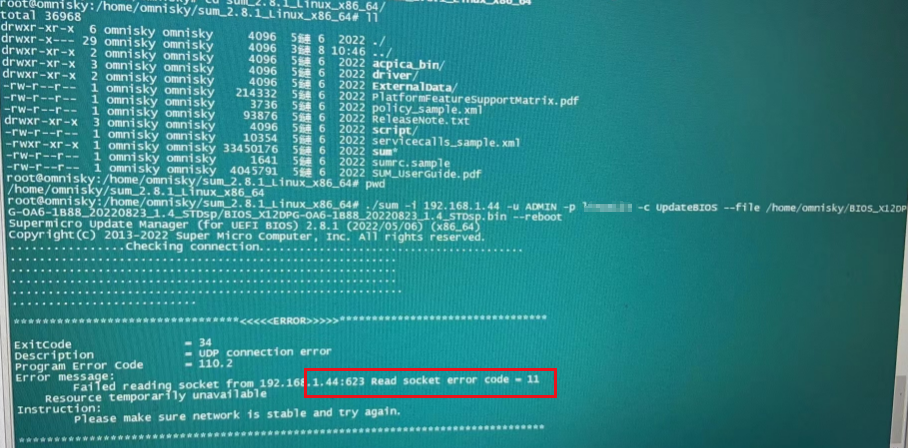
尝试执行bmc远程更新失败,提示网络不通。
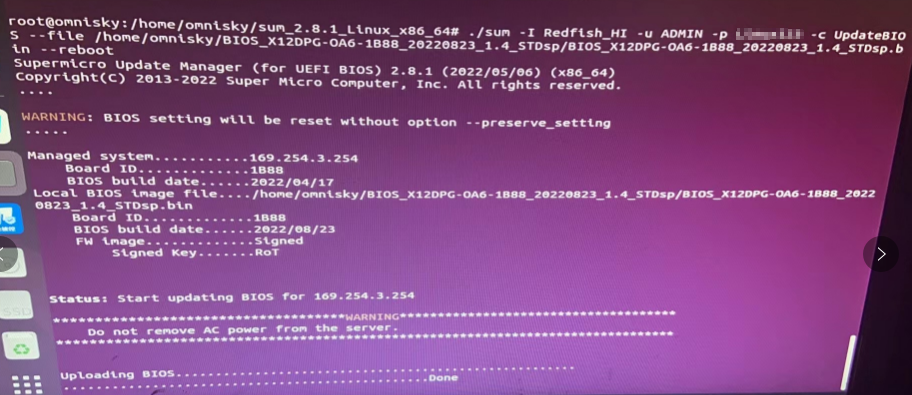
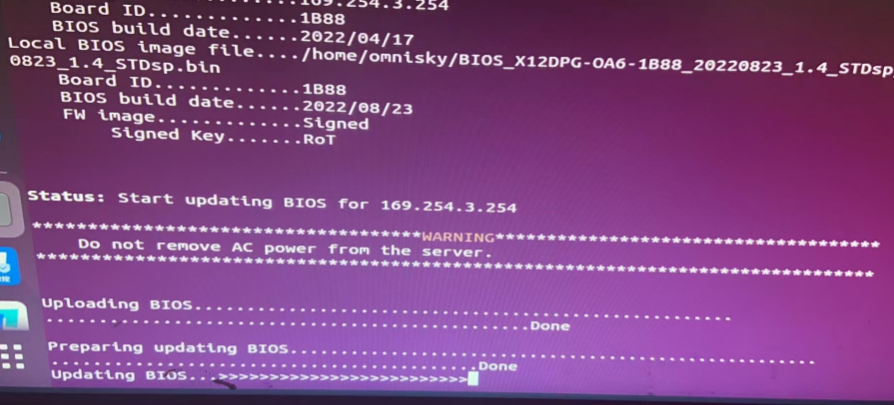
尝试执行本地更新成功:
sudo -i -uroot
root@omnisky:/home/omnisky/cd /home/omnisky/sum_2.8.1_Linux_x86_64
root@omnisky:/home/omnisky/sum_2.8.1_Linux_x86_64# ./sum -I Redfish_HI -u ADMIN -p Password -c UpdateBIOS --file /home/omnisky/BIOS_X12DPG-OA6-1B88_20220823_1.4_STDsp/BIOS_X12DPG-OA6-1B88_20220823_1.4_STDsp.bin --reboot
更新后:
(base) omnisky@omnisky:~$ sudo dmidecode -t 0
# dmidecode 3.3
Getting SMBIOS data from sysfs.
SMBIOS 3.3.0 present.

Handle 0x0000, DMI type 0, 26 bytes
BIOS Information
        Vendor: American Megatrends International, LLC.
        Version: 1.4
        Release Date: 08/23/2022
        Address: 0xF0000
        Runtime Size: 64 kB
        ROM Size: 32 MB
        Characteristics:
                PCI is supported
                BIOS is upgradeable
                BIOS shadowing is allowed
                Boot from CD is supported
                Selectable boot is supported
                BIOS ROM is socketed
                EDD is supported
                Japanese floppy for NEC 9800 1.2 MB is supported (int 13h)
                Japanese floppy for Toshiba 1.2 MB is supported (int 13h)
                5.25"/360 kB floppy services are supported (int 13h)
                5.25"/1.2 MB floppy services are supported (int 13h)
                3.5"/720 kB floppy services are supported (int 13h)
                3.5"/2.88 MB floppy services are supported (int 13h)
                Print screen service is supported (int 5h)
                Serial services are supported (int 14h)
                Printer services are supported (int 17h)
                CGA/mono video services are supported (int 10h)
                USB legacy is supported
                BIOS boot specification is supported
                Targeted content distribution is supported
                UEFI is supported
        BIOS Revision: 5.22

(base) omnisky@omnisky:~$ sudo dmidecode -t bios
# dmidecode 3.3
Getting SMBIOS data from sysfs.
SMBIOS 3.3.0 present.

Handle 0x0000, DMI type 0, 26 bytes
BIOS Information
        Vendor: American Megatrends International, LLC.
        Version: 1.4
        Release Date: 08/23/2022
        Address: 0xF0000
        Runtime Size: 64 kB
        ROM Size: 32 MB
        Characteristics:
                PCI is supported
                BIOS is upgradeable
                BIOS shadowing is allowed
                Boot from CD is supported
                Selectable boot is supported
                BIOS ROM is socketed
                EDD is supported
                Japanese floppy for NEC 9800 1.2 MB is supported (int 13h)
                Japanese floppy for Toshiba 1.2 MB is supported (int 13h)
                5.25"/360 kB floppy services are supported (int 13h)
                5.25"/1.2 MB floppy services are supported (int 13h)
                3.5"/720 kB floppy services are supported (int 13h)
                3.5"/2.88 MB floppy services are supported (int 13h)
                Print screen service is supported (int 5h)
                Serial services are supported (int 14h)
                Printer services are supported (int 17h)
                CGA/mono video services are supported (int 10h)
                USB legacy is supported
                BIOS boot specification is supported
                Targeted content distribution is supported
                UEFI is supported
        BIOS Revision: 5.22

Handle 0x006F, DMI type 13, 22 bytes
BIOS Language Information
        Language Description Format: Long
        Installable Languages: 1
                en|US|iso8859-1
        Currently Installed Language: en|US|iso8859-1
最后修改时间:2023-03-08 15:02:17
「喜欢这篇文章,您的关注和赞赏是给作者最好的鼓励」
关注作者
【版权声明】本文为墨天轮用户原创内容,转载时必须标注文章的来源(墨天轮),文章链接,文章作者等基本信息,否则作者和墨天轮有权追究责任。如果您发现墨天轮中有涉嫌抄袭或者侵权的内容,欢迎发送邮件至:contact@modb.pro进行举报,并提供相关证据,一经查实,墨天轮将立刻删除相关内容。
