



PYDEW VALLEY 简介
该教程使用pygame制作一个类似星露谷物语(Stardew Valley)的种菜游戏。
当然,星露谷物语作者用了超过5年的时间制作,内容非常丰富。而这个只是一个简单的demo,跟着教程大概要十几个小时就可以实现。
麻雀虽小,五脏俱全,通过这个教程还是可以学到很多东西的,Python的常用语法;Pygame的精灵类、输入处理、镜头控制等。完成了这个教程,也就基本掌握了Pygame。
B站视频(搬运):
https://www.bilibili.com/video/BV1ia411d7yW?p=1
github(代码+素材) :
https://github.com/clear-code-projects/PyDew-Valley
油管(原作者)
https://www.youtube.com/watch?v=T4IX36sP_0c
有兴趣也可以看看星露谷物语是如何一个人制作出该游戏的:B站搜索BV1zZ4y1q7Lv。
阅读本文前,最好了解PyGame基本概念。如果还不熟悉PyGame,可以阅读之前的PyGame入门。
由于视频内容过多(接近7小时),无法一一记录。本文基本上只是一个大纲,记录一些重要的内容方便理解。建议观看视频,并对照着从github下载的代码学习。
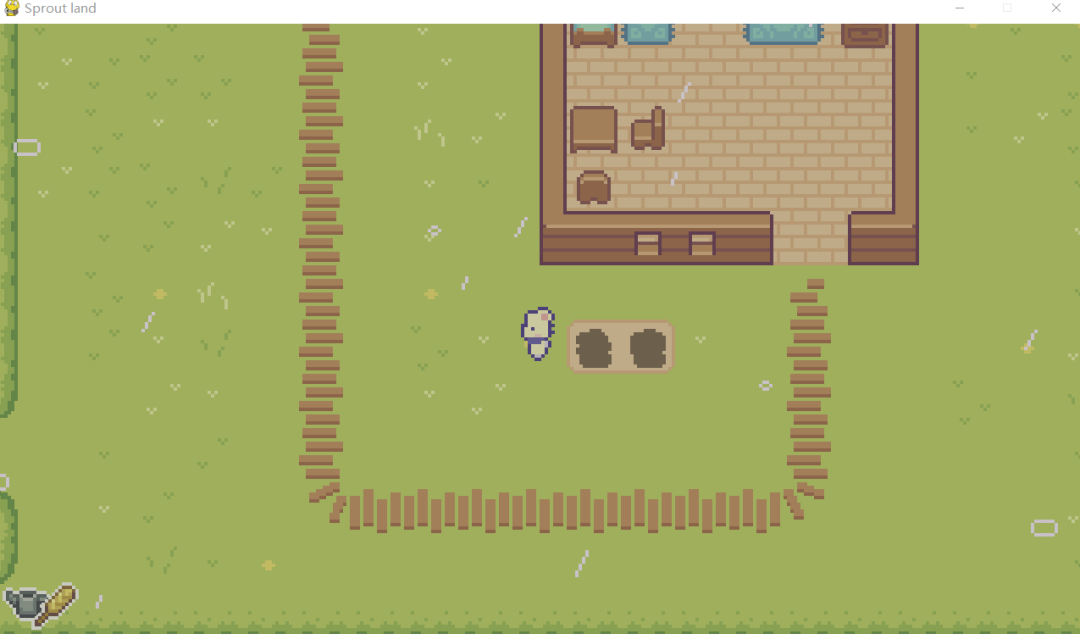
s1-Setup
从github下载好源码,我们或得到一堆.rar压缩包,每个压缩包对应一节内容。我们解压s1-setup.rar
开始第一步。解压后项目结构如下:
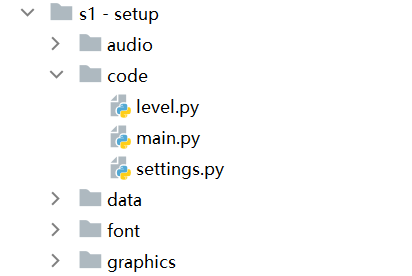
先看code
文件夹。 code
文件夹保存了项目的源码,这里有3个文件:level.py
,main.py
,settings.py
。从名称来看,大概能知道main.py
是程序入口,settings.py
和游戏设置有关,而level.py
是什么还不清楚。下面让我们分别看看这3个文件。
(其余部分是游戏资源文件,存放一些音乐、数据、字体、图片等内容,先不用管)
程序入口 main.py
import pygame, sys
from settings import *
from level import Level

class Game:
    def __init__(self):
        pygame.init()
        self.screen = pygame.display.set_mode((SCREEN_WIDTH,SCREEN_HEIGHT))
        pygame.display.set_caption('Sprout land')
        self.clock = pygame.time.Clock()
        self.level = Level()

    def run(self):
        while True:
            for event in pygame.event.get():
                if event.type == pygame.QUIT:
                    pygame.quit()
                    sys.exit()

            dt = self.clock.tick() / 1000
            self.level.run(dt)
            pygame.display.update()

if __name__ == '__main__':
    game = Game()
    game.run()
可以看到main.py
定义了一个Game
类,然后在main
中实例化一个Game,并调用其run()
方法。
Game
类中定义了两个方法:
__init__
:初始化游戏,设置游戏屏幕大小、标题等。 run()
:定义游戏的基本循环,包含退出事件检测和游戏更新。
注释:这里用到的deltatime,参考 https://www.youtube.com/watch?v=rWtfClpWSb8&t=1s
游戏设置 settings.py
游戏的一些设置,比如游戏的屏幕尺寸,标题大小...
from pygame.math import Vector2
# screen
SCREEN_WIDTH = 1280
SCREEN_HEIGHT = 720
TILE_SIZE = 64
...
level.py
最后来到level.py
。看这个名称很难知道它是干什么的,查看源码可以发现,它定义了一个Level
类。Level
类定义了一个初始化方法__init__
获取显示表面和精灵组, run
方法对精灵组进行了更新。
level.py
的作用是把游戏元素的更新和显示从Game
中抽离出来,让程序结构清晰。
from settings import *

class Level:
    def __init__(self):

        # get the display surface
        self.display_surface = pygame.display.get_surface()

        # sprite groups
        self.all_sprites = pygame.sprite.Group()

    def run(self,dt):
        self.display_surface.fill('black')
        self.all_sprites.draw(self.display_surface)
        self.all_sprites.update()
s2-basic player
对应s2-basic player。创建一个简单的角色:
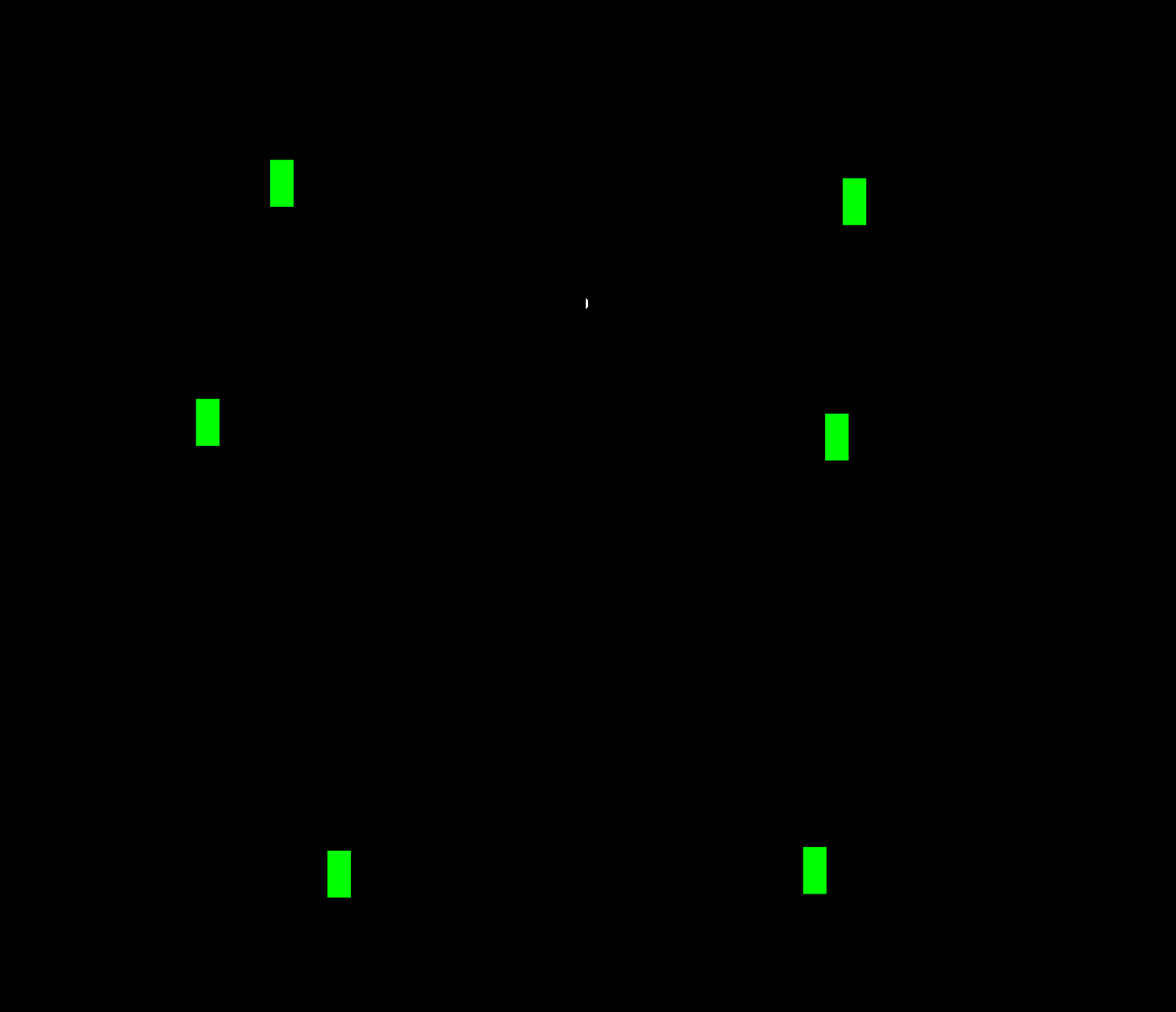
在上一节的基础上,我们创建一个角色。
首先,新建文件player.py
然后在文件中,导入相关的包:
import pygame
from settings import *
创建Player
类,继承精灵类pygame.sprite.Sprite
class Player(pygame.sprite.Sprite):
初始化方法:调用父类的初始化方法。 super().__init__(group)
# 传入group,让该精灵类成为group中的成员。并设置image
和rect
属性(设置精灵的图像和位置)。
后面的direction
、pos
、speed属性
是为了方便我们控制角色。
def __init__(self, pos, group):
    super().__init__(group)

    # general setup
    self.image = pygame.Surface((32,64))
    self.image.fill('green')
    self.rect = self.image.get_rect(center = pos)

    # movement attributes
    self.direction = pygame.math.Vector2()
    self.pos = pygame.math.Vector2(self.rect.center)
    self.speed = 200
input方法: input方法检测键盘输入,更改玩家移动方向。
def input(self):
    keys = pygame.key.get_pressed()

    if keys[pygame.K_UP]:
        self.direction.y = -1
    elif keys[pygame.K_DOWN]:
        self.direction.y = 1
    else:
        self.direction.y = 0

    if keys[pygame.K_RIGHT]:
        self.direction.x = 1
    elif keys[pygame.K_LEFT]:
        self.direction.x = -1
    else:
        self.direction.x = 0
move方法: 应用方向,修改玩家位置。
def move(self,dt):

    # normalizing a vector
    if self.direction.magnitude() > 0:
        self.direction = self.direction.normalize()

    # horizontal movement
    self.pos.x += self.direction.x * self.speed * dt
    self.rect.centerx = self.pos.x

    # vertical movement
    self.pos.y += self.direction.y * self.speed * dt
    self.rect.centery = self.pos.y
update方法:update每次更新时会自动被调用(因为我们继承了精灵类)。在update里调用定义好的input和move方法,来接受输入,移动玩家。
def update(self, dt):
    self.input()
    self.move(dt)
这样,玩家(Player)就定义好了。接下来只需要将玩家放到Level中。
为了让逻辑更清醒,在Level类中定义setup
函数来设置这些元素。(目前只有一个玩家)
def setup(self):
    self.player = Player((640,360), self.all_sprites)
并在Level的初始化方法中调用setup
。
这样就完成了,运行main.py
就能看到一个绿色方块,并且可以用上下左右键移动。
写到这里就感受到这种文件结构的好处:如果我们想添加一个东西,只需要新建一个类,并且在Level里添加一下就好了。其它部分不需要改动。
s3-Importing the player graphics
对应s3-import 。
项目里有一个graphics
文件夹,打开graphics
会看到里面是很多角色的贴图。这就是这节要做的事情--导入角色的图片。为了方便获得图片路径,创建support.py
文件,在里面写读取图片路径的方法:
def import_folder(path):
    surface_list = []

    for _, __, img_files in walk(path):
        for image in img_files:
            full_path = path + '/' + image
            image_surf = pygame.image.load(full_path).convert_alpha()
            surface_list.append(image_surf)

    return surface_list
这里用到了os模块的walk方法,这是一个目录遍历的方法,返回的是一个三元组(dirpath, dirnames, filenames)
获得路径后用image_surf = pygame.image.load(full_path).convert_alpha()
获得图片对应的surf列表。
在Player类中,我们通过一个字典,保存角色的不同动作对应的surf:
def import_assets(self):
    self.animations = {'up': [],'down': [],'left': [],'right': [],
                        'right_idle':[],'left_idle':[],'up_idle':[],'down_idle':[],
                        'right_hoe':[],'left_hoe':[],'up_hoe':[],'down_hoe':[],
                        'right_axe':[],'left_axe':[],'up_axe':[],'down_axe':[],
                        'right_water':[],'left_water':[],'up_water':[],'down_water':[]}

    for animation in self.animations.keys():
        full_path = '../graphics/character/' + animation
        self.animations[animation] = import_folder(full_path)
然后在Player的初始化方法中设置:
self.import_assets()
self.status = 'left_water'
self.frame_index = 0

# general setup
self.image = self.animations[self.status][self.frame_index]
s4-玩家动画
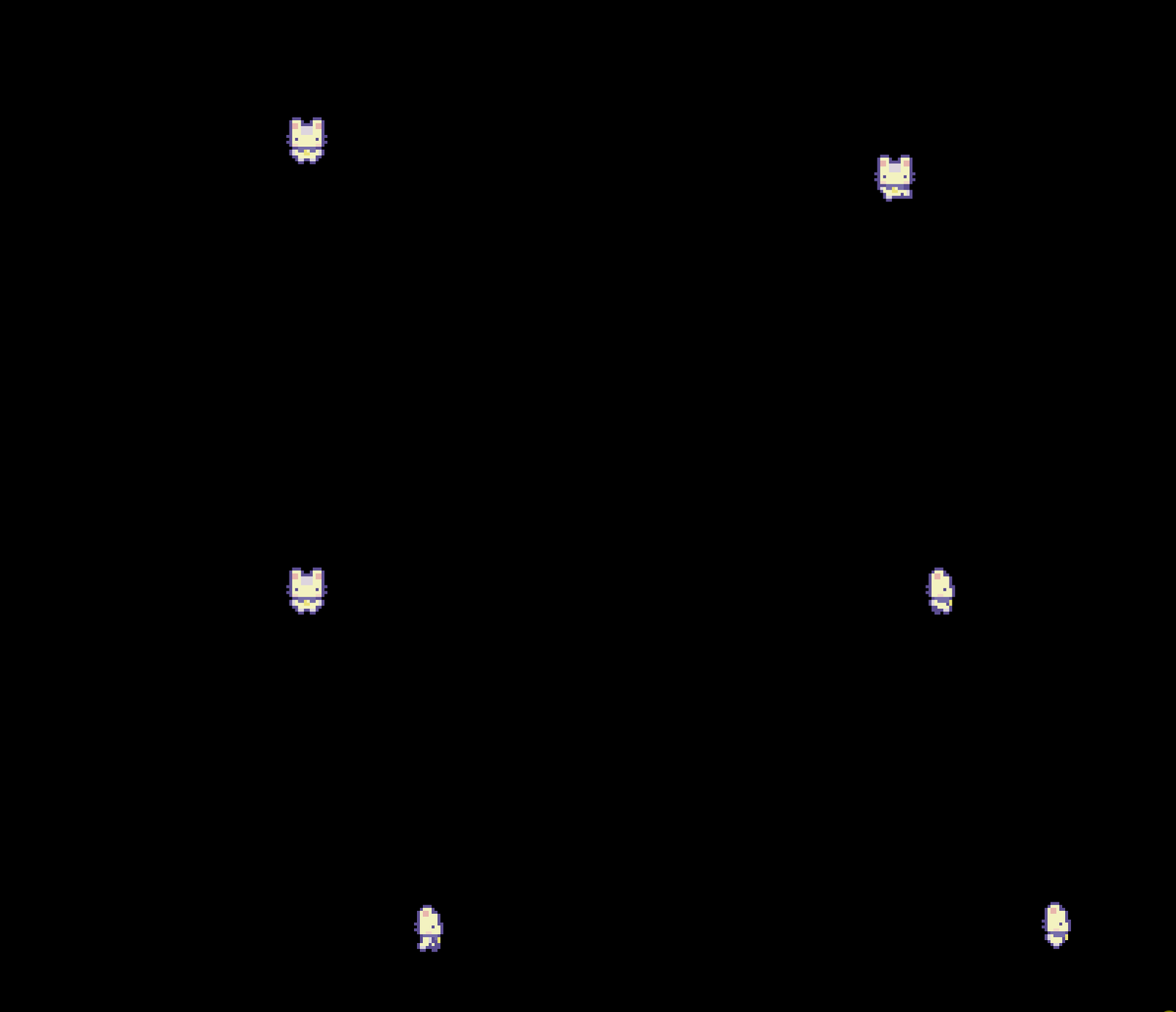
从图片到动画实际上很简单,实际上你只需要切换图片。定义animate,切换图片。并在update中调用。
def animate(self,dt):
    self.frame_index += 4 * dt
    if self.frame_index >= len(self.animations[self.status]):
        self.frame_index = 0

    self.image = self.animations[self.status][int(self.frame_index)]
这样就有了动画,但是目前只有一种状态。所以我们要在input函数中根据不同的输入修改状态:
if keys[pygame.K_UP]:
    self.direction.y = -1
    self.status = 'up'
elif keys[pygame.K_DOWN]:
    self.direction.y = 1
    self.status = 'down'
    ...
这样做又会带来一个问题:我们向上移动后,状态会一直保持up
,相应地一直播放up
动画(向上移动)。
所以我们增加一个get_status
方法:如果玩家不再移动,就修改为_idle
(空闲)状态
def get_status(self):
    # idle
    if self.direction.magnitude() == 0:
        self.status = self.status.split('_')[0] + '_idle'
你可能对
self.status.split('_')[0] + '_idle'
感到奇怪。试想一下,如果我们已经是_idle
状态,直接在后面+_idle
就会变成up_idle_idle
(一个不存在的状态)。所以我们用split()
方法分割字符串,然后用[0]
获取_
最前面的单词。
s5-使用工具
现在我们想实现:
玩家按下空格后,使用工具。并且,玩家使用工具应该花费一些时间,这个期间内不能移动。
为此定义了一个Timer类,作为计时器。在玩家按下空格后,Timer激活(.activate()
),玩家使用工具并且无法执行其它操作。
Timer类
import pygame

class Timer:
    def __init__(self,duration,func = None):
        self.duration = duration
        self.func = func
        self.start_time = 0
        self.active = False

    def activate(self):
        self.active = True
        self.start_time = pygame.time.get_ticks()

    def deactivate(self):
        self.active = False
        self.start_time = 0

    def update(self):
        current_time = pygame.time.get_ticks()
        if current_time - self.start_time >= self.duration:
            self.deactivate()
            if self.func:
                self.func()
然后在Player中,添加tool_use动作。在_init__
中,添加计时器和选择的工具。计时器和use_tool
动作绑定。
# timers
self.timers = {
    'tool use': Timer(2000,self.use_tool)
}

# tools
self.selected_tool = 'water'
并且定义使用工具的方法use_tool
,目前还没实现,先用print代替。
def use_tool(self):
    print(self.selected_tool)
在input
中,处理空格命令:
# tool use
if not self.timers['tool use'].active:
    ...
    if keys[pygame.K_SPACE]:
        self.timers['tool use'].activate()
        self.direction = pygame.math.Vector2()
        self.frame_index = 0
修改玩家状态:
def get_status(self):
    # idle
    ...
    # tool use
    if self.timers['tool use'].active:
        self.status = self.status.split('_')[0] + '_' + self.selected_tool
创建更新所有计时器的方法update_timers
,并在update
中调用:
def update_timers(self):
    for timer in self.timers.values():
        timer.update()
    def update(self, dt):
        self.input()
        self.get_status()
        self.update_timers()
        ...
s6-切换工具
实现按下q
切换工具。
用列表tools
保存工具,用索引tool_index
来指示现在使用的工具。
按下q
切换tool_index
。如果直接这样做,会发现按下q
后一直切换,所以我们需要做一个时间限制。比如说200毫秒内只能切换一次。
为此,我们添加一个计时器:
# timers
self.timers = {
    'tool use': Timer(350,self.use_tool),
    'tool switch': Timer(200),
    ...
}
并在input中限制,只有该计时器持续时间(200 ms)结束后才能进行下一次切换工具:
# change tool
if keys[pygame.K_q] and not self.timers['tool switch'].active:
    self.timers['tool switch'].activate()
    self.tool_index += 1
    self.tool_index = self.tool_index if self.tool_index < len(self.tools) else 0
    self.selected_tool = self.tools[self.tool_index]
和使用工具类似,添加使用种子。添加计算器、状态列表:
# timers
self.timers = {
    'tool use': Timer(350,self.use_tool),
    'tool switch': Timer(200),
    'seed use': Timer(350,self.use_seed),
    'seed switch': Timer(200),
}
# seeds
self.seeds = ['corn', 'tomato']
self.seed_index = 0
self.selected_seed = self.seeds[self.seed_index]
在input()添加按键处理:
# tool use
if keys[pygame.K_SPACE]:
    self.timers['tool use'].activate()
    self.direction = pygame.math.Vector2()
    self.frame_index = 0

# change tool
if keys[pygame.K_q] and not self.timers['tool switch'].active:
    self.timers['tool switch'].activate()
    self.tool_index += 1
    self.tool_index = self.tool_index if self.tool_index < len(self.tools) else 0
    self.selected_tool = self.tools[self.tool_index]

# seed use
if keys[pygame.K_LCTRL]:
    self.timers['seed use'].activate()
    self.direction = pygame.math.Vector2()
    self.frame_index = 0

# change seed
if keys[pygame.K_e] and not self.timers['seed switch'].active:
    self.timers['seed switch'].activate()
    self.seed_index += 1
    self.seed_index = self.seed_index if self.seed_index < len(self.seeds) else 0
    self.selected_seed = self.seeds[self.seed_index]
