一、docker简介
docker是一个开源的应用容器引擎,让开发者可以打包他们的应用以及依赖包到一个可移植的容器中,然后发布到任何流行的Linux机器上,也可以实现虚拟化,容器是完全使用沙箱机制,相互之间不会有任何接口。
二、为什么要使用docker
作为一种新兴的虚拟化方式,Docker 跟传统的虚拟化方式相比具有众多的优势。
首先,Docker 容器的启动可以在秒级实现,这相比传统的虚拟机方式要快得多。 其次,Docker 对系统资源的利用率很高,一台主机上可以同时运行数千个 Docker 容器。
容器除了运行其中应用外,基本不消耗额外的系统资源,使得应用的性能很高,同时系统的开销尽量小。传统虚拟机方式运行 10 个不同的应用就要起 10 个虚拟机,而Docker 只需要启动 10 个隔离的应用即可。
具体说来,Docker 在如下几个方面具有较大的优势。
(1)更快速的交付和部署
对开发和运维(devop)人员来说,最希望的就是一次创建或配置,可以在任意地方正常运行。
开发者可以使用一个标准的镜像来构建一套开发容器,开发完成之后,运维人员可以直接使用这个容器来部署代码。 Docker 可以快速创建容器,快速迭代应用程序,并让整个过程全程可见,使团队中的其他成员更容易理解应用程序是如何创建和工作的。 Docker 容器很轻很快!容器的启动时间是秒级的,大量地节约开发、测试、部署的时间。
(2)更高效的虚拟化
Docker 容器的运行不需要额外的 hypervisor 支持,它是内核级的虚拟化,因此可以实现更高的性能和效率。
(3)更轻松的迁移和扩展
Docker 容器几乎可以在任意的平台上运行,包括物理机、虚拟机、公有云、私有云、个人电脑、服务器等。 这种兼容性可以让用户把一个应用程序从一个平台直接迁移到另外一个。
(4)更简单的管理
使用 Docker,只需要小小的修改,就可以替代以往大量的更新工作。所有的修改都以增量的方式被分发和更新,从而实现自动化并且高效的管理。
(5)对比传统虚拟机总结
| 特性 | 容器 | 虚拟机 |
|---|---|---|
| 启动 | 秒级 | 分钟级 |
| 硬盘使用 | 一般为 MB | 一般为 GB |
| 性能 | 接近原生 | 弱于 |
| 系统支持量 | 单机支持上千个容器 | 一般几十个 |
三、安装步骤
1.运行docker Linux内核版本需要在3.8以上,所以centos6.5内核为2.6的系统需要先升级内核.
在yum的ELRepo源中,有mainline(3.13.1)、long-term(3.10.28)这2个内核版本,考虑到long-term更稳定,会长期更新,所以选择这个版本。
(1)查看当前版本:
[root@rac2 ~]# more etc/issue
CentOS release 6.5 (Final)
Kernel \r on an \m
[root@rac2 ~]# uname -a
Linux rac2 2.6.32-431.el6.x86_64 #1 SMP Fri Nov 22 03:15:09 UTC 2013 x86_64 x86_64 x86_64 GNU/Linux
(2)升级内核至3.10
①导入public key
[root@rac2 ~]# rpm --import https://www.elrepo.org/RPM-GPG-KEY-elrepo.org
②安装ELRepo到CentOS-6.5中
[root@rac2 ~]# rpm -ivh http://www.elrepo.org/elrepo-release-6-8.el6.elrepo.noarch.rpm
//elrepo-release-6-5.el6.elrepo.noarch.rpm的版本没有找到
③安装kernel-lt(lt=long-term)
[root@rac2 ~]# yum --enablerepo=elrepo-kernel install kernel-lt -y
④编辑grub.conf文件,修改Grub引导顺序
[root@rac2 ~]# vim etc/grub.conf
# grub.conf generated by anaconda
#
# Note that you do not have to rerun grub after making changes to this file
# NOTICE: You have a boot partition. This means that
# all kernel and initrd paths are relative to boot/, eg.
# root (hd0,0)
# kernel vmlinuz-version ro root=/dev/sda3
# initrd initrd-[generic-]version.img
#boot=/dev/sda
default=0
timeout=5
splashimage=(hd0,0)/grub/splash.xpm.gz
hiddenmenu
title CentOS (3.10.107-1.el6.elrepo.x86_64)
root (hd0,0)
kernel vmlinuz-3.10.107-1.el6.elrepo.x86_64 ro root=UUID=280d762e-2090-460c-afc9-10dc95477ac7 rd_NO_LUKS rd_NO_LVM LANG=en_US.UTF-8 rd_NO_MD SYSFONT=latarcyrheb-sun16 crashkernel=128M KEYBOARDTYPE=pc KEYTABLE=us rd_NO_DM rhgb quiet
initrd initramfs-3.10.107-1.el6.elrepo.x86_64.img
title CentOS (2.6.32-431.el6.x86_64)
root (hd0,0)
kernel vmlinuz-2.6.32-431.el6.x86_64 ro root=UUID=280d762e-2090-460c-afc9-10dc95477ac7 rd_NO_LUKS rd_NO_LVM LANG=en_US.UTF-8 rd_NO_MD SYSFONT=latarcyrheb-sun16 crashkernel=128M KEYBOARDTYPE=pc KEYTABLE=us rd_NO_DM rhgb quiet
initrd initramfs-2.6.32-431.el6.x86_64.img
注:确认刚安装好的内核在哪个位置,然后设置default值(从0开始),一般新安装的内核在第一个位置,所以设置default=0
⑤重启,查看内核版本号
[root@rac2 ~]# uname -r
2.6.32-431.el6.x86_64
[root@rac2 ~]# reboot
[root@rac2 ~]# uname -r
3.10.107-1.el6.elrepo.x86_64
至此,CentOS6.5的内核升级完成,下面就可以安装docker了
2.安装docker
(1)安装yum源
[root@rac2 ~]# yum -y install http://dl.fedoraproject.org/pub/epel/6/x86_64/epel-release-6-8.noarch.rpm
(2)安装docker-io
[root@rac2 ~]# yum install docker-io
注:在安装的过程中如果由于dns的问题报了错,要设置好自己的dns确保服务器能连接到外网
[root@rac2 ~]# vim /etc/resolv.conf
nameserver 8.8.8.8
nameserver 8.8.4.4
(3)启动docker
[root@rac2 ~]# service docker start
[root@rac2 ~]# docker version
Client version: 1.7.1
Client API version: 1.19
Go version (client): go1.4.2
Git commit (client): 786b29d/1.7.1
OS/Arch (client): linux/amd64
Get http:///var/run/docker.sock/v1.19/version: dial unix /var/run/docker.sock: no such file or directory. Are you trying to connect to a TLS-enabled daemon without TLS?
[root@rac2 ~]# ps -ef | grep docker
root 20204 19972 0 10:08 pts/0 00:00:00 grep docker
[root@rac2 ~]# service docker status
docker dead but pid file exists
[root@rac2 ~]# docker -d
INFO[0000] Listening for HTTP on unix (/var/run/docker.sock)
docker: relocation error: docker: symbol dm_task_get_info_with_deferred_remove, version Base not defined in file libdevmapper.so.1.02 with link time reference
(4)此时会发现启动服务但是没有进程,安装如下包解决
[root@rac2 ~]# yum upgrade device-mapper-libs -y
(5)检查状态
[root@rac2 ~]# service docker status
docker (pid 20464) is running...
[root@rac2 ~]# docker version
Client version: 1.7.1
Client API version: 1.19
Go version (client): go1.4.2
Git commit (client): 786b29d/1.7.1
OS/Arch (client): linux/amd64
Server version: 1.7.1
Server API version: 1.19
Go version (server): go1.4.2
Git commit (server): 786b29d/1.7.1
OS/Arch (server): linux/amd64
[root@rac2 ~]# docker -d
INFO[0000] Listening for HTTP on unix (/var/run/docker.sock)
(6)获取centos镜像
[root@rac2 ~]# docker pull centos:latest
latest: Pulling from centos
d9cdac769794: Pull complete
8b7794bcb4f9: Pull complete
f3b88ddaed16: Pull complete
Digest: sha256:acb3b91e930743331be14cd3c8154da9967e2a2fca2aad0e1f27efce6deb2884
Status: Downloaded newer image for centos:latest
(7)查看docker镜像
[root@rac2 ~]# docker images centos
REPOSITORY TAG IMAGE ID CREATED VIRTUAL SIZE
centos latest f3b88ddaed16 2 weeks ago 192.5 MB
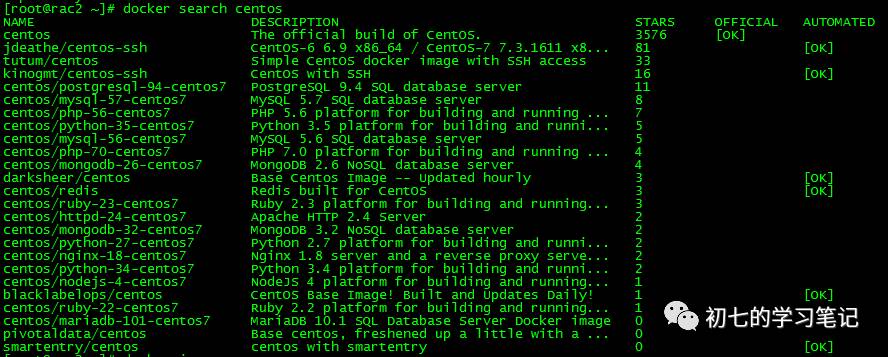
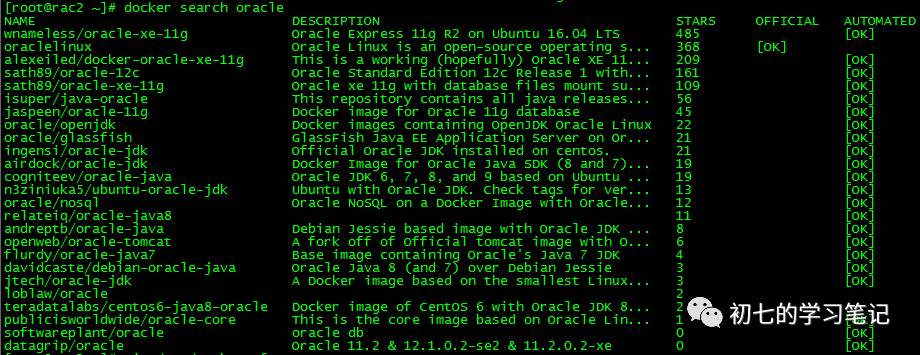
(8)搜索可用的docker镜像