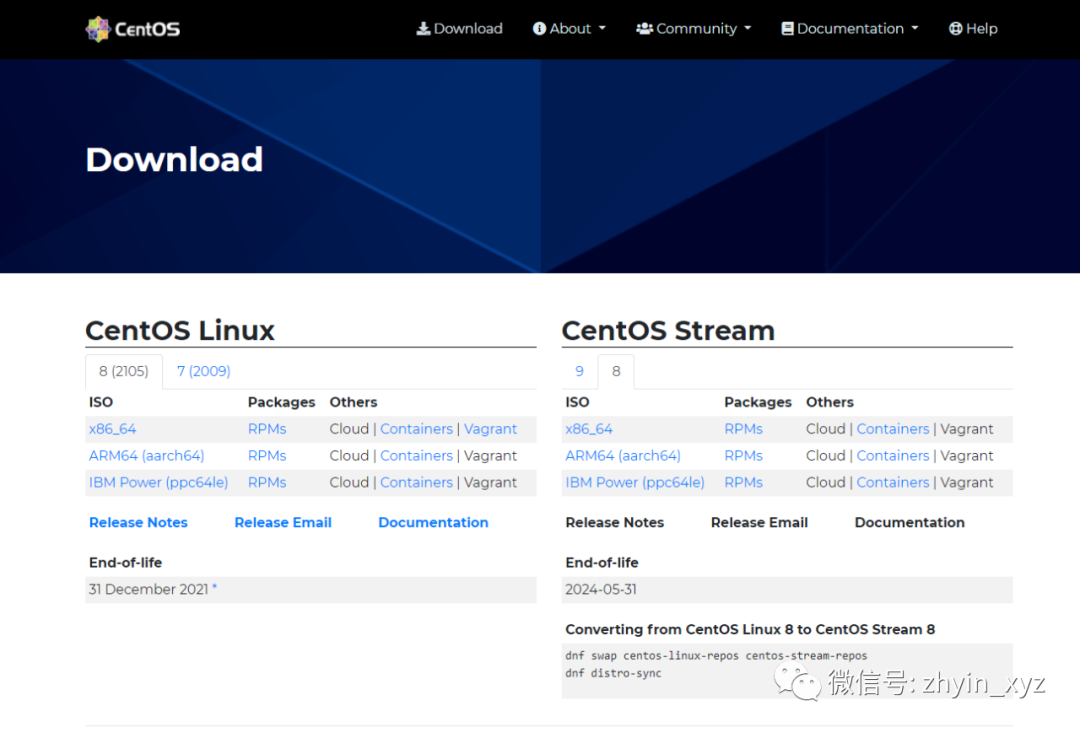
一、镜像下载
1.CentOS官网
https://centos.org/download/
二、系统安装
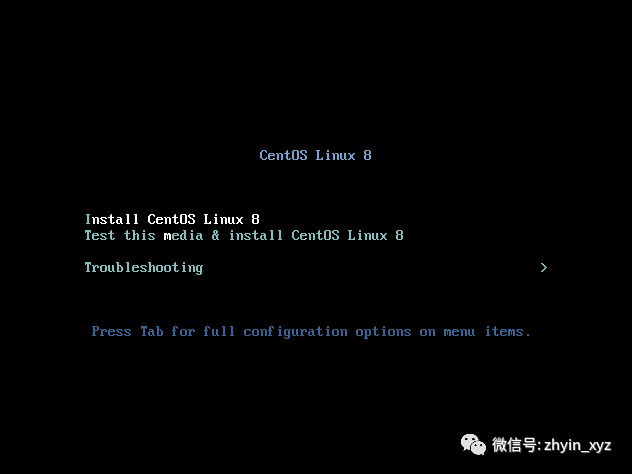
使用方向键选择第一项 回车确定
Install CentOS Linux 8(安装CentOS 8)
Test this media & install CentOS Linux 8 ( 测试安装文件并安装CentOS 8)
Troubleshooting (修复故障)
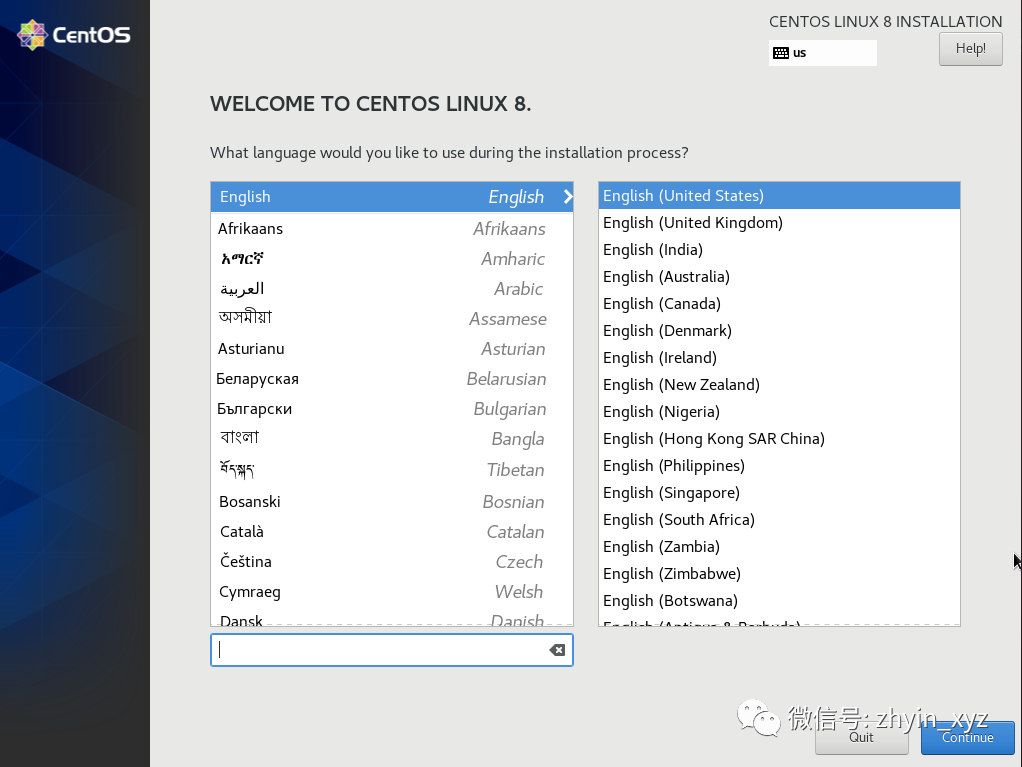
2.等待出现如下画面 选择语言 设置键盘 English English(United States)点击Continue
3.点击带有警告的地方进行设置
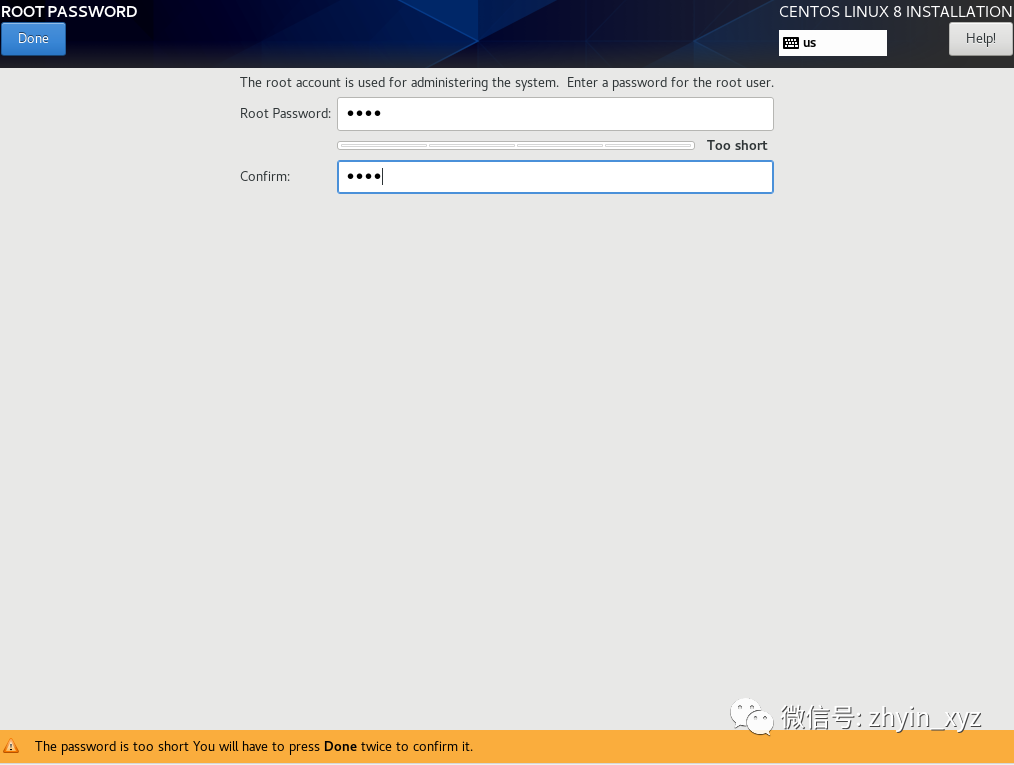
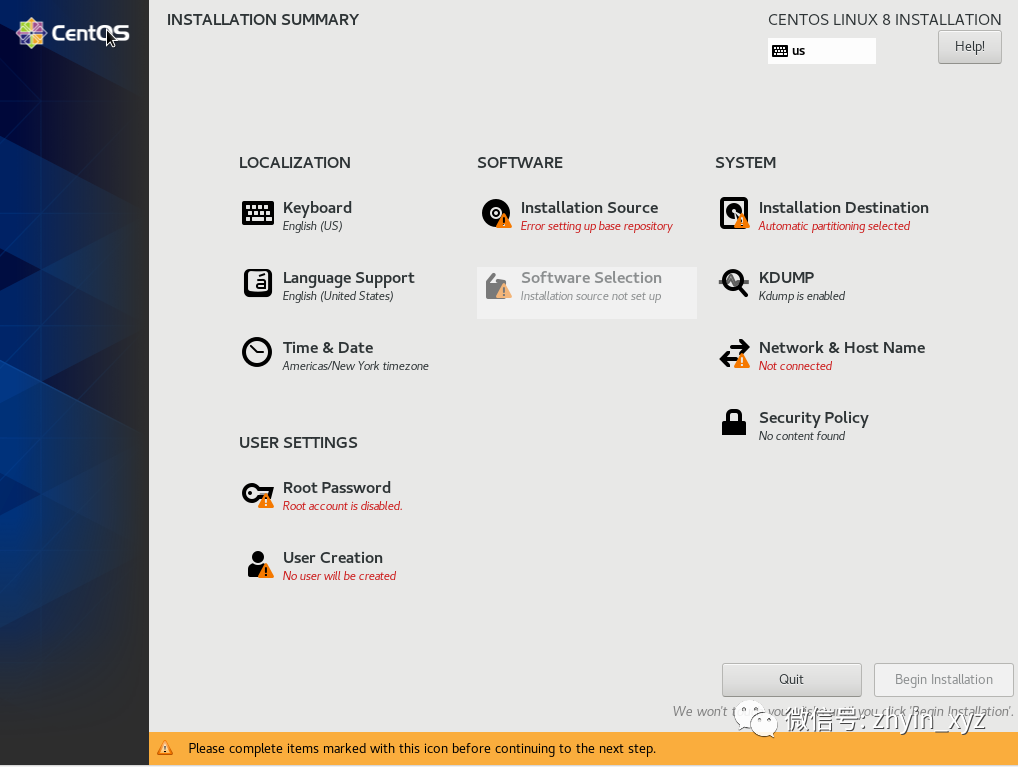 4.设置管理员账号密码 Root Password
输入密码后点击Done 返回上一页面(弱密码需要点击两次返回)
5.设置管理员密码后可以点击User Creation创建用户 也可以跳过使用root账号进行登陆
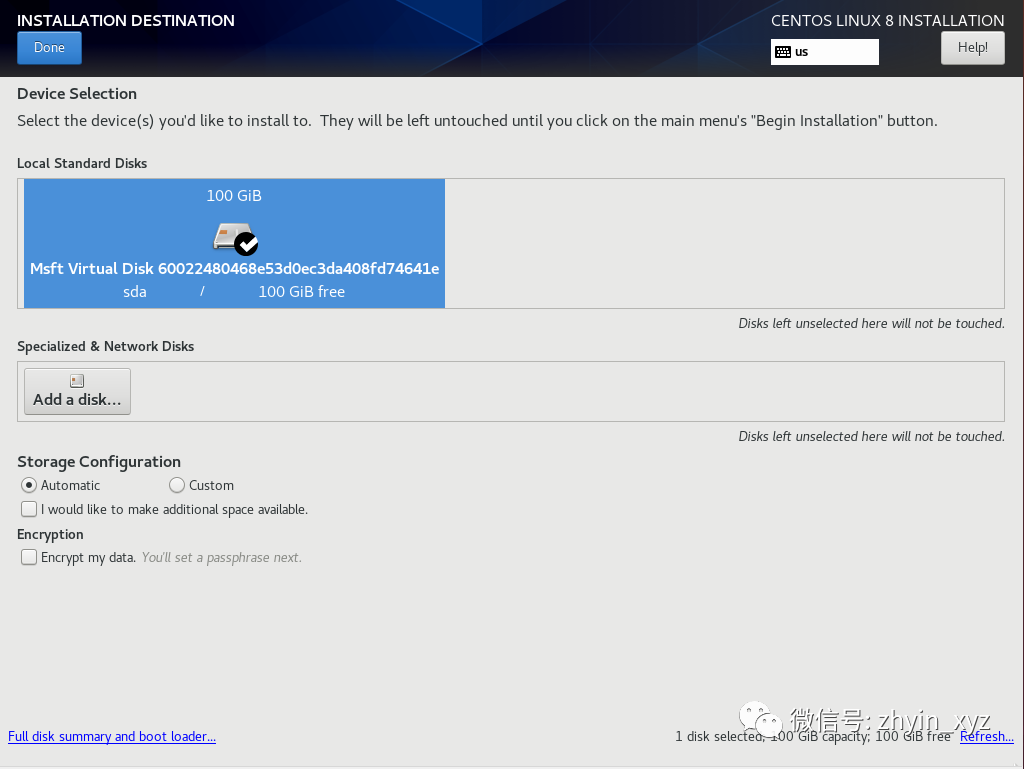
6.选择安装磁盘 Installation Destinstion 如下图选中后点击Done返回
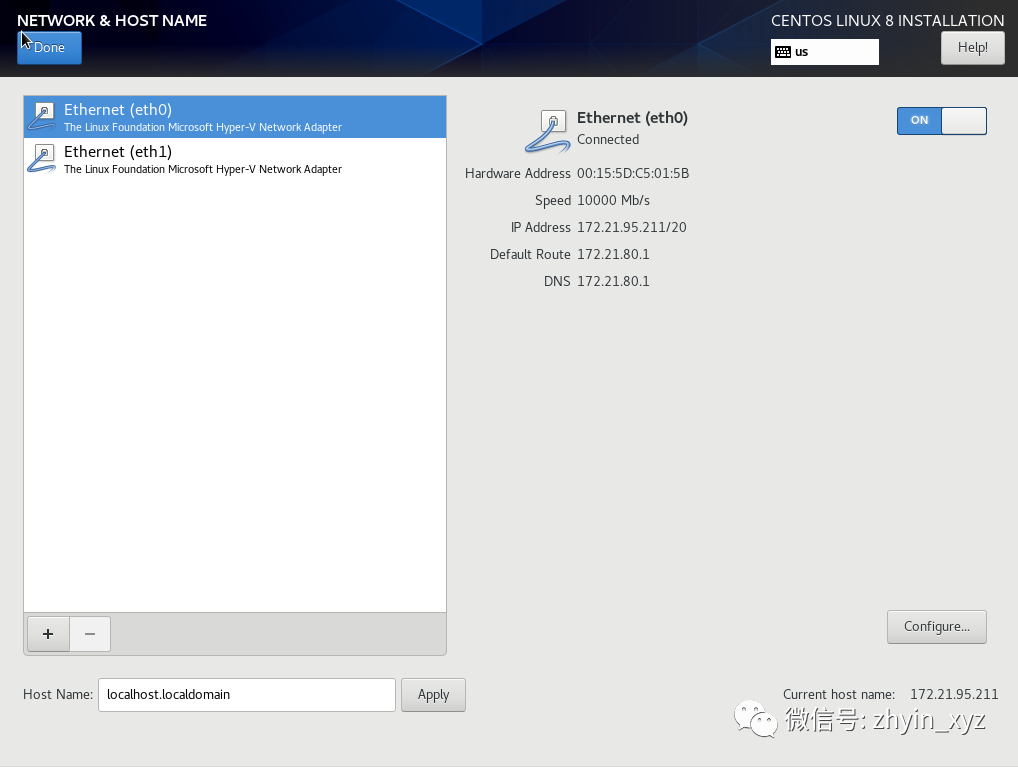
7.设置网络环境 Network &Host Name
左侧选择网卡 右侧把按钮点击到 ON的状态 点击Done 返回
8.设置 CentOS基础镜像地址 Installation Source
mirrorlist=http://mirrorlist.centos.org/?release=$stream&arch=$basearch&repo=BaseOS&infra=$infra#即:http://mirrorlist.centos.org/?release=8-stream&arch=x86_64&repo=BaseOSbaseurl=http://mirror.centos.org/$contentdir/$stream/BaseOS/$basearch/os/#即:http://mirror.centos.org/centos/8-stream/BaseOS/x86_64/os/
本次安装使用如下地址
http://mirrors.aliyun.com/centos/8-stream/BaseOS/x86_64/os/
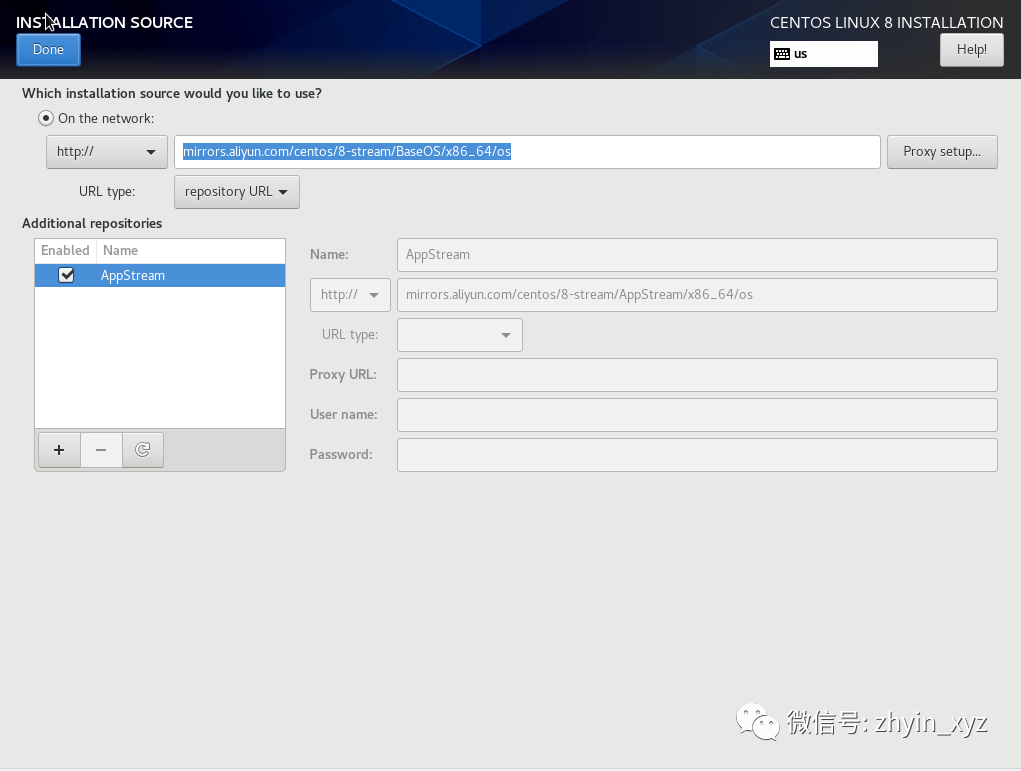
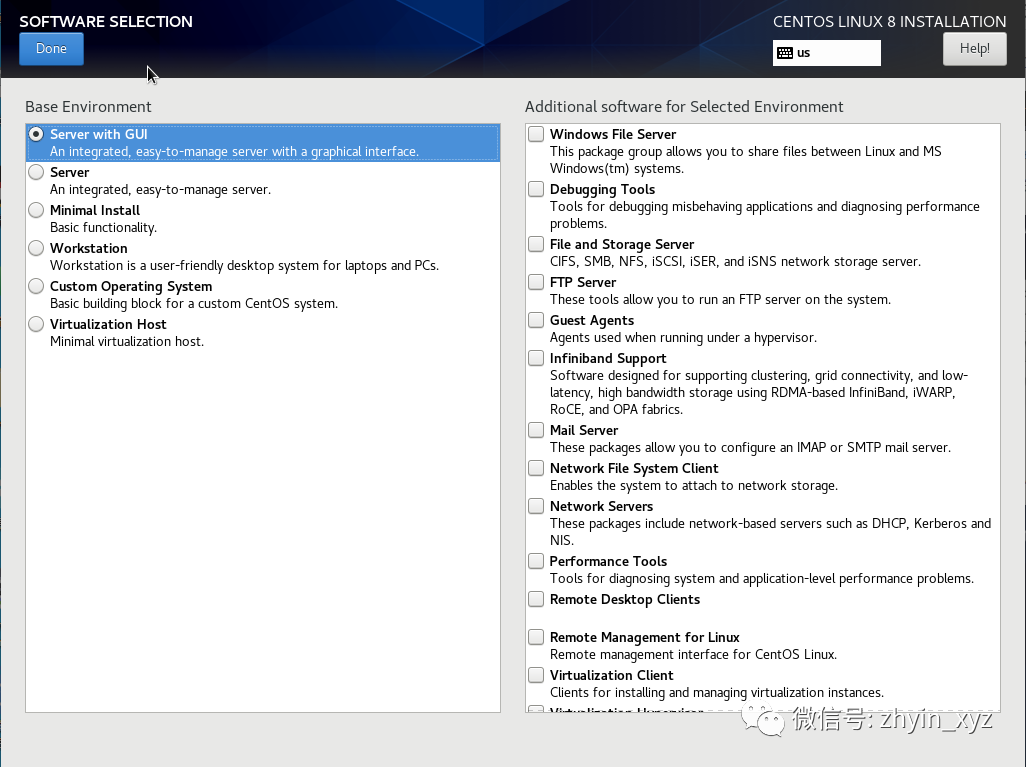
9.等待Software Selection 灰色消失后点击选择安装类型
默认是Server with GUI (有图形界面的系统)点击done 返回
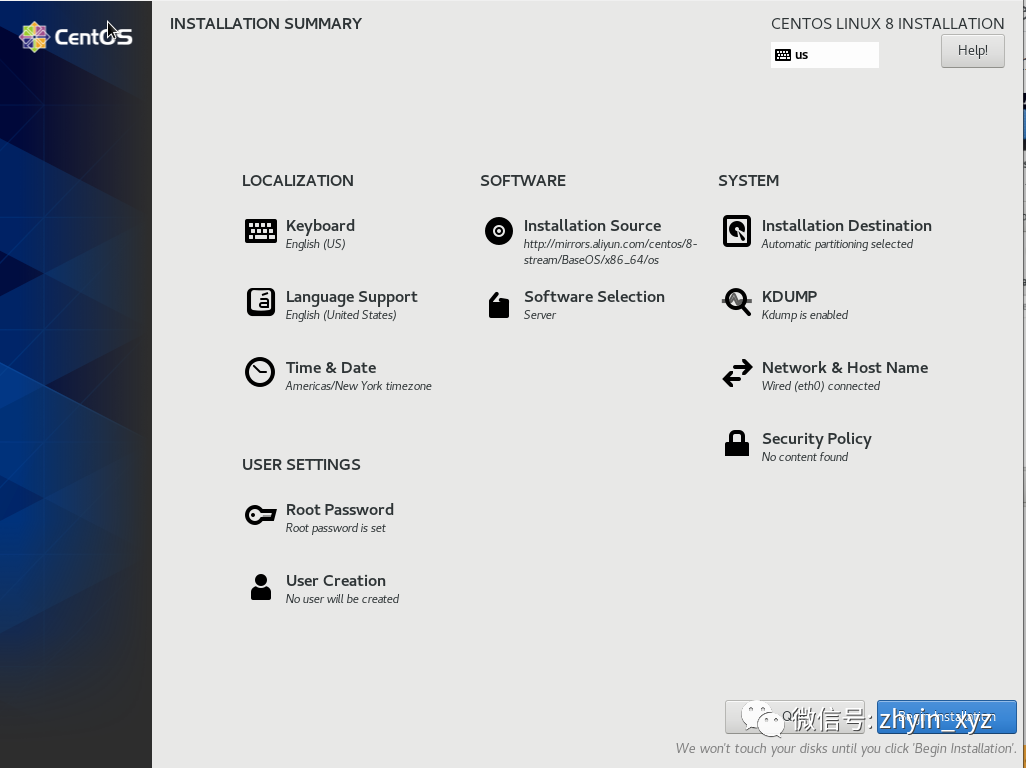
10.点击 Begin Installation 开始安装
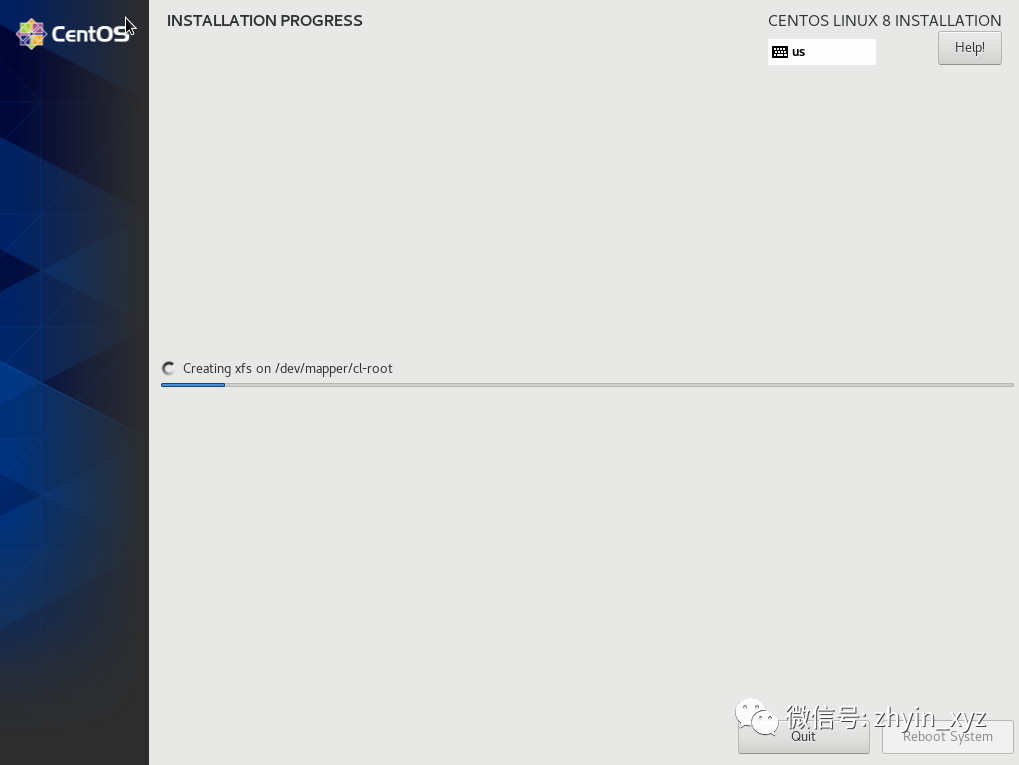
11.等待进度条完成 点击Reboot System重启系统
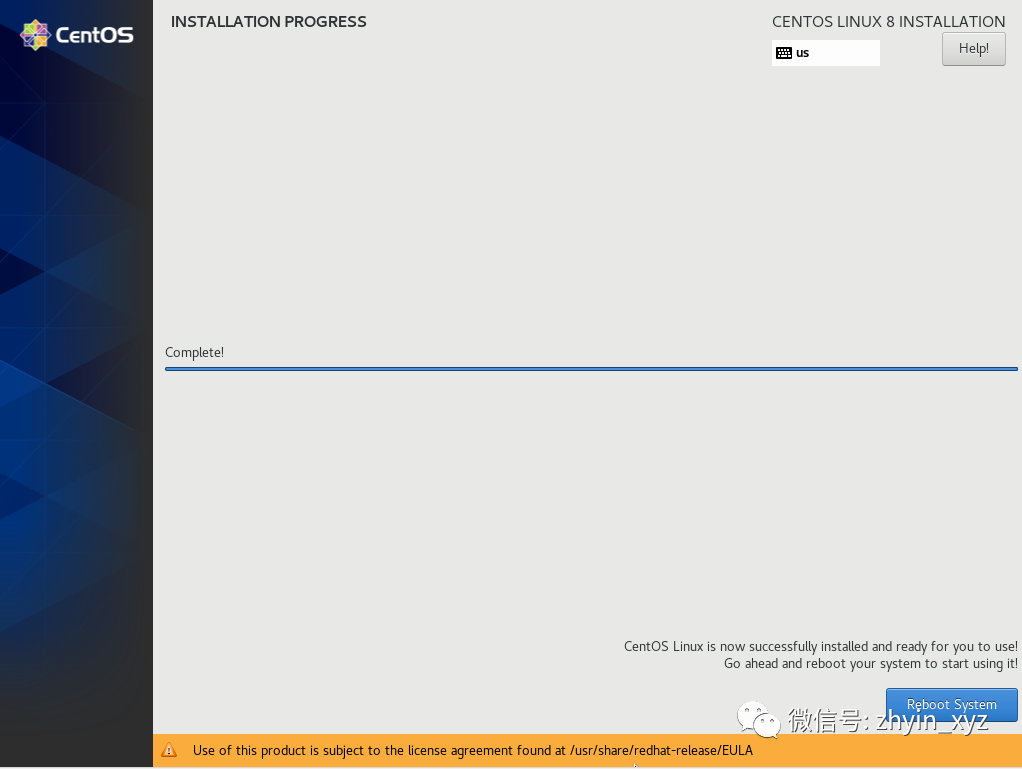
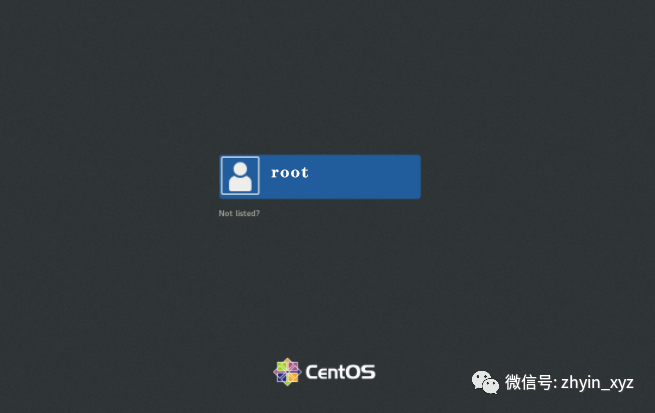
12 .安装完成 登录系统
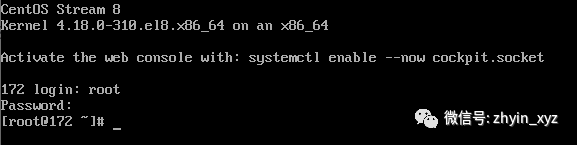
(Server with GUI)模式入下图