学习目标
学习 openGauss 表的创建、搜索路径和访问方法等
前面每日一练链接
openGauss 每日一练第 1 天 | openGauss 数据库状态查看
openGauss 每日一练第 2 天 | 学习 gsql 命令行的使用
openGauss 每日一练第 3 天 | openGauss 数据库状态查看
openGauss 每日一练第 4 天 | openGauss 中一个数据库可以被多个用户访问
openGauss 每日一练第 5 天 | openGauss 中一个用户可以访问多个数据库
openGauss 每日一练第 6 天 | openGauss 中用户一次只能连接到一个数据库
openGauss 每日一练第 7 天 | openGauss 中一个数据库中可以创建多个模式
openGauss 每日一练第 8 天 | openGauss 中一个数据库可以存储在多个表空间中
openGauss 每日一练第 9 天 | openGauss 中一个表空间可以存储多个数据库
openGauss 每日一练第 10 天 | openGauss 逻辑结构:表空间管理
openGauss 每日一练第 11 天 | openGauss 逻辑结构:数据库管理
openGauss 每日一练第 12 天 | openGauss 逻辑结构:模式管理
课程学习
1.实验准备:
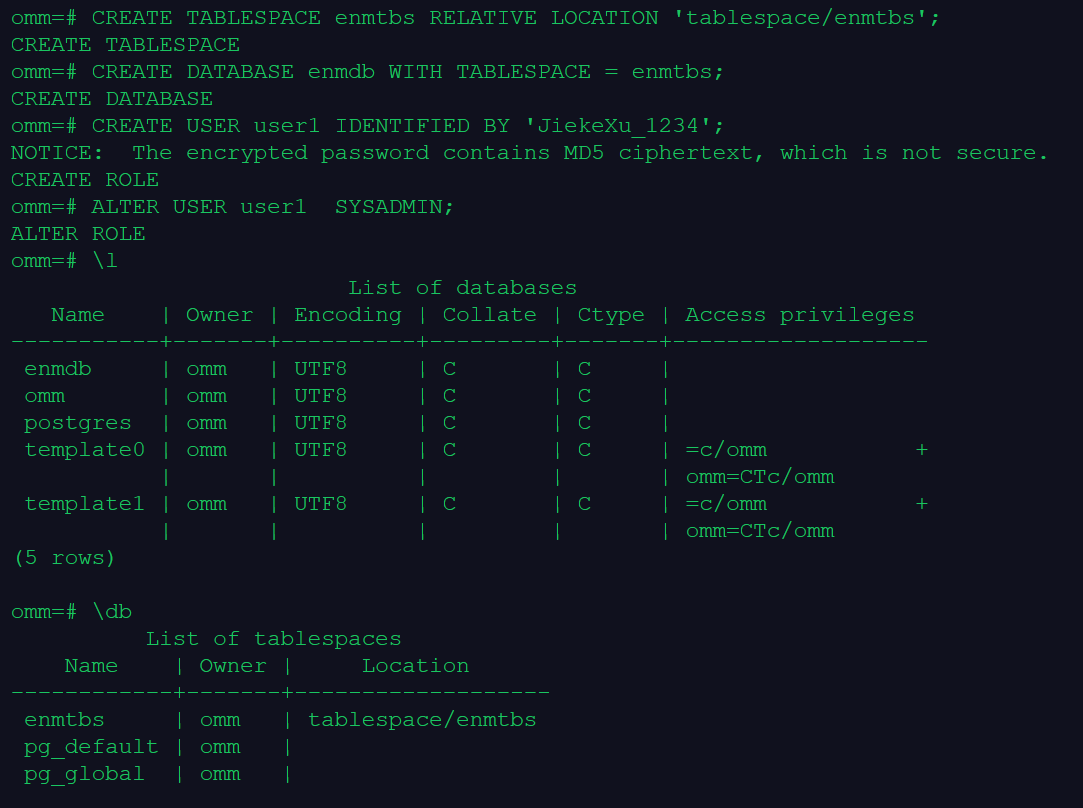
--创建表空间 enmtbs、数据库 enmdb、用户 user1,并授予用户 user1 SYSADMIN权限:
su - omm
gsql  -r
CREATE TABLESPACE enmtbs RELATIVE LOCATION 'tablespace/enmtbs';
CREATE DATABASE enmdb WITH TABLESPACE = enmtbs;
CREATE USER user1 IDENTIFIED BY 'JiekeXu_1234';
ALTER USER user1  SYSADMIN;
\q

--以数据库用户user1的身份,连接到刚刚创建的数据库enmdb:
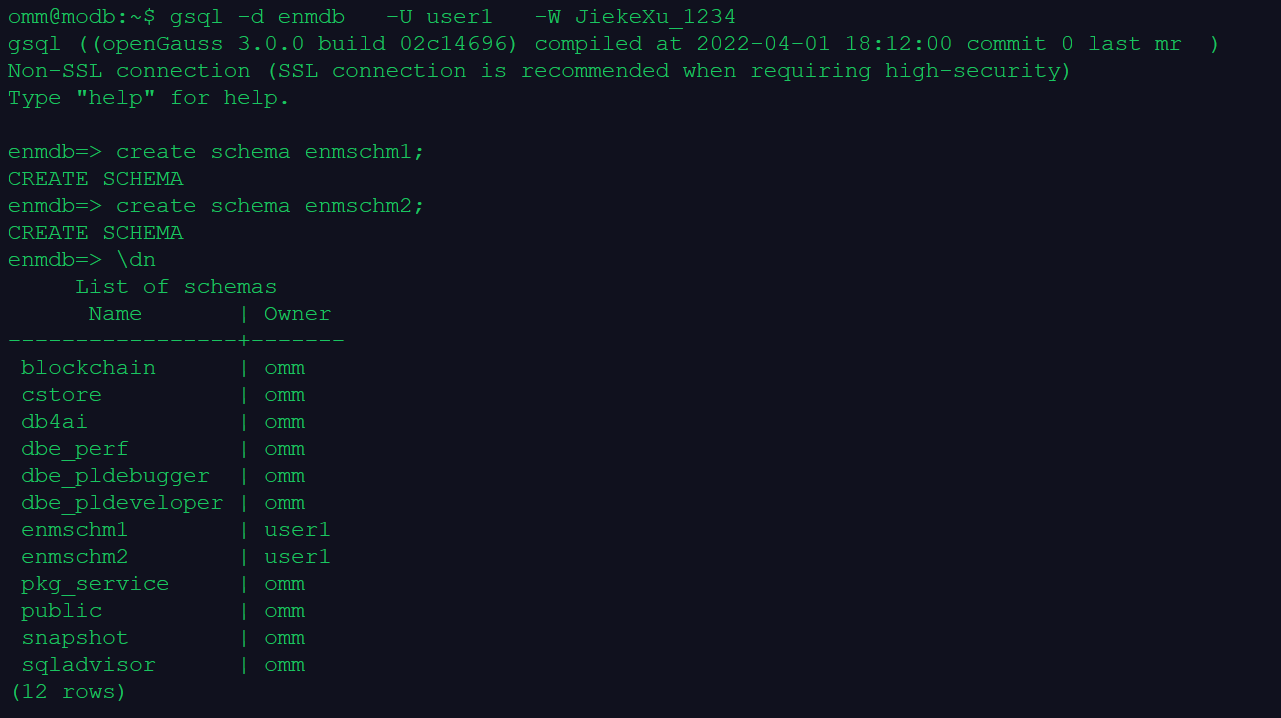
gsql -d enmdb   -U user1   -W JiekeXu_1234

--执行下面的SQL语句,创建 enmschm1、enmschm2 模式
create schema enmschm1;
create schema enmschm2;
2.创建表
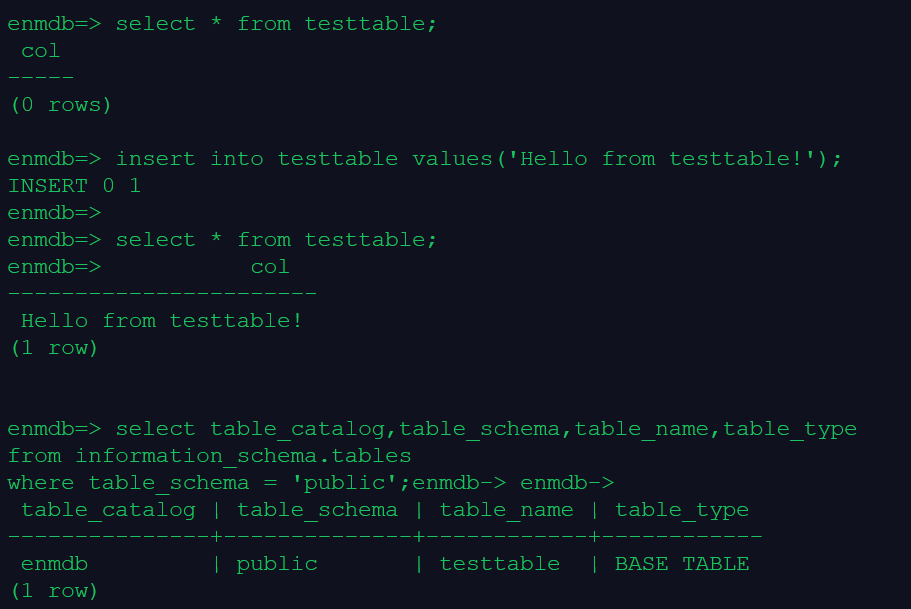
默认情况下,在某个数据库上创建的数据库对象(本例是表 testtable),都位于该数据库中的 public 模式中。
--查看默认搜索路径:
show SEARCH_PATH;
--创建一个测试表 testtable,并插入一条数据:
drop table if exists testtable;
create table testtable(col varchar(100));
insert into testtable values('Hello from testtable!');
select * from testtable;
--查看当前数据库 enmdb 下的 public 模式有哪些表:
select table_catalog,table_schema,table_name,table_type
from information_schema.tables
where table_schema = 'public';
3.在不同的模式(public 和 enmschm1),可以创建同名的表 testtable
前面 2 的实验是在 public 模式下创建表 testtable,下面是在模式 enmschm1 中创建同名的表 testtable:
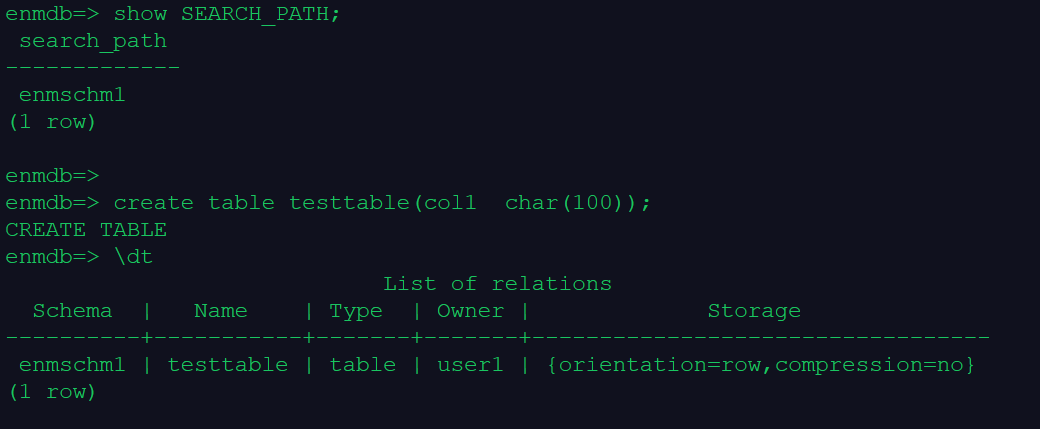
--执行下面的命令,查看当前的模式搜索顺序:
show SEARCH_PATH;

--执行下面的命令,在会话级重新设置模式搜索路径为模式 enmschm1:
SET SEARCH_PATH TO enmschm1;

--执行下面的命令,再次查看当前的模式搜索顺序:
show SEARCH_PATH;

--在数据库 enmdb 的模式 enmschm1 中创建表 testtable:
create table testtable(col1  char(100));
\dt
4.为 enmschm1 模式下的 testtable 插入一条测试数据
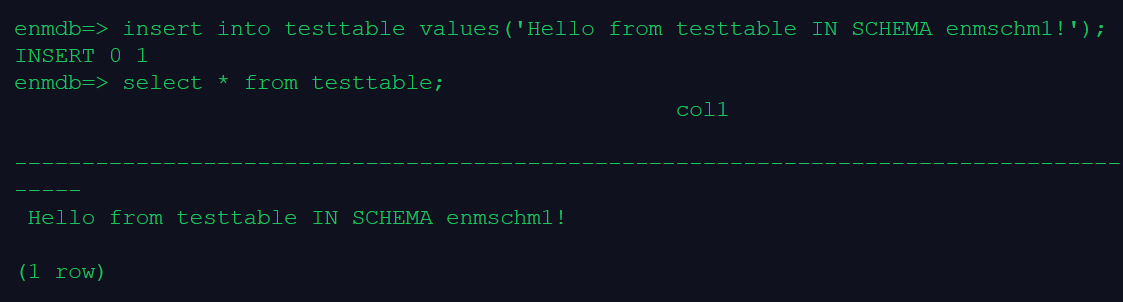
由于当前的模式搜索顺序为模式 enmschm1,因此不需要指定模式名,就可以为 enmschm1.testtable 插入新行。
insert into testtable values('Hello from testtable IN SCHEMA enmschm1!');

select * from testtable;
5.使用 SchemaName.TableName 的表标识方法访问表
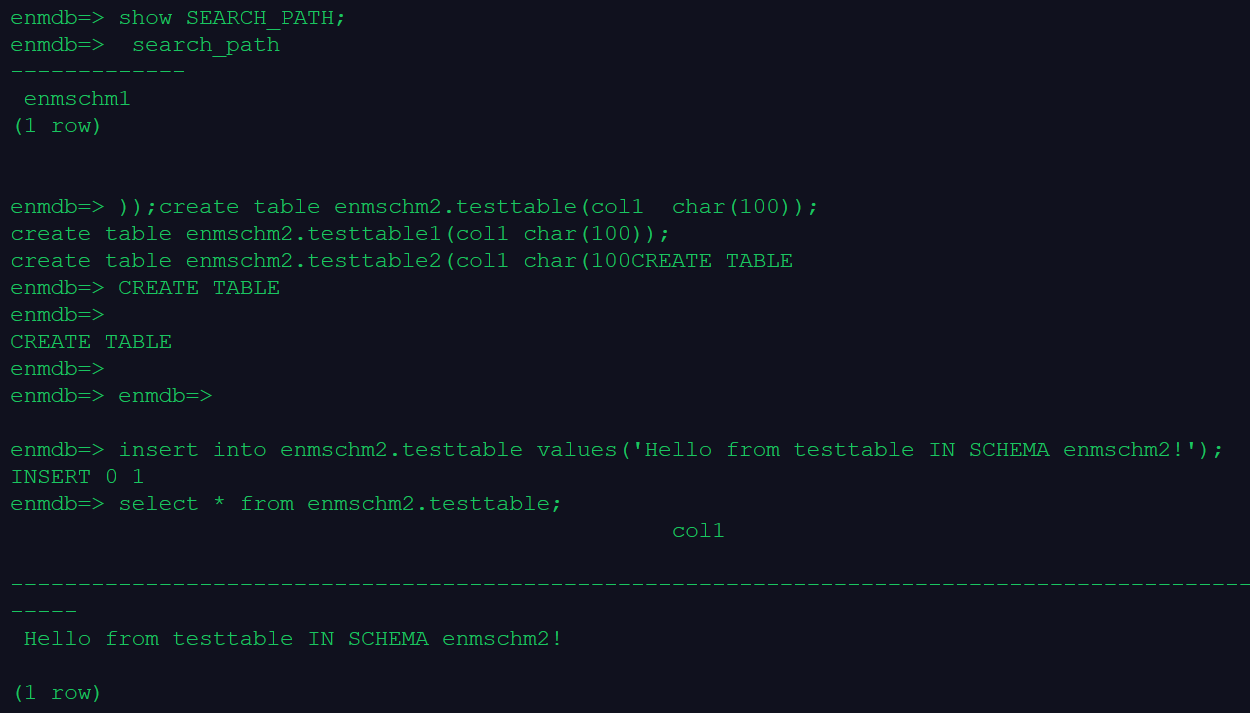
虽然当前模式搜索顺序没有模式 enmschm2,但是我们仍然可以在模式 enmschm2 中创建表,方法是使用 SchemaName.TableName 的表标识方法,来指定在哪个模式下创建、插入、查询表。
--执行下面的命令,查看当前的模式搜索顺序:
 show SEARCH_PATH;

--执行下面的 SQL 语句,将在数据库 enmdb 的模式 enmschm2 中创建表 testtable、testtable1、testtable2:

create table enmschm2.testtable(col1  char(100));
create table enmschm2.testtable1(col1 char(100));
create table enmschm2.testtable2(col1 char(100));

--并向模式 enmschm2 中新创建的表 testtable,插入一行数据:

insert into enmschm2.testtable values('Hello from testtable IN SCHEMA enmschm2!');

--查看表中内容:
select * from enmschm2.testtable;

\q
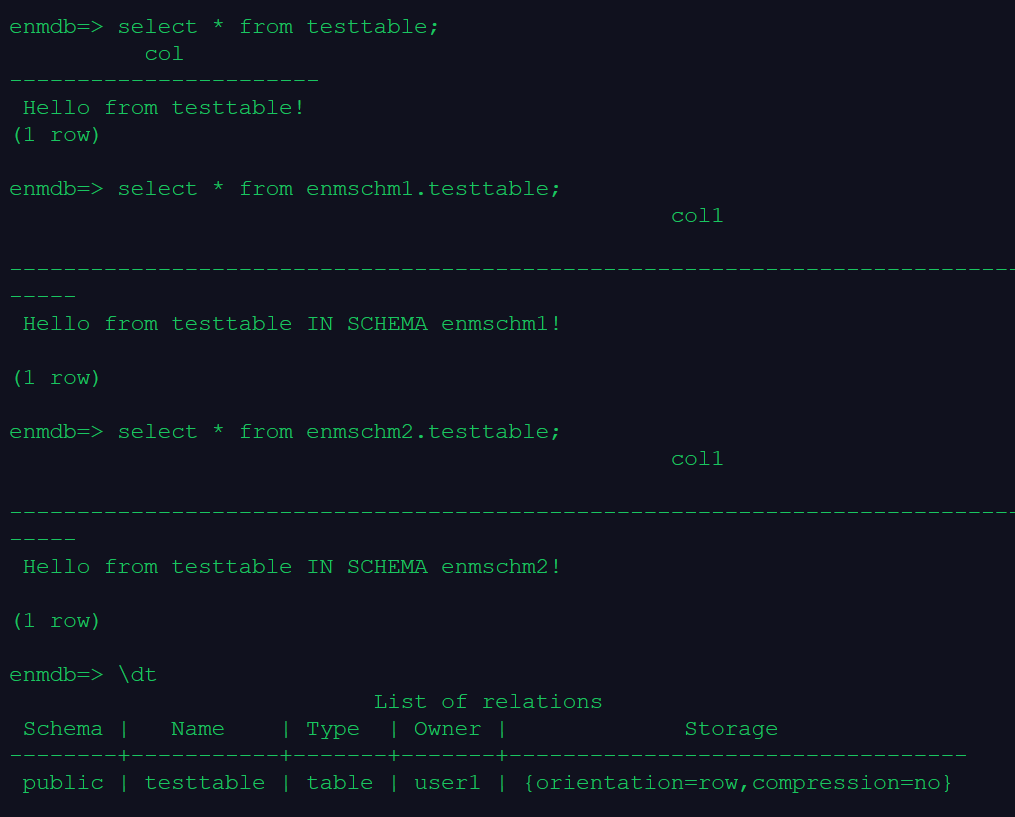
6.openGauss 在一个用户连接到 enmdb 数据库时,可以访问不同模式中的表。
--以数据库用户 user1 的身份,连接到数据库 enmdb:
gsql -d enmdb   -U user1   -W JiekeXu_1234 -r

--查看当前会话的模式搜索顺序
show SEARCH_PATH;

 -- 查看不同模式下的表
select * from testtable;
select * from enmschm1.testtable;
select * from enmschm2.testtable;
课程作业
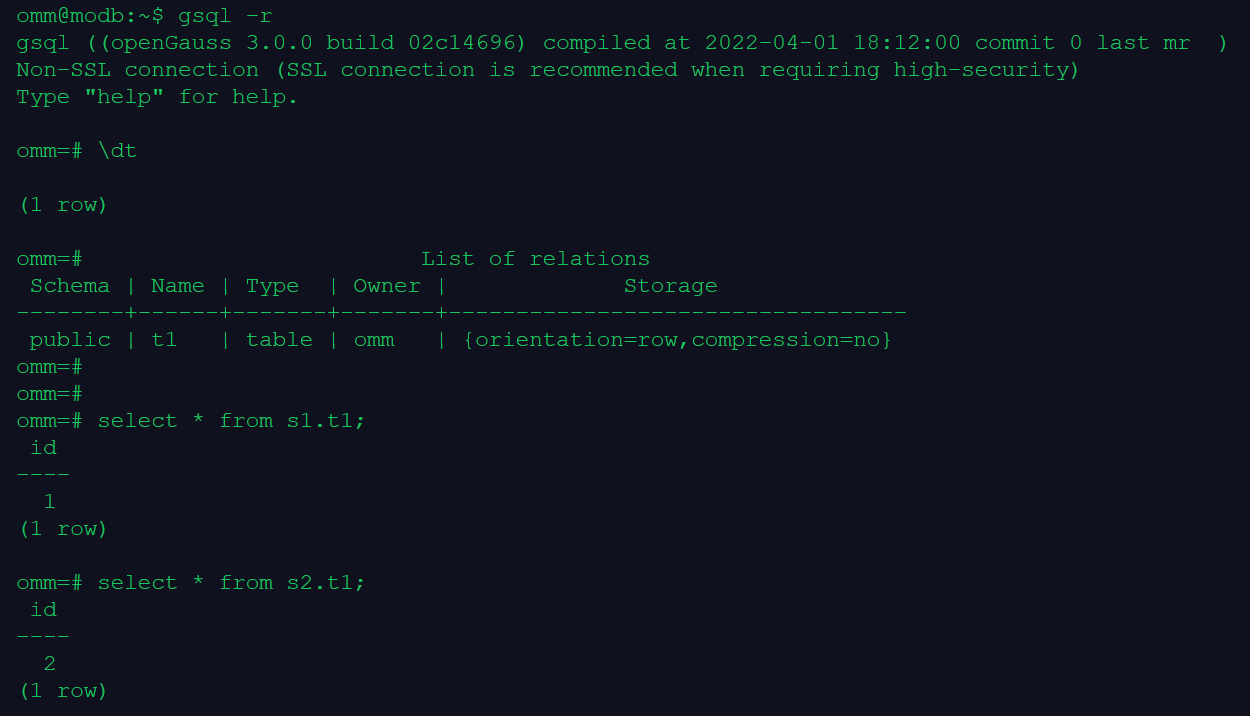
1.创建一个表(默认,不指定模式),查看该表在那个模式下
omm=# create table t1(id int);
CREATE TABLE
omm=# \dt
                        List of relations
 Schema | Name | Type  | Owner |             Storage
--------+------+-------+-------+----------------------------------
 public | t1   | table | omm   | {orientation=row,compression=no}
(1 row)
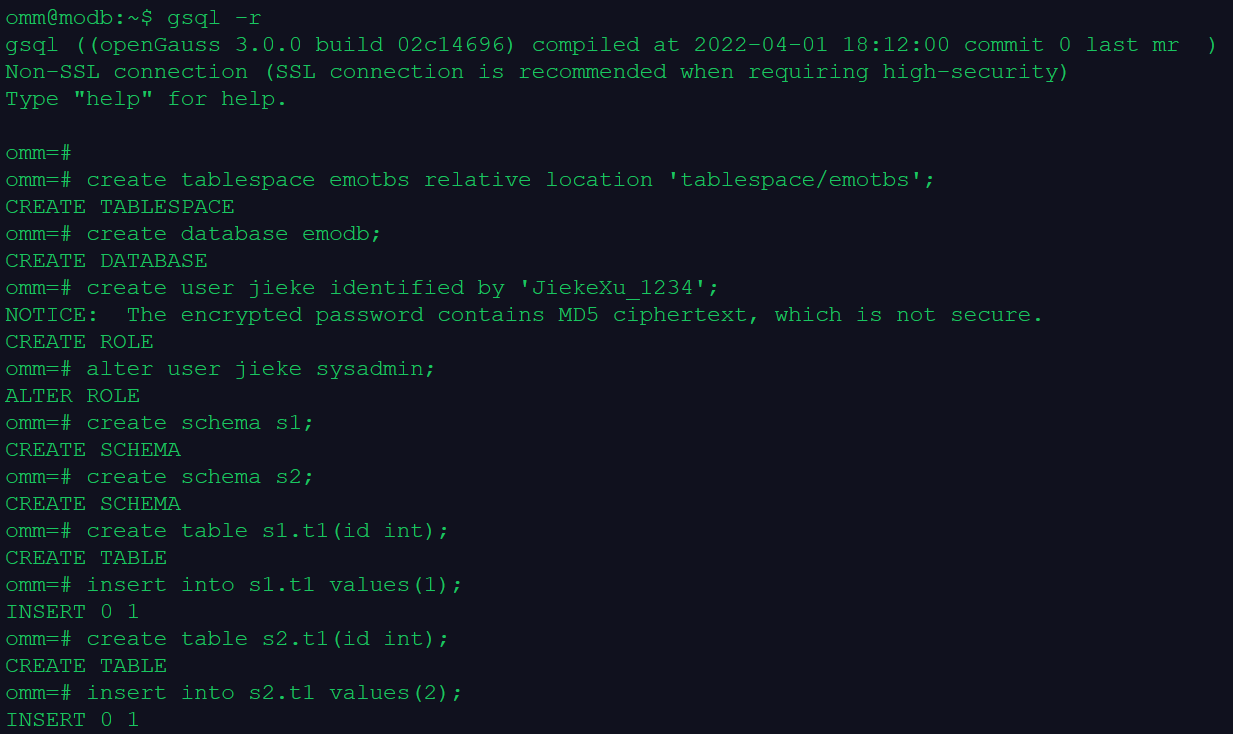
2.使用一个用户连接到 emodb 数据库,测试该用户可以访问不同模式中的表
create tablespace emotbs relative location 'tablespace/emotbs';
create database emodb;

create user jieke identified by 'JiekeXu_1234';
alter user jieke sysadmin;

create schema s1;
create schema s2;

create table s1.t1(id int);
insert into s1.t1 values(1);

create table s2.t1(id int);
insert into s2.t1 values(2);

select * from s1.t1;
select * from s2.t1;
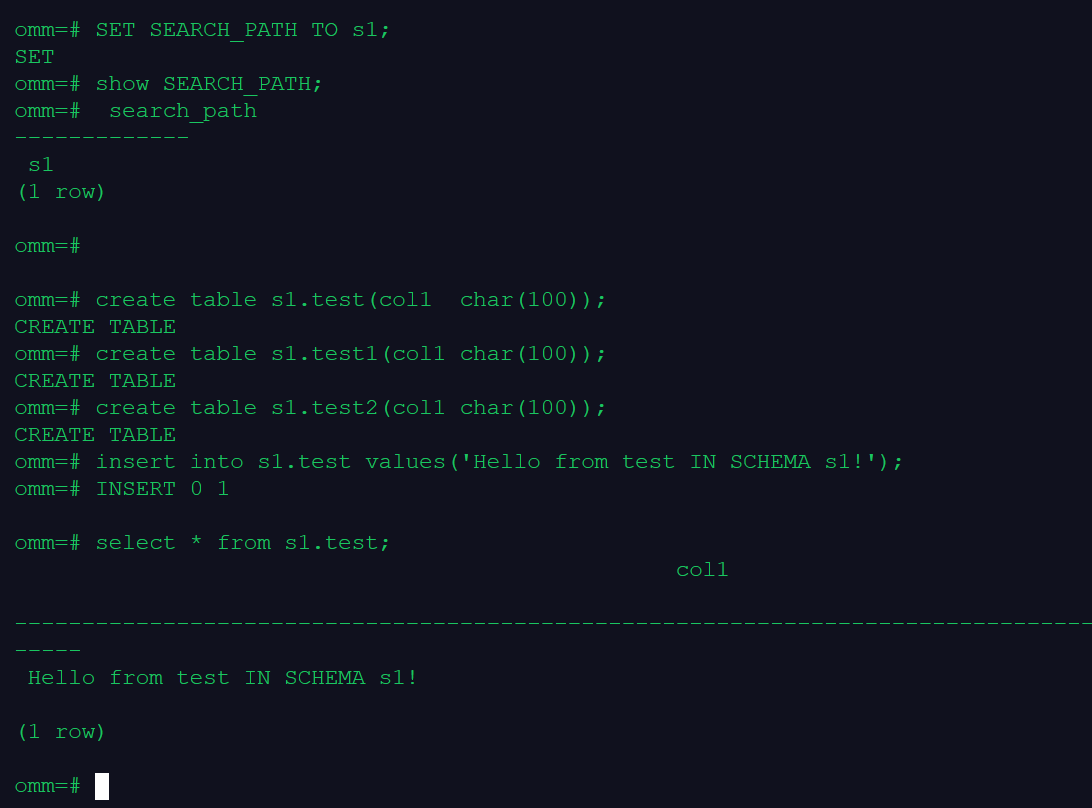
3.在会话级设置模式搜索路径为:模式 s1,使用 SchemaName.TableName 的表标识方法访问表(创建表、插入数据和查询表中数据)
show SEARCH_PATH;

SET SEARCH_PATH TO s1;

create table s1.test(col1  char(100));
create table s1.test1(col1 char(100));
create table s1.test2(col1 char(100));

insert into s1.test values('Hello from test IN SCHEMA s1!');

--查看表中内容:
select * from s1.test;